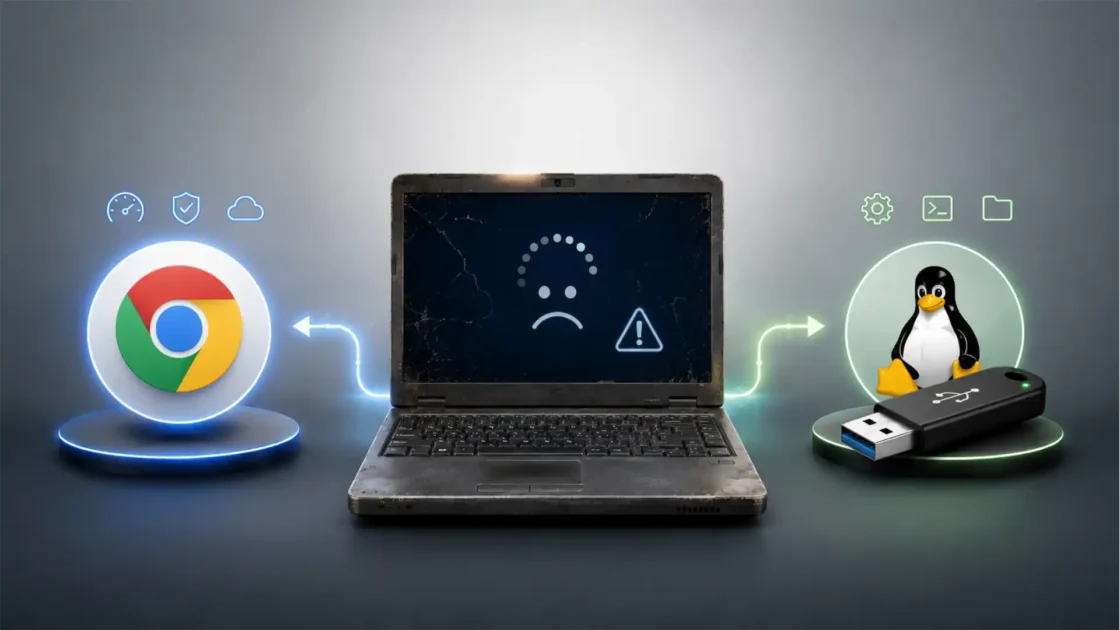

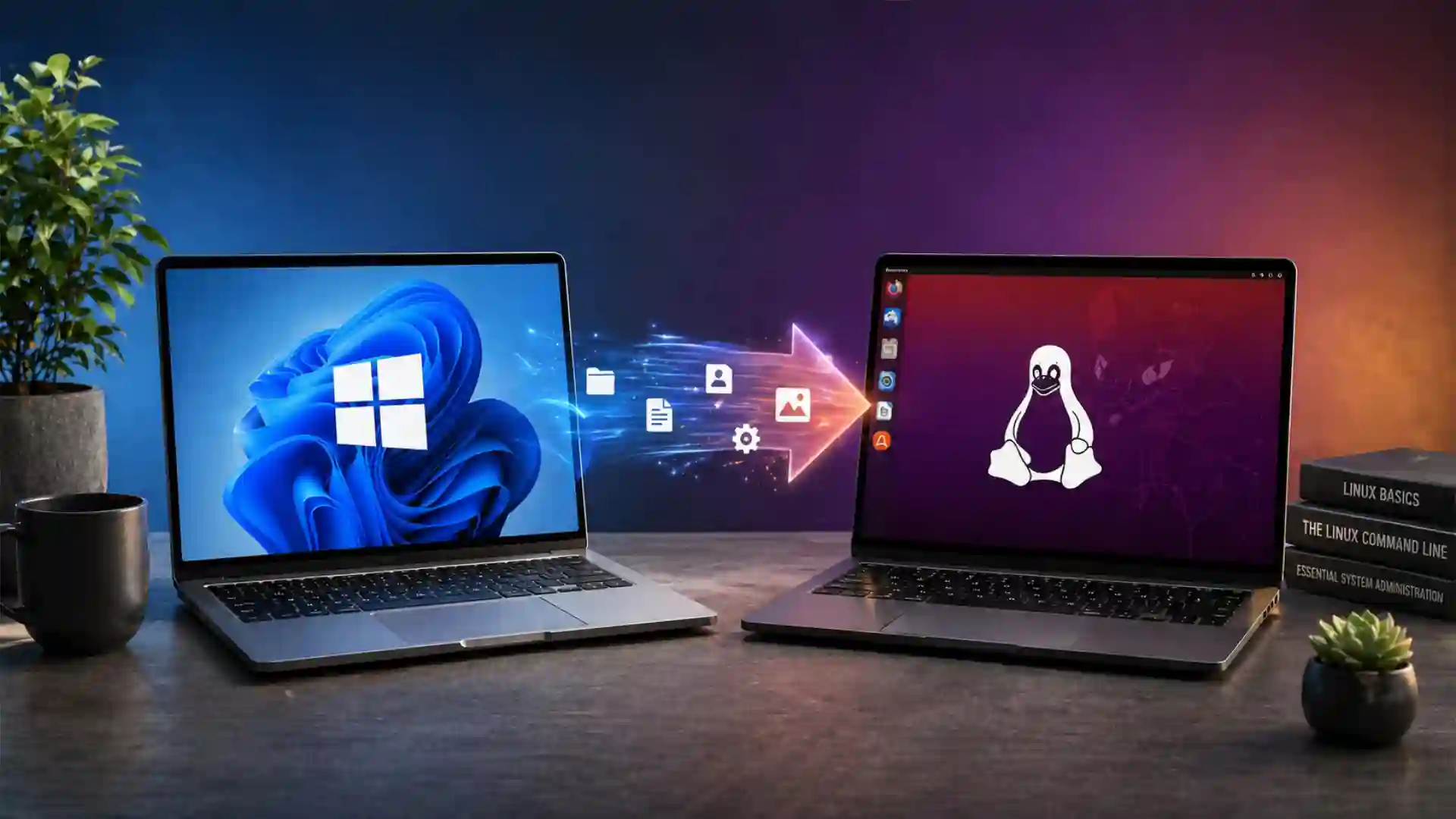
Leaving Windows 11 for Linux is often described as a dramatic break, as if the user must choose between a familiar commercial system and a strange technical subculture. That framing misses the real decision. The move is not mainly about whether Linux is “better” than Windows 11. It is about whether your computer should feel like a rented environment or a machine you can understand, repair, adapt, and keep using on your own terms.
Table of Contents
The switch is less about ideology and more about control
Windows 11 is a polished, capable operating system. It has broad software support, deep hardware partnerships, strong gaming compatibility, and tight integration with Microsoft services. For millions of people, it remains the easiest path because it comes preinstalled, updates itself, runs the workplace tools they already use, and avoids the question of choice. That convenience is real. It should not be dismissed.
Linux asks for a different relationship. It does not usually arrive as one product with one interface and one vendor account. It comes through distributions such as Ubuntu, Fedora, Linux Mint, Debian, Zorin OS, openSUSE, and many others. Some are built for stability. Some are built for newer software. Some mimic the Windows layout. Some feel closer to macOS. Some expect a curious user. A few expect a technically confident one. Linux gives choice before the user has learned which choices matter. That is why it feels liberating to one person and exhausting to another.
The attraction has become stronger because Windows 11 changed the emotional contract for many users. Microsoft requires TPM 2.0, Secure Boot capability, a supported processor class, 4 GB of RAM, and 64 GB of storage for Windows 11, and personal setup of Windows 11 Home and Pro expects internet access and a Microsoft account during initial setup. Those requirements make sense from Microsoft’s security and platform-management perspective, but they also leave capable machines outside the official upgrade path. For users who dislike forced account integration, telemetry concerns, AI features, ads, or yearly feature churn, Linux becomes less of a hobby and more of an exit route.
The strongest reason to move is not anger. Anger makes poor migration plans. The stronger reason is fit. A person who mostly uses a browser, email, streaming services, documents, PDFs, light photo work, a password manager, and a printer may find Linux easier than expected. A developer, sysadmin, writer, student, researcher, or tinkerer may find it better than Windows because the operating system is closer to the tools they use. A gamer may be surprised by how many Windows games now work through Proton, Valve’s Linux compatibility layer for Steam games.
The wrong candidate is just as clear. If your income depends on native Microsoft 365 desktop apps, Adobe Creative Cloud, Windows-only accounting software, proprietary VPN clients, industry-specific peripherals, or multiplayer games blocked by anti-cheat, Linux may be a partial solution rather than a replacement. Web apps, compatibility layers, virtual machines, remote desktops, and dual-boot setups fill many gaps, but each workaround adds friction. A workaround you tolerate on Saturday may become a problem on Monday morning.
The careful path is not to “switch to Linux.” It is to test whether your actual computer life can survive the change. That means listing your apps, checking your hardware, trying a live USB, testing files, signing into services, printing one page, joining one video call, opening one complex spreadsheet, testing one game, and backing up everything before the installer touches the disk. Linux rewards this kind of honesty. It punishes vague optimism.
Windows 11 changed the upgrade bargain
Windows users used to expect a long runway. A PC might ship with one version of Windows, survive several service packs or feature updates, and remain useful long after its original sales cycle. Windows 11 narrowed that expectation. The operating system places a hard line around hardware security features and supported CPUs, and Microsoft has been direct about TPM 2.0 as a requirement for Windows 11 because of features such as Windows Hello and BitLocker.
That shift matters because the Windows 10 era has ended. Microsoft states that Windows 10 support ended on October 14, 2025, and that PCs running it continue to function but no longer receive standard software updates, security fixes, or technical assistance. Users who stayed with Windows 10 for hardware, workflow, or preference reasons now face a harder choice: upgrade the machine, pay for extended security coverage where eligible, keep using an unsupported system, or move elsewhere.
For someone already on Windows 11, the Linux question is different but connected. Windows 11 is not going away. Microsoft publishes servicing schedules for Windows 11 releases, and Home and Pro editions follow the Modern Lifecycle Policy. The issue is not imminent abandonment. The issue is direction. Windows 11 ties the local PC more tightly to Microsoft accounts, cloud services, OneDrive prompts, Copilot-era interface changes, app store behavior, and security defaults such as device encryption on supported systems. Device Encryption can automatically protect the operating-system drive and fixed drives, while BitLocker is the fuller management feature on Pro, Enterprise, and Education editions.
Some users welcome that. A laptop with automatic encryption, account recovery, cloud sync, and managed updates is safer than a neglected machine with no disk protection and stale software. The modern Windows model is built for the average user who does not want to manage an operating system. The trade-off is that the machine increasingly behaves like a Microsoft endpoint. Settings sync, cloud defaults, recovery keys, browser prompts, and service nudges are part of the experience.
Linux breaks that pattern. Most desktop Linux distributions do not require a vendor account. They do not need a Microsoft account, Google account, Apple ID, or distribution account for local use. Updates are delivered through repositories. Software tends to come from distribution-managed sources, Flatpak repositories such as Flathub, vendor packages, or source builds. The user has more control over what is installed, when updates happen, which desktop environment runs, and whether cloud integration exists at all.
That control has a cost. Windows hides complexity by making decisions for the user. Linux exposes more of the structure. You may see file systems, mount points, package formats, repositories, permissions, kernel versions, firmware, display servers, and graphics drivers. A good beginner distribution reduces the shock, but it does not remove the operating system’s nature. Windows 11 asks you to accept Microsoft’s defaults. Linux asks you to become the person who knows which defaults you chose.
For many people, that is exactly the appeal. The move is not nostalgia for a simpler computer age. It is a refusal to treat the personal computer as a locked consumer appliance.
Linux is not one operating system, and that matters
A Windows user usually thinks in versions: Windows 10, Windows 11, Windows Server. A Linux user thinks in layers. The Linux kernel is the core that talks to hardware and manages system resources. A distribution combines that kernel with system tools, package management, security policy, a desktop environment, default apps, update channels, and release rules. The result is what people casually call “Linux.”
This distinction is not trivia. It changes how you choose. Ubuntu, Fedora, Linux Mint, Debian, Zorin OS, Pop!_OS, openSUSE, EndeavourOS, Bazzite, and Arch-based systems all share Linux foundations, but they do not feel the same. They differ in update speed, defaults, driver handling, installer design, package formats, community tone, documentation, and tolerance for breakage.
A Windows 11 user should resist the urge to find “the best Linux.” There is no universal answer. The better question is which distribution creates the fewest new problems for your hardware, skill level, and daily software. Linux Mint is often comfortable for Windows switchers because its Cinnamon desktop uses a familiar panel, menu, tray, and window model. Ubuntu has the largest mainstream footprint and strong documentation, with Ubuntu 26.04 LTS supported until April 2031 and Ubuntu 24.04 LTS security maintained until 2029. Fedora Workstation is a clean GNOME-based system that tends to ship newer desktop technologies, with Fedora releases supported for roughly 13 months. Linux Mint 22.x is based on an LTS strategy and receives security updates until 2029.
Those support windows reveal a real difference. Ubuntu LTS and Linux Mint suit users who want fewer major changes. Fedora suits users who want newer GNOME, kernels, Mesa graphics stacks, development tools, and hardware support without jumping into a rolling-release distribution. Debian suits users who value stability and free software principles, but it may require more patience around firmware and newer hardware. Arch and Arch-based systems suit users who want current packages and hands-on control, but they are a poor first stop for someone who has never restored a bootloader.
The desktop environment is another layer. GNOME feels clean, keyboard-driven, and modern, but Windows users may need time to adjust. KDE Plasma offers a more familiar taskbar-and-menu pattern with deep customization. Cinnamon feels traditional and calm. Xfce is lighter and practical for older machines. The distribution and the desktop environment together shape the first impression. A user who “hates Linux” after trying one desktop may simply dislike that desktop.
This is why live USB testing matters. Linux Mint’s installer guide explains that the system can boot into a live session before installation, letting users try the desktop from USB. Ubuntu’s desktop documentation also supports guided installation and live testing paths. A live session is slower than a real install, but it lets you test Wi-Fi, sound, Bluetooth, display scaling, touchpad gestures, sleep, external monitors, printers, and the basic feel of the desktop before deleting anything.
Think of Linux as a family of operating systems with shared ancestry. The right family member matters.
The safest first move is an inventory of real work
A clean migration starts with a brutally practical inventory. Not a vague list of favorite apps. A real list of tasks. Linux compatibility is not about whether an app has a replacement. It is about whether the replacement preserves the outcome you need.
Start with your daily work. Browser tabs, email, calendars, password manager, VPN, messaging, video calls, document editing, spreadsheets, PDFs, note-taking, photo imports, cloud storage, printers, scanners, banking tools, tax software, games, music libraries, backup routines, remote desktop tools, and hardware utilities all belong on the list. Then mark each item as browser-based, natively available on Linux, replaceable, usable through Wine or Proton, usable through a virtual machine, or not realistically portable.
Browser-based work is the easiest category. Firefox offers Linux builds directly, Google provides Chrome packages for Debian/Ubuntu and Fedora/openSUSE platforms, and Microsoft Edge also has Linux packages, though Edge is not needed unless your workplace depends on Microsoft web authentication behavior. If most of your life happens in a browser, the operating system beneath it matters less than it did a decade ago.
Development work usually ports well. Visual Studio Code is available for Linux in .deb and .rpm formats, and most programming languages, containers, compilers, shells, Git tools, databases, and deployment utilities either originate on Linux or treat it as a first-class platform. Developers who spend their Windows time inside WSL may find that Linux removes a layer rather than adding one.
Office work needs closer testing. LibreOffice is a mature open-source office suite, and ONLYOFFICE Desktop Editors offers free desktop editors for Windows, Linux, and macOS with document, spreadsheet, presentation, form, and PDF tooling. Both can handle common Microsoft Office formats, but complex Word documents, heavily styled PowerPoint decks, Excel macros, linked workbooks, pivot-heavy reports, and corporate templates can break in small but costly ways. If your work depends on pixel-perfect Microsoft Office round-tripping, test with your actual files, not sample documents.
Specialist software is where migrations fail. AutoCAD alternatives may not satisfy a CAD office. Adobe alternatives may not satisfy an agency tied to PSD, AI, INDD, Premiere, After Effects, or Lightroom workflows. Medical devices, label printers, CNC controllers, accounting suites, legal document tools, exam proctoring software, anticheat-protected games, and proprietary corporate VPNs can anchor a user to Windows. You do not discover that after installation. You discover it before.
A useful test is the “Friday afternoon test.” Imagine a client, teacher, manager, or teammate sends you a file at 4:30 p.m. and expects it back in one hour. Can Linux handle that exact file, with your exact fonts, macros, annotations, exports, signatures, and upload portal? If yes, Linux is close. If no, the plan needs dual boot, a Windows VM, remote access to a Windows machine, or a decision to keep Windows for that workflow.
Migration is not courage. It is accounting.
Hardware support starts before the installer
Linux hardware support is much better than its old reputation suggests, but it is not magic. The kernel carries many drivers, distributions include firmware packages, and modern printers and scanners increasingly work through driverless protocols. Still, the best migration is done with hardware knowledge before installation.
Begin with the machine model, CPU, GPU, Wi-Fi chipset, Bluetooth chipset, audio device, webcam, fingerprint reader, storage controller, and printer/scanner models. On Windows, Device Manager and system information tools reveal most of this. Search the exact laptop model plus the distribution name. A ThinkPad, Dell Latitude, Framework Laptop, or older business-class HP is often easier than an obscure consumer laptop with unusual firmware, a fragile BIOS, or a vendor-specific audio stack.
Ubuntu maintains a certified hardware catalogue, including laptops from major manufacturers. Certification does not guarantee your exact configuration will be flawless forever, but it gives better evidence than forum anecdotes. For Debian, firmware can be a separate concern because some hardware requires non-free firmware; Debian documentation and wiki materials discuss firmware handling and installation support.
Graphics deserve special attention. Intel and AMD graphics are usually smoother on Linux because the main driver stacks are integrated with the kernel and Mesa. NVIDIA works, but the proprietary driver adds a vendor layer. Ubuntu offers an ubuntu-drivers tool that can automatically install the best matched NVIDIA driver for generic desktop or gaming use. NVIDIA also publishes Linux driver branches, and support varies by GPU generation. If you rely on CUDA, Blender acceleration, AI workloads, multi-monitor high refresh rates, or gaming, do not assume. Test.
Wi-Fi is the next common trap. Intel Wi-Fi is usually a safe bet. Realtek and Broadcom can be mixed, depending on chip and distribution. A cheap USB Ethernet adapter or Linux-supported USB Wi-Fi dongle is a useful rescue tool during installation. Bluetooth audio, fingerprint readers, sleep and wake behavior, touchscreens, tablet modes, and function keys should all be tested in a live session.
Printers and scanners are less painful than they used to be. CUPS, now developed by OpenPrinting, is the standards-based open-source printing system for Linux and other Unix-like systems, and it uses IPP Everywhere for many local and network printers. SANE maintains supported-device lists for scanners, while HP’s HPLIP project lists supported HP printer models and provides Linux printing and scanning support for many devices.
The live USB test should include the boring hardware. Print. Scan. Join a video call. Close the lid. Reopen it. Pair headphones. Plug in an external monitor. Change scaling. Try the webcam. Copy files from an SD card. If any one of those tasks is central to your life, it deserves a test before the migration becomes permanent.
Backups decide whether the migration feels brave or reckless
A Windows-to-Linux migration without backups is not bold. It is gambling with a nicer vocabulary. The installer may work perfectly, but user mistakes happen: wrong disk, wrong partition, encrypted data without a recovery key, a missed folder, a OneDrive sync assumption, a browser profile left behind, a BitLocker volume locked after firmware changes, or a Windows recovery partition accidentally erased.
The safest migration has three layers of backup. First, a plain file backup of your personal data. Second, a full disk image. Third, an export of accounts, license keys, recovery keys, and app settings. Each serves a different failure. File backups protect documents. Disk images protect the old system state. Recovery data protects access.
For files, copy the obvious folders: Desktop, Documents, Downloads, Pictures, Videos, Music, projects, exported email archives, financial records, browser bookmarks, password-manager emergency kits, SSH keys, game saves outside Steam Cloud, fonts, templates, and local app data for tools that do not sync. Do not trust OneDrive, Google Drive, iCloud, or Dropbox until you verify that the files are truly local and recoverable. Cloud placeholders are not backups.
For disk imaging, Clonezilla is a strong tool. The project describes Clonezilla as a partition and disk imaging/cloning program for deployment, bare-metal backup, and recovery, with Clonezilla Live suitable for single-machine backup and restore. A disk image lets you return to the old Windows installation if the migration fails completely. It is slower than copying files, but it protects against regret.
For bootable media, Ventoy is useful because it lets you create a USB drive for ISO, WIM, IMG, VHD(x), and EFI files without reformatting the disk for each image; after setup, you copy images to the USB and choose from a boot menu. A Ventoy drive can carry Linux Mint, Ubuntu, Fedora, Clonezilla, a Windows installer, and rescue tools on one stick. Keep it separate from your backup drive.
Linux also has its own backup pattern after installation. Timeshift, maintained by Linux Mint, provides system snapshots similar in purpose to Windows System Restore or macOS Time Machine, protecting system files through incremental snapshots. Déjà Dup, the GNOME backup app, focuses on user data and supports encrypted, compressed, incremental backups to local, remote, or cloud locations, using Restic behind the scenes in current GNOME app descriptions.
The distinction matters. Timeshift is for system rollback. Déjà Dup, Restic, Borg, or another file-backup tool is for your personal data. Do not rely on one to do the other unless you know exactly how it is configured. A system snapshot that excludes your home folder will not save your documents. A document backup will not undo a broken graphics driver.
Before installing Linux, test a restore. Open the backup drive on another machine if possible. Verify files. Confirm the disk image exists. Save BitLocker recovery keys from Windows if encryption is enabled. Microsoft’s Device Encryption and BitLocker features protect data, but they also mean firmware and boot changes can make recovery information necessary.
A good backup plan makes the Linux install less dramatic. You are not jumping. You are crossing with a bridge behind you.
Choosing a distribution without chasing every recommendation
The internet turns Linux distribution choice into a personality test. That helps nobody leaving Windows 11. The first distribution should reduce risk, not prove taste. For a first full-time Linux desktop, boring is good. Documented is good. Popular is good. Recoverable is good.
Ubuntu is the broadest mainstream choice. It has extensive documentation, commercial backing from Canonical, a large user base, common support from hardware vendors, and LTS releases. Ubuntu 26.04 LTS, released in April 2026, has five years of standard support until April 2031; Ubuntu 24.04 LTS remains a conservative option with security maintenance until 2029. The default GNOME desktop may feel unfamiliar to a Windows user, but Ubuntu’s ecosystem is hard to beat for troubleshooting.
Linux Mint is often the gentlest route for Windows switchers. Its Cinnamon edition gives a traditional desktop with a bottom panel, menu, system tray, window list, and sane defaults. The project’s installation guide walks users through choosing an ISO, creating boot media, live booting, and installation. Linux Mint 22.x releases receive security updates until 2029, which suits users who want a stable base rather than constant visible change.
Fedora Workstation is a strong choice for users with newer hardware, developers, and people who like clean upstream GNOME. Fedora’s official Workstation edition uses GNOME, while Fedora Spins provide other desktops such as KDE Plasma and Xfce. Its shorter lifecycle means you upgrade more often, roughly every year or so, but you get newer components earlier than on LTS-focused distributions.
Zorin OS deserves mention because it explicitly targets people moving from Windows and macOS. Its interface options and app-discovery patterns can reduce fear for new users. The trade-off is that it is another layer of opinion on top of Ubuntu foundations, and some editions or features may be paid. It can be a good choice for non-technical users, but the same testing rules apply.
Pop!_OS, openSUSE Tumbleweed, openSUSE Leap, Debian, Kubuntu, Xubuntu, Lubuntu, KDE neon, Bazzite, Nobara, EndeavourOS, and Arch all have places. The problem is not quality. The problem is fit. A new Linux user who installs a rolling-release distribution because a forum praised it may enjoy the speed until a kernel, graphics, or package transition breaks something they do not know how to repair. A gamer who installs a generic office-focused LTS system may miss the newer graphics stack they need. A writer on old hardware may not need Fedora’s speed at all.
A practical decision tree is simple. Choose Linux Mint Cinnamon if you want the most Windows-like first week. Choose Ubuntu LTS if you want the broadest documentation and commercial ecosystem. Choose Fedora Workstation if you want newer Linux desktop technology and do not mind frequent upgrades. Choose Kubuntu or Fedora KDE if you want a polished Windows-like layout with deep customization. Choose Xubuntu or Lubuntu for weaker hardware. Choose Debian after you understand your hardware and accept its slower package rhythm.
The first distribution is not a marriage. It is a working base. Pick one that lets you do your work, then learn enough to make a sharper choice later.
The desktop environment shapes the learning curve
Windows 11 gives you one official desktop shell. Linux gives you many, and that choice has a bigger effect on daily comfort than beginners expect. A distribution may get the headlines, but the desktop environment is what you touch all day.
Cinnamon is the easiest emotional bridge for many Windows users. It has a menu, taskbar, tray, desktop icons, window buttons, familiar settings panels, and a conservative rhythm. It does not try to teach a new computing philosophy before you can find your downloads. Linux Mint Cinnamon is popular for this reason. It makes Linux feel like a normal desktop operating system rather than a statement.
KDE Plasma is powerful and flexible. It can look close to Windows, close to macOS, or unlike either. It has a traditional panel model, strong multi-monitor support, rich settings, widgets, themes, window rules, and deep customization. That is a gift for people who like tuning their environment and a trap for people who spend more time adjusting than working. Plasma is a good choice for users who want control without living in the terminal.
GNOME is different. It is cleaner, more opinionated, and more keyboard-oriented. The Activities overview, workspaces, search-driven launching, and minimal default desktop can feel strange to Windows users. Yet many people grow to like it because it reduces clutter. Ubuntu and Fedora Workstation both use GNOME by default, though Ubuntu modifies the experience with a dock and extensions. GNOME rewards users who prefer launching by search, switching by keyboard, and keeping fewer visible controls on screen.
Xfce is plain, fast, and reliable. It is excellent for older machines or users who value low resource usage over visual polish. It will not feel as modern as GNOME or Plasma, but it rarely gets in the way. LXQt and MATE serve similar lighter or traditional needs. They are especially useful when the machine is old enough that Ubuntu’s modern GNOME requirements feel heavy. Ubuntu 26.04 LTS documentation recommends 6 GB RAM and 25 GB storage for a comfortable desktop experience, while lighter Ubuntu flavors such as Xubuntu or Lubuntu are suggested for systems with less RAM.
The learning curve is not only visual. It includes settings layout, file manager behavior, search, window snapping, fractional scaling, touchpad gestures, notification handling, screenshot tools, clipboard managers, and keyboard shortcuts. Windows 11 users often underestimate these details because they have years of muscle memory. The desktop environment either respects that memory or asks you to rebuild it.
Do not choose based on screenshots alone. Try the live session. Open the file manager. Connect Wi-Fi. Change display scale. Use the software store. Search for settings. Pin apps. Take a screenshot. Switch workspaces. Put the laptop to sleep. A desktop that feels beautiful for five minutes may irritate you after three days. A desktop that looks plain may disappear beneath your work, which is often the highest compliment.
Installation paths that fit different risk levels
A Windows 11 user has four sane migration paths: live USB testing, virtual machine testing, dual boot, or full replacement. Each path answers a different fear.
A live USB is the first check. It runs Linux from removable media without installing it to the internal drive. Ubuntu and Linux Mint both support trying the system before installation through guided media and live-session workflows. It is ideal for hardware testing, desktop feel, and basic app exploration. It is not a good performance test because USB speed and missing persistence can distort the experience.
A virtual machine is the second check. Run Linux inside Windows using VirtualBox, VMware Workstation Player alternatives, Hyper-V where suitable, or other virtualization tools. This lets you explore the desktop, package manager, terminal, file system, and apps while keeping Windows untouched. The weakness is hardware. A VM will not prove whether Linux handles your Wi-Fi chip, GPU, suspend, fingerprint reader, printer, or battery life.
Dual boot is the cautious production path. Windows and Linux share the same machine, usually with separate partitions. You choose at startup. It is useful when you need Windows for a few apps or games but want Linux for most work. The risks are partitioning mistakes, Windows updates or firmware changes affecting boot order, Secure Boot quirks, and confusion over files stored on NTFS versus Linux partitions. Dual boot is safer when Windows and Linux live on separate physical drives, but laptops often lack that luxury.
Full replacement is the cleanest experience once you are sure. Linux owns the disk. No Windows bootloader, no shared system partition, no second operating system competing for space. It removes ambiguity and usually makes disk encryption and backups simpler. It is also the path where a missing app becomes a real problem. Do not choose full replacement until the inventory and backups are complete.
The installer choices deserve care. Automatic installation is fine if Linux will own the disk and backups are verified. Manual partitioning is better if you understand EFI partitions, root, home, swap, Btrfs subvolumes, and encryption. If those words are unfamiliar, manual partitioning is not the place to improvise. Many people break migrations not because Linux is hard, but because they clicked through storage screens without understanding them.
Secure Boot adds another layer. Windows 11 expects Secure Boot capability, and many PCs ship with it enabled. Ubuntu and some mainstream distributions support Secure Boot paths, especially with signed bootloaders and drivers, but NVIDIA drivers and certain third-party modules can complicate it. Some distributions require Secure Boot to be disabled or manually configured. Treat Secure Boot as a pre-installation question, not a surprise at boot time.
A good install day has no drama: backup verified, ISO downloaded from the official site, checksum checked where practical, USB tested, laptop plugged in, BitLocker recovery key saved, Windows fast startup disabled if dual booting, free disk space prepared, and a second device available to search documentation if the machine does not boot.
Files, partitions, and the NTFS question
Windows stores most user data on NTFS. Linux can read and write NTFS, but that does not make NTFS the best home for a Linux life. The clean Linux setup uses a native Linux file system such as ext4 or Btrfs for the installed system and home folder, with NTFS used only for shared data or old Windows partitions.
This matters for permissions, case sensitivity, reliability, snapshots, encryption, and performance. Linux file permissions are not an ornament; they are part of the security model. Native file systems preserve ownership, executable bits, symbolic links, and other behavior that Linux apps expect. NTFS support is useful for migration and dual boot, but a Linux home folder on NTFS is asking for small problems to become strange problems.
If you dual boot, shared NTFS data partitions can work for documents, downloads, media, and game libraries, but Windows fast startup and hibernation can leave NTFS volumes in a state Linux should not write to. Disable Windows fast startup before relying on shared partitions. Avoid editing the same application databases from both systems unless the app explicitly supports it. A document file is one thing. A mail profile, browser profile, photo catalog, or game mod database is another.
Cloud sync also needs care. OneDrive integration is native and privileged on Windows. On Linux, OneDrive usually means the web interface, third-party clients, rclone-based setups, or distribution-specific integrations. Google Drive works through GNOME Online Accounts for file-manager access in some desktops, but it may not behave like a full local sync client. Dropbox has Linux support, though distribution and file-manager integration vary. Syncthing is excellent for peer-to-peer sync if you control the devices.
Fonts are a quiet migration issue. Documents created on Windows often depend on Microsoft fonts such as Calibri, Cambria, Aptos, Arial, Times New Roman, or corporate brand fonts. Linux substitutes may look close but not identical. For ordinary writing, that is fine. For contracts, resumes, pitch decks, academic templates, and client deliverables, it can shift pagination and layout. Install legally available fonts where licensing permits, and export PDFs from the system where layout must be final.
File names can also surprise users. Linux treats uppercase and lowercase file names as distinct on common native file systems. Windows usually does not. A folder can contain Report.docx and report.docx on Linux, which may confuse sync tools or collaborators on Windows. Linux also does not rely on drive letters. Instead of C:\Users\Name\Documents, you live in /home/name/Documents, and removable drives mount under paths such as /media/name/drive.
That path change is not hard. It is a sign that the system is different underneath. Once the mental shift happens, Linux file organization feels cleaner. Until then, expect a few days of reaching for C: and finding a different map.
Software replacements need honest testing
The biggest mistake in Windows-to-Linux migration is treating app names as interchangeable. A replacement app is not successful because it opens. It is successful because it preserves your work.
For web browsing, the story is strong. Firefox, Chrome, Chromium, Brave, Vivaldi, Edge, and other browsers run on Linux through official packages or distribution channels. Browser extensions, password managers, web apps, streaming services, online banking, and admin dashboards mostly behave the same. DRM streaming can require browser settings or packages, but mainstream distributions handle much of it.
For email and calendars, Thunderbird is common, Evolution integrates well with GNOME, KDE has Kontact, and webmail remains the universal fallback. Microsoft Exchange accounts vary depending on organization settings. If your workplace uses strict Conditional Access, device compliance, or Intune policies, Linux may be blocked or limited. The app may not be the issue; the identity policy may be.
For documents, LibreOffice is the default on many distributions. It is strong for writing, spreadsheets, presentations, and open formats. ONLYOFFICE is often preferred by users who exchange Microsoft Office documents frequently because its interface and OOXML focus feel closer to Microsoft’s suite. The only test that counts is your own file set. Open your most complicated documents. Save copies. Reopen them on Windows or Microsoft 365 web apps. Check tracked changes, comments, tables of contents, formulas, charts, macros, fonts, and exported PDFs.
For PDFs, Linux is comfortable for reading and basic annotation. Okular, Evince, Xournal++, Firefox, and other tools cover many needs. Advanced PDF editing, redaction, form workflows, prepress features, and Acrobat-specific business processes may not transfer cleanly. If you sign PDFs through a bank, government portal, or corporate certificate tool, test early.
For creative apps, Linux has native tools: GIMP, Krita, Inkscape, Blender, Darktable, RawTherapee, Kdenlive, Shotcut, DaVinci Resolve on certain Linux configurations, Ardour, Audacity, OBS Studio, and Scribus. Some are excellent. Some are different enough that the migration is a retraining project. The question is not whether Linux has creative software. It does. The question is whether your clients, collaborators, plug-ins, color workflows, file formats, and deadlines allow the change.
For Windows apps, Wine is the major compatibility layer. WineHQ describes Wine as a compatibility layer that translates Windows API calls into POSIX calls rather than emulating a full Windows machine. That is powerful, but not universal. Some apps work beautifully. Some install and fail. Some break after updates. Some violate license terms if run outside supported systems. For business-critical apps, Wine is a test result, not a strategy.
Software stores change the installation habit. On Windows, users download installers from websites, use Microsoft Store apps, or rely on vendor updaters. On Linux, the first choice is usually the distribution repository or graphical software center. Then Flatpak, Snap, AppImage, vendor packages, or source builds fill gaps. This is safer in many ways, but it requires a new instinct: do not download random scripts because a forum comment said so. Prefer official repositories, verified publishers, and documented install paths.
Microsoft 365, Teams, and the office reality
Microsoft 365 is the biggest everyday reason some Windows users cannot fully leave. The web versions of Word, Excel, PowerPoint, Outlook, OneDrive, OneNote, and Teams cover many tasks. For light users, that may be enough. For heavy users, native desktop Office still matters.
Microsoft’s own community answers have stated that Microsoft Office desktop apps do not support Linux and that users can use Office on Windows, macOS, Android, iOS, or the web. That distinction is central. Linux can access Microsoft 365 services through a browser. It does not have official native Microsoft 365 desktop apps equivalent to Windows or macOS.
Teams is a mixed case. Microsoft announced the Teams progressive web app for Linux as a supported route for Linux customers, and Microsoft documentation explains that PWAs can be installed and provide a more desktop-like experience than ordinary websites. For meetings, chat, notifications, and collaboration, this can be workable. For organizations with strict device management, calling features, plug-ins, or policy controls, test with the real account before switching.
Outlook is often harder than Teams. Browser Outlook works, but native integration with local calendars, offline mail, shared mailboxes, delegated calendars, PST files, COM add-ins, and corporate retention workflows may not translate. Thunderbird and Evolution can handle many accounts, but Exchange and Microsoft 365 authentication policies vary. A workplace that demands Windows compliance through Intune may not accept a Linux device regardless of app quality.
Excel is the sharpest office test. Ordinary spreadsheets work in LibreOffice Calc, ONLYOFFICE, Google Sheets, or Excel for the web. Advanced Excel workflows may depend on VBA macros, Power Query, Power Pivot, ODBC drivers, COM automation, external data connections, add-ins, specialized accounting templates, or exact chart behavior. Those are not details. They are the work.
Word is usually safer, but legal, academic, and corporate documents can depend on tracked changes, comments, fields, templates, styles, fonts, cross-references, and citation managers. PowerPoint can be fragile because slide design is visual. A small font or layout shift can damage a presentation.
A practical office migration has three tiers. Use LibreOffice or ONLYOFFICE for ordinary documents. Use Microsoft 365 web apps for files that must remain in Microsoft’s ecosystem. Keep Windows available through dual boot, a VM, remote desktop, or a secondary machine for the small number of files that demand native Office. That hybrid model is not failure. It is how many serious migrations become sustainable.
If your job is fully inside Microsoft 365 desktop apps, Linux may still be useful for personal computing, development, privacy, or older hardware, but replacing the work machine may be unrealistic. A good migration respects the paycheck.
Creative work is the sharpest compatibility test
Creative professionals often like the idea of Linux because it is stable, scriptable, customizable, and free of many platform nudges. Then Adobe enters the room. Adobe’s Creative Cloud technical requirements list supported operating systems around Windows and macOS, with no official Linux desktop support for Creative Cloud apps. That single fact decides many migrations.
There are native Linux alternatives. GIMP handles raster editing. Krita is excellent for digital painting and illustration. Inkscape covers vector work. Darktable and RawTherapee handle RAW photography. Blender is a world-class 3D tool. Kdenlive, Shotcut, and DaVinci Resolve cover video editing, though Resolve on Linux has hardware, codec, and distribution details that need checking. Scribus can handle desktop publishing. Ardour and Reaper support audio production, with caveats around plug-ins and hardware.
These tools are not “cheap copies.” Some are excellent in their own domains. Blender, Krita, OBS Studio, and Darktable have serious user communities. The problem is workflow lock-in. A designer who receives layered PSDs from agencies, shares Illustrator files with printers, edits InDesign packages, uses Adobe Fonts, relies on Lightroom catalogs, or collaborates in Premiere projects is not simply choosing an app. They are participating in a file-format and collaboration network.
Wine experiments around Adobe apps appear from time to time, and compatibility work continues across Wine and related projects. But unofficial success is not the same as a production platform. If an Adobe installer works today through a patched Wine build, a future update, licensing change, GPU issue, font problem, plug-in failure, or color-management bug can still break paid work. That may be acceptable for hobby use. It is a bad foundation for a deadline-driven studio.
Font and color handling deserve special respect. Linux can be excellent in controlled creative setups, but color profiles, monitor calibration tools, printer profiles, Pantone workflows, CMYK prepress expectations, and client proofing can be more complex outside the Windows/macOS mainstream. A photographer exporting JPEGs for the web may be fine. A print designer delivering press-ready files to a vendor built around Adobe workflows may not.
The honest creative migration path is staged. Start by moving non-client work to native Linux tools. Rebuild muscle memory. Test imports and exports. Keep Windows or macOS available for Adobe-bound projects. Replace parts of the workflow only after the output matches requirements. Creative migration is not about replacing Photoshop with a logo from an alternative-app list. It is about protecting the chain from camera, tablet, scanner, font, color profile, file, collaborator, export, approval, and delivery.
Some creatives will end up with Linux as the main system and Windows in a VM or second machine for Adobe. Others will keep Windows 11 or macOS because the cost of breaking collaboration is too high. Both outcomes are rational.
Gaming on Linux is strong until anti-cheat says no
Linux gaming changed because Valve invested in it. Proton, Steam Play, DXVK, VKD3D-Proton, Mesa, Vulkan, Steam Deck, and community testing turned Linux from a niche gaming curiosity into a platform that can run many Windows games with little user effort. Valve’s Steamworks documentation describes Proton as a compatibility layer that allows Windows games to run on Linux using a modified Wine and high-performance graphics API implementations, with many games working out of the box. Valve’s Proton GitHub page describes it as a Steam client tool that lets Windows-exclusive games run on Linux.
For a Windows 11 gamer, this is the best news in the whole migration. Install Steam, enable Steam Play for supported or all titles, check ProtonDB, and many games launch. ProtonDB collects community reports for Proton, Linux, Steam Deck, and SteamOS compatibility. Lutris adds another layer for non-Steam games, emulators, GOG titles, Epic Games Store paths, and older games by combining runners and install scripts.
The bad news is not performance in general. It is anti-cheat and launchers. Some multiplayer games block Linux or Proton because their anti-cheat systems do not support it, the developer has not enabled support, or the game treats compatibility layers as a risk. Games with kernel-level anti-cheat are especially likely to be Windows-bound. A single favorite competitive game can keep a gamer on Windows.
Graphics hardware affects the experience. AMD GPUs tend to be pleasant on Linux because the open driver stack is integrated. Intel graphics are usually straightforward. NVIDIA works well for many users, especially with proprietary drivers, but driver installation, Wayland behavior, laptop hybrid graphics, and older GPU branch support can add complexity. For gaming laptops, test external displays, refresh rates, VRR, sleep, fan control, and power modes.
Game stores outside Steam vary. GOG has no official Galaxy client for Linux, but Lutris and Heroic Games Launcher can fill gaps. Epic Games Store can work through Heroic or Lutris for many games, but not all. Xbox Game Pass for PC is not a native Linux platform. Cloud gaming may help, depending on browser support and service. Mod managers, anti-cheat, VR, racing wheels, flight sticks, and RGB utilities need individual checking.
The best gaming migration starts with your library, not with Linux promises. Check ProtonDB for the games you actually play. Search for the exact title plus “Linux anti-cheat.” Test with a live or temporary install if possible, though real GPU driver performance needs an installed system. Keep Windows dual boot if even one must-have game fails.
Linux gaming is no longer a punchline. But the sentence still has a condition: Linux is excellent for many games, not all games, and the missing ones are often the games people care about most.
Security changes from a product model to a maintenance habit
Windows security is productized. Defender, BitLocker, SmartScreen, Windows Update, Secure Boot, TPM-backed features, Microsoft account recovery, controlled folder access, enterprise management, and security dashboards are presented as parts of one vendor-controlled system. Linux security is more distributed. It comes from repositories, permissions, open development, package signing, sandboxing, disk encryption, update habits, and user judgment.
That does not mean Linux is automatically secure. The old claim that “Linux does not get viruses” is lazy and dangerous. Linux malware exists. Browser attacks exist. Phishing works on every operating system. Malicious browser extensions, compromised packages, fake crypto wallets, stolen SSH keys, bad scripts, exposed services, and supply-chain attacks do not care that the user left Windows.
The advantage of Linux is structural control. Software installed from distribution repositories usually comes through signed packages and a centralized update mechanism. Users do not need twenty vendor updaters running in the tray. Permissions separate normal users from administrative changes. System files are not casually writable by everyday apps. Sandboxed package formats can reduce app access, though they are not magic.
Flatpak documentation says one of Flatpak’s main goals is to increase desktop security by isolating applications, with apps given limited host access by default and access granted explicitly. Snap packages are also containerized and auto-updating, with Canonical describing snaps as packages that bundle dependencies and work across distributions. These models improve some risks and introduce others, especially around publisher trust, permissions, update control, and store governance. A sandboxed malicious app can still steal data if the user grants access to sensitive folders.
Disk encryption is a must for laptops. Linux commonly uses LUKS through tools such as cryptsetup, which configures and manages encrypted block devices. Ubuntu documentation describes full disk encryption through LUKS and also documents TPM-backed disk encryption paths for supported systems. Fedora also supports creating encrypted devices during installation.
The decision between passphrase-based encryption and TPM-backed convenience depends on threat model. A strong passphrase protects data if the laptop is stolen while powered off. TPM-backed unlocking can be convenient but may depend on firmware, Secure Boot, and distribution support. Do not enable advanced encryption modes casually on a work machine without understanding recovery.
The daily security habit is simple: update through official tools, use full disk encryption, install from trusted sources, avoid random shell commands, review Flatpak/Snap permissions, use a password manager, enable browser security features, protect SSH keys, use multi-factor authentication, and keep backups disconnected or versioned. Linux gives you more control, but it does not remove responsibility. It moves responsibility closer to you.
Updates, software stores, and package formats
Windows users are used to updates as interruptions. Linux updates feel different because the operating system, drivers, libraries, desktop apps, and command-line tools often update through one system. That is one of Linux’s great pleasures. It is also one of its first confusions.
Traditional distribution packages come from repositories. Ubuntu and Debian use APT with .deb packages. Fedora uses DNF with RPM packages. Arch uses pacman. openSUSE uses Zypper. The graphical software center hides much of this, but the model is still there. The distribution curates versions and delivers security fixes. On LTS systems, app versions may be older but patched. On fast-moving systems, app versions are newer but change more often.
Flatpak addresses a different problem: desktop apps across distributions. Flathub describes itself as the app store for Linux, offering apps for many distributions. A Flatpak app can ship newer user-facing software than a conservative distribution repository, while keeping it partly isolated from the host. This is useful for apps such as OBS Studio, Blender, Telegram, Discord, Spotify, GIMP, Inkscape, and many others.
Snap is Canonical’s cross-distribution package format and store system. Snapcraft describes snaps as containerized packages that bundle dependencies, install across Linux distributions, and auto-update in the background. Ubuntu uses snaps prominently. Some users dislike Snap because of startup behavior, store centralization, or packaging choices. Others appreciate automatic updates and vendor-supported packages. Linux Mint does not ship Snap by default, which is one reason some users prefer it.
AppImage is the portable option. AppImage’s project site describes a model where the user downloads an application, makes it executable, and runs it without installation or system-library changes. This is convenient for tools that are not in repositories, but AppImages may not integrate with system updates unless the app provides its own updater. Convenience and maintenance are separate questions.
The mistake is mixing everything without a policy. A beginner can end up with the same app installed three ways: repository package, Flatpak, and Snap. Settings and file permissions differ. Versions differ. Bugs differ. The software menu becomes a mess.
A sensible policy works like this. Use the distribution repository for system components and ordinary tools. Use Flatpak from verified publishers on Flathub for desktop apps where you want current versions. Use vendor .deb or .rpm packages for tools such as Chrome, VS Code, Steam, or proprietary apps when the vendor recommends them. Use AppImage for occasional portable tools. Avoid random PPAs, shell-script installers, and copied terminal commands unless you understand the trust relationship.
Linux makes software management cleaner than Windows once you understand the channels. Until then, install less. Test more. Keep notes.
Drivers, printers, scanners, and small hardware surprises
A Windows user often thinks of drivers as downloads from manufacturers. Linux usually handles drivers differently. Many drivers are in the kernel. Many firmware files are distributed through packages. Graphics drivers may come through repositories. Printers may use driverless network protocols. That feels strange until it works. Then it feels refreshingly quiet.
The trouble starts with devices that assume Windows utilities. RGB keyboards, gaming mice, fan-control panels, docking stations, fingerprint readers, special audio control panels, laptop performance modes, printer maintenance utilities, label printers, drawing tablets, calibration devices, and scanner buttons may work only partly. The basic device may function, while the vendor’s fancy app does not.
Printers are the best example. A modern network printer that supports IPP Everywhere may appear automatically through CUPS. OpenPrinting describes CUPS as a standards-based open-source printing system using IPP Everywhere to support local and network printers. That can feel easier than Windows. Older printers may need drivers from OpenPrinting, HPLIP, Brother, Canon, Epson, or the distribution repository. HP is often strong because HPLIP supports many HP models, with OpenPrinting noting support for more than 3000 printer models through HPLIP.
Scanners vary more. SANE lists supported devices, and many modern scanners work through eSCL/AirScan or related driverless protocols, but older multifunction devices may need vendor packages. If scanning matters, test scan quality, feeder behavior, duplex mode, buttons, OCR workflow, and PDF output before switching.
Audio can be easy or odd. PipeWire has improved Linux desktop audio, Bluetooth, screen capture, and pro-audio routing, but some laptops still have speaker-amp quirks, microphone-array issues, or headset switching problems. Webcam support is usually good for UVC devices, but Windows Hello cameras, IR sensors, and vendor processing tools may not translate.
Fingerprint readers are not guaranteed. Some are supported through fprintd, some need newer distributions, and some are effectively Windows-only. Facial recognition tied to Windows Hello is usually not something to expect on Linux. If biometrics are merely convenient, this is minor. If they are part of corporate compliance, it matters.
Docking stations and multi-monitor setups deserve testing. USB-C docks combine display, charging, Ethernet, audio, and USB hubs. DisplayLink-based docks often require proprietary drivers and may be less pleasant than USB-C DisplayPort Alt Mode docks. High-DPI scaling has improved, but fractional scaling can still differ across GNOME, KDE, X11, and Wayland. Mixed DPI monitors remain a pain point for some setups.
The rule is plain: Linux hardware support is broad, but not personal. It does not care that a specific device is central to your desk unless someone wrote and maintains support for it. Test the devices you own. Then decide.
Privacy, accounts, and cloud habits after Windows
One of the quiet pleasures of Linux is setting up a computer without signing into a vendor account. Create a local user, choose a password, and use the system. No Microsoft account requirement. No OneDrive prompt. No forced cloud backup of desktop folders. No consumer upsell path wrapped into the initial desktop experience.
That does not make Linux automatically private. A Linux user can still sign into Google, Microsoft, Meta, Discord, Steam, Dropbox, Slack, Zoom, and every tracking-heavy website. Privacy is not created by the kernel. It is created by choices across accounts, browsers, DNS, search, email, sync, apps, permissions, and habits. Linux removes some operating-system-level pressure, but the web can rebuild the same surveillance pattern in a browser tab.
The migration is a chance to decide what belongs in the cloud. Do you want Desktop, Documents, and Pictures synced automatically? Do you want browser history synced across devices? Do you want passwords in a browser account or a standalone password manager? Do you want photos in Google Photos, iCloud, Immich, Synology Photos, or a plain folder backed up to a drive? Do you want OneDrive because your workplace requires it, or because Windows trained you not to ask?
Linux works well with open and self-hosted tools if you want them. Syncthing can sync folders between devices without a central cloud. Nextcloud can replace parts of Google Drive or OneDrive for users willing to run or rent a server. Thunderbird can handle mail without locking it to one vendor app. Firefox Sync can sync browser data while staying outside Microsoft or Google defaults. None of this is mandatory. Linux supports ordinary cloud use too.
Permissions become more visible with Flatpak apps. A Flatpak installed from Flathub may have limited access to the file system until granted. That can annoy users when an app cannot see a folder, but it is also a useful privacy boundary. Tools such as Flatseal let users inspect and adjust Flatpak permissions. The Windows habit is “install and trust.” The Linux habit should be “install from a trusted source, then check what it can access.”
Telemetry differs by distribution and app. Some distributions collect minimal install or hardware statistics with opt-in or clear settings. Many collect none. Proprietary apps installed on Linux may still collect their own data. Chrome is still Chrome. Discord is still Discord. Steam is still Steam. VS Code builds may contain Microsoft telemetry unless configured or replaced with community builds. Linux reduces OS-level dependency on a single account vendor, but it does not purify everything you run.
For privacy-minded users, the better claim is modest and stronger: Linux gives you more room to build a private desktop. It does not build one for you automatically.
Performance and battery life depend on hardware more than slogans
Linux has a reputation for reviving old PCs, and sometimes it does. A lightweight distribution on an older machine can feel dramatically better than Windows 11. Xfce, LXQt, or a carefully configured KDE setup may run well on hardware that struggles under a heavier Windows install. Removing vendor bloat, background updaters, and preloaded utilities can make any system feel cleaner.
But Linux is not a universal performance spell. Modern Ubuntu GNOME has real resource needs. Ubuntu 26.04 LTS documentation recommends a 2 GHz dual-core processor, 6 GB RAM, and 25 GB of free storage for a comfortable desktop experience. Windows 11’s listed minimums include 4 GB RAM and 64 GB storage, plus TPM 2.0 and Secure Boot capability. The difference is not just RAM. Windows enforces hardware policy more strictly. Linux is often more flexible, but the heaviest Linux desktops are no longer featherweight.
Performance depends on the match between distribution, desktop, kernel, drivers, graphics stack, storage, RAM, and workload. An old laptop with 4 GB RAM and a hard drive will benefit more from an SSD upgrade than from a philosophical operating-system debate. A gaming laptop with NVIDIA hybrid graphics may need driver tuning. A new AMD laptop may perform best on a distribution with a newer kernel and Mesa stack. A low-end Intel machine may need a lightweight desktop and fewer browser tabs.
Battery life is similarly mixed. Some laptops get better battery life on Linux. Some get worse because Windows has vendor-specific power tuning, firmware cooperation, panel self-refresh settings, modern standby behavior, or manufacturer utilities. Tools such as Power Profiles Daemon, TLP, auto-cpufreq, tuned, and laptop-vendor projects can improve things, but they require testing. Sleep drain is a common issue on some machines, especially those designed around Windows Modern Standby.
Thermals and fan noise can change too. Linux may expose performance governors, GPU power states, and fan behavior differently. AMD and Intel laptops often fare well, but laptop firmware remains uneven. A distribution with a newer kernel may fix one issue and introduce another. This is another reason Fedora, Ubuntu LTS with hardware enablement, or a newer Linux Mint point release can matter on recent hardware.
The performance expectation should be precise. Linux can make older or cleaner workflows faster. It can reduce background clutter. It can run beautifully on modest hardware. It can also disappoint if the hardware depends on Windows-specific vendor tuning. Test on the machine you own, not the machine someone praised online.
The migration plan that works for normal people
A successful Windows 11 to Linux migration is a sequence, not a weekend mood. The plan below is intentionally conservative because conservative migrations are the ones people keep.
A compact migration checklist
| Stage | The work that matters |
|---|---|
| Before testing | List apps, export browser data, save passwords, collect license keys, save BitLocker recovery keys, identify hardware models |
| Testing | Boot a live USB, check Wi-Fi, sound, Bluetooth, sleep, display scaling, printer, scanner, webcam, external monitor, core apps |
| Before installing | Copy files, create a full disk image, verify backups, download ISOs from official sources, prepare rescue media |
| First month | Keep Windows available if needed, install only trusted apps, set up system snapshots, set up file backups, document fixes |
| After confidence | Remove unused Windows partitions only after all work, games, files, devices, and recovery paths have been proven |
This table is short because the work is not complicated. It is just often skipped. The emotional desire to “be done with Windows” pushes people toward the installer too early. Resist that. The boring steps are the migration.
Start with a live USB. Use Linux Mint Cinnamon, Ubuntu LTS, Fedora Workstation, or another candidate. Spend a full hour in it. Not five minutes. Try your real tasks. Then install Linux in a virtual machine and use it for a few evenings. Learn the software center, file manager, terminal basics, update process, settings, and app installation. This reduces the shock of the real install.
Create backups next. Copy files to an external drive. Make a disk image with Clonezilla or another imaging tool. Save recovery keys and passwords. Confirm the backups from another device. Do not proceed until you can answer this question: “If the laptop disk is wiped right now, what exactly can I restore?”
For the first real install, dual boot is often reasonable. Give Linux enough space to breathe: 80 GB minimum for serious testing, more if you install games or creative tools. If you use separate drives, put Linux on its own drive. If you share a drive, shrink Windows from Windows Disk Management before installing Linux. Keep Windows until Linux survives several weeks of real use.
After installation, update the system first. Install drivers through official tools. Set up Timeshift or your distribution’s snapshot tool if available. Set up user-data backups with Déjà Dup, Restic, Borg, or another backup tool. Install core apps slowly. Do not recreate years of Windows clutter in one evening.
Keep notes. Linux fixes are often simple once found, but hard to remember six months later. Note any commands used, repositories added, drivers installed, Flatpak permissions changed, and firmware settings adjusted. This turns panic into maintenance.
After one month, review honestly. What still sends you back to Windows? Is it one app, one game, one device, or a vague comfort habit? If it is one app, consider a VM, remote desktop, web version, or replacement. If it is one game, dual boot may remain the answer. If it is comfort, keep using Linux until the new habits settle.
Only delete Windows when it has become unused, not when you want it to be unused.
Dual boot, virtual machines, and remote Windows are not failures
Linux communities sometimes treat full replacement as the pure outcome. Real users should ignore that pressure. A hybrid setup is often the most professional migration, because it protects work while moving daily life to Linux.
Dual boot is best for gaming, GPU-heavy Windows apps, firmware updates, and any software that needs direct hardware access. It gives Windows full performance when needed. The downside is reboot friction. If you need one Windows app ten times a day, dual boot will annoy you. If you need it once a week, dual boot is perfect.
A Windows virtual machine is best for office tools, accounting apps, light legacy software, browser testing, and old utilities. It is not ideal for modern gaming or heavy GPU work unless you set up advanced GPU passthrough, which is not beginner territory. A VM also requires a Windows license, enough RAM, enough storage, and backup planning. But for one stubborn app, it can be the difference between abandoning Linux and keeping it.
Remote Windows is underrated. If you have a desktop PC at home, an office workstation, a cloud PC, or a small Windows mini PC, Linux can connect to it through Remote Desktop, RustDesk, AnyDesk, Parsec, Moonlight, or other tools depending on needs and policies. The Linux laptop becomes the daily machine, while Windows remains a service for tasks that require it. This is especially useful for Adobe, Office, CAD, or business apps that do not need to live on the local laptop.
Containers and WSL do not transfer in the same way. WSL is for running Linux inside Windows. Moving to Linux removes the need for WSL, but Windows containers or Windows-only development environments may still need Windows. Developers should audit local databases, Docker volumes, SSH keys, environment variables, certificates, package caches, and project paths before switching.
The goal is not ideological cleanliness. The goal is a computer life that works. A Linux-first setup with Windows in reserve is still a successful move away from Windows as the default environment. Over time, the reserve may shrink. Some users delete it. Some keep it forever. Both choices are fine if they serve the work.
The terminal is useful, but it should not be the front door
Windows users often fear the Linux terminal. That fear is partly outdated and partly justified. A beginner can install and use Linux Mint, Ubuntu, Fedora, or Zorin OS without living in the terminal. Software stores, graphical settings, file managers, update tools, printer panels, network settings, and driver managers cover most tasks. The terminal is not the price of entry.
Yet the terminal remains one of Linux’s strengths. It gives precise control, repeatable fixes, clear error messages, and direct access to system tools. The problem is not the terminal. The problem is copying commands from strangers without understanding them.
A healthy beginner relationship with the terminal starts small. Learn pwd, ls, cd, cp, mv, rm, mkdir, sudo, package update commands for your distribution, and how to read paths. Learn that sudo means “do this with administrative power.” Learn that rm -rf can destroy files quickly. Learn to prefer official documentation over random snippets. Learn to ask what a command does before running it.
The terminal is also where Linux becomes teachable. If a graphical app fails, launching it from the terminal may reveal the error. If an update fails, the package manager tells you why. If a disk is full, command-line tools can show where space went. Windows often hides such problems behind vague dialog boxes. Linux may look scarier because it tells the truth.
A beginner should not be shamed for using graphical tools. A serious user should not refuse the terminal forever. The middle position is best: use graphical tools for ordinary work, use the terminal when it gives a clearer answer, and keep notes so fixes become knowledge.
Windows app compatibility through Wine is useful but uneven
Wine is one of the most misunderstood parts of Linux migration. It is not a Windows emulator. WineHQ describes it as a compatibility layer that translates Windows API calls into POSIX calls on the fly. That design can make Windows apps run with less overhead than a full virtual machine. It can also fail in ways that confuse new users because the app thinks it is on Windows while parts of its expected world are missing.
Wine is best for older Windows apps, lightweight utilities, some games, and software with modest system integration. It is weaker for apps that rely on kernel drivers, deep shell integration, complex DRM, unusual licensing services, modern Microsoft frameworks, USB device drivers, or anti-cheat. If a Windows app installs a system service, virtual printer, low-level driver, or hardware dongle tool, Wine may not be the answer.
Bottles, Lutris, PlayOnLinux-like tools, and custom Wine prefixes make Wine easier by isolating apps and managing dependencies. A “prefix” is a fake Windows environment with its own registry, drive structure, and installed components. This is powerful because one app can use one Wine version and dependency set while another app uses a different setup. It is also another concept for beginners to learn.
For gaming, Proton is usually better than raw Wine inside Steam because Valve patches and integrates the stack for games. For non-Steam games, Lutris or Heroic can simplify setup. For productivity apps, Bottles may be friendlier. Yet the rule remains: a compatibility layer is not a guarantee.
Do not build a migration around the hope that one critical Windows app will work. Test it. Install it in a clean prefix. Use real files. Print, export, sync, update, and restart. Then test again after a system update. If the app is tied to your job, a Windows VM or dual boot is safer.
Wine is a bridge, not a continent. Use it where it is strong. Do not pretend it turns Linux into Windows.
The first week after installing Linux
The first week decides whether Linux feels calm or chaotic. The best approach is to do less than your enthusiasm wants.
After installation, update the system. Reboot. Check drivers. Confirm screen resolution, scaling, audio, Wi-Fi, Bluetooth, sleep, and external display behavior. Then set up backups before customizing the desktop. A beautiful theme does not matter if you break the system and have no restore point.
Install only the core apps: browser, password manager, office suite, video-call tools, media player, image editor, Steam if needed, printer/scanner tools, and backup tool. Prefer the software center or official vendor packages. Avoid adding many third-party repositories on day one. New users often damage stability by installing five guides’ worth of tweaks before they understand the base system.
Set up Flatpak if your distribution does not include Flathub and you need apps from it. Review permissions for apps that handle sensitive files. If using Snap-based apps on Ubuntu, understand that some behavior differs from traditional packages, especially around file access and startup. If an app behaves strangely, check whether you installed the repository version, Flatpak version, or Snap version.
Restore files slowly. Do not dump everything onto the Desktop. Use the migration to clean. Create folders that match your current work, not your old clutter. Import browser bookmarks, but reconsider extensions. Sign into cloud services one by one. Confirm sync behavior before deleting anything from the cloud or local drives.
Expect minor irritation. Keyboard shortcuts differ. File paths differ. The software store may show multiple versions. Some settings live in unfamiliar places. A printer may need one extra package. A game may need a different Proton version. These are not signs of failure. They are the cost of changing operating systems after years of muscle memory.
The first week is also when users over-customize. Linux makes it easy to change themes, icons, docks, panels, extensions, window effects, shells, and config files. Some customization is harmless. Too much makes troubleshooting harder. Keep the system close to defaults until you know what “normal” looks like.
After seven days, the system should be boring. That is the goal. Boring means updates work, apps launch, files are backed up, hardware behaves, and you are thinking about your work instead of the operating system.
The real cost is habit change
The technical side of switching to Linux gets most of the attention, but habit change is the real cost. Windows users have years of invisible learning: where settings are, what installers look like, how drives are named, how apps minimize, where screenshots go, how updates feel, what error messages mean, which tray icons matter, and which annoyances to ignore.
Linux changes small rituals. Apps come from repositories or package formats instead of random installer downloads. The file system starts at /, not a drive letter. The home folder is central. System changes use sudo. Updates may include the kernel, browser, office suite, and drivers together. The desktop may use workspaces more naturally. The app store may show verified and unverified publishers. A Flatpak may need permission to see a folder. A command may fix in ten seconds what a Windows user expects to solve by reinstalling an app.
These changes are not hard individually. The accumulation is what tires people. A successful migration gives the user time to become ordinary again. Do not judge Linux on the first afternoon. Judge it after two weeks of doing normal work.
The reward is a different kind of confidence. You begin to understand where software comes from. You learn that the system is built from parts. You discover that most fixes are documented. You stop treating updates as mysterious. You learn which logs matter. You know how to make a bootable USB. You know where your backups are. The computer becomes less magical and less hostile.
This is why Linux users can sound evangelical. Some of them are not excited about software freedom in an abstract sense. They are excited because their machine stopped feeling like something happening to them. It became something they could shape.
That feeling is real. It is not enough to outweigh broken work, unsupported apps, or failed hardware. But when the practical pieces fit, it becomes the reason people stay.
The point where Linux stops being a project
Linux becomes successful when it stops being the topic of the day. The first stage is curiosity. The second is repair. The third is customization. The fourth is ordinary use. The fourth stage is the one that matters.
A good Linux desktop fades into the background. You open the lid, type the password, launch the browser, write, code, edit, watch, call, print, sync, play, update, and shut down. The operating system becomes a workshop rather than a showroom. It may still require occasional maintenance, but it no longer asks for emotional attention.
For Windows 11 users, the move is worth considering when three conditions are true. First, the core workflow is browser-based, cross-platform, open-format, developer-oriented, or replaceable with native Linux tools. Second, the hardware is known to work. Third, backups and recovery are not afterthoughts. If those conditions are missing, slow down.
The best migration does not begin with deleting Windows. It begins with proof. Prove the apps. Prove the files. Prove the printer. Prove the games. Prove the video calls. Prove the backups. Prove the recovery path. Then the decision becomes calm.
Linux is not a punishment for disliking Windows 11. It is not a magic cure for every old laptop. It is not a perfect refuge from every bad trend in modern computing. Linux is a serious desktop system for users who want control, transparency, flexibility, and a different relationship with their machine. For the right person, it feels less like switching operating systems and more like getting the computer back.
Practical answers for moving from Windows 11 to Linux
Yes, for many users. Linux is realistic if your daily work is mostly browser-based, document-based, development-focused, or built around apps with native Linux versions. It is less realistic if you depend on native Microsoft 365 desktop apps, Adobe Creative Cloud, Windows-only business software, or multiplayer games blocked by anti-cheat.
Linux Mint Cinnamon is often the easiest first try because its desktop feels familiar to Windows users. Ubuntu LTS is the safest broad ecosystem choice. Fedora Workstation is strong for newer hardware and developers. KDE-based options such as Kubuntu or Fedora KDE suit users who want a familiar but customizable desktop.
Yes. You can boot a live USB, run Linux in a virtual machine, or install it in a dual-boot setup. A live USB is best for hardware testing. A virtual machine is best for learning. Dual boot is best when you want Linux for daily use but still need Windows for certain apps or games.
Most ordinary files will work: documents, photos, videos, music, PDFs, text files, archives, and many project files. Complex Microsoft Office documents, Adobe files, proprietary databases, macros, templates, and specialized project formats need testing with the apps you plan to use on Linux.
Linux can read and write NTFS, but a Linux installation should use a native Linux file system such as ext4 or Btrfs for the system and home folder. NTFS is useful for migration and shared storage, not ideal as the main Linux home environment.
The native Microsoft 365 desktop apps are not officially supported on Linux. You can use Microsoft 365 web apps in a browser, Teams as a PWA, and alternatives such as LibreOffice or ONLYOFFICE. Heavy Excel, Word, Outlook, and PowerPoint users should test real files before switching.
Adobe Creative Cloud desktop apps are not officially supported on Linux. Some users experiment with Wine or virtual machines, but professional Adobe workflows should keep Windows or macOS available unless native Linux alternatives fully meet the work requirements.
Linux gaming is much better than it used to be because of Steam Play, Proton, Steam Deck, Vulkan, Mesa, and tools such as Lutris. Many Windows games work well. The main blockers are anti-cheat systems, unsupported launchers, certain multiplayer games, VR, and some hardware-specific tools.
Most desktop Linux users rely on repositories, permissions, updates, browser safety, and careful installation habits rather than traditional consumer antivirus. Linux is not immune to malware. Phishing, malicious extensions, fake packages, stolen credentials, and unsafe scripts remain real risks.
Yes, especially on a laptop. Full disk encryption protects your data if the device is lost or stolen. Most mainstream distributions offer encryption during installation. Save recovery information and understand the encryption method before relying on it.
Many modern printers work through CUPS and driverless printing. Many scanners work through SANE, eSCL, AirScan, or vendor packages. HP printers often have strong Linux support through HPLIP. Test your exact printer and scanner model before replacing Windows.
Sometimes. Linux can run very well on older or modest hardware, especially with lightweight desktops. Modern GNOME-based systems still need reasonable hardware. SSD speed, RAM, drivers, desktop environment, browser load, and graphics support matter more than slogans.
It depends on the laptop. Some machines get excellent battery life on Linux. Others do worse than Windows because of vendor power tuning, firmware, modern standby behavior, or graphics switching. Test suspend, wake, heat, fan noise, and battery drain before committing.
Yes. Dual boot is common. It is safest when each operating system has its own drive, but shared-drive installs also work if partitioning is done carefully. Keep backups, disable Windows fast startup, and save recovery keys before changing partitions.
Back up files, create a full disk image, save recovery keys, test a live USB, verify hardware, then install either on a spare machine, separate drive, or dual-boot partition. Full replacement should come only after the Linux setup has proven it can handle your real work.
Not for everything. Modern Linux desktops include graphical software stores, settings panels, update tools, file managers, and driver utilities. The terminal is still useful for troubleshooting, installing some tools, and learning the system. Use it carefully and avoid commands you do not understand.
OneDrive does not have the same native system role on Linux that it has on Windows. You can use the web version, third-party sync clients, rclone-based setups, or alternative sync tools. If your files depend on OneDrive placeholders, make sure they are fully downloaded before migration.
They are software distribution formats, not automatic trust guarantees. Flatpak and Snap can sandbox apps and simplify updates, while AppImage provides portable apps. Safety still depends on the publisher, permissions, update source, and whether the package is maintained.
Do not fully switch if a critical app, device, game, workplace policy, or file workflow has not been tested. Keep Windows through dual boot, a virtual machine, remote desktop, or a second device until Linux handles the work without risky compromises.
The biggest mistake is installing first and testing later. The right order is inventory, backup, live USB, app testing, hardware testing, dual boot or spare-machine use, then full replacement only after the system proves itself.
Author:
Jan Bielik
CEO & Founder of Webiano Digital & Marketing Agency
This article is an original analysis supported by the sources cited below
Windows 11 specs and system requirements
Microsoft’s official Windows 11 hardware requirements, including TPM 2.0, Secure Boot capability, memory, storage, and setup requirements.
Windows 10 support has ended on October 14, 2025
Microsoft’s support page explaining the end of Windows 10 support and the security implications for users who remain on it.
Windows 11 Home and Pro lifecycle
Microsoft lifecycle documentation for Windows 11 Home and Pro editions.
Windows 11 release information
Microsoft’s release-health page for Windows 11 servicing, versions, and update lifecycle details.
Device encryption in Windows
Microsoft’s explanation of Windows Device Encryption and its relationship to protecting local drives.
BitLocker drive encryption
Microsoft’s support page describing BitLocker drive encryption for Windows Pro, Enterprise, and Education editions.
Enable TPM 2.0 on your PC
Microsoft’s guidance on TPM 2.0 and its role in Windows 11 security features.
Ubuntu 26.04 LTS release notes
Canonical’s official release notes for Ubuntu 26.04 LTS, including support lifespan and desktop hardware recommendations.
Ubuntu 24.04 LTS release notes
Canonical’s official Ubuntu 24.04 LTS release notes, including the support period and upgrade context.
Install Ubuntu Desktop
Ubuntu Desktop documentation for downloading, booting, and installing Ubuntu on a laptop or desktop PC.
The leading Linux desktop
Fedora Workstation’s official page describing the GNOME-based Workstation edition and available desktop options.
Fedora Linux releases
Fedora documentation explaining release support duration and the project’s release model.
Linux Mint installation guide
Linux Mint’s installation guide covering ISO choice, boot media creation, live booting, and installation.
New features in Linux Mint 22.3 Zena
Linux Mint’s release notes for Linux Mint 22.3, including its security update window.
Ubuntu certified laptops
Canonical’s official catalogue of Ubuntu-certified laptops from major PC manufacturers.
Firmware
Debian’s documentation and guidance around firmware handling for Linux hardware support.
Steam Deck and Proton
Valve’s Steamworks documentation explaining Proton as the compatibility layer that runs many Windows games on Linux.
ValveSoftware Proton
Valve’s Proton repository describing Proton as a Steam Play tool for running Windows games on Linux.
ProtonDB
The community compatibility database for Proton, Linux gaming, Steam Deck, and SteamOS reports.
WineHQ
WineHQ’s official explanation of Wine as a compatibility layer for running Windows applications on POSIX systems.
Lutris
The official Lutris site describing the Linux gaming platform for managing games across stores, emulators, and compatibility layers.
Flathub
Flathub’s official app store page for finding and installing Linux desktop apps across distributions.
Sandbox permissions
Flatpak documentation explaining sandbox permissions and the limits applied to Flatpak applications by default.
About Snaps
Canonical’s Snapcraft page explaining snaps as dependency-bundled packages that work across Linux distributions.
AppImage
The AppImage project’s official site describing portable Linux applications that run without traditional installation.
LibreOffice
The official LibreOffice site for the open-source office suite commonly used on Linux desktops.
ONLYOFFICE Desktop Editors
ONLYOFFICE’s official desktop suite page for Linux, Windows, and macOS document, spreadsheet, presentation, form, and PDF editing.
Office 365 on Linux is possible
Microsoft community answer stating that Microsoft Office desktop apps are not supported on Linux and pointing users to web access.
Microsoft Teams progressive web app now available on Linux
Microsoft’s announcement of Teams PWA support for Linux users.
Teams progressive web apps
Microsoft documentation explaining Teams progressive web apps and their desktop-like capabilities.
Technical requirements for Creative Cloud apps
Adobe’s Creative Cloud requirements page listing supported operating systems for Creative Cloud applications.
Déjà Dup Backups
GNOME’s page for Déjà Dup, describing encrypted, compressed, scheduled, and incremental backup features.
Timeshift
Linux Mint’s Timeshift repository describing the system restore tool and its snapshot model.
Clonezilla
Clonezilla’s official site describing disk imaging, cloning, bare-metal backup, and recovery use cases.
Ventoy
Ventoy’s official site describing its multiboot USB approach for ISO, WIM, IMG, VHD(x), and EFI files.
Cryptsetup manual page
Linux manual documentation for cryptsetup, the utility used to manage encrypted block devices.
Full disk encryption
Ubuntu security documentation explaining full disk encryption with LUKS.
OpenPrinting CUPS
OpenPrinting’s CUPS page describing the standards-based open-source printing system for Linux and Unix-like systems.
SANE supported devices
SANE’s supported-device lists for checking scanner compatibility on Linux.
HP Linux Imaging and Printing supported devices
HP’s supported-device catalogue for HPLIP printer and scanner support on Linux.
| Citing this article? Brief excerpts are welcome. Please credit Webiano.digital, name the author where stated, and include a link to https://webiano.digital and to this original article. Full or substantial republication requires prior written permission. Read our Copyright and Content Use Policy. |
This article was prepared with the assistance of artificial intelligence tools. The content underwent expert human review, and Webiano Digital & Marketing Agency assumes editorial responsibility for its final version and publication.