
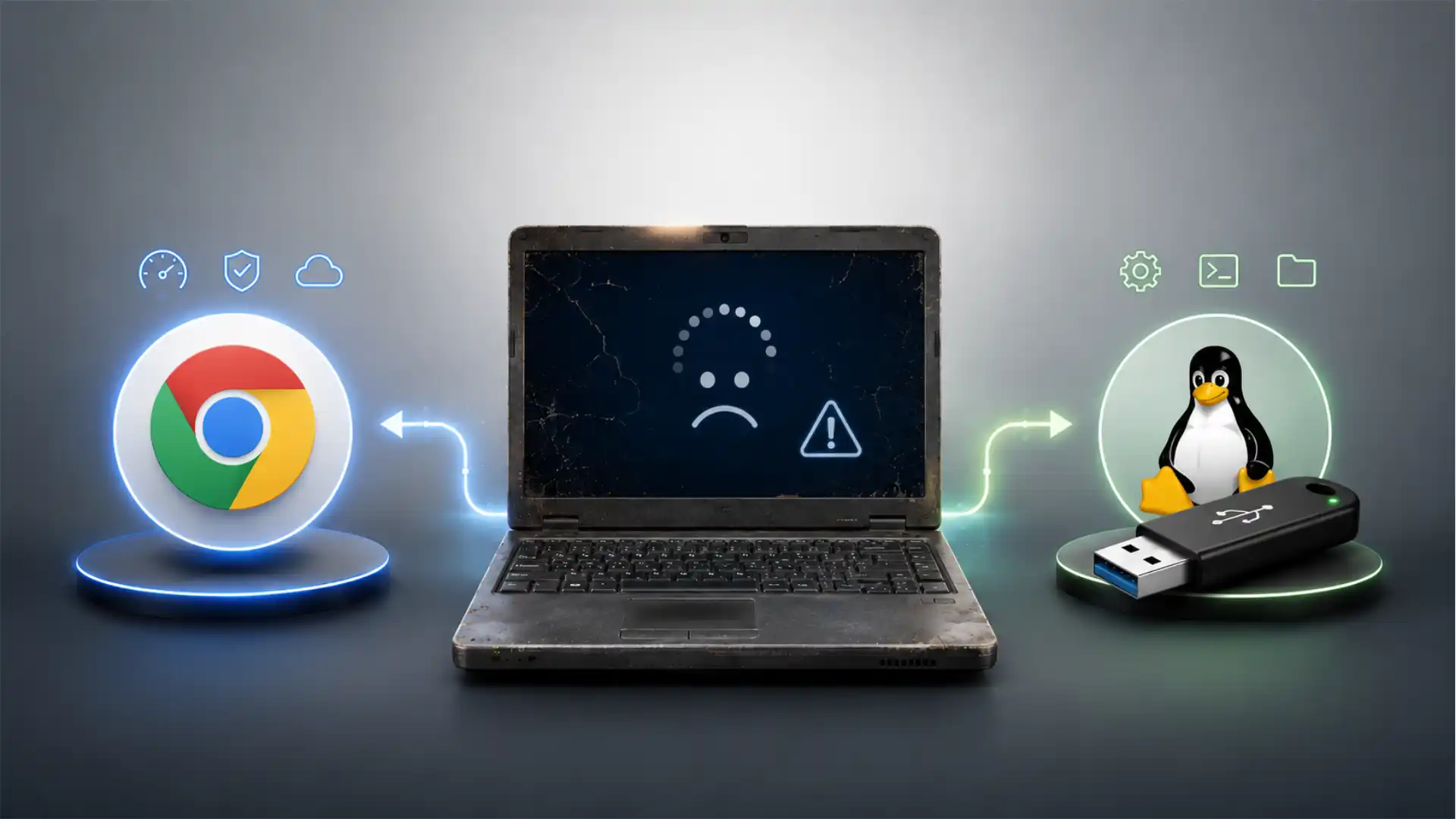
Microsoft turned off free security updates for Windows 10 on October 14, 2025. That single date is the reason this comparison exists at all. Before it arrived, ChromeOS Flex and a Linux live USB were niche interests, the kind of thing a hobbyist tinkered with on a rainy weekend. After it arrived, they became a practical fork in the road for anyone holding a PC that Windows 11 refuses to run.
Table of Contents
The Windows 10 deadline that started this comparison
The scale is the part people underestimate. Estimates cited across coverage of the cutoff put the number of PCs unable to officially jump to Windows 11 somewhere around 240 million worldwide, blocked mainly by the TPM 2.0 requirement and Microsoft’s list of supported CPUs. Those machines did not stop working on October 15. They kept booting, kept browsing, kept opening spreadsheets exactly as they had the day before. What changed is quieter and more dangerous: no more patches for newly discovered vulnerabilities, no more driver updates tied to the OS, no more baseline assumption that the software underneath a banking session or a work email client is receiving attention from anyone.
Microsoft’s own response acknowledges the bind. Consumer devices enrolled through the Extended Security Updates (ESU) program can keep receiving critical and important patches through October 13, 2026, for a fee that starts around $30 for a one-year license, or free if the user links a Microsoft account and enables settings sync. That is a bridge, not a destination. It buys time. It does not solve the underlying problem, which is that a PC built with a pre-2018 CPU or without a TPM chip has no legitimate path back into Microsoft’s supported ecosystem once the ESU window closes.
That is where ChromeOS Flex and Linux live USBs both enter the conversation, but for different reasons and with different intentions behind the person reaching for them. Someone downloading Flex is usually looking for the path of least resistance: keep the machine, make it safe, stop thinking about it. Someone burning a Linux live USB is usually asking a narrower, more technical question first: will this actually work on my hardware before they commit to anything permanent. Those are not the same question, and treating them as interchangeable is exactly the mistake that leads people to waste an afternoon on the wrong tool.
The two paths also carry different risk profiles for a first-time user. Installing ChromeOS Flex from a USB stick wipes the target drive as part of the install; there is no live, non-destructive way to fully trial the operating system as it will actually run day to day. A Linux live USB, by contrast, is built around exactly that non-destructive trial: boot from the stick, poke around, check whether the Wi-Fi card is recognized and the trackpad behaves, and walk away with zero changes to the internal drive if it doesn’t work out. That single structural difference — destructive install versus non-destructive trial — shapes almost everything that follows in this comparison, from how each option handles hardware compatibility to how confidently a non-technical person can approach either one.
This article treats both options on their own terms: what each one is, where each one came from, how they behave on real and often aging hardware, what they cost in time and money, and which kind of PC owner is actually best served by each path. The Windows 10 deadline is the trigger. The decision that follows deserves more care than a five-minute blog post gives it.
ChromeOS Flex defined precisely
ChromeOS Flex is Google’s certified, free build of ChromeOS designed to run on generic x86 hardware rather than on a Chromebook built specifically for it. It is not a beta, not a community remix, and not a stripped-down demo. It is the same operating system family that ships on retail Chromebooks, adapted to work across a wide range of Intel and AMD machines that were never designed with ChromeOS in mind.
The product exists because Google acquired Neverware in 2020, absorbing a tool called CloudReady that schools and businesses had already been using for years to convert aging Windows PCs into Chromebook-like devices. Google rebranded CloudReady as ChromeOS Flex in 2022 and opened it to the general public, at no cost, download it, write it to a USB drive, and install it over whatever was there before.
ChromeOS Flex is fundamentally a cloud-first, browser-centric operating system. Nearly everything a person does on it happens inside the Chrome browser or through progressive web apps. Google Workspace, Microsoft 365 online, Zoom, Slack, and most SaaS tools work exactly as they would in any modern browser, because that is precisely what Flex is: Chrome, an app launcher, a settings panel, and very little else running underneath.
That minimalism is deliberate, and it is the source of both its biggest strength and its most cited limitation. On the strength side: boot times of roughly six to ten seconds are common even on a decade-old laptop, because there is no legacy Windows service stack loading in the background, no antivirus scanning on startup, no accumulated registry bloat. Security updates arrive automatically in the background roughly every four weeks, following the same channel structure as retail ChromeOS, so a Flex device rarely asks the user to do anything beyond occasionally restarting to apply an update that has already downloaded.
On the limitation side, Flex is explicit about what it does not try to be. Google does not market it as a Windows replacement in the sense of running Windows software locally. Local Windows desktop applications do not run on Flex. There is no compatibility layer bundled in for legacy .exe files, no built-in way to run a locally installed accounting package or a niche industry tool that predates the cloud era. Anyone whose daily work depends on such software needs either a browser-based alternative, a remote desktop connection back to a Windows machine, or a different plan entirely.
Flex devices, once installed, behave like managed endpoints even for a home user, because the underlying architecture borrows heavily from ChromeOS’s enterprise roots. Sandboxed processes, automatic full-disk encryption, and a verified boot chain on hardware that supports Secure Boot are baked in rather than optional add-ons a user has to configure. For organizations, that same architecture scales into the Google Admin Console, where a fleet of Flex devices can be managed alongside actual Chromebooks using more than 600 configurable policies, from forced app installs to network profile pushes. None of that requires a dedicated IT department, which is a large part of why schools and small businesses gravitated toward CloudReady and then Flex long before the Windows 10 deadline made it a mainstream topic.
What Flex is not, despite frequent confusion online, is Linux with a Google skin loosely bolted on. It shares a kernel lineage with Linux, and it does expose a genuine Linux development environment through a feature called Crostini, covered later in this piece. But the default, out-of-the-box experience is a fixed, single shell: one desktop metaphor, one browser, one app model, with no distribution choice, no desktop environment swap, and no package manager exposed to a typical user. That fixed nature is precisely what separates it philosophically from the second option in this comparison.
A Linux live USB defined precisely
A Linux live USB is a full operating system that boots and runs directly from a flash drive without touching the internal storage of the host machine, unless the user deliberately sets it up to write changes back. Plug it in, restart, select the USB drive from the boot menu, and the machine boots into a complete desktop environment, browser, file manager, and application suite, all running from the stick.
The concept predates ChromeOS Flex by close to two decades. Live CDs, and later live USBs, were the standard way Linux distributions let people try before installing, going back to early Knoppix discs in the early 2000s. The core idea never changed: compress a bootable filesystem image onto removable media, load it into memory or read it directly off the drive at runtime, and give the user a fully working system with zero permanent changes to whatever is already on the machine’s internal disk.
That non-destructive default is the single biggest structural difference from ChromeOS Flex. A Linux live USB session can be booted, tested, and then abandoned entirely by simply removing the drive and rebooting into the original Windows installation, completely untouched. No partitions were resized, no bootloader was overwritten, no data was at risk. This makes live USBs the natural tool for the exact question a worried PC owner asks first: will this hardware even work with something other than Windows before they decide whether to commit to anything permanent.
Distributions built for this purpose vary enormously in size and philosophy. Linux Mint, built on Ubuntu’s base with the Cinnamon or XFCE desktop, is widely recommended for anyone coming from Windows because its layout, taskbar, and start-menu-style launcher feel immediately familiar. Fedora ships a live image through its own Media Writer tool and tends to carry newer kernel versions, which matters for very recent hardware but occasionally means friction on unusual chipsets. Ubuntu itself remains the most broadly documented option, with the largest volume of community troubleshooting content available for almost any hardware quirk imaginable. At the minimal end, distributions like Puppy Linux, antiX, Tiny Core, and Slax weigh in at a few hundred megabytes and are built specifically to run on machines with as little as 256 to 512 MB of RAM, which covers hardware old enough that even ChromeOS Flex’s certified list has stopped including it.
Persistence is the feature that turns a one-time trial into something closer to a portable working environment. Some distributions, such as Porteus and Slax, enable persistence by default, automatically saving changes made during a session back onto the drive. Others, including Ubuntu, Mint, and Fedora, require the user to configure a persistence partition or overlay manually, usually with a tool like Ventoy, which stores a dedicated persistence file alongside the ISO rather than requiring a separate partition scheme for each distro. Without persistence enabled, a live session resets to a blank slate on every reboot; installed applications disappear, saved files vanish, and the system returns to exactly the state it shipped in.
That flexibility is a double-edged feature. A live USB gives a technically comfortable user extraordinary control: choose the distribution, choose the desktop environment, choose whether to enable persistence, choose which specific packages to install once running. It also means the burden of assembling a working, comfortable system falls on the user rather than on a vendor who has already made those choices for them. There is no single “Linux live USB experience” the way there is a single “ChromeOS Flex experience,” because a live USB is a category containing dozens of legitimately different operating systems, each with its own defaults, its own hardware quirks, and its own learning curve.
That variety is also precisely why a live USB remains the correct first step for anyone unsure whether their PC can run Linux comfortably at all, regardless of which specific distribution they eventually settle on for daily use.
Neverware, CloudReady, and the origin of Flex
ChromeOS Flex did not appear out of nowhere in response to the Windows 10 deadline. Its lineage traces back to Neverware, a New York-based startup founded in 2011 that built a product called CloudReady specifically to convert old Windows and Mac hardware into ChromeOS-like devices for schools and businesses working with limited budgets and aging equipment.
CloudReady solved a real, unglamorous problem years before ChromeOS Flex existed. School districts routinely have computer labs full of five- to ten-year-old desktops that are too slow for current Windows releases but perfectly capable of running a browser. Rather than replace hundreds of machines, Neverware offered a way to reflash them with a lightweight, ChromeOS-based system that booted fast, updated automatically, and required almost no local IT maintenance. Google acquired Neverware in December 2020, a signal that it saw enough value in the reuse case to bring the technology in-house rather than compete against it.
The rebrand to ChromeOS Flex arrived in July 2022, moving the product from a Neverware-branded, partially paid offering into a fully free, Google-branded release available to any consumer, school, or business willing to download and install it. That transition mattered for more than naming. It meant Flex inherited Google’s update infrastructure, its certified-device testing process, and its Admin Console integration, rather than remaining a smaller, independently maintained product with its own separate support lifecycle.
The acquisition also explains why Flex behaves so differently from a typical “install ChromeOS yourself” community project. Where hobbyist attempts to run ChromeOS on generic PCs existed for years through unofficial builds like the various “Chromium OS” community images, those were unsupported, inconsistently updated, and carried real security risk because they lacked Google’s signing and patch infrastructure. Flex, by contrast, receives the same six-week stable release cadence as retail ChromeOS, the same security patch pipeline, and coverage under Google’s own hardware certification process, even though it runs on hardware Google never manufactured.
That certification process is worth understanding on its own, because it directly shapes the compatibility story covered later in this piece. Google maintains and continuously updates a list of certified models, split into tiers: fully certified, models expected to work with minor issues, models with major issues such as boot failures, and decertified models that have aged out of support entirely, with support formally ending on December 31 of a given year for machines that reach that milestone. As of the most recent update to that list, in April 2026, hundreds of specific models from manufacturers including Dell, HP, Lenovo, Acer, and Apple appear across those tiers, alongside an explicit acknowledgment that many uncertified machines will still work with varying degrees of friction.
The origin story matters for one more reason: it explains the specific use cases Flex was optimized for from day one, and those use cases have not changed much even as the audience has grown. Education, call centers, digital signage, and kiosk deployments were CloudReady’s bread and butter for nearly a decade before Flex existed, and they remain the scenarios where Flex performs most confidently today. The Windows 10 deadline widened Flex’s audience dramatically, but it did not change the product’s underlying design intent, which was never about maximum flexibility. It was about minimum maintenance for a device doing a narrow, well-defined job.
The live USB concept before Flex existed
Live Linux media has a longer and more decentralized history than ChromeOS Flex, growing out of the free software community’s own priorities rather than out of a single company’s commercial strategy. The earliest widely used live CD, Knoppix, appeared in 2000, built by German developer Klaus Knopper originally as a tool for demonstrating Linux at trade shows without requiring attendees to install anything on their own machines.
That demonstration purpose evolved quickly into something more practical: a rescue and recovery tool. System administrators discovered that a live CD, and later a live USB, was the fastest way to access a broken machine’s filesystem when the installed operating system itself would no longer boot. Because the live environment loads its own independent kernel and userspace rather than depending on anything installed on the target drive, it could mount, inspect, and repair a corrupted Windows or Linux installation from the outside, a capability that remains central to how IT professionals use live media today, decades later.
The shift from optical media to USB drives tracked the broader disappearance of CD and DVD drives from consumer laptops through the 2010s. Rufus, a free Windows tool first released in 2011, became the default way to write an ISO image to a USB stick with the correct partition scheme and boot mode. On macOS and Linux, tools like balenaEtcher filled a similar role with a simpler, more foolproof interface aimed at less technical users. The most significant recent addition to this toolchain is Ventoy, which inverted the traditional workflow entirely: instead of writing one ISO per USB drive, Ventoy installs itself once and then lets a user simply drag and drop as many ISO files as fit onto the drive, selecting which one to boot from a menu at startup. That single change turned a single-purpose Linux installer stick into a genuinely multi-distribution toolkit, and it is now the most commonly recommended way to build a live USB with persistence, because Ventoy stores persistence as a dedicated overlay file rather than requiring a distinct partition layout for every distribution placed on the drive.
What never changed across this two-decade evolution is the core value proposition: a live USB lets someone test real hardware against a real operating system kernel, with real driver detection, before making any irreversible decision. That is not a feature Google needed to invent when it built Flex, because Flex was solving a different problem from the start, ease of transition for people who had already decided to switch, not open-ended experimentation for people still deciding whether to switch at all. The live USB tradition and the Flex tradition grew up solving genuinely different problems, and that difference in origin is still visible in how each one behaves today.
Booting Flex versus booting a live session, step by step
The mechanical process of getting either option running looks superficially similar from the outside: download something, write it to a USB drive, restart the target machine, and select the drive from the boot menu. The details underneath diverge in ways that matter to anyone actually attempting this for the first time.
Setting up ChromeOS Flex starts with the Chromebook Recovery Utility, a Chrome browser extension Google provides specifically for creating Flex installer drives, or with a direct download of the Flex image written using a tool like Rufus. Google recommends an 8 GB or larger USB drive and a stable internet connection for the initial setup, since the installer needs to pull down updates and account sync data once it reaches the first-boot screen. From there, the process is intentionally linear: boot from the USB, and the installer walks through language selection, network connection, and then a single, unambiguous choice, install Flex to the internal drive. There is no dual-boot option offered anywhere in that flow. Choosing to proceed wipes the target drive entirely, and if the installation fails partway through, the only way back to the original Windows setup is a full manual Windows reinstall from separate recovery media.
That single-path structure is not an oversight. It reflects Flex’s design philosophy directly: this is a tool for people who have already decided to switch and want the transition handled with as few decision points as possible. Google does provide a way to boot Flex temporarily from the USB drive without installing, primarily so a user can confirm basic functionality like Wi-Fi and display output before committing, but this temporary mode is explicitly described as a compatibility check, not a full trial environment, since features like offline app installation and full account sync only activate after the actual install completes.
A Linux live USB session works in the opposite direction by default. Writing the ISO to a drive using Ventoy, Rufus, or balenaEtcher does not touch the target machine at all; it only prepares the USB stick itself. Restarting into the live session boots a genuinely complete operating environment, with a working desktop, browser, file manager, and typically a full application suite, entirely independent of whatever is on the internal drive. No installation decision is required to use it. A person can spend an entire afternoon inside a live Ubuntu or Mint session, testing Wi-Fi, printer drivers, external monitor output, and battery behavior, then simply shut down, remove the USB stick, and boot straight back into the original Windows installation with nothing altered.
The practical consequence of this difference shows up most clearly in how each option handles a failed attempt. If Flex fails to recognize a critical piece of hardware, like a fingerprint reader or a specific Wi-Fi chipset, the user discovers this only after the drive has already been wiped, unless they specifically used the temporary boot mode first, which many users skip because it is not the default or most obvious path through Google’s setup instructions. If a Linux live session fails to recognize the same hardware, the user discovers this with zero consequences, reboots into Windows, and moves on to trying a different distribution or abandoning the idea entirely.
This is also where the “installer” language around each option becomes slightly misleading if taken at face value. Both use a USB drive as the delivery mechanism, but Flex’s USB drive is fundamentally an installer, a vehicle whose entire purpose is to get itself removed and replaced by a permanent install on the internal disk. A Linux live USB, when built with persistence, is closer to a portable, standalone operating environment in its own right, one that many experienced users keep as a permanent tool rather than a step toward an eventual internal install. Both are valid strategies. They are simply answering different questions about what “trying” an alternative operating system should mean.
Hardware compatibility on Flex’s certified list
Hardware compatibility is where ChromeOS Flex’s biggest practical caveat lives, and it is also the single most common source of frustration reported by first-time switchers. Google maintains a certified models list precisely because Flex, unlike retail ChromeOS running on a Chromebook Google built itself, has to work across an almost unbounded variety of third-party components, chipsets, and firmware implementations it never controlled during design.
The certification tiers matter because they set honest expectations rather than a blanket promise. Certified models are expected to work fully, with Google actively testing and maintaining driver support. Minor issues expected models will generally boot and run basic functions but may have small quirks the team is still resolving. Major issues expected models, which include known boot failures on certain hardware, are explicitly flagged as not currently recommended. Decertified models have aged out entirely, with Google setting a hard cutoff of December 31 of a given year after which updates stop arriving even if the device technically still boots.
That certification boundary has been tightening, not loosening, as Flex has matured. Starting with ChromeOS version 150, Google raised the minimum graphics hardware requirement to support newer rendering features and performance improvements, and it is using Smart Update Filtering to automatically block updates on devices with graphics components known to cause severe problems. The specific hardware named in that cutoff is instructive about just how much of the truly ancient PC fleet Flex is willing to leave behind: Intel graphics from 2010 and earlier (Ironlake generation and older), AMD graphics from 2010 and earlier (TeraScale 2 and older), and Nvidia graphics from 2014 and earlier (Maxwell, 700-series and older). Devices with that hardware remain usable on their current version but will not receive the version 150 update or anything after it, and Google is direct about recommending replacement rather than continued reliance on those machines.
For someone holding a PC from roughly 2012 through the present, that graphics cutoff is unlikely to be a blocker. For someone holding a genuinely ancient machine, the kind that has been sitting in a closet since 2009, it very much is, and no amount of persistence with the installer will change that outcome, because the restriction is enforced at the update-server level rather than something a determined user can work around locally.
A second, less publicized compatibility gap concerns architecture rather than age: ChromeOS Flex is incompatible with any Arm-based PC or Mac. That includes every Apple Silicon Mac released since the architecture transition began in 2020, a detail that surprises Mac owners who assume “runs on Macs” applies universally rather than only to the older Intel-based models Flex actually supports. Even among Intel-based Macs that are technically eligible, some hardware quirks persist; the certified models list specifically notes that the webcam does not function on certain older MacBook Air models running Flex, a small but real gap between “compatible” and “fully functional.”
Beyond graphics and architecture, the certified list format itself is worth understanding as a research tool rather than a formality to skim past. It is organized by manufacturer, expandable per model, and explicitly dated with a last-updated timestamp, currently April 21, 2026, at the time this analysis was written. That date matters because the list is a living document, not a fixed snapshot; a model marked “minor issues expected” today may move to “certified” in a future update as Google’s engineering team resolves specific driver gaps, or conversely may slide toward “major issues expected” if a hardware revision introduces new problems. Checking the list immediately before attempting an install, rather than relying on secondhand summaries from months earlier, is the single most useful five minutes anyone can spend before wiping a drive.
Hardware compatibility across Linux distributions
Linux hardware compatibility follows a fundamentally different model from Flex’s curated certification list, because there is no single vendor responsible for testing and blessing specific hardware combinations. Instead, compatibility emerges from the combined work of the Linux kernel project, individual distribution maintainers, and, critically, the hardware manufacturers who do or do not contribute drivers upstream.
The practical result is a much wider net but a much less predictable outcome per machine. Fedora tends to ship the newest kernel versions among mainstream distributions, which means it is often the first live environment to support brand-new laptop chipsets, new Wi-Fi standards, or recently released CPUs, since kernel developers add hardware support well before it trickles down to more conservative, slower-moving distributions. That same aggressiveness means Fedora occasionally hits rough edges on unusual or very recent hardware that has not yet had its driver quirks fully ironed out. Ubuntu and Linux Mint take the opposite tradeoff: slower kernel updates in exchange for more thoroughly tested stability, plus easier access to proprietary drivers, particularly for Nvidia graphics cards, once a persistent installation is running rather than in a pure live session.
Nvidia hardware is consistently flagged as one of the least predictable compatibility areas across live USB testing. Open-source Nouveau drivers generally allow a system to boot and display graphics, but performance and stability on newer Nvidia cards can be limited without the proprietary driver installed, and installing that proprietary driver is exactly the kind of step a temporary live session is not well suited to handle cleanly, since it typically requires either a persistent installation or an internet connection plus manual configuration during the live session itself. Ubuntu and Mint offer the smoothest path here because both provide a straightforward, GUI-driven way to switch to proprietary Nvidia drivers once persistence or a full install is in place, while Fedora and Arch generally expect the user to handle that step manually.
At the lightweight end of the spectrum, distributions built specifically for constrained hardware widen Linux’s compatibility net well beyond anything Flex attempts to cover. Puppy Linux, at roughly 300 to 400 MB, is explicitly designed to run on systems with as little as 256 to 512 MB of RAM, loading entirely into memory on machines with enough of it for genuinely fast performance even from an older, slower USB drive. Tiny Core and antiX pursue similar goals with different tradeoffs in included software and desktop polish. These distributions target exactly the hardware tier that ChromeOS Flex’s own graphics cutoff has begun excluding, machines from 2010 or earlier with pre-Ironlake Intel graphics or pre-TeraScale-2 AMD graphics, meaning Linux retains a meaningful compatibility advantage at the very oldest end of the hardware spectrum that Flex is actively walking away from.
USB port speed and flash drive quality introduce a second, often underappreciated compatibility variable that has nothing to do with the distribution itself. A live session running from a slow USB 2.0 port on a cheap flash drive will feel sluggish regardless of how well the distribution supports the underlying hardware, because every file read has to traverse a much slower interface than an internal SSD. Distributions that aggressively cache into RAM once loaded, such as Puppy and specialized rescue tools like SystemRescue, largely sidestep this bottleneck after the initial boot, while full desktop environments that continue reading from the USB stick throughout the session expose every limitation of slow storage more directly.
Secure Boot compatibility deserves specific mention because it is frequently, and incorrectly, treated as a binary pass-fail gate the way TPM 2.0 functions for Windows 11. Most mainstream Linux distributions, including Ubuntu, Fedora, and Mint, support Secure Boot out of the box through signed bootloaders, and the actual sticking points tend to be narrower: specific proprietary kernel modules that are not signed, or specific graphics drivers that require Secure Boot to be disabled to load correctly. The practical rule that experienced users apply consistently is to test with a live USB first, with Secure Boot left enabled, and only disable it if a specific driver problem demands it, rather than disabling it preemptively out of an assumption that Linux and Secure Boot are fundamentally incompatible.
Table one, side-by-side technical comparison
Core technical differences between ChromeOS Flex and a Linux live USB
| Factor | ChromeOS Flex | Linux live USB |
|---|---|---|
| Installation type | Destructive, wipes target drive | Non-destructive by default |
| Trial before commit | Limited temporary boot mode | Full live session, no changes made |
| Distribution choice | None, single fixed build | Dozens, Mint, Fedora, Ubuntu, and more |
| Persistence | Not applicable, always installed | Optional, manual setup usually required |
| Update model | Automatic, ~4-week background cycle | Varies, rolling or point-release by distro |
| Local Windows apps | Not supported | Not supported, but native Linux apps run |
| Android app support | Not available | Not applicable |
| Arm Mac support | Not supported | Varies by distro, generally better |
| Fleet management | Google Admin Console, 600+ policies | Third-party tools, more setup required |
This table is a starting point, not a verdict. Flex wins decisively on predictability and low-maintenance operation for a user who wants one clear path and minimal ongoing decisions. A Linux live USB wins on flexibility, on the ability to test before committing, and on reaching hardware old enough or unusual enough that Flex’s certified list has already excluded it. Which column matters more depends entirely on the specific PC, and the specific person, sitting in front of the decision.
Installation as destructive act versus installation as choice
The word “installation” carries different weight depending on which option is being discussed, and conflating the two is one of the most common sources of misplaced confidence heading into a switch. For ChromeOS Flex, installation is the entire point of the USB drive’s existence; the drive is a delivery vehicle for a one-way transition, and Google’s own setup flow reflects that by offering no dual-boot configuration at any point.
That absence of a dual-boot option is a deliberate simplification, not an oversight born of technical limitation. ChromeOS itself does not support dual-booting on retail Chromebooks either, and Flex inherits that same architectural stance. The reasoning lines up with Flex’s target use case: a school, business, or household that has already decided a machine’s future is web-first computing does not need the added complexity, and added attack surface, of maintaining two operating systems on one disk. For that audience, the lack of dual-boot is a feature, one less thing to misconfigure, one less recovery scenario to plan for.
For a Linux live USB, installation is an entirely optional final step that most users can delay indefinitely, or skip altogether if a persistent live session meets their needs. The live environment itself requires no installation decision to use. When a user does decide to move from a live session to a full install, nearly every mainstream distribution’s installer, including Ubuntu’s and Mint’s, offers an explicit dual-boot configuration alongside the full-wipe option, automatically detecting an existing Windows partition and offering to resize it rather than replace it. That resize-and-coexist path lets a cautious user keep Windows fully intact and bootable, choosing at each startup which operating system to load, a middle ground that simply does not exist inside Flex’s installation flow.
This difference reshapes the actual risk calculation for anyone nervous about the switch. Committing to Flex means accepting, upfront, that the transition is final barring a full Windows reinstall from separate recovery media, a process that itself requires either a licensed Windows installer already on hand or a fresh download and product key. Committing to a Linux dual-boot install means retaining a genuine safety net: if the new setup proves unworkable after a week of real use, rebooting into the still-intact Windows partition remains an option, at least until the user deliberately removes it.
The tradeoff, inevitably, is complexity. Dual-boot setups introduce their own class of problems that a single-OS Flex install never has to contend with: bootloader conflicts if Windows later reinstalls its own boot manager over GRUB, partition sizing decisions that are hard to reverse cleanly later, and the general cognitive overhead of maintaining two full operating systems’ worth of updates, security posture, and application ecosystems on one physical disk. A dual-boot setup is a genuine safety net, but it is also genuine ongoing maintenance, and pretending otherwise sets up an unpleasant surprise for someone who chose it purely to avoid commitment rather than because they actually plan to keep using both systems regularly.
For most people arriving at this decision because of the Windows 10 deadline specifically, rather than out of genuine enthusiasm for running two operating systems side by side, the more honest framing is this: dual-boot is a transitional tool, useful for a few weeks of careful evaluation, not a permanent arrangement most casual users actually want to maintain for years. Flex’s all-or-nothing model forces that decision earlier. A Linux live USB, followed by an optional dual-boot install, simply lets the same decision happen more gradually, with more evidence gathered along the way.
The persistence question on a live USB
Persistence is the single most consequential technical decision a Linux live USB user makes, and it is also the decision most likely to be skipped entirely by someone new to the process, simply because the default behavior of most mainstream distributions does not enable it automatically.
Without persistence, a live session is genuinely stateless. Every file saved, every application installed, every Wi-Fi password entered during a session disappears the moment the machine reboots, because the entire live filesystem is read from a compressed, typically read-only image on the USB drive, with any runtime changes held only in RAM. That statelessness is exactly right for the pure trial-and-compatibility-check use case covered earlier in this piece, but it is completely wrong for anyone hoping to use the live USB as an actual working environment across multiple sessions, whether for daily browsing, coursework, or as a rescue toolkit kept ready for the next broken machine.
Enabling persistence requires the user to make an active choice, and the mechanics differ meaningfully by tool. Traditional persistence, still supported by tools like Rufus when writing certain distributions, allocates a separate partition on the USB drive specifically to store changes as a filesystem overlay on top of the read-only live image. Ventoy takes a different, generally preferred approach, storing persistence as a dedicated image file that sits alongside the ISO files on the drive rather than requiring a distinct partition scheme, which means a single Ventoy drive can hold multiple distributions, each with its own separate persistence file, without needing to repartition anything each time a new distro gets added.
The amount of space allocated to persistence directly caps what the session can accumulate over time. A small persistence allocation, a few gigabytes, is enough to remember Wi-Fi credentials, save a handful of documents, and retain basic settings tweaks. A larger allocation, tens of gigabytes on a drive of adequate size, starts to approximate an actual working installation, capable of holding installed applications, cached browser data, and a meaningfully sized personal file collection. Community guidance consistently recommends 32 GB or larger for a USB drive intended to run a full persistent Mint or Ubuntu session comfortably, precisely because smaller drives run into space pressure quickly once persistence is layered on top of the base OS image.
There is a genuine performance cost to this convenience that is worth stating plainly rather than glossing over. Every read and write operation in a persistent live session has to pass through an additional abstraction layer compared to a native internal install, and on a standard USB 2.0 or budget USB 3.0 stick, that abstraction layer can create a noticeable I/O bottleneck. Filesystems that use journaling, a safety feature that logs changes before committing them, add a further write-amplification cost on top of an already slower persistence layer, which in practice means a cheap flash drive used for heavy, sustained persistence can wear out its flash memory cells meaningfully faster than the same drive used for lighter, occasional tasks.
The practical guidance that follows from this tradeoff is straightforward, if occasionally ignored by people eager to get started immediately: persistence on a live USB is genuinely useful for testing, rescue work, and lightweight portable computing, but it is not a substitute for a proper internal installation for anyone planning to rely on the machine daily. A persistent USB stick is the right tool for evaluating whether Linux works on a given piece of hardware, for keeping a portable rescue kit ready, or for a secondary, occasional-use scenario. For a primary computer that a household or a small business depends on every day, the sensible endpoint of the evaluation process is almost always a full internal install, whether dual-boot or single-OS, once the live USB testing phase has confirmed the hardware behaves well.
Flex’s deliberate absence of a persistence concept
ChromeOS Flex sidesteps the entire persistence question by design, because it does not offer a genuine live-session mode in the way a Linux distribution does. Google’s temporary boot option, mentioned earlier as a compatibility check, is explicitly limited in scope; it exists to confirm that a display renders correctly, that a Wi-Fi adapter is detected, and that basic input devices respond, not to serve as a working environment a user might return to across multiple sessions the way a persistent Linux live USB does.
This absence is not a missing feature so much as a reflection of how differently Flex’s architecture treats the relationship between the operating system and the underlying storage. Once installed, Flex behaves like any other ChromeOS device: user profiles, settings, and locally cached data live on the internal drive, synced continuously to a Google account rather than held in a temporary overlay the way live USB persistence works. There is no intermediate state between “not installed, running a limited compatibility check from USB” and “fully installed, internal drive wiped, cloud-synced profile active.” The gap that a persistent Linux live USB fills, a genuinely usable environment that leaves no permanent trace, has no Flex equivalent, because Flex’s entire value proposition assumes the user has already decided to commit before the operating system properly starts doing anything useful.
The upside of this design choice is consistency. Every fully installed Flex device behaves identically to every other fully installed Flex device with the same version, because there is no ambiguity introduced by variable persistence configurations, variable USB drive quality, or variable amounts of allocated storage for an overlay filesystem. A Flex device someone uses today will behave exactly the same way tomorrow, and exactly the same way it would on a different physical machine with the same specs, which matters enormously for organizations managing dozens or hundreds of devices where predictability outweighs flexibility as a priority.
The downside surfaces specifically for the cautious individual user this article is most concerned with: someone holding one PC, uncertain whether Flex will actually suit their needs, who wants an evaluation period longer and more thorough than Google’s limited compatibility-check boot mode provides. That user has no good way to “live with” Flex for a few days on their actual hardware before the drive gets wiped. The honest workaround many cautious users adopt, though it is rarely stated explicitly in Google’s own documentation, is to use a spare or secondary machine for the initial Flex install and evaluation period, keeping the primary machine untouched until confidence in the switch is established, which defeats some of the convenience Flex is otherwise built around.
This is also the point in the comparison where the two options’ underlying philosophies diverge most sharply. A Linux live USB assumes uncertainty is the normal starting state and builds tooling specifically to reduce the cost of that uncertainty. ChromeOS Flex assumes the decision has effectively already been made by the time someone is holding a Flex installer, and optimizes everything downstream of that assumption for speed and simplicity rather than for extended, risk-free experimentation. Neither assumption is wrong. They simply serve different moments in a person’s decision-making process, and recognizing which moment a given user is actually in, still deciding, or already decided, is the single most useful filter for choosing between them.
Ventoy, Rufus, and balenaEtcher as the tool layer
None of the Linux live USB advantages described so far materialize without a working, correctly configured USB writer, and the choice of tool has more practical impact than most first-time users assume. A poorly chosen or misconfigured writer can silently break persistence, produce a drive that only boots in legacy BIOS mode when the target machine expects UEFI, or create a stick that boots inconsistently across different hardware.
Rufus, available for Windows, remains the tool most frequently recommended for users who want fine-grained control over partition scheme, persistence allocation size, and the choice between UEFI and legacy BIOS boot modes. That level of control is genuinely useful on older hardware where the firmware’s boot mode support is inconsistent or poorly documented, since Rufus lets a user try multiple configurations without needing to fully understand the underlying boot architecture beforehand. The tradeoff is a denser, more technical interface that assumes some baseline comfort with terms like MBR, GPT, and ESP that a first-time switcher may not yet recognize.
balenaEtcher, cross-platform and deliberately minimal, takes the opposite approach: select an image, select a drive, click flash, and the tool handles the rest with almost no configurable options exposed. That simplicity makes it the safer recommendation for less technical users specifically because there are fewer opportunities to select the wrong option and produce a broken drive, but it also means Etcher is a poor fit for anyone who specifically needs persistence, multi-distribution support, or fine control over the boot configuration, since none of those are exposed through its interface.
Ventoy occupies a distinct middle position that has made it the most consistently recommended tool across current Linux community guidance. Rather than writing a single ISO directly to the drive’s raw sectors the way Rufus and Etcher do, Ventoy installs a small bootloader and filesystem structure onto the USB drive once, after which the user simply copies ISO files onto the drive using ordinary file manager drag-and-drop, exactly as they would copy any other file. Adding a new distribution to test is as simple as dropping another ISO onto the same drive; no reformatting, no rewriting, no risk of accidentally overwriting a previous configuration. Booting the drive presents a menu listing every ISO currently stored on it, letting the user choose which one to load for that session.
This design is specifically why Ventoy has become the preferred tool for people testing multiple distributions against the same piece of hardware before settling on one, which is precisely the situation many Windows 10 refugees find themselves in: uncertain whether Mint, Fedora, or a lighter option like antiX will work best on their specific machine, and unwilling to burn a separate USB stick, or repeatedly reformat the same one, for every distribution they want to try. Ventoy’s persistence handling, storing a dedicated persistence image file alongside the ISOs rather than requiring a distinct partition per distribution, extends that same convenience to the trial-with-memory use case covered in the previous sections.
None of these tools have a direct equivalent in the ChromeOS Flex workflow, because Flex’s own creation tool, the Chrome browser’s Recovery Utility extension, is purpose-built for exactly one outcome: a single, correctly formatted Flex installer drive, with no configuration options exposed because none are needed for a product with only one installation path. That narrower tool matches Flex’s narrower philosophy. The richer toolchain around Linux live USBs, Rufus, Etcher, Ventoy, and the persistence configuration choices layered on top of each, matches Linux’s broader philosophy of user-controlled flexibility, at the direct cost of requiring the user to understand and navigate that flexibility themselves.
The Crostini container and Linux apps inside Flex
ChromeOS Flex is not entirely without a Linux environment of its own, and this is a point of genuine confusion in casual comparisons between Flex and a “real” Linux desktop. Google exposes a feature called Crostini on ChromeOS and, with some limitations, on Flex, which runs a genuine Debian-based Linux container alongside the primary ChromeOS environment, accessible through a terminal and capable of running standard Linux applications and command-line tools.
Crostini works by running a lightweight virtual machine, Termina, which in turn hosts a Debian container where the actual Linux applications execute. From a user’s perspective, once enabled through the Settings app, this manifests as a terminal window and the ability to install Linux packages using familiar tools like apt, plus support for running graphical Linux applications that appear as ordinary windows alongside Chrome browser tabs and ChromeOS-native apps. For a developer or a technically inclined user who wants access to a real code editor, a local development toolchain, or command-line utilities that have no browser-based equivalent, Crostini genuinely closes a gap that would otherwise make Flex unsuitable for that kind of work.
The catch, and it is a meaningful one, is that Crostini’s availability and performance on Flex specifically lags behind its support on retail ChromeOS. Google has been explicit in its own documentation that Crostini support on Flex depends on the specific device’s virtualization capabilities, meaning some certified Flex hardware supports it fully, some supports it with reduced performance, and some does not support it at all, a variability that does not exist in the same way on Chromebooks built with virtualization support as a baseline hardware requirement from the start.
This matters directly for anyone evaluating Flex as a genuine development machine rather than purely a browsing and productivity device. A developer who assumes Crostini will behave identically to a native Linux terminal, the way it might on a recent, well-specified Chromebook, can be caught off guard by degraded performance or outright unavailability on the specific piece of repurposed hardware they installed Flex on, particularly on older machines whose CPUs lack efficient virtualization extensions or whose available RAM is already stretched thin by ChromeOS itself.
Comparing Crostini directly against a full Linux live USB session clarifies what each is actually offering. Crostini provides a genuine Linux environment nested inside ChromeOS, useful for development tools and command-line work, but it remains a container running inside a host operating system whose primary interface, app model, and update cycle are still entirely ChromeOS’s own. A Linux live USB, by contrast, makes Linux the entire operating system, with full, unmediated access to hardware, no container boundary between the user’s applications and the underlying kernel, and no dependency on a host OS’s virtualization support to function at all.
For most of the audience the Windows 10 deadline pushed toward considering Flex, Crostini is a nice-to-have rather than a decision-driving feature; the majority of daily computing needs, browsing, email, video calls, document editing, are already covered by Flex’s browser-first model without ever touching a Linux container. But for anyone whose use case specifically depends on local development tools, command-line utilities, or software distributed only as Linux packages rather than as web apps, understanding that Crostini’s reliability varies meaningfully by hardware is essential context that generic “Flex has Linux support too” summaries frequently omit.
Android app absence and what it costs Flex
The absence of Android app support is one of the most consistently cited gaps between ChromeOS Flex and a retail Chromebook, and it deserves attention on its own because it materially changes what Flex can and cannot do compared to both a Chromebook and a Linux live USB running on similar hardware.
Retail Chromebooks support the Google Play Store, letting users install Android apps directly alongside ChromeOS-native and web applications. ChromeOS Flex does not offer this at all. Google’s own positioning is direct about the limitation: Flex is explicitly not identical to the ChromeOS found on Chromebooks, and Android app compatibility, along with the deeper hardware integrations like Titan security chips, is simply not part of what Flex delivers, regardless of how capable the underlying repurposed hardware might otherwise be.
The practical impact of this gap depends heavily on what a given user actually expects from the machine. For someone whose computing needs are genuinely browser-first, email, video calls, streaming, document editing through web-based Office or Google Docs, the absence of Android apps changes almost nothing day to day, since none of those tasks depend on the Play Store to begin with. For someone who specifically wanted a Chromebook-like experience because they hoped to run a specific Android app, whether a mobile banking app with no web equivalent, a mobile game, or a productivity tool only available as an Android package, Flex’s Android gap is a genuine dealbreaker that no configuration change can resolve.
This is also where Phone Hub and Quick Share, two features that integrate a Chromebook with a nearby Android phone for notification mirroring, tethering, and fast file transfer, become relevant by their absence. Neither feature is available on Flex, which means a Flex device functions as a genuinely standalone machine rather than as part of an integrated Google device ecosystem the way a retail Chromebook paired with an Android phone does. Users coming from that kind of integrated Google ecosystem, or hoping to build one for the first time around Flex specifically, will find the product does not deliver that experience regardless of how new or capable the underlying hardware is.
A Linux live USB approaches mobile integration from a completely different angle, and in most cases the comparison is not favorable to Linux either, just for different reasons. There is no native Android app runtime on mainstream Linux distributions comparable to what a Chromebook offers, though Waydroid and similar Android-in-a-container projects exist within the Linux ecosystem for users willing to configure them manually. What Linux distributions generally handle better is smartphone file transfer and basic device integration through tools like KDE Connect or GSConnect, open-source projects that mirror notifications and enable file sharing between a Linux desktop and an Android or iOS phone without requiring the tight vendor lock-in that Phone Hub depends on, though setup requires installing and pairing an app on both the phone and the desktop rather than the largely automatic pairing Google’s own ecosystem provides.
The honest summary here is that neither Flex nor a typical Linux live USB replicates the seamless mobile integration a genuine Chromebook offers when paired with an Android phone, and anyone specifically drawn to repurposing an old PC because they wanted that Chromebook-style phone integration is likely to be disappointed by both alternatives to some degree. The gap simply manifests differently: Flex lacks the feature outright by design, while Linux offers a rough approximation through community tools that require more manual setup than most casual users will attempt.
Desktop environments, Cinnamon, XFCE, GNOME, versus one fixed shell
One of the least discussed but most personally significant differences between these two paths is how much control each one gives a user over the actual visual and interactive experience of using the computer every day. ChromeOS Flex offers exactly one desktop shell, the same launcher, taskbar, and window management model found across every ChromeOS device, with no alternative available regardless of user preference.
That single shell is a deliberate strength for the audience Flex targets most directly. A school district managing five hundred lab computers benefits enormously from every single one presenting an identical interface, since it eliminates a huge category of support tickets rooted in configuration drift between machines, and it means training materials, whether printed handouts or short onboarding videos, apply universally without caveats. The same logic extends to a small business or a household managing several devices for different family members: one interface to learn, one interface to troubleshoot, one interface to explain to a relative over the phone.
The Linux side of this comparison could not be more different, and it is genuinely one of the platform’s defining characteristics rather than a footnote. Cinnamon, the desktop environment shipped by default on the flagship edition of Linux Mint, deliberately mimics a traditional taskbar-and-start-menu layout closely enough that Windows users often describe the transition as immediately comfortable, sometimes commenting that it feels more familiar than recent Windows 11 changes to the same interface elements. XFCE, used on Mint’s lighter edition and on many minimal distributions, trades some visual polish for meaningfully lower resource consumption, making it the preferred choice specifically for older or lower-RAM hardware where Cinnamon’s slightly heavier footprint would introduce noticeable lag. GNOME, the default on Fedora and Ubuntu, takes a more distinct approach with a workspace-and-overview-driven workflow that departs further from the traditional Windows taskbar metaphor, appealing strongly to some users while feeling unfamiliar to others coming directly from decades of Windows muscle memory.
This variety extends well beyond these three examples. KDE Plasma offers extensive customization of nearly every visual element, appealing to users who want granular control over their workspace’s appearance and behavior. LXDE and LXQt push resource efficiency even further than XFCE, useful on genuinely constrained hardware. Distribution-specific choices like Zorin OS’s explicit Windows-mimicking layout exist specifically to smooth the transition for switchers who want as little visual disruption as possible during an already significant change.
The cost of this choice, inevitably, is decision fatigue for a user who simply wants to be told what to use rather than research desktop environment tradeoffs before even installing anything. A first-time switcher researching “best Linux distro” quickly discovers dozens of credible-sounding recommendations, each with a different desktop environment as a starting default, and no single, Google-style authoritative answer pointing toward exactly one correct choice the way Flex’s single-shell model does implicitly.
For a household managing multiple family members with different comfort levels and different hardware, this Linux variety can actually be an advantage rather than a liability, once someone takes the time to make the initial choices. A grandparent’s older, lower-spec laptop can run Linux Mint XFCE for maximum familiarity and minimum resource use, while a teenager’s slightly newer machine runs Fedora with GNOME for a more modern workflow, and both machines still share the same underlying package ecosystem and troubleshooting resources, since both are fundamentally Linux even though their day-to-day visual experience differs substantially. Flex offers no equivalent flexibility, deliberately, because uniformity across every installed device is precisely the point of its design.
Update cadence, Flex’s silent background model
ChromeOS Flex’s update model is built around a principle that shows up nowhere near as consistently across the Linux ecosystem: updates should require essentially zero active decision-making from the person using the device. Flex follows the same release channel structure as retail ChromeOS, split into Stable, Beta, Dev, and Long Term Support (LTS) channels, with the overwhelming majority of consumer and small-business devices sitting on Stable by default.
The Stable channel receives updates roughly every four weeks, matching Chrome’s own browser release cadence, and those updates download and prepare themselves entirely in the background. A user typically encounters the update only as a small notification indicating a restart will apply it, and even that restart can usually be deferred for a reasonable window without any security exposure, since the update has already been fully downloaded and verified before the prompt appears. There is no manual patch management, no decision about which specific security fixes to apply, and no scenario where a user inadvertently skips a critical patch simply by ignoring a notification for a few days.
Google also uses staged rollouts for updates carrying significant changes, deliberately slowing the rate at which a new release reaches the full device population so that early real-world feedback can surface problems before they affect everyone simultaneously. This staging can mean updates take one to two weeks to reach every device, a tradeoff Google accepts explicitly in exchange for catching update-related regressions before they become widespread rather than after.
For organizations, this update model integrates directly with the same Admin Console used for broader device management, letting an IT administrator control rollout timing, pin specific devices to specific channels for testing purposes, or enforce update policies across an entire fleet without needing device-by-device intervention. For an individual household user, the practical experience boils down to something close to “it just updates itself,” which is precisely the low-maintenance promise Flex has built its entire reputation around since its Neverware-era origins.
The LTS channel deserves specific mention because it serves a genuinely different audience from Stable. Rather than tracking every feature update, LTS holds a specific ChromeOS version for an extended period, applying only security-critical patches, which suits environments like kiosks, digital signage, or specialized industrial deployments where behavioral consistency over time matters more than access to the newest features. A retail user or small business rarely has a compelling reason to choose LTS over Stable, but its existence underscores how thoroughly Flex’s update infrastructure was built around enterprise deployment patterns from the outset, patterns that happen to also benefit an individual user who simply wants an operating system that maintains itself without asking much in return.
Update cadence, rolling versus point releases in Linux
Linux distributions split into two fundamentally different update philosophies, and understanding this split matters directly for anyone deciding which distribution to trial from a live USB, because the choice affects long-term maintenance burden far more than most first-time comparisons acknowledge.
Point-release distributions, including Ubuntu’s standard LTS releases and Linux Mint, ship a specific, versioned release on a predictable schedule, typically every six months for a standard release and every two years for a Long Term Support version, then apply security patches and bug fixes to that specific version without introducing major new features until the next scheduled release arrives. Ubuntu’s LTS releases, in particular, receive five years of standard support, extendable further through Ubuntu Pro, a support window that comfortably outlasts the typical hardware lifecycle of a repurposed older PC. This model prioritizes stability and predictability: a user who installs Ubuntu 24.04 LTS today knows roughly what to expect from their system’s behavior for years, with security patches arriving regularly but without the underlying software fundamentally changing shape unexpectedly.
Rolling-release distributions, most notably Arch Linux and its more approachable derivatives, take the opposite approach entirely. Rather than shipping discrete versions, a rolling-release system continuously updates every component to its latest available version, meaning there is no single “release” to speak of and no scheduled upgrade to plan around, only a continuous stream of smaller updates. This model gets new hardware support, new kernel features, and new application versions faster than any point-release distribution can manage, which is genuinely valuable on very recent hardware whose drivers may not yet have made it into a stable point-release’s more conservative package set. The cost is a materially higher risk of an update introducing a regression or a compatibility break, since there is far less time for community testing between a new package version being built and that version reaching a user’s system.
Fedora sits in an interesting middle position that is worth understanding on its own terms rather than lumping it into either extreme. It follows a point-release schedule, roughly every six months, but maintains a much shorter support window per release, typically around thirteen months, and pursues a more aggressive package-update policy within each release than Ubuntu does. This positions Fedora as a genuine middle ground: newer software and hardware support than Ubuntu LTS typically offers, without the full unpredictability of a true rolling release, at the cost of a support window that requires more frequent version upgrades to stay current on security patches.
None of these models can be evaluated purely on paper without considering the specific hardware and specific user in question, and this is exactly the kind of judgment call a Linux live USB trial period is uniquely well suited to informing. A user who discovers, during a live session, that their specific Wi-Fi chipset needs a very recent kernel to function correctly has effectively just learned that Fedora or a rolling release is the more sensible long-term choice for that particular machine, regardless of what generic distribution rankings elsewhere on the internet might suggest. A user whose hardware works flawlessly across every distribution tested has more freedom to prioritize other factors, like desktop environment familiarity or long-term support windows, since compatibility is no longer the deciding constraint.
This entire category of decision-making, weighing update philosophy against specific hardware behavior, has no equivalent inside the Flex ecosystem, because Flex offers exactly one update model applied uniformly regardless of the underlying hardware’s specific quirks. That uniformity is precisely the tradeoff discussed throughout this comparison: Linux asks the user to understand and choose between meaningfully different maintenance philosophies, while Flex removes that choice entirely in exchange for one model that works acceptably across the full range of certified hardware, if not optimally for every individual case.
Security architecture inside ChromeOS Flex
Security is consistently cited as one of ChromeOS Flex’s strongest selling points, and the underlying architecture largely earns that reputation, though the specifics differ from a retail Chromebook in ways worth stating precisely rather than assuming Flex inherits every hardware-backed protection Google’s own devices ship with.
Verified boot is central to Flex’s security model on hardware that supports it. On each startup, the system checks that its own boot components have not been tampered with, refusing to load a compromised bootloader or kernel and instead offering to repair or reinstall the system if verification fails. This provides a meaningful defense against a category of malware that specifically targets the boot process to persist across reinstalls, a threat model that traditional Windows antivirus software struggles to fully address because it typically runs only after the operating system itself has already finished loading.
Sandboxing applies at the application and process level throughout ChromeOS’s architecture, isolating the browser’s rendering engine, individual tabs, and any Linux applications running through Crostini from direct access to the rest of the system. A compromised website or a malicious browser extension, in principle, faces meaningfully more obstacles reaching the underlying operating system or other running applications than it would on a traditional desktop OS where processes typically run with broader default permissions.
Automatic full-disk encryption protects data at rest without requiring the user to configure anything, a contrast with Windows, where BitLocker’s default availability and configuration has historically varied by edition and by whether specific hardware requirements are met. On Flex, encryption is simply part of the baseline install, active from the moment setup completes.
The caveat, addressed only partially in casual coverage of Flex’s security story, concerns hardware-backed security specifically. Retail Chromebooks frequently include a dedicated Titan security chip, a hardware root of trust that manages cryptographic keys and firmware verification independently of the main CPU, providing protection against certain classes of physical and firmware-level attacks that a purely software-based implementation cannot fully replicate. ChromeOS Flex, running on generic third-party hardware, generally lacks this dedicated security chip, since Google has no control over whether a given PC or Mac manufacturer included equivalent hardware, and even where a machine happens to have a TPM chip of its own, ChromeOS Flex’s use of it is not identical to how a Titan chip integrates with retail ChromeOS.
This distinction matters most for genuinely high-security use cases, government devices, machines handling sensitive regulated data, or environments specifically targeting sophisticated, well-resourced attackers who might attempt firmware-level compromise. For the overwhelming majority of the audience considering Flex because of the Windows 10 deadline, everyday home users and small businesses facing routine malware and phishing risk rather than nation-state-level threats, the software-level protections Flex does offer, verified boot, sandboxing, and automatic encryption, represent a substantial security improvement over continuing to run an unpatched Windows 10 installation, even without the additional hardware-backed protections retail Chromebooks provide.
Google’s automatic, frequent update cadence compounds these architectural protections in a way that matters as much as any individual feature. A security architecture is only as good as how consistently its patches actually reach the device, and Flex’s near-invisible background update model means the gap between a vulnerability’s discovery and its patch reaching an individual user’s machine stays consistently short, without depending on that user remembering to check for updates manually or clicking through an update prompt they might otherwise dismiss.
Security posture of a live Linux session
A Linux live USB’s security story splits cleanly into two separate scenarios that are easy to conflate but behave very differently: the temporary, non-persistent trial session, and a persistent or fully installed setup intended for ongoing daily use.
A non-persistent live session carries genuinely strong security properties precisely because it discards everything on shutdown. Any malware encountered during a browsing session, any misconfiguration, any accidental compromise, all of it evaporates the moment the machine reboots and the live filesystem reloads fresh from the read-only image on the USB stick. This property is specifically why privacy- and security-focused distributions like Tails are built around the non-persistent live model as a core feature rather than a limitation, deliberately avoiding persistence by default so that a session leaves minimal forensic trace on the host machine and cannot accumulate compromised state across uses.
Once persistence enters the picture, the security calculus shifts closer to that of a normal installed operating system, for better and for worse. A persistent Linux live USB accumulates state the same way a full install does: installed packages, saved credentials, and browser history all carry forward across sessions, which means a genuine compromise during one session can persist into the next, exactly as it would on any conventional installation. The mitigating factor is that mainstream Linux distributions maintain their own security update infrastructure independent of ChromeOS’s model, and applying those updates to a persistent live USB works essentially the same way it does on a full internal install, through the distribution’s standard package manager.
Secure Boot support varies by distribution in ways covered earlier in this piece, but where it is supported, mainstream distributions including Ubuntu, Fedora, and Mint implement it through properly signed bootloaders, providing a comparable boot-integrity guarantee to what ChromeOS Flex’s verified boot offers, though the implementation details and the breadth of what gets verified differ between the two ecosystems. Full-disk encryption is available on Linux but, unlike Flex, is not automatically enabled by default during a typical live-session-to-install workflow; a user installing Ubuntu or Mint from a live USB is presented with an explicit choice to enable disk encryption during setup, one that a rushed or inexperienced user can inadvertently skip, whereas Flex removes that decision point entirely by enabling encryption unconditionally.
This is a genuine, meaningful gap worth stating plainly: ChromeOS Flex’s security defaults require no user decisions to activate, while a Linux installation’s equivalent protections generally do, whether that is remembering to enable disk encryption during setup, choosing to enable a firewall like ufw or firewalld, or keeping the system’s package manager regularly updated rather than deferring updates for weeks at a time. Linux distributions provide the tools for comparable security outcomes, and a careful, informed user can absolutely match or exceed Flex’s baseline security posture. The difference is that Flex enforces good defaults automatically for every user regardless of technical sophistication, while Linux generally expects the user to actively choose them, a difference that matters enormously for a household member who is not particularly technical and may not know which boxes to check during an installer’s security-related screens.
For the specific scenario this article is centered on, someone testing a live USB purely to evaluate hardware compatibility before making a final decision, the security stakes are genuinely low regardless of which distribution is being trialed, since a temporary, non-persistent session by its nature limits how much lasting harm any single mistake or compromise can cause. The security conversation becomes meaningfully more important only once a user moves from evaluation toward a persistent or fully installed setup intended for actual daily reliance, at which point the gap between Linux’s opt-in protections and Flex’s automatic ones becomes the more relevant consideration.
Management at scale, Google Admin Console versus fleet Linux tooling
For any organization managing more than a handful of devices, the question shifts from “which is easier to try” toward “which is easier to keep running correctly across dozens or hundreds of machines without a large IT staff,” and this is arguably the domain where ChromeOS Flex’s design advantages show up most clearly.
The Google Admin Console provides centralized management for Flex devices through the same infrastructure used to manage retail Chromebooks, giving an administrator access to over 600 configurable policies covering device settings, forced application installs, network profile deployment, and update channel control, all applied remotely without needing physical access to each machine. New devices can be enrolled during the initial setup process, after which they inherit whatever policy set an administrator has already configured, meaning a school district converting a hundred computer-lab machines to Flex can configure the policy set once and have every subsequent device automatically pick up the same configuration on enrollment, with essentially no per-device manual work required beyond running the installer.
Single Sign-On integration, including support for Microsoft Entra ID, formerly Azure Active Directory, allows Flex devices to slot into an existing Windows-centric organizational identity infrastructure rather than requiring a full migration to Google’s own identity system, a detail that matters considerably for organizations that are switching operating systems but have no intention of abandoning their existing directory service and single sign-on investment.
Linux fleet management exists and is mature, but it is assembled from a broader, less unified set of tools rather than delivered as a single vendor’s integrated console. Ansible, Puppet, and similar configuration management tools let an administrator define a desired system state as code and push that configuration across a fleet of Linux machines, achieving comparable end results to Flex’s policy-based management but requiring meaningfully more setup expertise to configure correctly in the first place. Landscape, Canonical’s own fleet management tool for Ubuntu specifically, offers a closer analogue to the Admin Console’s centralized, GUI-driven approach, though it is scoped specifically to Ubuntu rather than working uniformly across whatever mix of distributions a Linux fleet might contain.
This is precisely where the earlier discussion of Linux’s distribution variety becomes a genuine liability rather than merely a personal-preference tradeoff. A fleet of Flex devices is, by definition, homogeneous, since there is only one Flex to install. A fleet of Linux machines assembled by different administrators, or accumulated over time as different distributions get tried and settled on, risks becoming genuinely heterogeneous, mixing Ubuntu, Fedora, and Mint machines with different package managers, different update cadences, and different configuration file locations, a fragmentation that dramatically increases the administrative burden of any centralized management effort layered on top.
The practical recommendation for any organization considering this at scale, rather than an individual household weighing a single machine, is to standardize deliberately on one specific distribution before deployment begins, treating the live-USB evaluation phase covered earlier in this piece as a fleet-wide research exercise on a small sample of representative hardware rather than leaving each individual machine’s software choice to whichever technician happens to set it up. Done that way, Linux fleet management can approach Flex’s operational simplicity, though it requires an organization to impose the discipline that Flex’s single-option design provides automatically, for free, without anyone having to decide to enforce it.
Education sector deployments
Education remains the single sector where the ChromeOS Flex versus Linux comparison has the longest track record, predating the Windows 10 deadline by well over a decade through Neverware’s CloudReady product and, before that, through Linux’s own long history in school computer labs stretching back to the early open-source movement.
Schools face a specific combination of constraints that shapes which option tends to win in practice: large numbers of aging, budget-constrained devices, limited or nonexistent dedicated IT staff, a need for consistent behavior across every machine a given class of students touches, and a strong preference for centralized control that prevents students from making unsupervised changes to system configuration. ChromeOS Flex’s design maps almost perfectly onto that constraint set, and this is not a coincidence, given that CloudReady, its direct predecessor, was purpose-built for exactly this market before Google acquired it.
The Admin Console’s policy system is particularly well suited to a locked-down student device configuration, letting an administrator restrict which websites are accessible, which applications can be installed, and which settings a student account can modify, all centrally and without needing a technician to physically visit each classroom. Fast boot times of six to ten seconds also matter more in a school setting than they might elsewhere, since a slow-booting device eats directly into limited class time, particularly in shared computer labs where multiple class periods rotate through the same hardware throughout a single day.
Linux retains a real presence in education specifically in contexts where cost sensitivity, curriculum requirements, or a desire to teach genuine computing literacy outweigh the appeal of Flex’s more locked-down simplicity. Edubuntu and similar education-focused Linux distributions bundle curriculum-relevant software directly into the base install, and some school districts specifically value the ability to teach students actual command-line skills, programming environments, and system administration concepts that a fully locked-down ChromeOS-family device deliberately obscures from the end user by design. A computer science or IT-focused program, in particular, often has a pedagogical reason to prefer Linux precisely because it exposes the underlying system in a way Flex intentionally does not.
Cost considerations tilt in slightly different directions depending on scale and existing infrastructure. Flex itself is free, matching Linux’s own zero licensing cost, so the meaningful cost differences show up elsewhere: in staff training time, in whether existing IT staff already have Google Workspace or Microsoft-centric expertise that one platform leverages better than the other, and in whether a district’s existing device management contracts and support relationships favor one ecosystem over the other. Districts already standardized on Google Workspace for Education find Flex’s integration close to seamless, since student accounts, shared drives, and classroom management tools were already built around that ecosystem before Flex entered the picture. Districts with existing Linux expertise on staff, or specific curriculum requirements around teaching open-source computing concepts, often find the additional administrative overhead of Linux fleet management worth accepting in exchange for those benefits.
Neither option represents a wrong choice for education broadly; the sector’s fifteen-plus years of practical experience with both approaches, well before the current Windows 10 deadline made this a mainstream news topic, demonstrates that both can work well at scale when matched to a specific district’s existing infrastructure, staff expertise, and curriculum goals rather than chosen purely on the strength of generic recommendations.
Small business and call center use cases
Small businesses facing the Windows 10 deadline tend to fall into a narrower set of scenarios than the education sector, and those scenarios generally sort cleanly toward whichever option, Flex or Linux, matches the specific software dependency the business actually has, rather than toward a generic platform preference.
Call centers and reception desks running purely web-based tools, CRM platforms accessed through a browser, cloud telephony systems, ticketing software delivered as SaaS, represent close to Flex’s ideal use case outside of education. These roles rarely touch a local Windows application, spend the entire workday inside a browser or a small set of web apps, and benefit enormously from fast boot times, low maintenance overhead, and centralized policy control across a fleet of otherwise identical desks. Nordic Choice Hotels, cited among organizations that have deployed Flex across thousands of aging devices, exemplifies exactly this profile: a hospitality business with many front-desk and back-office terminals running largely cloud-based property management and booking software, where the cost savings from extending existing hardware’s useful life directly offset what would otherwise be a substantial new-hardware purchase across many locations simultaneously.
Small businesses with genuine dependency on locally installed Windows software, whether specialized accounting packages, industry-specific inventory tools, or older line-of-business applications with no cloud equivalent, face a fundamentally different calculation where neither Flex nor Linux solves the core problem, since neither runs local Windows executables natively. For these businesses, the realistic paths are running that software through a remote desktop connection back to a Windows machine or a cloud-hosted Windows virtual machine, finding a cloud-based replacement application entirely, or accepting the cost of Windows 11-compatible hardware and the ESU bridge in the meantime. Linux does offer Wine, a compatibility layer that runs some Windows applications directly without a virtual machine, and it has matured considerably for certain categories of software, particularly some games and older, simpler business applications, but Wine’s compatibility remains inconsistent and application-specific enough that no responsible advisor should recommend it as a guaranteed solution for a business’s core line-of-business software without extensive testing first.
For small businesses that have already standardized heavily on Google Workspace, Flex’s integration advantage is substantial and specific: shared drives, Gmail, Google Meet, and Google’s own admin tooling for user account management all connect to a Flex fleet with essentially the same ease as they would to a Chromebook fleet, since the underlying account and device management infrastructure is identical. Businesses standardized instead on Microsoft 365 retain full access to the browser-based versions of Word, Excel, Outlook, and Teams from either Flex or a Linux browser, though the deeper desktop-app-specific features some power users rely on in the full Microsoft 365 desktop suite, complex macro-driven Excel workflows being a common example, are not available through the web versions on either platform.
The management-overhead calculation for a small business without dedicated IT staff strongly favors Flex in most straightforward cases, precisely because the Admin Console removes the need to build or maintain any Linux-specific fleet management expertise in-house. A small business owner willing to invest time in learning basic Linux administration, or one that already has a technically capable employee comfortable with tools like Ansible or simply manual per-machine maintenance, can absolutely make Linux work well at this scale too, and often at a genuinely lower long-term cost given the complete absence of any vendor dependency. The deciding factor, once again, comes down less to which platform is objectively better and more to which one matches the specific staff expertise and specific software dependencies a given business actually has.
Household and family use cases
Individual households represent the largest audience actually asking this question in 2026, driven directly by the Windows 10 deadline rather than by any prior interest in alternative operating systems, and this audience’s needs differ meaningfully from both the education and small business scenarios covered so far.
The most common household scenario involves an older laptop or desktop, originally bought for a specific family member, now aging out of comfortable daily use under Windows even before the Windows 11 hardware requirements entered the picture. For a machine primarily used for web browsing, email, video calls with family, streaming, and light document editing, ChromeOS Flex represents close to the lowest-friction path available, particularly for a household member who is not especially technical and simply wants the machine to keep working safely without ongoing maintenance decisions. The near-invisible update model matters more here than almost anywhere else in this comparison, because a household user is the least likely audience segment to actively manage updates themselves, and Flex’s automatic background patching removes that entire category of risk regardless of the user’s technical comfort level.
Households with a child using an older laptop specifically for schoolwork face a slightly different calculation, since many school districts now expect students to interact with Google Classroom, Google Docs, or similar cloud tools directly, which Flex handles natively and which a Linux browser handles equally well through the same web interfaces, making this particular scenario close to a toss-up between the two options on pure functionality grounds.
Households with a more technically curious member, whether a parent who enjoys tinkering or a teenager interested in learning more about how computers actually work, may find the live-USB path more rewarding specifically because of the exploration it enables rather than despite the additional complexity it introduces. Trying several distributions across an afternoon, comparing Cinnamon against GNOME, experimenting with persistence, and gradually settling on a specific setup, is itself a legitimate and valuable use of a repurposed old laptop, one that Flex’s single-path design does not accommodate by its nature.
Mixed-device households, where different family members have different comfort levels and different hardware, do not need to choose one answer for every machine. A grandparent’s laptop, used purely for video calls and browsing, is an excellent Flex candidate specifically because it minimizes ongoing support requests back to whichever family member serves as informal tech support. A more curious family member’s machine can run Linux, offering more control and more learning opportunity in exchange for slightly more setup effort upfront. Nothing about choosing Flex for one household device requires choosing it for every device in the same household, and treating this as an all-or-nothing family-wide decision, rather than a per-machine, per-person decision, needlessly forecloses options that would otherwise suit specific family members better.
The environmental and financial framing that runs through much of the coverage of Windows 10’s end of support applies with particular force at the household level, where the alternative to repurposing an existing machine is frequently an outright new purchase that a family may not have budgeted for or genuinely needed on functional grounds. A five- or six-year-old laptop that still has a working screen, keyboard, and battery is not obsolete hardware; it is hardware that Microsoft’s specific licensing and support decisions have declared obsolete, a distinction that matters both for a family’s finances and for the broader e-waste conversation this article returns to later.
Power users, developers, and the Linux live USB advantage
Power users and developers represent the audience segment where the gap between ChromeOS Flex and a Linux live USB widens most dramatically, and this is worth stating directly rather than hedging: for genuinely technical workflows involving local development, systems programming, or command-line-heavy work, a Linux distribution running as the primary operating system offers capabilities that Flex, even with Crostini enabled where hardware supports it, cannot fully match.
Local development environments benefit from direct, unmediated access to a full Linux kernel and userspace rather than a containerized approximation of one. Installing language runtimes, database servers, containerization tools like Docker, and version control systems works exactly as it would on any standard Linux server, using the same package managers, the same configuration file locations, and the same troubleshooting knowledge base that applies across the broader Linux ecosystem, from a laptop to a production server. Crostini approximates much of this inside a Debian container on Flex, but as covered earlier, its performance and even its basic availability vary by hardware in ways that introduce genuine uncertainty for anyone depending on it for serious development work rather than occasional command-line convenience.
Command-line tooling generally, beyond development specifically, benefits from the same direct-access advantage. System administrators troubleshooting a broken machine, hobbyists compiling software from source, or anyone who wants to script automated tasks against the actual filesystem and hardware rather than through a browser-mediated sandbox find a native Linux install considerably more capable than either Flex or its Crostini container, since neither offers the same unrestricted access to system internals that command-line power users generally expect.
Hardware experimentation represents another area where Linux’s flexibility clearly outperforms Flex’s fixed model. Users interested in configuring custom kernel parameters, testing specific driver versions, or working with peripherals that require kernel modules not included in Flex’s more conservative, security-focused build, have far more room to maneuver on a Linux distribution, particularly one like Arch Linux where the live environment itself is specifically designed to expose and teach the underlying system architecture rather than abstract it away behind a simplified interface.
The software availability gap matters as much as the technical access gap. Linux distributions provide access to enormous software repositories through their package managers, covering everything from specialized scientific computing tools to niche command-line utilities that have never had, and likely never will have, any browser-based or Android equivalent that Flex could run instead. A researcher needing a specific statistical computing package, a hobbyist wanting to run retro emulation software, or a systems administrator needing a particular network diagnostic tool will almost always find it available and well-documented for Linux, while Flex’s browser-and-Crostini model leaves those use cases either unsupported or awkwardly approximated at best.
None of this means Flex is a poor choice broadly; it simply means Flex was never designed to serve this specific audience, and pretending otherwise sets up a frustrating experience for anyone with genuinely technical needs who chose Flex purely because the Windows 10 deadline pushed them toward researching alternatives quickly, without recognizing that their actual workflow requirements pointed toward Linux from the start. For power users and developers specifically, the live USB is not just the correct evaluation tool, it is very likely the correct permanent destination too, a conclusion that holds with far less ambiguity than almost any other user segment covered in this comparison.
Gaming on Flex versus gaming from a live session
Gaming is the use case where both ChromeOS Flex and a typical Linux live USB fall short of a dedicated Windows gaming setup, though the two alternatives fall short in genuinely different ways and to different degrees, and the gap has narrowed meaningfully on the Linux side in recent years even as Flex has made essentially no ground on this front.
ChromeOS Flex offers close to nothing for gaming beyond browser-based and lightweight web games. There is no local Windows game compatibility layer, no Android Play Store access to run mobile games as an alternative, and no equivalent to Steam’s Linux compatibility tooling covered below. Cloud gaming services accessed through the browser, including options that stream a game running on remote hardware to the local screen, do function on Flex, provided the household has adequate internet bandwidth and a subscription to a service like this, but that is a fundamentally different experience from running a game locally, both in terms of ongoing subscription cost and in terms of a input latency that depends entirely on internet connection quality rather than local hardware capability. Reviewers evaluating Flex against Windows consistently flag gaming as one of the platform’s clearest weak points, explicitly noting that Flex is not a viable choice for anyone whose PC usage includes AAA desktop gaming, since neither the local software support nor the Android app layer that a retail Chromebook could at least partially offer is present.
Linux gaming tells a considerably more optimistic story than it did even a few years ago, primarily due to Valve’s continued investment in Proton, a compatibility layer built into Steam that translates Windows game calls into a form Linux can execute, covering a substantial and steadily growing portion of the Windows game library with performance that, for many titles, now approaches native Windows performance closely enough that the difference is negligible to most players. Steam’s own ProtonDB community database tracks compatibility ratings for individual games, giving a prospective Linux gamer a genuinely useful way to check whether a specific title they care about is likely to work well before committing to a switch, rather than relying on generic “Linux gaming is good now” claims that vary enormously by specific game and specific anti-cheat system used.
Anti-cheat software remains the single biggest remaining obstacle for Linux gaming broadly, since several major online multiplayer titles use kernel-level anti-cheat systems that either actively block Linux compatibility layers or have not been certified to work with them by the game’s publisher, regardless of Proton’s underlying technical capability to run the game itself. This is not a limitation Linux distributions or Valve can simply engineer around unilaterally, since the decision to support or block Linux compatibility ultimately rests with each individual game publisher’s anti-cheat vendor and policy choices.
For someone specifically repurposing an old PC because of the Windows 10 deadline who also wants to preserve at least some gaming capability, a Linux live USB trial, followed by checking specific titles of interest against ProtonDB, is a genuinely worthwhile step that has no equivalent path through Flex at all. Neither option comes close to matching a dedicated gaming PC still running Windows, and anyone whose gaming needs are central to how they use their computer, rather than an occasional secondary activity, should weigh that reality carefully before assuming either alternative operating system adequately replaces what a well-specified Windows gaming setup already provides.
Creative and offline professional work
Creative professionals, photographers, video editors, graphic designers, and anyone whose work depends on locally installed, resource-intensive software face one of the clearer disqualifying scenarios in this entire comparison, and it is worth stating plainly rather than softening: neither ChromeOS Flex nor a typical Linux live USB adequately replaces a full desktop install of Adobe Creative Cloud, professional video editing suites, or similarly demanding, Windows- and macOS-native creative software.
Flex’s browser-first model has no path to running these applications locally at all, since there is no Windows compatibility layer and no equivalent local software ecosystem built for creative professional work. Some cloud-based, browser-accessible alternatives exist, and web-based photo editors and lighter design tools have matured considerably, but they remain a genuine step down in capability from the desktop-native tools most working creative professionals have built their actual workflows around over years of use, particularly for anything involving large raw photo files, high-resolution video editing, or plugin ecosystems that only exist for the native desktop applications.
Linux fares somewhat better here, though still with real limitations that a fair comparison should not gloss over. GIMP offers a capable, actively developed alternative to Photoshop for many photo editing tasks, though its interface and specific workflow differ enough from Adobe’s tools that professionals with years of Photoshop-specific muscle memory face a genuine relearning curve. DaVinci Resolve, notably, ships a native Linux version directly from Blackmagic Design, and it has become a serious, professionally credible video editing option on Linux specifically because Blackmagic chose to support the platform natively rather than requiring a compatibility layer, making video editing one of the few creative categories where Linux offers something close to a first-class, non-compromised professional tool.
Audio production presents a similarly mixed picture. Linux’s audio subsystem, historically a source of friction, has matured considerably through JACK and more recently PipeWire, and dedicated Linux digital audio workstations like Ardour offer genuinely capable production environments, though the specific plugin ecosystems that professional musicians and audio engineers depend on remain overwhelmingly built for Windows and macOS first, with Linux support arriving inconsistently across different plugin vendors.
For creative professionals specifically, the realistic conclusion this comparison points toward is neither Flex nor Linux as a full replacement for existing creative software investments, but rather a more nuanced hybrid approach: repurposing an old PC with either option for secondary tasks, web research, email, light administrative work, while retaining a separate, properly specified machine, whether kept on Windows through the ESU bridge or eventually replaced with Windows 11-compatible hardware, for the actual demanding creative work that depends on software neither Flex nor Linux can fully substitute for today.
This is also a scenario where the earlier discussion of remote and cloud-hosted Windows sessions becomes genuinely relevant rather than merely theoretical. A creative professional with a repurposed Flex or Linux machine and a fast internet connection can, in principle, run resource-intensive creative software on a cloud-hosted Windows virtual machine and interact with it remotely from the lighter local device, a workflow some cloud workstation providers specifically market toward exactly this audience. That approach introduces its own costs, ongoing subscription fees and a dependency on consistent internet quality, but it represents a genuine middle path for creative professionals who want to extend an old machine’s life without abandoning software investments that have no adequate local alternative on either Flex or Linux.
Table two, decision matrix by user profile
Which option tends to suit which user profile best
| User profile | Better default starting point | Why |
|---|---|---|
| Household browsing and email user | ChromeOS Flex | Lowest maintenance, automatic updates, minimal decisions |
| School or lab fleet, many identical devices | ChromeOS Flex | Admin Console policies, uniform behavior at scale |
| Developer or programmer | Linux live USB | Full local dev environment, no container limits |
| Power user wanting customization | Linux live USB | Distro and desktop environment choice |
| Small business, browser-only SaaS tools | ChromeOS Flex | Fast setup, low IT overhead |
| Small business with local Windows software | Neither, remote or cloud Windows | Local Windows apps run on neither platform |
| Gamer with online multiplayer titles | Neither fully, Linux partially via Proton | Anti-cheat and driver limits persist |
| Creative professional, Adobe-dependent | Neither, hybrid or cloud workstation | No native equivalent on either platform |
| Very old hardware, pre-2010 graphics | Linux live USB | Flex’s graphics cutoff excludes this tier |
| Uncertain which fits, wants to test first | Linux live USB | Non-destructive trial before any commitment |
This matrix is a starting point for framing the decision, not a substitute for testing the specific machine in question. A live USB trial, even for someone who ultimately expects to land on Flex, costs nothing but a spare USB drive and an afternoon, and it remains the single most reliable way to confirm a specific piece of hardware behaves well before committing to either path permanently.
Privacy and data handling differences
Privacy considerations diverge sharply between these two paths, largely because ChromeOS Flex is fundamentally a Google product built around a Google account, while a Linux distribution generally has no equivalent central account dependency baked into its core design, even where individual applications running on top of it might independently require accounts of their own.
A ChromeOS Flex device requires signing in with a Google account to unlock its full functionality, and that account becomes the anchor for settings sync, app data, browser history, and bookmarks across any Flex or ChromeOS device the same account later signs into. This is a deliberate and genuinely useful feature for continuity, a user’s bookmarks and preferences follow them automatically to a new Flex device without manual export and import, but it also means a meaningful portion of a Flex user’s browsing and usage patterns flow through Google’s infrastructure by design, subject to Google’s own privacy policies and data retention practices rather than to policies the user configures independently. Users already deeply embedded in the Google ecosystem, using Gmail, Google Drive, and Chrome sync extensively already, experience this as a natural continuation of data flows that already exist. Users specifically seeking to reduce their dependency on any single large technology company’s data practices will find Flex does not meaningfully advance that goal, since the platform’s entire architecture assumes and encourages Google account integration throughout.
Linux distributions carry no equivalent structural dependency on any single company’s account system. A user can run Ubuntu, Fedora, or Mint entirely without creating any account tied to the operating system itself, installing and using local applications, a local browser profile, and local file storage with no vendor-mandated sync relationship at all. Individual applications, a specific email client configured against a Gmail account, or a browser signed into a Google account for its own sync features, can still create the same data flows a Flex user experiences, but those flows are opt-in at the application level rather than structural requirements of the operating system itself, giving a privacy-conscious user meaningfully more granular control over exactly which services see which data.
This distinction matters most concretely for the non-persistent live USB session covered earlier in this piece, which offers genuinely strong privacy properties specifically because it requires no account sign-in to function at all and discards any session data entirely on shutdown. Privacy-focused distributions like Tails build their entire reputation around this property, routing all network traffic through Tor by default and leaving no forensic trace on the host machine’s internal drive, a use case that has no meaningful equivalent anywhere in Flex’s design, since Flex’s core functionality is inseparable from an active, persistent Google account relationship.
Telemetry and diagnostic data collection also differ in scope and transparency between the two ecosystems. ChromeOS and Flex collect diagnostic and usage data as part of Google’s standard device management and product improvement practices, with some but not complete user control over specific categories through settings toggles. Mainstream Linux distributions generally collect far less telemetry by default, and what little exists, such as Ubuntu’s optional, clearly disclosed hardware survey participation, is typically opt-in rather than a structural part of the operating system’s core operation, reflecting the broader open-source development culture’s general skepticism toward default data collection compared to a commercially operated platform built around an integrated account and advertising-adjacent ecosystem.
Neither of these privacy postures is objectively wrong for every user; a household that already trusts Google broadly and values seamless account-based continuity across devices loses relatively little by accepting Flex’s account-centric model, while a user specifically motivated by data minimization and reduced vendor dependency has a much clearer, structurally supported path toward that goal through a Linux distribution, particularly one configured deliberately with privacy-conscious defaults from the outset.
Cost structure, free downloads and hidden costs
Both ChromeOS Flex and mainstream Linux distributions are free to download, free to install, and free to use indefinitely, with no licensing fee anywhere in either core product, a fact that makes surface-level cost comparisons between them somewhat misleading unless the less visible costs on each side get accounted for honestly.
Flex’s genuinely hidden costs cluster around scale management and hardware upgrades rather than the software itself. An individual household user installing Flex on one machine incurs essentially no cost beyond the USB drive used for installation, typically already owned or purchased for a few dollars. An organization deploying Flex across a fleet faces different considerations: while device management through the Admin Console has historically required specific licensing depending on the scale and feature set needed, and organizations frequently find that aging hardware benefits from a modest hardware refresh, adding an SSD to a machine still running a mechanical hard drive being the most commonly cited example, to get acceptable performance out of Flex even though the operating system itself remains free. User retraining time, however modest, also represents a real, if often unbudgeted, cost for any organization moving staff away from a Windows-based workflow they have used for years.
Linux’s hidden costs concentrate more heavily around time and expertise rather than direct spending. The most significant hidden cost for most individual users is the learning curve itself, time spent researching which distribution to choose, time spent troubleshooting the inevitable hardware quirk that a live USB trial did not fully surface, and time spent learning new keyboard shortcuts, new default applications, and new system administration concepts that Windows or Flex users never needed to develop. For a household with a technically confident member willing to invest that time, or willing to help other family members through the transition, this cost is real but manageable. For a household without that resource, either an unpaid but real cost in frustration and support requests to whoever the informal family tech support person happens to be, or a paid cost in professional Linux installation and support services that exist specifically to handle this transition for less technical customers, becomes the practical alternative.
Google and Back Market’s collaborative $3 ChromeOS Flex USB Kit, launched as part of the broader post-Windows-10 push, illustrates an interesting cost dimension specific to Flex: Google recognized that the software itself being free was not sufficient to remove all friction for less technical users, and specifically packaged a low-cost physical kit with guided instructions and video tutorials to reduce the setup-confidence barrier that free software alone does not eliminate. This kit sold out quickly after launch, availability has remained limited since, and its existence underscores that even a genuinely free software product benefits from a small, deliberately designed cost layered on top specifically to reduce the psychological and practical friction of a first-time switch for a non-technical audience, a friction-reduction service that the more DIY-oriented Linux live USB ecosystem has never packaged in an equally polished, vendor-backed form.
The most accurate summary across both options is that neither Flex nor Linux carries meaningful direct financial cost, but both carry real indirect costs that show up as time, expertise, or occasionally modest hardware investment rather than as a licensing fee, and any comparison that treats “both are free” as the end of the cost conversation is skipping the part of the analysis that actually determines whether a given household or organization experiences the switch as genuinely low-cost or merely nominally free while quietly expensive in time and frustration.
The End of 10 campaign and the e-waste argument
The environmental dimension of this comparison has an organized advocacy voice behind it that predates the current news cycle and deserves direct attention, because it reframes the Flex-versus-Linux decision as something larger than individual convenience: a deliberate response to what its proponents describe as manufactured obsolescence.
End of 10 is a grassroots campaign built specifically around the argument that Microsoft’s Windows 11 hardware requirements will strand a large volume of genuinely functional PCs, and that replacing Windows with a modern, supported Linux distribution offers a way to keep that hardware in active, secure use well beyond what Microsoft’s own support lifecycle would otherwise allow. The campaign’s core argument rests on a distinction worth taking seriously rather than dismissing as activist rhetoric: a PC that fails Windows 11’s TPM 2.0 or CPU requirements is not necessarily a PC incapable of running modern software securely, it is a PC that a specific vendor’s specific policy choice has declared unsupported, and those are not automatically the same thing.
The scale of the underlying problem is large enough that even directional estimates carry weight. Advocacy groups and market observers have suggested that hundreds of millions of Windows 10 devices worldwide lack a straightforward, officially supported upgrade path to Windows 11, and the United Nations has separately estimated that only around 17.4 percent of global e-waste is properly recycled, with the remainder ending up in landfills or informal, often environmentally hazardous disposal channels. Extending a device’s useful life by even a modest number of additional years measurably reduces the embodied carbon and material waste associated with manufacturing its eventual replacement, a calculation that applies whether that extension comes through ChromeOS Flex or through a Linux distribution, since both approaches share the same underlying environmental logic even where the campaigns advocating for each approach differ in tone and in which specific software they promote.
Google has positioned Flex within this same sustainability framing directly, rather than treating environmental benefit as an incidental side effect. Nordic Choice Hotels and the NHS are both cited as organizations that deployed Flex across thousands of aging devices specifically to avoid the cost and environmental impact that a comparable new-hardware purchase across their existing fleets would have required, treating device longevity as a deliberate sustainability strategy rather than merely a budget-driven decision.
Where End of 10’s framing and Google’s framing diverge is less about the underlying environmental logic, which both broadly share, and more about vendor independence. End of 10’s argument carries an implicit skepticism toward relying on any single large technology company’s continued goodwill to keep older hardware usable, since Linux’s open-source, community-governed development model has no equivalent to a corporate decision that could someday similarly declare a hardware tier unsupported the way Microsoft did with Windows 11’s requirements. Flex, by contrast, remains entirely dependent on Google’s continued investment and support decisions, illustrated concretely by the graphics hardware cutoff introduced with ChromeOS version 150 discussed earlier in this piece, a reminder that Flex itself is not immune to eventually declaring some tier of aging hardware unsupported, even if its cutoffs to date have been more gradual and more narrowly scoped than Windows 11’s abrupt TPM requirement.
Neither framing invalidates the other. A household or organization motivated primarily by immediate convenience and low ongoing maintenance, without particular concern for long-term vendor independence, reasonably gravitates toward Flex’s more polished, managed experience. A household or organization specifically motivated by avoiding future repeats of exactly this scenario, a vendor’s policy decision suddenly declaring functional hardware obsolete, has a stronger structural argument for Linux’s community-governed, vendor-independent development model, precisely because no single company’s future business decisions can unilaterally impose an equivalent cutoff on the broader Linux ecosystem the way Microsoft did with Windows 11 or the way Google’s own graphics hardware cutoff has begun doing with Flex.
Regulatory and right-to-repair context
The Windows 10 deadline has surfaced in policy conversations well beyond the immediate ChromeOS Flex and Linux comparison, connecting to a broader, ongoing debate about right-to-repair, planned obsolescence, and how much control hardware and software vendors should retain over the useful lifespan of products consumers have already purchased outright.
Right-to-repair advocacy, which has gained legislative traction across multiple jurisdictions in recent years primarily around physical hardware repair, parts availability, and repair documentation access, shares clear conceptual ground with the software-side obsolescence argument End of 10 and similar campaigns raise. Both address the same underlying tension: a device that remains physically functional but that a manufacturer or vendor has decided to stop supporting, whether through withheld replacement parts or withheld software updates, and both push back against the assumption that the vendor’s support decision should automatically determine whether a consumer’s already-purchased device continues to be usable.
Some jurisdictions have begun extending consumer protection and environmental policy frameworks to explicitly address software support lifecycles rather than purely physical repairability, though this remains a genuinely developing area of law and regulation rather than a settled one, and specific requirements vary considerably by region in ways that are still actively changing as this article is being written. Organizations and advocacy groups tracking this space generally frame extended software support requirements, or at minimum a requirement that vendors document and disclose end-of-support timelines clearly and well in advance, as a natural extension of existing right-to-repair principles into the software domain specifically.
Data protection and portability rules, more mature and more consistently enforced across major jurisdictions already, intersect with this comparison specifically around the account-based data flows discussed in the earlier privacy section. Regulations requiring data portability and clear disclosure of what data a platform collects and how it is used apply to Google’s Flex ecosystem the same way they apply to any other Google product, giving users at least some regulatory-backed recourse and transparency around exactly what a Flex device’s Google account integration collects and retains, recourse that has no precise equivalent need on a Linux distribution specifically because Linux itself imposes no comparable account-based data collection to begin with.
Public sector and government procurement decisions add a further regulatory dimension worth noting, since government bodies in several regions have specific procurement rules around open-source software preference, vendor lock-in avoidance, and data sovereignty requirements that can materially favor Linux over a Google-account-dependent platform like Flex for public institutions specifically, independent of which option might otherwise be technically preferable on pure convenience grounds. The NHS’s Flex deployment, cited earlier, demonstrates that this is not an absolute rule, since public health systems and other government bodies do choose Flex where its specific benefits outweigh these considerations, but the underlying tension between vendor-dependent convenience and vendor-independent sovereignty remains a live, actively debated consideration in public sector technology procurement more broadly, not merely a private-sector cost calculation.
None of this regulatory context changes the practical, device-level comparison this article is primarily built around, but it does contextualize why campaigns like End of 10 frame their advocacy in policy terms rather than purely as a personal technology recommendation, and why some organizations weighing Flex against Linux are doing so under genuine procurement constraints rather than pure technical preference, a distinction worth keeping in mind for anyone assuming this decision is always and only about which option is more convenient for an individual user on an individual machine.
Common failure modes and troubleshooting on Flex
Even a well-designed, heavily tested platform like ChromeOS Flex runs into predictable failure patterns on the wide, uncontrolled variety of third-party hardware it targets, and knowing what these failures typically look like beforehand saves considerable frustration for anyone attempting an install.
Boot failures immediately after installation represent the most disruptive failure mode, precisely because they occur after the target drive has already been wiped, removing the easy fallback a live USB trial would have offered. These typically trace back to hardware flagged as “major issues expected” on Google’s certified models list, most often involving graphics chipsets that fall outside supported ranges or unusual firmware implementations that Flex’s boot process does not correctly detect. Checking the certified models list immediately before installing, rather than relying on secondhand summaries that may already be outdated given how frequently Google updates that document, remains the single most effective preventive step available.
Wi-Fi and Bluetooth adapter recognition problems occur with some regularity on older or less common wireless chipsets, particularly on machines using proprietary drivers that Google’s more security-conservative driver inclusion policy has chosen not to bundle. Where this occurs, there is typically no user-accessible way to manually install a missing driver the way there might be on a full Linux installation, since ChromeOS’s architecture does not expose the same driver management flexibility to end users; the practical options narrow to either accepting degraded wireless functionality, using a supported external USB Wi-Fi adapter as a workaround, or concluding that the specific machine is not a good Flex candidate.
Touchpad and gesture recognition inconsistencies appear frequently enough in user reports to warrant specific mention, particularly on older laptops whose touchpad hardware predates the more standardized precision touchpad implementations that became common in more recent Windows laptop designs. Basic pointer movement and clicking generally work, but multi-finger gestures, precise scrolling sensitivity, and palm-rejection behavior can feel noticeably less polished than the same laptop delivered under its original Windows installation, a friction point that matters disproportionately for a platform whose entire pitch rests on simplicity and low friction.
Performance degradation on marginal hardware shows up specifically on machines sitting right at the edge of Flex’s practical requirements, technically certified or minor-issues-expected, but with limited RAM or a mechanical hard drive rather than an SSD. Flex’s lightweight design genuinely helps here compared to a full Windows installation, but it cannot fully compensate for genuinely inadequate storage speed; a machine with a spinning hard drive will feel sluggish under Flex the same way it would under nearly any modern operating system, and the most effective remedy, adding an SSD, requires a hardware modification that goes beyond simply reinstalling software, an intervention some users are comfortable making themselves and others are not.
When these failure modes occur, Flex’s troubleshooting resources are considerably narrower than the Linux ecosystem’s, reflecting Flex’s smaller and more centrally managed user base. Google’s own support documentation covers common issues directly, and the certified models list itself often contains model-specific notes about known limitations, but the vast, decentralized community troubleshooting resources that exist for even obscure Linux hardware compatibility problems have no equivalent scale on the Flex side, simply because far fewer people have encountered and documented any given specific Flex hardware quirk compared to the much larger, more historically established Linux community working through comparable problems across a similarly wide range of hardware.
Common failure modes and troubleshooting on a live USB
Linux live USB failures follow a genuinely different pattern from Flex’s, shaped directly by the much wider variety of distributions, desktop environments, and hardware configurations in play, and by the fact that most of these failures occur during a non-destructive trial rather than after an irreversible install.
The drive failing to boot at all is the most common first obstacle, and it traces overwhelmingly to one of a small number of causes: an incorrectly written USB drive due to a tool misconfiguration, a firmware boot-mode mismatch between UEFI and legacy BIOS settings, or Secure Boot blocking an improperly signed bootloader on a distribution that does not fully support it. Ventoy and other modern writing tools have reduced the frequency of pure writing errors considerably compared to the manual dd-command era of Linux installation, but firmware boot-mode settings remain a genuine source of confusion, particularly on older machines whose UEFI implementation is inconsistent or poorly documented in the manufacturer’s own materials.
Graphics driver problems during the live session show up most often on machines with discrete Nvidia graphics, where the open-source Nouveau driver loaded by default in most live environments provides basic functionality but occasionally struggles with specific GPU generations, sometimes manifesting as a black screen immediately after the boot menu, a genuinely alarming failure for a first-time user who has no way to know at that moment whether the drive itself is faulty or the specific hardware combination is simply unsupported by the default driver. The standard troubleshooting step, adding a boot parameter like nomodeset to force a more basic, compatible graphics mode, resolves this in many cases, though it requires knowing this specific troubleshooting step exists in the first place, knowledge that is well documented across Linux community resources but not something a first-time user would necessarily know to search for without prior exposure to the concept.
Wi-Fi adapter recognition gaps, similar to Flex’s equivalent failure mode but generally more resolvable, occur most often with wireless chipsets that require proprietary firmware not included in a live session’s default driver set for licensing or philosophical reasons specific to a given distribution’s approach to proprietary software inclusion. Distributions differ meaningfully here: some, like standard Ubuntu, include a broader set of proprietary firmware by default specifically to maximize out-of-the-box hardware compatibility, while others, prioritizing a fully free and open-source software philosophy, exclude proprietary firmware by default and require a manual, sometimes complex step to add it, a distinction worth researching specifically for anyone whose primary concern is maximizing first-boot Wi-Fi compatibility over other considerations.
Persistence configuration failures represent a failure mode entirely specific to the live USB category, with no Flex equivalent, arising when a persistence overlay is misconfigured, undersized for the changes a user is trying to save, or simply not recognized correctly on subsequent boots due to a tool-specific quirk in how persistence metadata gets written and read back. These failures are frustrating specifically because they are invisible until a user actually reboots expecting their changes to have been saved, at which point discovering that persistence silently failed can feel like a significant setback after investing real time configuring a session.
The Linux ecosystem’s troubleshooting advantage lies almost entirely in the sheer volume and historical depth of community documentation available for nearly every one of these failure modes, spanning distribution-specific forums, general Linux help communities, and decades of accumulated question-and-answer content covering hardware combinations far more obscure than what any single vendor’s own support documentation, including Flex’s, could realistically cover. A specific, unusual failure that might stump Flex’s narrower support resources entirely often has a documented, tested solution somewhere in the Linux community’s accumulated knowledge base, even if finding that specific solution sometimes requires more searching persistence than a first-time user initially expects to need.
Testing before committing, a practical protocol
Given everything covered so far, a structured testing sequence, rather than an immediate commitment to either path, is the most defensible way for most readers to approach this decision, and the sequence below reflects the specific tradeoffs this comparison has traced throughout.
Start with a Linux live USB regardless of which option seems more appealing on paper. Even a reader who strongly suspects Flex will be the better long-term fit benefits from this first step, because a live USB session provides genuinely useful diagnostic information about the underlying hardware, whether Wi-Fi, graphics, and input devices are recognized cleanly by a modern Linux kernel, that indirectly predicts how well the same hardware is likely to behave under Flex too, given that both platforms share substantial kernel-level heritage. Use Ventoy specifically for this step if testing more than one distribution, since it removes the friction of rewriting a drive between each test and makes comparing two or three candidate distributions in a single sitting genuinely practical.
Test the specific tasks the machine will actually be used for, not just whether the desktop loads. Open the browser and load a handful of representative sites. Connect to Wi-Fi and confirm the connection holds steady rather than dropping intermittently. Test any external peripherals the household actually uses, printers, external monitors, specific USB devices, since generic hardware compatibility summaries frequently miss peripheral-specific quirks that only show up under actual use. If gaming matters, check specific titles of interest against ProtonDB before assuming Linux gaming compatibility applies uniformly.
Only after this Linux trial confirms the hardware behaves well should Flex specifically be evaluated, using Google’s own temporary boot mode as a lighter-weight compatibility check rather than committing directly to a full install. This ordering matters because a live USB session provides a genuinely non-destructive, extended trial that Flex’s own installer does not offer at an equivalent depth, making the Linux trial the more information-rich first step even for a reader whose final destination is likely to be Flex rather than Linux itself.
Check the certified models list for the specific make and model in hand before installing Flex, given how directly that list determines whether a specific install is likely to succeed cleanly or run into one of the failure modes covered in the previous section. This single check takes only a few minutes and meaningfully reduces the odds of an unpleasant surprise immediately after the drive has already been wiped.
Back up anything on the internal drive before proceeding with either a full Flex install or a full-wipe Linux install, a step that should not need stating but that experience across both ecosystems suggests gets skipped often enough by hurried first-time users to warrant explicit mention. A dual-boot Linux install partially mitigates this risk by preserving the existing Windows partition, but even dual-boot installations carry some risk of partition-resizing errors, and a full backup remains the only truly reliable safety net regardless of which specific installation path gets chosen in the end.
Following this sequence costs an afternoon of testing time in exchange for meaningfully reducing the odds of a wasted install, a wiped drive that turns out to have chosen the wrong option, or a frustrating discovery of a hardware incompatibility only after the point where reversing course requires a full Windows reinstall from separate recovery media. Given how low the actual cost of thorough testing is, relative to the cost of getting the decision wrong on a permanently installed system, this protocol represents the single most practical piece of actionable guidance this entire comparison can offer.
Long-term outlook for both paths
The trajectory each option is on matters as much as its current state, since a machine repurposed today needs to remain viable for years, not merely for the initial install, and the two platforms are evolving along noticeably different paths that this comparison should account for rather than treating the current snapshot as permanent.
ChromeOS Flex’s trajectory is tied directly to Google’s own continued investment decisions, and the evidence so far suggests that investment remains active and growing rather than winding down. The $3 ChromeOS Flex USB Kit partnership with Back Market, the continued expansion of the certified models list with monthly updates, and the sustained six-week release cadence matching retail ChromeOS all point toward Flex being treated as a genuine, ongoing product line rather than a legacy afterthought. At the same time, the graphics hardware cutoff introduced with ChromeOS version 150 demonstrates that Flex’s hardware support boundary will continue moving forward over time, meaning today’s certified or minor-issues-expected machine is not guaranteed indefinite future support, a pattern that mirrors, on a smaller and more gradual scale, exactly the kind of vendor-driven obsolescence decision that pushed many current Flex users away from Windows in the first place.
Linux’s long-term trajectory is considerably more decentralized and, in a structural sense, more resistant to any single company’s future decisions curtailing it. No single organization controls the Linux kernel’s development roadmap or any individual distribution’s continued existence, and the open-source development model means that even if one distribution’s maintaining organization were to falter, the underlying software and its user community typically persist or migrate to alternative distributions built from the same open codebase, a resilience property Flex’s more centralized, single-vendor model cannot structurally replicate. This does not mean every individual Linux distribution is permanently guaranteed to exist unchanged forever; distributions do occasionally shut down, change direction, or lose community momentum. It means the broader Linux ecosystem itself has no single point of failure comparable to what would happen if Google ever chose to wind down Flex investment entirely.
Proton and Linux gaming compatibility represent one of the clearer areas of genuine forward momentum specifically worth watching, given how directly Valve’s continued investment has already reshaped what Linux gaming can realistically offer compared to just a few years ago, a trajectory that shows no clear sign of reversing and that stands in contrast to Flex’s essentially static, unchanging position on gaming capability. Similarly, ongoing improvements to Linux’s audio subsystem through PipeWire and continued native software support from vendors like Blackmagic Design for DaVinci Resolve suggest the creative professional gap, while real today, is narrowing gradually over time on the Linux side specifically, again with no comparable movement visible on Flex’s side of that particular comparison.
For a reader making a decision meant to last several years rather than merely solving an immediate Windows 10 deadline problem, this long-term trajectory difference is worth weighing alongside the immediate, practical comparisons covered throughout the rest of this piece. Flex offers a more polished, lower-maintenance experience today, backed by continued but ultimately Google-dependent investment. Linux offers a rougher, more effort-intensive experience today, but one built on a development model structurally less vulnerable to any single company’s future strategic pivot away from supporting it, a distinction that matters more to some readers than others depending on how much weight they place on long-term platform independence versus immediate day-to-day polish.
Open questions the evidence cannot yet settle
Several genuinely open questions remain unresolved across the material available at the time of this analysis, and an honest comparison should name them directly rather than implying more certainty than currently exists.
How aggressively Google will continue tightening Flex’s hardware requirements is not fully predictable from the outside. The version 150 graphics cutoff establishes that some tightening is already underway, but whether this represents a one-time adjustment reflecting a specific rendering feature requirement or the start of a more sustained pattern of narrowing hardware support remains to be seen, and readers repurposing genuinely old hardware today have no firm guarantee about how many additional years of support that specific machine will retain before facing a similar cutoff.
Whether the consumer ESU bridge gets extended again beyond its current window is similarly unresolved. Microsoft has already adjusted its ESU terms once, extending consumer coverage through October 2027 in some reporting and October 2026 in other reporting depending on enrollment specifics, and whether further extensions arrive as the deadline approaches, driven by continued public and regulatory pressure over the scale of affected hardware, is not something this analysis can confidently predict, though the pattern of at least one prior adjustment suggests it is not an unreasonable possibility.
How thoroughly Linux gaming compatibility will continue closing the remaining gap with Windows, particularly around anti-cheat-protected online multiplayer titles, depends heavily on decisions individual game publishers and anti-cheat vendors make independently of Valve’s own Proton development, decisions that are not fully visible or predictable from published roadmaps alone. Some publishers have moved toward Linux-compatible anti-cheat certification in recent years; others have shown no indication of prioritizing it, and there is no clear industry-wide consensus trajectory to point to with confidence.
The regulatory landscape around software support lifecycles, touched on earlier in this piece, remains genuinely in flux across multiple jurisdictions, with right-to-repair and software-longevity policy discussions still evolving in ways that could meaningfully affect how future operating system transitions like this one unfold, whether through mandated minimum support windows, required disclosure practices, or other mechanisms not yet finalized in any specific jurisdiction’s current law.
Whether ChromeOS Flex and mainline ChromeOS will eventually converge into a single, more unified product, closing some of the current gaps around Android app support and Crostini reliability that currently distinguish Flex from retail Chromebooks, is a reasonable long-term possibility given Google’s continued investment pattern, but nothing in currently available public information confirms this is an active or planned direction rather than speculation based on general platform-convergence trends observed elsewhere in the technology industry.
These open questions do not undermine the practical guidance offered throughout this comparison, since the testing protocol, the profile-based recommendations, and the underlying technical differences described are all grounded in the current, verifiable state of both platforms rather than in speculation about how they might change. But a reader making a decision meant to serve a repurposed machine for years, not months, should hold that decision with appropriate humility about how much of the current landscape, on both the Flex side and the Linux side, is likely to look meaningfully different a few years from now, and should treat this comparison as a snapshot of a genuinely evolving situation rather than a permanently fixed verdict.
Answers to common questions about repurposing an old PC
No. Flex shares the same underlying operating system family and update infrastructure, but it lacks Android app support, Google Play Store access, Phone Hub, Quick Share, and the dedicated Titan security chip found on most retail Chromebooks.
No. Flex’s installer offers only a full-wipe installation with no dual-boot configuration option, unlike most Linux distribution installers, which typically detect an existing Windows partition and offer to resize it rather than replace it.
Not if used purely as a live session without installing. Booting from the USB and using the live environment makes no changes to the internal drive; removing the USB and rebooting returns the machine to Windows exactly as it was.
Linux Mint, particularly its Cinnamon edition, is the most commonly recommended starting point because its taskbar and start-menu-style layout closely resembles a traditional Windows desktop.
No. ChromeOS Flex is incompatible with any Arm-based PC or Mac, which includes every Apple Silicon Mac released since 2020. It only supports older, Intel-based Mac models from its certified list.
Check Google’s certified models list directly, which is organized by manufacturer and updated periodically, and shows whether a model is fully certified, has minor issues expected, has major issues expected, or has been decertified.
No. ChromeOS Flex has no compatibility layer for local Windows desktop applications. Users depend entirely on browser-based web apps, progressive web apps, or, on supported hardware, Linux applications run through the Crostini container.
Partially, through Valve’s Proton compatibility layer built into Steam, which runs a large and growing portion of the Windows game library, often at near-native performance. Games using kernel-level anti-cheat systems remain the most common exception.
Ventoy is a free tool that lets a user copy multiple ISO files onto a single USB drive and choose which one to boot from a menu, without needing to reformat the drive for each new distribution tested, making it efficient for comparing several options.
Yes. ChromeOS Flex has no licensing fee for individuals, schools, or businesses. Costs that do arise typically relate to optional device management licensing at scale or hardware upgrades like adding an SSD to improve performance.
A basic, non-persistent live session is enough to test hardware compatibility, since it shows how Wi-Fi, graphics, and peripherals behave. Persistence is only necessary if the goal is to save files, install software, or reuse the same environment across multiple sessions.
Flex follows the same background update model as retail ChromeOS, downloading and preparing updates silently and only prompting for a restart once the update is fully verified, which removes the need for users to manage patches manually.
Yes, in most cases, provided the software used is browser-based or delivered as SaaS. This is one of Flex’s strongest use cases, alongside education, because it requires minimal IT overhead and behaves identically across many devices.
There is typically no user-accessible way to manually add a missing driver on Flex. Options narrow to using a supported external USB Wi-Fi adapter, accepting degraded connectivity, or concluding the machine is not a good Flex candidate.
No, not automatically. A live session runs independently of the internal drive’s existing operating system and does not read or expose Windows files unless the user deliberately mounts and accesses that partition from within the live session.
Yes, for users specifically needing professional video editing. DaVinci Resolve ships a native Linux version directly from Blackmagic Design, making it one of the few professional creative tools with genuine first-class Linux support, something Flex has no equivalent for.
Yes, always, before any full installation. A live USB trial itself requires no backup since it makes no changes, but proceeding to a full Flex install or a full-wipe Linux install carries real data loss risk without a backup in place beforehand.
No. Unlike retail Chromebooks, Flex does not support the Google Play Store or Android app compatibility in any form, a limitation Google states directly rather than treating as a minor technical gap.
Start with a non-destructive Linux live USB session to check hardware compatibility broadly, then use Flex’s temporary boot mode as a lighter compatibility check before deciding, checking the certified models list for the specific machine before installing anything permanently.
No. Both platforms run the browser-based versions of Microsoft 365 and Google Workspace fully. What is lost on both platforms is access to certain advanced, desktop-specific features found only in the full native Microsoft 365 desktop applications.
Author:
Jan Bielik
CEO & Founder of Webiano Digital & Marketing Agency
This article is an original analysis supported by the sources cited below
About ChromeOS Flex updates Google’s official documentation on Flex’s update channels, release cycle, staged rollouts, and the ChromeOS version 150 graphics hardware cutoff affecting older devices.
Certified models list for ChromeOS Flex Google’s continuously updated list of PC and Mac models certified, partially certified, or decertified for use with ChromeOS Flex, including known device-specific limitations.
Install ChromeOS Flex Google’s product page describing ChromeOS Flex’s boot times, deployment methods, sustainability positioning, and enterprise management capabilities through the Admin Console.
Chrome Releases blog Google’s official changelog tracking Stable, Beta, Dev, and LTS channel updates for ChromeOS and ChromeOS Flex across release cycles.
Switcher 2026, Chrome OS Flex is probably not flexible enough An independent hands-on evaluation of ChromeOS Flex’s limitations compared with Windows 11, covering Android app absence, firmware update restrictions, and gaming.
What to do after Windows 10 support ends, ESU, ChromeOS Flex, Linux An overview of the practical options available to Windows 10 users after the October 2025 end-of-support deadline, comparing ESU, ChromeOS Flex, Linux, and replacement.
ChromeOS Flex, free upgrade for old PCs after Windows 10 support ends Coverage of Google’s positioning of ChromeOS Flex as a reuse strategy for PCs stranded by Windows 11’s hardware requirements.
ChromeOS Flex revives dying Windows 10 PCs before October 2025 support cliff A guide covering the Neverware and CloudReady origins of ChromeOS Flex, its e-waste reduction framing, and organizational deployments including Nordic Choice Hotels and the NHS.
What to do after Windows 10 support ends, ESU, ChromeOS Flex, Linux, and more Reporting on the scale of PCs affected by the Windows 11 hardware requirements and the range of paths available to affected users.
Extend your PC’s life after Windows 10 support ends with ChromeOS Flex Coverage of the End of 10 campaign’s right-to-repair and e-waste framing, alongside a breakdown of ChromeOS Flex’s enterprise integration features.
Windows 10 support ends, six options for users Reporting on the Google and Back Market ChromeOS Flex USB Kit, consumer ESU enrollment details, and the range of choices facing Windows 10 users post-deadline.
Windows 10 end of support, upgrade, ESU, Linux, ChromeOS Flex, or replace by 2026 An analysis of the consumer ESU program’s coverage window and the broader decision framework facing Windows 10 users approaching the deadline.
Google’s ChromeOS Flex targets Windows 10 PCs after support ends Coverage of ChromeOS Flex’s lack of Google Play Store and Android app support, its total cost of ownership considerations, and its suitability for education and kiosk deployments.
Repurpose Windows 10 PCs with ChromeOS Flex to avoid e-waste A practical migration guide covering ChromeOS Flex’s Neverware origins, testing recommendations, and differences from retail Chromebooks.
Windows 10 end of support 2025, practical Linux or ChromeOS Flex migration Guidance on using a live USB to validate hardware compatibility before committing to a permanent Linux or ChromeOS Flex installation.
Top 18 best USB bootable Linux distros A comparison of lightweight and full-featured Linux distributions suited to USB deployment, covering persistence, hardware requirements, and USB writer tool compatibility.
The 9 best live USB Linux distros you can use on the go An evaluation of Ventoy, Fedora Media Writer, Rufus, and balenaEtcher as USB writing tools, alongside hardware compatibility notes for Nvidia graphics and older systems.
Best USB bootable distro of 2026 A review of Porteus, Slax, Peppermint, and other lightweight distributions designed for persistent or non-persistent USB deployment.
How to make a live USB stick with persistence A Linux Mint community forum guide detailing Ventoy setup, persistence configuration, and recommended USB drive sizing for a portable Mint installation.
Persistent live USB vs full Linux install A technical breakdown of the performance tradeoffs, filesystem journaling costs, and flash wear considerations involved in running a persistent Linux session from USB.
| Citing this article? Brief excerpts are welcome. Please credit Webiano.digital, name the author where stated, and include a link to https://webiano.digital and to this original article. Full or substantial republication requires prior written permission. Read our Copyright and Content Use Policy. |
This article was prepared with the assistance of artificial intelligence tools. The content underwent expert human review, and Webiano Digital & Marketing Agency assumes editorial responsibility for its final version and publication.