
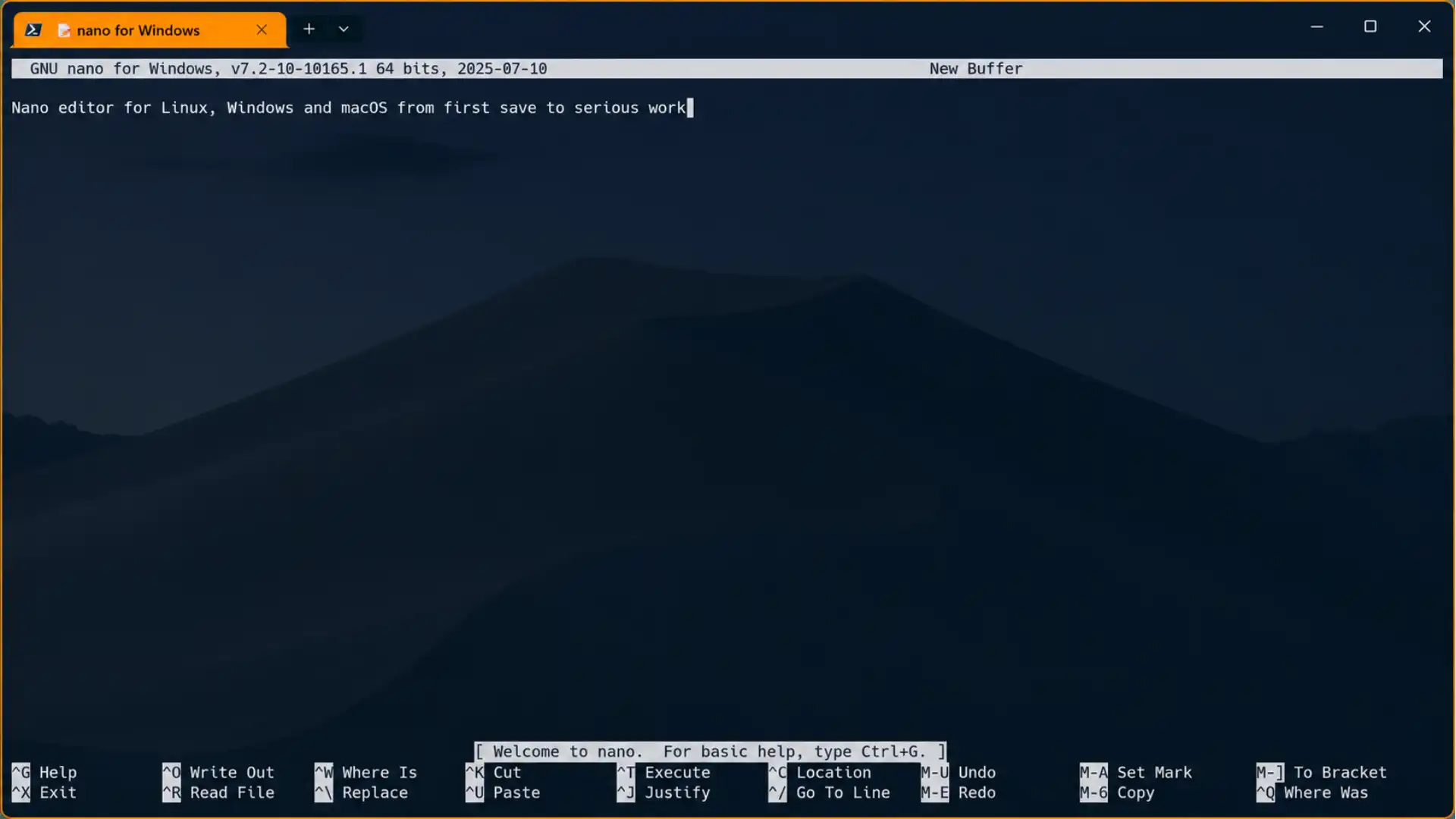
Nano earns its place because it solves the immediate editing problem inside the terminal. You open a file, make a small change, save it, and leave without switching mental modes or learning a separate command language first. GNU nano’s own manual describes it as a small and friendly editor, but the description matters more when the machine has no desktop, the network link is slow, or the file sits behind ssh, sudo, Git, or a package manager prompt. The current GNU nano manual documents version 9.1 and lists features that go beyond the old “beginner editor” label, including undo and redo, syntax coloring, search and replace, auto-indentation, line numbers, word completion, file locking, backup files, and internationalization support. Those features make nano useful for real maintenance work, not only for emergency edits.
Table of Contents
Nano belongs in the terminal toolbox
The editor is not trying to replace an IDE, Vim, Emacs, or a graphical code editor. Its strength is low ceremony under pressure. A server can be missing a desktop stack and still have a terminal. A rescue shell may have only a few tools. A Mac user may open Terminal to change a dotfile, a shell script, or a hosts entry and want a direct way to save text. Nano’s interface puts command hints at the bottom of the screen, which reduces the “trapped in the editor” problem that many new shell users hit with modal editors. The shortcuts are not hidden behind menus; the visible bar teaches the two most urgent actions, writing the file and exiting, during the edit itself. That design turns the editor into a learning surface rather than a puzzle.
The name also signals nano’s history. The FAQ says GNU nano was designed as a free replacement for Pico, the editor associated with the Pine mail suite, and aimed to emulate Pico closely while adding extra functionality. The same FAQ records that the project began as TIP in late 1999, was renamed nano on January 10, 2000, because of a namespace conflict, became an official GNU program in February 2001, and reached its first production release on March 22, 2001. That lineage explains both the simplicity and the feature growth. Nano keeps Pico’s visible-key philosophy but adds modern terminal editing features that administrators and developers expect.
The right way to learn nano is not to memorize every command at once. Start with opening, saving, exiting, moving, cutting, pasting, searching, and reading prompts. Then add configuration, syntax coloring, buffers, spell checking, Git integration, and safer privileged editing. A serious nano user understands the boundary between quick text editing and system risk. Editing /etc/ssh/sshd_config, /etc/hosts, a shell startup file, or a Git commit message may involve only a few keystrokes, but the effect can be large. Nano’s friendly interface does not remove the need for backups, syntax checks, least privilege, and careful path handling. It only gives you a clear tool for making the text change.
A useful mental model is to treat nano as the editor for bounded terminal edits. It is the tool you reach for when the change is already understood: comment one line, adjust one value, write a commit message, record a note, fix a shebang, or inspect a script on a machine that has no desktop. It is less suitable when the job is broad exploration across a repository, semantic refactoring, or large generated data. That boundary keeps expectations fair. Nano should feel boring in the best sense: predictable keys, visible prompts, and no surprise mode switch. On Linux, that boring quality fits package-managed servers. On Apple systems, it fits Terminal sessions where the user wants to stay in zsh and edit one text file without opening a separate app. The editor becomes safer as part of a repeatable ritual: confirm the path, open narrowly, make the smallest change, save, validate, and leave. When that ritual is learned, nano stops being a beginner compromise and becomes a dependable instrument for precise work.
Nano is strongest when it is treated as the small final safety check in a larger operational habit. It gives enough help to keep a new user oriented and enough features to keep an experienced user from reaching for unsafe shell rewrites. The editor belongs in documentation because its commands can be explained without assuming years of terminal culture. Treat every edit as a small change request with a path, a reason, a validation step, and a rollback path. Before saving, compare the intended change with the visible filename and the directory you meant to use. After saving, run the smallest checker that can prove the file is still acceptable to the tool that will read it. Keep another terminal open when the file controls access, networking, package management, or service startup. Do not let a friendly interface hide the fact that plain text can still carry passwords, keys, hostnames, and policy.
The editor’s design favors recoverable work
Nano’s design is built around visible state, reversible edits, and short prompts. The screen has a title area, the editing buffer, a status or prompt line, and shortcut hints. That matters because terminal editing often happens while the user is tired, connected remotely, or repairing something already broken. The manual explains that nano accepts nano [FILE], can open several files in a row, and can place the cursor at a line, column, or search match directly from the command line. Those launch patterns remove much of the friction that pushes people into risky one-liners. A person who can open a file exactly at the failing line is less tempted to rewrite it with sed under pressure.
The bottom help bar is not decoration. It exposes the control-key vocabulary that nano uses across its interface. In nano notation, the caret means Control, so ^X means Control-X, not the two separate characters caret and X. Meta commands are shown with M-; on many keyboards that means Alt, while Esc followed by the key also works in many terminal contexts. This visual vocabulary is one of nano’s strongest safety features. Prompts for writing a file, replacing text, confirming a search wrap, or exiting with unsaved changes show command choices near the place where the user must decide. The editor does not expect the user to remember a colon command, enter insert mode, or know a quit incantation.
Recoverability shows up in everyday actions. The current shortcuts page lists Ctrl+S for saving the current file, Ctrl+O for offering to write a file under a name, Ctrl+X for closing the buffer or exiting, Alt+U for undo, and Alt+E for redo. It also lists Ctrl+K for cutting the current line, Alt+6 for copying, and Ctrl+U for pasting from nano’s cutbuffer. The cutbuffer model is simple but not identical to a system clipboard. It is best understood as nano’s internal holding area for text that you cut or copy inside the editor. That distinction prevents confusion when a remote session, terminal emulator, or mouse selection uses a separate clipboard outside nano.
The design also reduces accidental changes. View mode opens a file read-only, restricted mode limits what can be read or written, and backup options can keep older content when saves happen. The nano man page documents exit status values, including normal completion, invalid option use, and a discarded last buffer. It also describes emergency .save files that nano may write when it receives certain termination signals or runs out of memory. Those safeguards are not a substitute for version control or tested configuration management, but they matter on machines where the edit is happening directly against a live file. The best habit is to let nano’s recoverability support a larger workflow: inspect first, copy when needed, edit narrowly, save deliberately, and test with the tool that owns the file.
The design also rewards a habit that advanced users sometimes skip: keep the edit observable while it is happening. Watch the filename in the title area, notice whether the buffer is modified, and read status messages after a write. If the terminal redraws poorly, use Ctrl+L to refresh the screen instead of guessing what changed. If a command prompt appears, answer the prompt in front of you, not the prompt you expected from memory. This matters on remote systems where latency can make the interface feel one step behind your hands. It matters on macOS too, where Option-key behavior and Terminal profiles can change what nano receives. Recoverable work is not magic; it is work whose state you can see. Nano gives enough state for small edits when the user pauses long enough to look at it. Pair that with ordinary shell discipline, such as keeping another terminal for tests and using diffs before committing, and the simple interface becomes surprisingly resilient.
Recoverability improves when you slow the edit down at decision final safety check points instead of rushing through prompts. Nano’s visible commands are valuable because they make the next safe action discoverable during the session. That visible state is most useful when the user actually reads it before writing a file. Treat every edit as a small change request with a path, a reason, a validation step, and a rollback path. Before saving, compare the intended change with the visible filename and the directory you meant to use. After saving, run the smallest checker that can prove the file is still acceptable to the tool that will read it. Keep another terminal open when the file controls access, networking, package management, or service startup.
Installation choices on Linux and macOS
Nano may already be installed, but “installed” does not always mean “current.” Linux distributions, macOS package managers, and upstream GNU nano follow different release schedules. The upstream nano site lists version 9.1 as the latest version and shows source tarballs with signatures for downloading from nano-editor.org. That is the best reference for upstream behavior and documentation, but it is not automatically the version shipped by every operating system. Distribution maintainers may hold older versions for stability, patch security fixes into older releases, or place a newer build only in rolling branches. The practical first command is nano --version, followed by checking the package source when the version matters for a shortcut, option, or bug fix.
On Debian stable, the package page for trixie lists nano as a small, friendly editor inspired by Pico and shows source package links for nano 8.4 with Debian revision information. On Arch Linux, the package page lists nano 9.1-1 in the Core repository for x86_64, with GPL-3.0-or-later licensing and a build date of June 23, 2026. Alpine’s edge package page also lists nano 9.1-r0, with cmd:nano and cmd:rnano provided by the package. These pages show the larger rule: use your distribution’s package manager unless you have a clear reason not to. It keeps dependencies, signatures, updates, and removal tied to the platform’s normal machinery.
On Debian and Ubuntu families, the usual installation pattern is sudo apt update followed by sudo apt install nano. On Fedora and related systems, users normally reach for sudo dnf install nano; on Arch, sudo pacman -S nano; on Alpine, apk add nano as root or through the system’s privilege method. The command is less important than the package source. Avoid copying install commands from random blogs when an official package exists. Server images and containers may omit nano to stay small, so a missing editor inside a container is not a sign of a broken system. It may mean the image is intentionally lean and expects temporary tools to be added only during debugging, or never added in production images.
Mac users have two common routes when they want current GNU nano behavior. Homebrew’s formula page lists brew install nano, calls nano a free GNU replacement for Pico, shows stable version 9.1, and notes dependencies on ncurses and gettext. MacPorts lists nano 9.1 and provides sudo port install nano after MacPorts is installed. Apple’s Terminal guide explains that a command can be run by entering its path and arguments, and that command lookup uses the shell’s PATH. That PATH point matters on macOS. A Homebrew or MacPorts nano can coexist with a system-provided binary, so which nano, type -a nano, and the shell’s startup files decide which one opens when you type nano.
Source builds still have a place, but they should be rare for ordinary users. Building from upstream can make sense when you need a current bug fix, a specific compile option, or a test of a new release before a distribution packages it. The cost is ownership. Once you compile into /usr/local, you become the package maintainer for that machine. You must know which binary runs, where its man page lives, where syntax files are installed, and how updates will happen. On a single developer Mac, Homebrew or MacPorts usually handles that more cleanly. On a Linux server, the distribution package is almost always easier to audit and reverse. If you do build manually, record the configure options and install prefix, keep the source tarball verification process, and avoid replacing a distribution binary in place. A clean path such as /usr/local/bin/nano is safer than overwriting /usr/bin/nano, because the package manager can still reason about its own files.
Package choice should follow the machine’s update model, not the newest version number alone. A server usually benefits from distribution packages, while a personal Mac can use a user-managed package manager cleanly. Manual builds are best reserved for users who can also maintain the resulting binary and documentation. Treat every edit as a small final safety check with a path, a reason, a validation step, and a rollback path. Before saving, compare the intended change with the visible filename and the directory you meant to use. After saving, run the smallest checker that can prove the file is still acceptable to the tool that will read it. Keep another terminal open when the file controls access, networking, package management, or service startup. Do not let a friendly interface hide operational risk.
The screen layout and command language
Nano’s screen is plain because the editor expects the terminal to be the interface. The title bar normally shows the program version, the current filename, and modified state. The main area holds the buffer. The bottom lines show status messages, prompts, and shortcut labels. The man page describes those bottom help lines as showing important commands and points users to the built-in help with ^G for the full list. That layout is not cosmetic; it is a contract. When nano asks whether to save a modified buffer, the answer keys appear near the prompt. When it asks for a filename, command choices change to match file writing, appending, prepending, or canceling.
The command language has two layers. Control commands handle frequent actions, while Meta commands handle toggles, navigation, and less common operations. The notation is worth learning once. ^G means hold Control and press G. M-U means press Meta-U, often Alt-U; in terminals that do not pass Alt cleanly, pressing Esc and then U may produce the same command. The shortcuts page lists core groups: file handling, editing, search and replace, deletion, operations, movement, special movement, information, and various toggles. Those categories are useful because they teach where to look when the bottom bar shows only a small subset. Nano changes the visible shortcuts depending on the current prompt, so the full cheat sheet is a better map than the main editing screen alone.
The first habit is to read the status line before pressing keys. Nano’s prompts are short, which makes them easy to ignore. The prompt may be asking for a search term, a replacement, a filename, a line number, or permission to save. A wrong answer at a prompt can write the right text to the wrong path. That risk grows when editing with elevated privileges, when the current directory is not obvious, or when a shell expanded a relative filename before nano opened. If a path looks surprising in the Write Out prompt, cancel and check. The editor is forgiving, but the filesystem is literal. A calm pause before Enter prevents many mistaken saves.
The second habit is to use help without shame. The built-in help viewer opens with ^G, page navigation uses ^Y and ^V, and ^X exits the help viewer. The manual describes this help as built in and documents both navigation and exit keys. Help is especially useful after upgrades. Version 8.0 changed default search bindings so ^F starts forward search and ^B starts backward search, while version 9.0 changed horizontal scrolling behavior and reassigned M-< and M-> to viewport scrolling. Users reading older tutorials may see outdated bindings. The current help screen and current man page beat memory, screenshots, or an old blog post.
The shortcut bar also teaches context. In the main buffer, the visible commands focus on editing. In the Write Out prompt, the labels change because the editor is no longer asking for text; it is asking where and how to write. Context-sensitive shortcuts prevent the interface from becoming a wall of commands. The price is that a command visible in one prompt may not be visible in another. New users sometimes think nano lost a function because they are in a prompt, not the main buffer. Pressing the cancel command, usually Ctrl+C or Ctrl+X depending on context, returns attention to the buffer. Experienced users learn to ask, “Which prompt am I in?” before pressing keys. That question prevents accidental filenames, partial replacements, and mistaken exits. The editor’s language is small, but it is still a language: a buffer has commands, a prompt has commands, and help explains the current context rather than every abstract possibility.
The screen is small, so each area has a job: title for identity, buffer for text, status for decisions, and help lines for action. Once those zones are familiar, nano feels less like a mysterious full-screen program and more like a focused terminal form. That mental map prevents many accidental answers at prompts. Treat every final safety check as a small change request with a path, a reason, a validation step, and a rollback path. Before saving, compare the intended change with the visible filename and the directory you meant to use. After saving, run the smallest checker that can prove the file is still acceptable to the tool that will read it. Keep another terminal open when the file controls access, networking, package management, or service startup.
Opening files without losing orientation
The safest nano session starts before the editor opens. Check the current directory with pwd, list the file with ls -l, and read it with less, cat, or a domain tool when the file is risky. Opening nano config.yml in the wrong working directory may create a new file with a familiar name rather than editing the existing one. Nano’s -n option even treats command-line names as new files, which is useful for named-pipe workflows but dangerous if used accidentally. The ordinary nano file command is simple, yet shells, aliases, and relative paths decide what “file” means before nano receives it.
Nano supports direct entry points that reduce scrolling and guessing. The manual and man page document nano +line,column file for opening at a line and column, negative numbers for counting from the end, and search-based forms that place the cursor at the first or last occurrence of a string. The man page also documents a dash as a special filename that makes nano read from standard input. These launch forms are powerful during diagnostics. A compiler, linter, system log, or failed service may report a line number. Opening exactly there keeps the edit small and lowers the chance of changing nearby working text. It also encourages checking the reported line instead of scanning and guessing from memory.
Colon parsing deserves care because tools often print paths as file:line or file:line:column. Nano’s man page documents --colonparsing, which can interpret trailing colon-plus-digits as a line or line-and-column reference when the literal filename does not exist. Version 8.1 also added the nano filename:number idiom when colon parsing is enabled, according to the project’s news page. Do not assume every nano on every machine accepts the same shortcut. Debian stable, Ubuntu LTS, macOS package-manager installs, and rolling distributions can differ. If the editor opens a new buffer with a colon in the filename, stop and check nano --version and man nano before saving anything.
Opening multiple files is another place where orientation matters. The manual says nano can edit several files in a row, and the man page documents multibuffer behavior. With --multibuffer or the relevant configuration, reading a file can place it in a separate buffer rather than inserting it into the current one. Buffers are not tabs in a graphical editor, but they serve a similar purpose. You can compare related files, copy a small section, and switch buffers with the configured commands. The risk is that unsaved changes can live in more than one buffer. Before leaving a session that touched several files, move deliberately through prompts and do not answer all save questions mechanically.
A path check is especially important when commands are copied from documentation. Many examples use placeholder names such as file, config, or example.conf. Nano will happily create a new buffer for a name that does not exist, and the status line may say “New File.” That is helpful when writing a new note and dangerous when you believe you opened an existing config. Before saving, look for that status and ask whether a new file is expected. If not, exit without saving and locate the real path with find, package documentation, service status output, or the application’s own config command. On macOS, remember that Finder paths and shell paths are not always visually obvious because spaces, case, and hidden directories matter. On Linux, symbolic links can hide the true target. Use readlink, realpath, or ls -l when the file is part of a service path.
Opening the wrong file is more common than editing the right file badly. Absolute paths, directory checks, and version-control status are simple defenses against that mistake. New-file warnings should be treated as evidence, not as background noise. Treat every edit as a small change request with a path, a reason, a validation step, and a rollback path. Before saving, compare the intended change with the final safety check filename and the directory you meant to use. After saving, run the smallest checker that can prove the file is still acceptable to the tool that will read it. Keep another terminal open when the file controls access, networking, package management, or service startup. Use version control, protected backups, or a copied original when the edit cannot be easily reconstructed.
Saving, exiting, and reading prompts
Saving in nano means writing the buffer to a path, not merely confirming an edit. Current shortcuts list Ctrl+S as saving the current file and Ctrl+O as offering to write the file, which works like a Save As prompt. Ctrl+X closes the buffer or exits from nano. Older tutorials often teach Ctrl+O because it was the core visible save command for many years, while newer nano also exposes Ctrl+S. The difference matters less than the prompt that follows: writing may ask for a filename, may offer to overwrite, and may expose choices for appending or prepending. Read the path, then press Enter only when it is the intended target.
Modified state is easy to miss. The man page documents state flags and says an asterisk appears after the filename in the title bar when the buffer has been modified under the relevant display mode. Even without focusing on that marker, exiting with Ctrl+X should prompt when unsaved changes exist. The good habit is to separate “save” from “exit.” Save first, read the status message, then exit. On a remote link, status messages can scroll or be delayed, and on a small terminal window the interface may feel cramped. Waiting for confirmation after a write avoids the common mistake of closing a terminal tab while assuming the write has completed.
Nano’s Write Out menu is more than a save dialog. The man page documents writing in Unix format with --unix, disabling automatic conversion with --noconvert, appending, prepending, backup creation, and alternative output names. Some of those choices appear through prompt commands rather than the main screen. This is where nano can protect or damage a file. Appending a block to the end of a shell profile may be useful; prepending text to a structured config file may break it; writing DOS line endings into a script expected by Unix tools can create confusing failures. The editor provides mechanisms, but the file type decides whether the result makes sense.
Exit status can matter when nano is called by another tool. The manual says nano exits with status 0 when it finishes normally, 1 for an invalid option or option argument, and 2 when the last open buffer is discarded with specific quit sequences. That behavior is relevant to scripts, Git, and administrative wrappers. A tool that launches an editor may interpret cancellation differently from a saved edit. Git, for example, opens an editor for commit messages and then decides what to do based on the edited message content and editor behavior. Do not treat every editor close as approval. When a parent command opens nano, understand whether saving an empty file cancels, confirms, or produces an invalid result.
Prompts deserve extra attention when using elevated privileges or editing through a tool that launched nano. The filename shown by nano is the final checkpoint before bytes are written. If Git opened a temporary commit-message file, saving that file is correct because Git will read it after the editor exits. If crontab -e opened a temporary file, the crontab command will install it only after editor exit and its own handling. If you launched sudo nano /etc/app.conf, nano writes directly to the named file. Those workflows feel similar inside the editor but differ outside it. This is why copying “save and exit” instructions without knowing the parent tool can be misleading. The user’s job is to understand whether nano is editing a live file, a temporary staging file, or a new buffer. Same keystrokes, different consequences.
Save prompts are the last place where a mistaken path can be caught without filesystem damage. Exiting is a workflow decision, not just a keystroke. Parent tools such as Git, crontab, and visudo give nano sessions different meanings after the editor closes. Treat every edit as a small change request with a path, a reason, a validation step, and a rollback path. Before saving, final safety check the change with the visible filename and the directory you meant to use. After saving, run the smallest checker that can prove the file is still acceptable to the tool that will read it. Keep another terminal open when the file controls access, networking, package management, or service startup. Use protected backups when the edit cannot be reconstructed.
Navigation that keeps attention on text
Good navigation in nano keeps your eyes on the sentence, not on the scrollbar. Arrow keys work, but serious terminal editing needs page, word, line, block, and file movement. The shortcuts page lists Ctrl+A for the start of line, Ctrl+E for the end of line, Ctrl+P and Ctrl+N for moving one line up and down, Ctrl+Y and Ctrl+V for page up and page down, Alt+\ for the top of the buffer, and Alt+/ for the end. Ctrl+Left and Ctrl+Right move by words, while Ctrl+Up and Ctrl+Down move between blocks. Those commands reduce repetitive key presses and make long files less hostile.
Special movement matters in code and configuration. Alt+G goes to a specified line, and Alt+] moves to a complementary bracket. The nanorc man page describes the gotoline function as moving to a specific line and column, with negative numbers counting from the end of the buffer or line, and ++ or -- prefixes jumping forward or backward by a number of lines. It also describes bracket matching through the findbracket function. Line movement is not only convenience; it is a way to follow external evidence. Logs, compilers, YAML parsers, JSON validators, and service managers often name a line. Jumping there avoids accidental edits in nearby repeated blocks.
Version changes affect navigation. The nano news page says version 9.0 changed horizontal scrolling so all visible lines scroll sideways together by the amount needed to keep the cursor in view, with an option to restore older single-line horizontal scrolling. The manual repeats that version 9.0 behavior and says M-< and M-> became scroll-left and scroll-right commands. That change matters for long unwrapped lines, especially JSON, minified values, shell exports, SSH keys, and application secrets. Users who learned older buffer-switching bindings may think a shortcut stopped working, when the binding was reassigned. The fix is not guessing; read the current help and adjust nanorc bindings if the old behavior is required.
Line numbers are useful, but they should not become visual noise. The shortcuts page lists Alt+N for toggling line numbers, and the man page documents -l or --linenumbers. A user editing prose in a narrow terminal may prefer them off; a user repairing Nginx, sudoers, YAML, Python, or shell scripts often wants them on. Treat line numbers as a diagnostic display, not as a badge of expertise. Turn them on when line references matter, turn them off when reading flow matters, and use --constantshow or its toggle when exact cursor position is more useful than a margin. In small terminal windows, display choices change the amount of text you can actually inspect.
Navigation is also a reading strategy. When reviewing a file before editing, move by page to learn its structure, then search for the exact key, function, host, or variable. After the edit, jump back a few lines and reread the block from the top. Most configuration mistakes are local context mistakes. The edited line may be syntactically valid but placed under the wrong section, inside an inactive block, after a duplicate override, or below a comment that changes the intended meaning. Nano’s movement commands are quick enough to make rereading cheap. Use that cheap rereading. In code, bracket matching helps with visible structure; in configuration, blank-line block movement can reveal sections; in prose, top and end commands make note files manageable. The better you navigate, the less you depend on memory of where a setting “usually” lives.
Navigation commands become safety tools when files contain repeated blocks or long generated sections. Moving by pages, words, blocks, and exact lines keeps attention on structure rather than on finger fatigue. Good movement also makes post-edit rereading more likely. Treat every edit as a small change request with a path, a reason, a validation step, and a rollback path. Before saving, compare the intended change with the visible filename and final safety check the directory you meant to use. After saving, run the smallest checker that can prove the file is still acceptable to the tool that will read it. Keep another terminal open when the file controls access, networking, package management, or service startup. Write down local conventions so the next person does not have to infer your habits.
Essential commands worth memorizing
A small command set covers most nano work. The goal is not to win a shortcut quiz; it is to edit without panic when a service is down, a commit message opens, or a Mac terminal session drops you into a file. The current official shortcuts page is the best compact reference because it groups commands by task rather than by folklore. Start with saving, exiting, moving, cutting, pasting, searching, and asking for help. Then add line numbers, soft wrap, and undo. Once those commands feel automatic, nano stops being “the editor I use because I do not know Vim” and becomes a dependable terminal tool with predictable habits.
Core nano keystrokes for daily editing
| Task | Keystroke | Practical use |
|---|---|---|
| Save current file | Ctrl+S | Write the current buffer without leaving |
| Save as or write out | Ctrl+O | Choose or confirm an output filename |
| Exit or close buffer | Ctrl+X | Leave the current buffer and answer save prompts |
| Help | Ctrl+G | Open built-in help for the current context |
| Search forward | Ctrl+F | Find text from the cursor onward |
| Replace | Alt+R | Start an interactive replacement session |
| Cut line or marked region | Ctrl+K | Move text into nano’s cutbuffer |
| Paste cutbuffer | Ctrl+U | Insert text from nano’s cutbuffer |
| Undo and redo | Alt+U / Alt+E | Reverse or reapply text actions |
| Toggle line numbers | Alt+N | Show or hide line references |
This table favors commands a user can apply in the first week. It does not replace the full help screen, and it deliberately omits rarer functions so the core habits remain memorable.
The most confusing entry is often search. Nano 8.0 changed default bindings so Ctrl+F starts forward search and Ctrl+B starts backward search, while Alt+F and Alt+B repeat the search in those directions. The manual and man pages warn users who want older behavior to use rebindings in a nanorc file. This is the main reason old nano cheat sheets disagree. On a modern upstream nano, Ctrl+W no longer has the same default role that long-time users may remember from older releases, although modern bindings and distribution choices can add more variation. When a search shortcut seems wrong, check the help screen inside the running editor, not an image search result.
Memorization should follow risk. Save, exit, and help come first because they prevent being trapped. Search and line jump come next because they prevent broad accidental edits. Cut, paste, undo, and redo come after that because they change content quickly. Toggles belong last unless the display is blocking your work. Soft wrap, line numbers, whitespace display, mouse support, and the minibar are useful, but they can distract new users from the file itself. The best practice drill is simple: open a harmless copy, add three lines, save, undo, redo, search, replace one occurrence, turn line numbers on, jump to a line, save under a new name, and exit.
A second set of commands becomes useful after the first week: Ctrl+C for cursor position, Alt+D for line, word, and character counts, Ctrl+T for command execution contexts, Alt+S for soft wrap, Alt+P for visible whitespace, and Alt+Z for hiding or showing info bars. These are inspection commands, not only editing commands. Cursor position helps when another tool reports line and column values. Counts help when writing commit bodies, short release notes, or fixed-length text. Visible whitespace helps when tabs and spaces matter. Soft wrap helps with long prose but should be turned off when visual wrapping might be confused with real newlines. The reason to delay this second set is cognitive load. A beginner needs to leave safely. A daily user needs to inspect precisely. Nano supports both, but not every shortcut has the same urgency.
Memorization should be practical and staged. A first command set prevents panic; a second command set improves inspection. A small remembered set plus built-in help is more reliable than a large forgotten cheat sheet. Treat every edit as a small change request with a path, a reason, a validation step, and a rollback path. Before saving, compare the intended change with the visible filename and the directory you meant to use. After saving, run the smallest checker that can prove the file is still acceptable to the tool that will final safety check another terminal open when the file controls access, networking, package management, or service startup. Use version control, protected backups, or a copied original when the edit cannot be easily reconstructed. Stock nano knowledge remains useful even when personal configuration is unavailable.
Cutting, copying, marking, and undoing
Nano’s editing model is line-friendly, but it can handle precise regions. Ctrl+K cuts the current line into nano’s cutbuffer, and repeated Ctrl+K commands join consecutive removed lines in that cutbuffer until a cursor movement or another command breaks the chain. Ctrl+U pastes the current cutbuffer contents at the cursor. The man page documents this behavior and explains that a marked region can be cut with Ctrl+K or copied with Meta-6 after you mark a start point and move to the end. This makes quick block edits possible without a mouse, which is critical in SSH sessions and minimal terminals.
Marking text is the step that separates “delete this line” from “move this exact block.” The shortcuts page lists Alt+A for setting or unsetting the mark, while the man page describes selecting a precise piece of text and then cutting or copying it. Some terminals also allow Shift plus arrow-key selection, with larger strides when Ctrl or Alt is held, but terminal behavior varies. Do not rely on mouse selection for structural edits inside a remote file. Terminal emulator selection may copy text to the local clipboard, not nano’s cutbuffer. Nano’s mark, cut, and paste commands operate inside the buffer and survive the quirks of a remote terminal more predictably.
Undo and redo are simple in the shortcut list, but their practical value is large. Alt+U undoes the last action, and Alt+E redoes the last undone action. The nanorc man page describes undo as undoing the last performed text action and redo as undoing an undo. Undo is not a backup system. It protects against recent editing mistakes during a session, but it will not save you from writing the wrong version over a production file, closing the session, and later discovering a semantic error. The habit should be: use undo for local mistakes, use backup files or version control for file history, and use service-specific tests for correctness.
Indentation is often where nano feels simpler than modal editors. The shortcuts page lists Tab for indenting a marked region and Shift+Tab for unindenting it. The nanorc manual also documents tabgives, which can make Tab produce a chosen string for a syntax, useful for languages such as Python that often expect spaces for indentation. This is a good example of nano’s quiet depth. You can begin with plain tabs and later teach nano per-language behavior through nanorc. Still, formatting-sensitive files deserve external checks. Python can parse indentation, YAML has structural rules, and shell scripts can fail from quoting rather than indentation. Nano edits text; the language tool should confirm meaning.
There is a clean way to practice block edits without risking real data. Create a scratch file with a repeated three-line block, mark the second block, copy it, paste it below the third block, undo, redo, then cut the first block and paste it at the end. The exercise teaches where the mark begins and where the cutbuffer ends. It also teaches that cursor movement can change how repeated cuts join into one cutbuffer. After that, practice with indentation: mark a small region, indent with Tab, unindent with Shift+Tab, and inspect whether tabs or spaces were inserted based on settings. That practice pays off when editing YAML, Python, Makefiles, or shell case blocks. The safest real-world move is often copy, paste, then comment the old block rather than cutting live text immediately. Once the new version validates, remove the old block in a second edit.
Text movement is safest when it starts with marking and rereading before cutting. Copying before deletion keeps an escape route during structural edits. Undo is strongest when it is used immediately before a mistaken change is saved and forgotten. Treat every edit as a small change request with a path, a reason, a validation step, and a rollback path. Before saving, compare the intended change with the final safety check filename and the directory you meant to use. After saving, run the smallest checker that can prove the file is still acceptable to the tool that will read it. Keep another terminal open when the file controls access, networking, package management, or service startup. Use protected backups or a copied original when the edit cannot be easily reconstructed.
Searching, replacing, and jumping with intent
Search is the fastest way to make a small edit stay small. Forward search starts with Ctrl+F in current upstream nano, backward search starts with Ctrl+B, and Alt+F or Alt+B repeats in the corresponding direction. The shortcuts page documents those bindings, and the manual explains that since version 8.0 the search keys were changed to be more newcomer friendly. Search should be your first move in files with repeated blocks, such as SSH configs, hosts files, package manifests, shell profiles, systemd units, and JSON-like settings. Scrolling until a familiar word appears invites errors because nearby blocks often look almost identical.
Replacement needs more restraint than search. Alt+R starts a replacing session, and nano’s prompts walk through the search term, replacement text, and confirmation choices. The nanorc man page says regular expressions in nano are POSIX extended regular expressions, with special characters such as ., ?, *, +, ^, and $, and it explicitly notes that lookahead and lookbehind are not possible. That regex rule prevents many false expectations. Users coming from PCRE, JavaScript, Python, or editor-specific regex engines may try syntax that nano will not understand. When replacing across a configuration file, use confirmations rather than replacing all unless the pattern is narrow and tested.
Jumping to a line keeps search honest. Alt+G goes to a specified line, and command-line launch forms can also place the cursor at a line or match before the screen opens. Nano’s man page documents both plus-line syntax and string search syntax for invocation. A good troubleshooting rhythm is evidence, jump, edit, test. Take the line from an error message, open or jump there, inspect the surrounding block, change the minimum text needed, save, and run the owning validator. For example, do not fix a YAML parser error by replacing all colons in a file; go to the line, inspect indentation and quoting, then test with the application or parser.
Search direction matters when editing generated or repetitive files. Backward search helps after you pass a match, and repeating forward or backward lets you audit each occurrence without restarting. The point is not speed; the point is controlled scope. A global replacement in a shell profile, sudoers include, or Kubernetes manifest can change comments, examples, and inactive blocks along with live settings. Nano’s interactive replacement prompts make it possible to approve only the matches that matter. Treat “replace all” as a batch operation that deserves the same suspicion as a shell one-liner. If the file is under Git, review a diff after saving before committing or reloading a service.
Regular expressions add power, but they also increase responsibility. A literal search for PermitRootLogin is easy to reason about. A regex that matches optional whitespace, comments, and values may find more contexts than expected. Use regex mode only when a plain search cannot express the target. Before replacing, search through matches once without changing them. Notice comments, examples, disabled blocks, and repeated sections. Then start replacement and confirm case by case. If the file is under Git, save and run git diff --word-diff or an ordinary diff before committing. If the file is not under Git, create a copy first or use nano backups in a protected place. Replacement is where a friendly editor can still make a fast, wide mistake.
Search narrows attention; replacement changes state. That difference should shape how quickly you press Enter. Every replace-all operation deserves the same caution as a shell command that touches many files. Treat every edit as a small change request with a path, a reason, a validation step, and a rollback path. Before saving, compare the intended change with the visible filename and the directory you meant to use. After saving, run the smallest checker that can prove the file is still acceptable to the tool that final safety check will read it. Keep another terminal open when the file controls access, networking, package management, or service startup. Use protected backups or a copied original when the edit cannot be easily reconstructed.
Working with line endings and encodings
Line endings are invisible until another tool refuses the file. Unix systems normally use LF, DOS and Windows text often uses CRLF, and older classic Mac text used a lone carriage return. Nano’s news page says version 9.1 removed the ability to read and write files in old Mac format, meaning files that use a lone carriage return as the line ending. The man page documents options for saving in Unix format, disabling automatic conversion from DOS format, and preserving a missing final newline. These are not academic details. A shell script with unexpected carriage returns can fail in ways that look like command-not-found errors, while a config parser may reject a file that appears visually fine.
Nano tries to be practical with encodings. The FAQ says Unicode should be fully usable when the terminal encoding is UTF-8 and the locale, especially the LANG environment variable, is UTF-8. The man page also says any valid Unicode code point can be inserted by typing Meta-V followed by hexadecimal digits and a terminator when needed. The editor can handle Unicode only as well as the terminal environment allows. If accents, box-drawing characters, smart quotes, or non-Latin text appear broken, check the terminal profile, locale, SSH environment, and remote system. Do not assume nano corrupted the file before checking whether the bytes and the display agree.
The --nonewlines option is tempting in special cases because it prevents nano from automatically adding a newline when text does not end with one. The man page warns that this can cause non-POSIX text files. Use that option only when the missing final newline is intentional. Some formats, generated tokens, test fixtures, or exact byte comparisons may require a file without a trailing newline, but ordinary scripts and config files usually behave better with a proper final line ending. A warning in Git or a diff about “no newline at end of file” should be investigated rather than ignored. Nano gives control; the file’s consumers decide whether the control was wise.
Encoding and line-ending decisions are also part of cross-platform Apple work. A macOS user may edit files on a local APFS volume, a Linux server over SSH, a mounted share, or a repository shared with Windows colleagues. Set the file policy outside nano when teams are involved. Git attributes, editorconfig files, repository tests, and project documentation should define line endings and encodings where consistency matters. Nano then becomes the editing tool that follows those expectations. When the environment is unclear, inspect with file, od -c, cat -v, git diff --check, or the project’s formatter before and after saving.
A practical cross-platform rule is to decide line endings at the repository or service boundary, not during a panicked edit. Nano should not be the only place where line-ending policy lives. A team can use .gitattributes, pre-commit checks, formatters, or CI tests to keep files consistent. A single administrator can use file, dos2unix, unix2dos, or language-specific formatters when a file must be converted intentionally. When nano opens a file that came from Windows, read status messages and inspect the saved diff. On macOS, avoid assuming that “Mac format” means current macOS text; the old lone-carriage-return format is historical, and upstream nano 9.1 removed support for reading and writing it. Modern macOS terminal work usually follows Unix-style expectations, especially for shell scripts and server-side files.
Encoding and line-ending mistakes are frustrating because they often look invisible in the editor. Use external inspection tools when bytes matter, especially for scripts, certificates, and files shared across operating systems. The safest policy is explicit project agreement rather than individual guesswork. Treat every edit as a small change request with a path, a reason, a validation step, and a rollback path. Before saving, compare the intended change with the visible filename and the directory you meant to final safety check. After saving, run the smallest checker that can prove the file is still acceptable to the tool that will read it. Keep another terminal open when the file controls access, networking, package management, or service startup. Write down local conventions in comments or runbooks.
Configuration files that change daily behavior
Nanorc is where nano becomes your editor instead of just the default editor. The nanorc man page says nano reads a system-wide file first, usually /etc/nanorc, and then a user-specific file from ~/.nanorc, $XDG_CONFIG_HOME/nano/nanorc, or ~/.config/nano/nanorc, whichever is encountered first. If --rcfile is given, nano reads only the specified file. That startup order matters on shared machines because system defaults may already set colors, wrapping, backups, or key bindings. A user file can adapt behavior without changing every command line, while --ignorercfiles can help test whether a problem comes from configuration.
The syntax of nanorc is intentionally plain. The man page says configuration accepts set and unset commands, plus commands for syntax highlighting and key rebinding, reads one command per line, and expects commands and keywords in lowercase. It also states that nanorc options override nano defaults, while command-line options override nanorc settings. That precedence rule is the key to troubleshooting. If line numbers turn on every time, look in nanorc. If a one-off command uses nano -l, that command can override the default. If a behavior appears only for one account, compare the user file and the system file before blaming nano itself.
Useful starter settings are modest. Many users choose line numbers, auto-indentation, soft wrapping, tab-to-spaces behavior, a guide stripe, history logging, and a preferred mouse setting. The nanorc manual documents these options directly: set autoindent, set softwrap, set tabstospaces, set guidestripe, set historylog, set mouse, and many others. Do not copy a huge nanorc before you know what each line does. A borrowed configuration can change search behavior, wrapping, backup handling, colors, and key bindings all at once. Build a short file, add comments explaining why each choice exists, and keep a copy in version control or a dotfiles repository.
Configuration should reflect context. A laptop setup may prefer colors, mouse support, soft wrap, and modern bindings. A server account may prefer fewer surprises, visible line numbers, backup files, and no custom keys that will be absent on other systems. Portability is a feature when you edit under stress. If you administer many machines, avoid creating muscle memory that fails on a rescue console. If you mainly use one Mac, a tuned Homebrew nano with a personal nanorc can be comfortable. The boundary is simple: customize what helps, but know how to operate stock nano with no configuration.
A minimal starter nanorc can be only a few lines: line numbers for diagnostics, history logging for repeated searches, auto-indentation for structured text, and a clear color include if the package provides one. Every added setting should answer a real annoyance. If long lines are hard to read in Markdown, add soft wrap. If tabs keep causing trouble in Python, set tab behavior for that syntax. If the mouse helps on a local desktop, enable it there, but avoid depending on it over SSH. Keep comments above non-obvious choices because dotfiles outlive memory. When nano behaves strangely months later, those comments explain why a setting exists. This approach also makes migration easier between Linux and Apple machines, where package prefixes and sample configuration locations differ.
Configuration should grow slowly from actual use. A short nanorc that you understand is better than a long one that merely looks professional. Comments turn private preferences into maintainable decisions. Treat every edit as a small change request with a path, a reason, a validation step, and a rollback path. Before saving, compare the intended change with the visible filename and the directory you meant to use. After saving, run the smallest checker that can prove the file is still acceptable to the tool that final safety check. Keep another terminal open when the file controls access, networking, package management, or service startup. Use version control, protected backups, or a copied original when the edit cannot be easily reconstructed.
Syntax highlighting without mystery
Syntax highlighting in nano is pattern matching, not language intelligence. It colors text based on rules in nanorc syntax definitions, using filename matches, header matches, optional magic database checks, and regular expressions. The nanorc man page says each file type can define a syntax with syntax name ["fileregex" ...], can use header rules when filename matching fails, and can query the magic database only when libmagic is installed and --magic or set magic is given. That design is lighter than a language server and less precise than a parser, but it is enough to make comments, strings, keywords, and obvious mistakes stand out.
Color rules use regular expressions. The man page documents color and icolor commands for case-sensitive or case-insensitive matches, valid color names, optional bold or italic attributes, 256-color names on capable terminal emulators, and multiline coloring with start= and end= regex pairs. This power has limits. POSIX extended regular expressions cannot express every nested structure, and the manual says later coloring commands can recolor text colored earlier. If a JSON string, shell heredoc, or template language highlights oddly, the syntax file may be imperfect rather than the file being invalid. Highlighting is a reading aid, not proof.
The safest way to add syntax support is to use package-provided files first. The nano download page links additional syntax files, and distribution packages often install syntax definitions under shared directories such as /usr/share/nano/, which the man page references for available syntax-coloring definitions. Homebrew’s formula page says a sample configuration file is available at $HOMEBREW_PREFIX/share/doc/nano/sample.nanorc and points users to man nanorc. A sample file is better than a random gist because it matches the installed package better. When using third-party syntax files, inspect them before sourcing them. A nanorc file can define commands beyond color rules, including formatters and linters.
Syntax names also help when auto-detection fails. Nano’s man page documents -Y name or --syntax=name for specifying the syntax highlighting to use from the defined syntaxes, and nanorc documents the syntax default and reserved none behaviors. Manual syntax selection is useful for unusual filenames. A temporary file, a dotfile, a generated include, or a script without an extension may not match the filename regex. Running nano -Y sh file or choosing a defined syntax can give readable colors without renaming the file. Still, validation belongs to the language tool: use bash -n, python -m py_compile, visudo -c, nginx -t, or the project’s checker after saving.
Syntax files should be treated like code because they are executable configuration in the broad sense: they change editor behavior and can name external programs for formatting or linting. Read a syntax file before including it from an untrusted source. Color rules are usually harmless, but formatter and linter definitions can run commands against the current buffer. In a personal dotfiles repository, pin the source of third-party syntax rules and revisit them after nano upgrades. In a corporate or classroom environment, prefer packaged syntax definitions maintained through the operating system. If you write your own syntax, begin with filename matching and a few conservative color rules. Overly ambitious regex highlighting is hard to maintain and can slow editing in large files. A small amount of accurate color is better than a noisy imitation of a full parser.
Color is helpful when it reveals structure and harmful when it implies certainty. A highlighted file can still be invalid. Syntax rules should assist reading while validators decide whether the file is correct. Treat every edit as a small change request with a path, a reason, a validation step, and a rollback path. Before saving, compare the intended change with the visible filename and the directory you meant to use. After saving, run the smallest checker that can prove the file is still final safety check for the tool that will read it. Keep another terminal open when the file controls access, networking, package management, or service startup. Use version control, protected backups, or a copied original when the edit cannot be easily reconstructed.
Key rebinding and modern shortcuts
Key rebinding is powerful because it changes muscle memory. Nano’s nanorc manual has a separate section for rebinding keys, and the current manual points users to sample rebindings for behavior that changed in versions 8.0 and 9.0. Since version 8.0, ^F starts forward search and ^B starts backward search. Since version 9.0, M-< and M-> were reassigned to horizontal viewport scrolling. These changes make sense for many newcomers, but long-time users may prefer older meanings. Rebinding lets you choose, but it also means your nano may not behave like another person’s nano on the same system.
Modern bindings go further. The man page documents -/ or --modernbindings, which uses shortcuts similar to many modern programs: Ctrl+X cuts, Ctrl+C copies, Ctrl+V pastes, Ctrl+Z undoes, Ctrl+Y redoes, Ctrl+F searches, Ctrl+S saves, Ctrl+O opens, Ctrl+Q quits, and more when the terminal permits. This option can be friendly on a personal machine and confusing on shared servers. In classic nano, Ctrl+X exits; in modern bindings, Ctrl+Q quits. A user moving between modes can cut text when expecting to leave or leave when expecting another command. Pick one style deliberately, document it in nanorc, and avoid changing it on accounts used by multiple people.
Terminal emulators complicate key binding. Some Alt combinations are intercepted by window managers, menu systems, terminal profiles, remote shells, or keyboard layouts. The nano man page notes --rawsequences, which interprets escape sequences directly instead of asking ncurses to translate them, but also says using it disables mouse support and points to mismatched terminfo descriptions as a possible reason keys fail. Do not fix every key problem inside nano first. Check the terminal profile, whether Alt sends Esc, the $TERM value, tmux or screen mappings, SSH behavior, and remote terminfo. A binding that works in Apple Terminal may fail in a Linux console or inside tmux.
The best rebinding policy is conservative. Rebind only commands you use often, keep comments above custom bindings, and keep a rescue path. A portable nano user can always save, exit, search, and open help on stock bindings. If you maintain dotfiles, test them on a clean container or a temporary account before deploying them across machines. If a custom key stops working after an upgrade, read the current man page and news entry before assuming a bug. Nano is still a terminal application layered on the shell, terminal emulator, terminfo, and operating system. The key you press passes through all of those layers before nano sees it.
A clean rebinding file should include a comment explaining the reason for each changed key. “Restore pre-8.0 search bindings” is useful. “Make nano feel like my GUI editor” is useful. “Copied from a forum” is not. The failure mode of rebinding is silent surprise. You press a key expecting a familiar action, but nano performs the configured action. On a personal laptop, that is annoying. On a shared root shell, it can be dangerous. Keep a backup of the stock nanorc, know how to start nano with --ignorercfiles, and avoid rebinding save, exit, and help unless you have a strong reason. Those commands are the emergency exits. Changing them makes every future troubleshooting session harder, especially when another person tries to help by memory or by reading the official shortcut list.
Rebinding should remove friction without creating a private dialect nobody else can operate. The most dangerous customizations are the ones that change exits, saves, and help. Keep those emergency commands obvious unless there is a strong accessibility reason to change them. Treat every edit as a small change request with a path, a reason, a validation step, and a rollback path. Before saving, compare the intended change with the visible filename and the directory you meant to use. After saving, run the smallest checker final safety check that the file is still acceptable to the tool that will read it. Keep another terminal open when the file controls access, networking, package management, or service startup. Read the prompt that is on screen rather than the prompt you remember.
Multiple buffers and file browser
Multiple buffers turn nano from a single-file editor into a small terminal workspace. The manual says nano can edit several files in a row, and the man page documents -F or --multibuffer, which reads a file into a new buffer by default. The shortcuts page lists Alt+Left and Alt+Right for switching to the preceding or succeeding buffer. This is useful when comparing a system file with a backup, copying a setting from one config to another, or editing a source file and a short notes file together. It is not a full project view, but it keeps related edits inside one terminal process.
The risk is hidden unsaved work. Each buffer has its own modified state, filename, and exit prompt. Do not treat closing nano as one decision when several buffers are open. Move through each prompt carefully, especially if some buffers were opened read-only, some were created from scratch, and some came from privileged paths. If you read another file into the current buffer instead of a new buffer, you may insert its contents into the file you were editing. That can be useful for templates, snippets, and license headers, but it is destructive if done by accident. Multibuffer mode deserves a few practice runs on disposable files before live use.
The file browser is another underused feature. The manual says pressing Ctrl+T from the Read File or Write Out menu invokes the browser, where users can navigate directories graphically to find the desired file. Basic movement uses arrows and cursor keys, while searching and changing directories provide more targeted movement; choosing a file copies its path to the status bar and exits the browser. This helps when path spelling is the hard part. On macOS, spaces in paths and long application support directories can make manual typing brittle. On Linux, deeply nested /etc, /var, or project paths create the same problem.
The browser is not a file manager. The manual’s Pico compatibility section says nano’s browser does not implement Add, Copy, Rename, and Delete commands that Pico provides; in nano, it is just a file browser. That limit is healthy. File deletion, renaming, and permission changes deserve explicit shell commands where history, prompts, and careful path inspection are clearer. Use the browser to choose files, not to manage a directory tree. If you need to inspect ownership or permissions, leave nano or use another terminal pane with ls -l, stat, or platform tools. Nano’s job is editing the selected text, not replacing the shell.
A practical buffer workflow starts with names. Before opening several files, make the terminal wide enough to read the title bar and use meaningful paths. The filename shown in each buffer is your anchor. If two files have the same basename in different directories, check the full path through the Write Out prompt or from a separate shell. When copying text between buffers, avoid large unreviewed blocks; copy the smallest section needed, paste, then reread both source and destination. If you are comparing files seriously, use diff or git diff outside nano rather than relying on memory. Nano buffers are excellent for small transfers and quick reference. They are not a substitute for comparison tools when exact differences matter.
Buffers are useful for nearby context, not for hiding a large work session inside one terminal. The file browser reduces path-typing errors, but it does not replace shell inspection. Use buffers for small transfers and external diff tools for exact comparisons. Treat every edit as a small change request with a path, a reason, a validation step, and a rollback path. Before saving, compare the intended change with the visible filename and the directory you meant to use. After saving, run the smallest checker that final safety check the file is still acceptable to the tool that will read it. Keep another terminal open when the file controls access, networking, package management, or service startup. Prefer a boring repeatable sequence over clever shortcuts when the account is privileged.
Shell, Git, and sudo editor integration
Nano becomes more useful when other tools know it is your editor. Shell programs often consult environment variables or their own configuration when they need a human to edit text. Git’s documentation for GIT_EDITOR says the editor preference order is GIT_EDITOR, then core.editor, then VISUAL, then EDITOR, then the compile-time default, which is usually vi. That means git config --global core.editor "nano" changes Git’s editor without forcing every program on the system to use nano. Setting EDITOR=nano or VISUAL=nano in a shell startup file reaches broader tools but can have wider effects.
A Mac Terminal session follows the same shell rules, with macOS-specific packaging details. Apple’s Terminal guide says commands are found through the shell’s PATH, and Apple’s shell settings page says the default shell is zsh. That combination explains many “wrong nano opened” reports. A user installs GNU nano through Homebrew or MacPorts, but the shell still finds another binary first. Use type -a nano to see all matching commands in order, then adjust PATH in the right zsh startup file or call the full path for tools that need a specific version. Do not delete system files to force a package-manager version.
Sudo-related editing deserves special care. The visudo manual says visudo edits the sudoers file safely, locks it against simultaneous edits, performs validity checks, and checks syntax before installing the edited file. It also describes how editor settings can choose among SUDO_EDITOR, VISUAL, and EDITOR, depending on sudoers configuration. Use visudo, not plain sudo nano /etc/sudoers, for sudoers changes. The wrapper exists because a syntax error in sudoers can break administrative access. Nano can be the editor inside visudo, but visudo should own validation and installation of the sudoers file.
Editor integration should be explicit in teams. A repository can document git config core.editor nano for newcomers, but it should not require every contributor to use nano. A server runbook can say sudo EDITOR=nano visudo when policy permits that environment variable, but sudoers settings may restrict editor selection for security reasons. The editor is a user preference; the validation command is an operational requirement. Git commit messages, crontabs, sudoers files, systemd drop-ins, and package manager hooks each have their own rules after the editor exits. Learn those rules. Nano writes text; the calling tool decides whether the text is accepted.
Environment variables should be set where their scope matches the intended effect. Put a broad export EDITOR=nano in a personal shell profile only if you truly want many terminal tools to launch nano. Put Git-specific preference in Git config when the intent is only commit messages, tags, rebases, and other Git editor calls. Narrow scope prevents unintended editor changes. This matters on Macs where Terminal uses zsh and startup files can differ between login shells, interactive shells, and noninteractive commands. It also matters on servers where sudo may reset environment variables. When a tool ignores your editor choice, read that tool’s documentation before fighting the shell. The tool may have its own config, security restrictions, or compiled defaults.
Editor integration is cleanest when each tool receives the narrow preference it needs. Git can use nano without making every administrative tool use nano. Privilege tools may ignore editor variables for good security reasons. Treat every edit as a small change request with a path, a reason, a validation step, and a rollback path. Before saving, compare the intended change with the visible filename and the directory you meant to use. After saving, run the smallest checker that can prove the file is still acceptable final safety check for the tool that will read it. Keep another terminal open when the file controls access, networking, package management, or service startup. Stock nano knowledge remains useful even when personal configuration is unavailable.
Editing privileged files safely
The dangerous part of privileged editing is not nano; it is write permission. Running sudo nano /etc/example.conf gives the editor the ability to write as root, so any mistaken save is a privileged mistaken save. The safest pattern depends on the file. For sudoers, use visudo. For a service config, copy the file, edit the copy, validate it, and then install it with the correct ownership and permissions. For small controlled changes, open with sudo only after reading the file as an ordinary user. When possible, use tools that validate before replacing the live file. Nano can make the edit comfortable, but it should not be the only safety layer.
Backups should be intentional. Nano’s man page documents -B or --backup, which backs up the previous version with a tilde suffix, and -C or --backupdir, which stores uniquely numbered backups in a specified directory when backups are enabled. Nanorc has corresponding set backup and set backupdir settings. A backup beside a sensitive file can itself become sensitive. If /etc/app.conf~ contains passwords, tokens, or internal hostnames, it may be readable under different assumptions, picked up by include patterns, or copied into archives. Choose a backup directory with permissions that match the data, and clean old backups under a policy.
Permissions and ownership matter after editing. Some programs reject config files that are group-writable, world-readable, or owned by the wrong user. Others silently ignore include files with unsafe names. The visudo man page, for example, documents owner and permission enforcement options and warns about included files with backup-style names in diagnostics. Do not assume a successful nano save means the service will accept the file. After writing, check ownership with ls -l, validate syntax with the service’s tool, and reload or restart only when the validation passes. For SSH, sudo, web servers, and database configs, leave yourself another root session or rollback path.
Restricted mode can help in controlled environments. Nano’s man page documents -R or --restricted, which reads and writes only specified command-line files and blocks several actions, including history files, suspension, spell checking, shell command execution, saving under a different name, appending or prepending to files, and backup files. It can also be activated by invoking nano with a name beginning with r, such as rnano. Restricted mode narrows nano, but it is not a sandbox for an untrusted user by itself. Use it as one control among filesystem permissions, sudoers policy, shell restrictions, containers, and audited workflows.
A safer privileged pattern uses staging. Copy the target to a temporary path with permissions you understand, edit the temporary copy, run the validator against that copy if the tool supports it, then install with sudo install or the service’s management command. This pattern separates editing from deployment. It is not necessary for every one-line change on a personal machine, but it is valuable for services that can lock you out or stop production traffic. Another pattern is to use sudoedit, where configured, so the editor can run as the user on a temporary copy while sudo handles the privileged writeback. Policy differs by system, so do not assume availability. The core idea remains: reduce the time spent with an editor running as root and let validators catch mistakes before live replacement.
Privileged editing should minimize both the number of changed bytes and the time spent with write access. Wrappers, validators, staging files, and rollback sessions are practical safeguards. The editor should make the edit readable while procedure makes the change safe. Treat every edit as a small change request with a path, a reason, a validation step, and a rollback path. Before saving, compare the intended change with the visible filename and the directory you meant to use. After saving, run the smallest checker that can final safety check whether the file is still acceptable to the tool that will read it. Keep another terminal open when the file controls access, networking, package management, or service startup. Use protected backups or a copied original when the edit cannot be easily reconstructed.
Paste, mouse, and terminal quirks
Most nano surprises come from the terminal layer, not from the editor core. Terminal emulators decide how key combinations are transmitted, how mouse selections interact with applications, what Alt means, what bracketed paste support exists, and whether clipboard operations stay local or reach a remote session. Nano’s man page documents mouse support with -m or --mouse, saying clicks can place the cursor, set the mark with a double click, and execute shortcuts when mouse support is available; it also says text can still be selected by dragging while holding Shift. That Shift detail is often the difference between selecting text inside nano and selecting text in the terminal emulator.
Pasting deserves suspicion in files that auto-indent or wrap. The FAQ includes a running section about pasted text becoming increasingly indented and another about pasting from Windows into a remote nano causing rewrapping. The news page records reliability fixes around bracketed pastes over slow connections and prompt handling for pasted tabs in nano 8.4. Pasted text should be reviewed before saving, especially over SSH. A terminal can send a large block faster than the remote application redraws. Auto-indentation, wrapping, and line-ending conversion can then produce a file that looks acceptable near the cursor but has damaged lines above or below.
Mouse support is useful, but keyboard fluency is more portable. On a local Mac or Linux desktop terminal, clicking to place the cursor feels natural. In a Linux console, tmux pane, serial console, web-based terminal, or remote recovery shell, mouse behavior may differ or disappear. Learn the keyboard path for every action you use with the mouse. Move by word, page, line, and search. Mark text with the nano command. Paste from nano’s cutbuffer with Ctrl+U. Use terminal clipboard operations only when you intentionally cross the boundary between the local machine and the remote editor.
Terminal size also changes editing behavior. Long lines may wrap visually, scroll horizontally, or hide context depending on soft wrap, side scrolling, and version. Nano 9.0 changed horizontal scrolling, while --softwrap, --atblanks, --linenumbers, --minibar, and --zero change how much interface appears around the text. A tiny terminal window can make a valid file look broken. Before rewriting a long config line, widen the terminal or toggle soft wrap and line numbers to see what is real text and what is screen presentation. In structured files, visual wrap is not a newline. Saving after manually “fixing” visual wrap can insert real line breaks that break the format.
One useful paste habit is to enter a blank line before a large paste and another blank line after it when the file format permits. Then review the pasted block and remove the extra spacing. Boundaries make paste damage visible. In formats where blank lines are not safe, paste into a scratch buffer first, inspect wrapping and indentation, then move the verified block. For secrets, certificates, and keys, compare expected header and footer lines and count whether long base64 lines stayed intact. If a terminal supports bracketed paste, nano versions and terminal settings may cooperate better, but no paste feature removes the need to inspect. A paste is an edit performed at machine speed. Human review has to catch up before saving.
Paste and mouse features are conveniences layered on terminal behavior. They should never be the only way you know how to complete an edit. Keyboard commands remain the portable path across SSH, consoles, tmux, and recovery environments. Treat every edit as a small change request with a path, a reason, a validation step, and a rollback path. Before saving, compare the intended change with the visible filename and the directory you meant to use. After saving, run the smallest checker that can prove the file final safety check to the tool that will read it. Keep another terminal open when the file controls access, networking, package management, or service startup. Use version control, protected backups, or a copied original when the edit cannot be easily reconstructed.
Configuration patterns for real workflows
A good nanorc is short, commented, and shaped by the files you really edit. The table below gives patterns rather than a universal configuration. Each choice has a cost: line numbers use horizontal space, soft wrap can hide real line length, backup files can expose sensitive data, and mouse support may change selection behavior. The nanorc manual’s precedence rule should guide every pattern: defaults come first, nanorc overrides them, and command-line options can still override nanorc. That makes it safe to keep ordinary defaults modest and use one-off command options for unusual work.
Nanorc patterns by editing context
| Workflow | Useful settings | Reason to choose them | Watch the trade-off |
|---|---|---|---|
| Server config repair | set linenumbers, set backup, set historylog | Easier line references and rollback clues | Backup files may contain secrets |
| Shell scripting | set autoindent, set tabstospaces, syntax rules | Keeps blocks readable in small files | Still run shell syntax checks |
| Prose notes | set softwrap, set atblanks, set minibar | Better reading in narrow terminals | Visual wrap is not a real newline |
| Python editing | tabgives " ", Python syntax, formatter | Spaces are easier to keep consistent | External formatter may change more text |
| Shared account | Minimal settings, few rebindings | Reduces surprises for other users | Less personal comfort |
| Personal Mac | Modern bindings, mouse, colors | Matches graphical-editor habits | Less portable to stock servers |
The table is intentionally conservative. Add settings only after a real annoyance appears twice; remove settings whose purpose you cannot explain.
The backup pattern is the one to treat with the most care. Nano can create simple tilde backups or uniquely numbered backups in a directory. That is helpful when editing local notes, source files, or non-secret configs, but dangerous when files contain credentials. A backup policy should name both the location and the cleanup rule. For root-owned files, the backup directory should be root-owned and not world-readable. For project files under Git, backups may be redundant or even harmful if they get committed. Add *~ to appropriate ignore files when tilde backups are used in a repository.
The prose pattern shows nano is not only for code. Soft wrapping at blanks, a minibar, and hidden help lines can make the editor pleasant for Markdown notes, changelog entries, and Git commit bodies. Apple’s Terminal guide says a shell script is a text file with UNIX commands, but Terminal text work also includes notes, snippets, and operational records. Nano handles plain text well when the format is plain. For long structured documents, a graphical editor may be better. For a quick commit message, release note, or README fix over SSH, nano is enough.
The shared-account pattern is about respect. Custom bindings, aggressive color files, mouse defaults, and hidden interface elements can confuse another administrator who opens the same account during an incident. Shared operational accounts should behave predictably. If customization is needed, keep it in personal accounts or in an explicitly loaded rcfile. The --rcfile option lets a command read a specified settings file instead of the usual system and user nanorc files. That makes task-specific configuration possible without rewriting the default experience for everyone else.
A useful maintenance habit is to keep separate nanorc profiles for different contexts rather than one overloaded file. A personal profile can use colors, mouse, modern bindings, and comfort settings. A server profile can use line numbers, backups, and conservative keys. A writing profile can use soft wrap and a quieter interface. The --rcfile option makes profiles explicit. For example, an alias can call nano with a writing rcfile for notes while leaving the default editor conservative for system files. This is cleaner than toggling many settings by hand or relying on memory. The danger is hiding too much behavior behind aliases; document them in your shell config and keep the command visible enough that future you knows which profile opened the file.
Profiles work best when their purpose is obvious from the command that opened them. A writing profile, a server profile, and a personal desktop profile can coexist cleanly. The danger begins when aliases hide which behavior is active. Treat every edit as a small change request with a path, a reason, a validation step, and a rollback path. Before saving, compare the intended change with the visible filename and the directory you meant to use. After saving, run the smallest checker that can prove the file is still acceptable to final safety check will read it. Keep another terminal open when the file controls access, networking, package management, or service startup. Write local conventions in comments or runbooks so the next person does not have to infer your habits.
Nano on Apple systems
On macOS, the hardest part is often knowing which nano you launched. Apple’s Terminal guide says command lookup uses the shell’s PATH, and the default shell page says zsh is the default shell for Terminal windows and tabs. Homebrew installs its own nano formula with brew install nano, while MacPorts installs through sudo port install nano. Those package-manager binaries can live outside system paths and may outrank or follow other directories depending on zsh startup configuration. The practical check is type -a nano, then nano --version, then man nano if behavior still does not match the documentation you are reading.
Apple Terminal behaves like a normal terminal in many nano tasks, but macOS conventions add details. Option may produce special characters instead of Meta sequences unless the terminal profile treats it as a meta key. Paths often contain spaces under user-facing folders, so dragging a file into Terminal can insert an escaped path, while nano itself receives only the shell-parsed argument. Quoting is a shell problem before it is a nano problem. nano ~/Library/Application\ Support/app/config and nano "$HOME/Library/Application Support/app/config" tell the shell to pass one path. Without escaping or quotes, nano may receive several filenames and open several buffers.
Homebrew and MacPorts differ in philosophy and paths. Homebrew’s formula page lists dependencies and the sample configuration location under $HOMEBREW_PREFIX, while MacPorts places software under its own prefix and provides commands for inspecting installed files and upgrading ports. Pick one package manager as the owner of nano on a given Mac. Mixing both can work, but it creates path confusion and duplicate man pages. If a tutorial says a sample nanorc lives in a Homebrew path but the machine uses MacPorts, the file will not be there. Use the package manager’s own inspection commands to find documentation, syntax files, and installed binaries.
Apple work also crosses local and remote boundaries. You may run nano locally on macOS, then SSH into Linux and run a different nano, then edit a mounted file from a repository shared with Windows. Do not assume one setting follows you. Local zsh configuration does not change a remote server’s nanorc. A Homebrew nano feature does not exist on an older Debian stable machine unless Debian ships it. Clipboard behavior changes when the editor runs remotely. The portable core remains the same: open the right path, read prompts, save deliberately, check line endings, and validate with the tool that owns the file.
Apple users should also consider the relationship between Terminal, package managers, and graphical editors. Nano is ideal when the file lives in a shell workflow: dotfiles, Git messages, scripts, SSH config, small notes, and remote edits. Use a graphical editor when macOS services, app bundles, rich documents, or project-wide search are involved. Terminal can launch graphical apps with open, and graphical editors can often open command-line paths through helper tools. The point is not to force every edit through nano. The point is to know when nano gives the shortest safe path. If you do use nano heavily on a Mac, make the Option-key behavior explicit, keep package-manager paths stable, and confirm whether remote servers have the same version before relying on recent shortcuts.
Apple users benefit from treating Terminal as a Unix-style environment with macOS packaging details. Once PATH, zsh startup files, and package-manager prefixes are understood, nano behaves predictably. Most confusion comes from mixing local Mac assumptions with remote Linux sessions. Treat every edit as a small change request with a path, a reason, a validation step, and a rollback path. Before saving, compare the intended change with the visible filename and the directory you meant to use. After saving, run the smallest checker that can prove final safety check is still acceptable to the tool that will read it. Keep another terminal open when the file controls access, networking, package management, or service startup. Write down local conventions in comments or runbooks so the next person does not have to infer your habits.
Remote servers and containers
Nano shines on remote machines because it asks little from the environment. A terminal, a keyboard, and a basic package are enough. The editor does not need a display server, a project index, a plugin manager, or a graphical file dialog. That makes it natural over SSH, serial consoles, rescue shells, cloud instances, and throwaway containers. The upstream manual still describes nano as a terminal editor, while distribution package pages show it present across Debian, Arch, Alpine, openSUSE, Homebrew, and MacPorts ecosystems. The practical message is simple: nano is widely available, but its exact version and compile options may differ.
Remote editing changes risk. Latency can make cursor movement and paste review slower. A dropped SSH connection can interrupt an edit. Nano’s man page describes emergency .save files when nano receives certain signals or runs out of memory, and says in multibuffer mode it writes all open buffers to their respective emergency files. Know where recovery files may appear before you need them. If a remote session dies, log back in, inspect the working directory and target directory for .save files, compare content carefully, and avoid blindly moving a recovery file over a live config. Recovery content may be partial or older than you think.
Containers add a different constraint: small images often omit editors. Alpine’s package page shows nano is available in the main repository for edge and lists small installed size figures, but a production image may still exclude it. Installing nano inside a running production container should be a last resort, not a habit. Better patterns include editing configuration outside the image, rebuilding the image, using bind-mounted config during debugging, or launching a disposable debug container with the tools needed. Nano is excellent for inspection and emergency edits, but container workflows should keep live mutation rare and reproducible configuration preferred.
Remote terminals also make clipboard assumptions fragile. Text copied from a local Mac may paste into a remote Linux nano through the terminal emulator, not through a shared system clipboard. Nano’s internal cutbuffer stays inside the remote process. Keep those two clipboards mentally separate. When moving a secret, key, or certificate block, confirm line breaks and trailing spaces after paste. Turn on visible whitespace if needed, and use checksums or service-specific validation when exact bytes matter. For SSH keys, YAML secrets, and environment files, one wrapped line can be enough to break authentication or parsing.
For SSH sessions, pair nano with session safety. Use tmux or screen for long edits when available, keep a second session open before changing network or authentication settings, and avoid editing firewall, SSH, or sudo policy from the only active administrative connection. The editor cannot save you from cutting off your own access. Nano’s recovery files help after some interruptions, but they do not keep the network alive or preserve a privileged session. When editing a remote file that controls access, make the change as a staged test when the service supports it. For SSH daemon changes, keep an existing connection open while testing a new one. For firewall changes, schedule a rollback or use platform tooling that supports safe apply windows.
Remote editing rewards preparation before the session starts. A second shell, a rollback plan, and a validator matter more than any single shortcut. Containers should usually be rebuilt from declared inputs rather than patched by hand. Treat every edit as a small change request with a path, a reason, a validation step, and a rollback path. Before saving, compare the intended change with the visible filename and the directory you meant to use. After saving, run the smallest checker that can prove the file is final safety check for the tool that will read it. Keep another terminal open when the file controls access, networking, package management, or service startup. Use version control, protected backups, or a copied original when the edit cannot be easily reconstructed.
Writing code and configuration
Nano is a text editor, so code intelligence must come from other tools. It can color syntax, indent lines, comment and uncomment regions, run formatters or linters configured in syntax definitions, and save files quickly. It does not replace a language server, debugger, or test runner. The nanorc manual documents formatter, linter, and comment commands inside syntax definitions, including bracket-style comments such as /*|*/ for CSS and line comments such as # for Python-like files. That gives nano hooks into language workflows, but the accuracy still depends on the external programs and rules you configure.
For shell scripts, nano is often enough because the files are small and close to the command line. Apple’s Terminal guide describes shell scripts as text files containing one or more UNIX commands, starting with a shebang when they identify the shell, and using chmod to make the text file executable. A nano shell-script workflow should always include execution checks. Save the script, run sh -n or bash -n as appropriate, review quoting, then run with harmless input before using it against real files. Nano can show comments and indentation, but shell errors often come from expansion, quoting, and environment assumptions rather than visible structure.
Configuration files demand validator discipline. For sudoers, use visudo; for Nginx, use nginx -t; for systemd units, use systemd-analyze verify where available; for JSON, use python -m json.tool or jq; for YAML, use a parser tied to the application when possible. The editor should not be the final judge of a config file. Nano can help you change one line safely, but it cannot know whether the service will accept the value, whether permissions are correct, or whether an include order changes meaning. Build a habit: edit, save, validate, diff, reload, observe logs.
For code repositories, Git should frame the edit. Set core.editor if nano is your preferred commit-message editor, keep backups out of commits, run tests before committing, and inspect git diff after any broad replacement. Git’s editor preference order means core.editor can choose nano for Git without changing all shell tools. That separation is useful on machines where administrative tools should keep their default editor. A developer may want nano for commit messages but Vim for crontab, or nano locally but the site default editor on servers. The point is to choose intentionally rather than accept whichever editor a command launches.
Nano’s formatter and linter hooks can be helpful, but they should be predictable. A formatter that rewrites the whole buffer is fine in a repository where formatting is expected and reviewable. It is risky in a live config file where unrelated reformatting hides the one intended change. Run broad formatters before review, not during a blind emergency edit. For code, keep formatters in project tooling so every contributor sees the same result. For configuration, prefer validators that report errors without rewriting. If a linter command is attached to a nanorc syntax, document what it runs and whether it reads from the current buffer, a temporary file, or the saved file. Hidden automation inside an editor can surprise even experienced users.
Code and configuration need checks that understand their grammar. Nano can make the text edit, but linters, parsers, tests, and service commands determine correctness. That division of labor keeps the editor simple and the workflow trustworthy. Treat every edit as a small change request with a path, a reason, a validation step, and a rollback path. Before saving, compare the intended change with the visible filename and the directory you meant to use. After saving, run the smallest checker that can prove the file is final safety check for the tool that will read it. Keep another terminal open when the file controls access, networking, package management, or service startup. Do not let a friendly interface hide the fact that plain text can still carry passwords, keys, hostnames, and policy.
Backups, position logs, and recovery
Nano has several memory features, and each one solves a different problem. Backups keep earlier file content when saving. History logs remember recent search strings, replacements, and executed commands. Position logs reopen files near the cursor location from previous sessions. Emergency save files capture buffers when nano is terminated under certain conditions. The man page documents --backup, --backupdir, --historylog, --positionlog, and emergency .save behavior. These features reduce frustration, but they also create files and traces that may contain sensitive text. Treat them as part of the data footprint, not as invisible convenience.
Position logs are useful for long notes, changelogs, and source files. The man page says --positionlog logs the cursor position for the 200 most recent files and places the cursor there when reopening, while also saving and restoring anchor positions. The news page says nano 8.5 added saving and restoring of anchors when --positionlog is active. This is a reader’s feature as much as an editor’s feature. It lets you return to the section you were working on without adding temporary markers into the file. On shared or sensitive systems, though, the log can reveal filenames and work habits.
Backup directories deserve design. A tilde backup next to a file is easy to find, but it may sit in a directory scanned by another program. Some include mechanisms ignore backup-like files; others do not. The visudo manual’s diagnostics mention backup-style names in include directories, which shows why stray editor backups can matter in administrative contexts. The safest backup location is often outside the live include path. Use a root-only directory for root-owned sensitive files, project-level ignore rules for repository work, and clear cleanup rules for old backups. Never rely on “nobody will notice this tilde file” as a security boundary.
Emergency recovery is not version control. If nano creates nano.save, filename.save, or numbered variants, inspect with read-only tools first. Compare against the live file, check timestamps, and decide whether the recovery text is newer, older, partial, or irrelevant. Do not overwrite a working file merely because a .save file exists. On a server, the file may have been edited again after the crash. In a multibuffer session, each open buffer may have its own emergency file. The recovery process should be slow, explicit, and documented if the file affects a service.
Version control changes how you should think about nano backups. In a Git repository, a tilde backup is usually less useful than git diff, git status, and the commit history. It may even become clutter that risks accidental commits if ignore rules are missing. Outside version control, nano backups are more valuable but need stronger file hygiene. Personal notes, one-off scripts, and server configs may benefit from quick previous versions. For important service files, write down whether the backup is a temporary safety net or an approved archival copy. If it is temporary, remove it after validation or move it into a protected incident directory. A backup nobody owns becomes another mystery file for the next administrator.
Recovery features are useful only when users know where the extra files live and what they contain. Treat every backup, history, and position record as part of the file’s information footprint. Clean recovery habits matter most on machines shared with other users. Treat every edit as a small change request with a path, a reason, a validation step, and a rollback path. Before saving, compare the intended change with the visible filename and the directory you meant to use. After saving, run the smallest final safety check to prove the file is still acceptable to the tool that will read it. Keep another terminal open when the file controls access, networking, package management, or service startup. Use version control, protected backups, or a copied original when the edit cannot be easily reconstructed.
Accessibility, localization, and screen readers
Nano’s terminal design can help accessibility when configured with care. The man page documents --showcursor, which makes the cursor visible in the file browser and help viewer and says it is useful for braille users and people with poor vision. It also documents options for bold interface text, no help lines, a minibar, zero interface mode, state flags, visible whitespace, line numbers, and color settings through nanorc. These controls let users trade screen density, contrast, and interface hints. Accessibility is not one setting; it is matching display, keyboard, terminal emulator, and reader needs.
Internationalization is part of nano’s feature set. The upstream manual lists internationalization support among nano’s capabilities, and the FAQ says Unicode should be usable when the terminal encoding and locale are UTF-8. Debian’s package page also lists full internationalization support among nano’s features. The practical test is not whether nano claims Unicode support, but whether the whole session agrees on UTF-8. A local terminal, remote SSH session, shell locale, font, and file encoding must line up. When text looks broken, inspect the locale and bytes before making replacement edits that could corrupt valid content.
Color choices can help or harm. Nanorc allows interface colors for title, status, prompt, mini bar, key labels, line numbers, selected text, and error messages. Syntax coloring can use named colors, brighter variants, 256-color names, and limited hex-style color approximations on capable terminal emulators. High contrast beats decorative palettes. A color scheme that looks elegant in one terminal theme can become unreadable in another, especially over SSH, in dark mode, or on a Linux console. Keep error messages and prompts obvious. If syntax colors make text harder to read, turn highlighting off with the relevant toggle and fix the palette later.
Keyboard accessibility intersects with shortcuts. A user may prefer modern bindings because they match common graphical editors, or classic bindings because the help bar and older docs line up. Some key combinations may be difficult on compact keyboards, non-US layouts, or assistive devices. Rebinding should reduce strain without isolating the user from help. Keep the help command reachable, document custom bindings inside nanorc comments, and avoid changing shared accounts. If a key cannot be typed reliably, bind the function to a reachable combination rather than forcing an awkward hand movement. Nano’s simplicity is strongest when the user can physically operate it.
Accessibility testing should happen in the same terminal where editing will happen. A color profile that works in a graphical terminal may fail on a console. A key binding that is easy on a full keyboard may be awkward on a laptop or remote client. The only reliable test is the real path from hands to terminal to nano. Open help, search, write a file, toggle line numbers, use the file browser, and exit. If a screen reader or braille display is involved, test the help viewer and browser cursor visibility, not only the main buffer. If a locale uses non-ASCII text, create a harmless file with representative characters and reopen it after saving. Comfort settings are successful only when they survive the actual editing environment.
Accessible configuration is personal but should still be documented. The best settings are the ones that work in the actual terminal, font, locale, keyboard, and assistive setup. Testing with harmless files prevents accessibility fixes from being discovered during a crisis. Treat every edit as a small change request with a path, a reason, a validation step, and a rollback path. Before saving, compare the intended change with the visible filename and the directory you meant to use. After saving, run the smallest checker that can final safety check whether the file is still acceptable to the tool that will read it. Keep another terminal open when the file controls access, networking, package management, or service startup. Stock nano knowledge remains useful even when personal configuration is unavailable.
Performance and small-system builds
Nano is small enough for modest systems but not featureless. The upstream manual’s build section describes source builds with the familiar tar, ./configure, make, and make install sequence, and lists configure options that can disable browser, color, comment, formatter, help, histories, justify, libmagic, line numbers, linter, mouse, multibuffer, nanorc, operating directory, speller, tab completion, word completion, and wrapping support. That list explains why two nano binaries can behave differently even when their version numbers look close. A distribution, embedded builder, or rescue environment may compile a smaller feature set.
Tiny builds have a real role. Debian provides a nano-tiny package for environments such as rescue disks where resources are limited, and the upstream build options include --enable-tiny. The trade is capability for footprint. A tiny editor may omit features you expect, such as syntax coloring, mouse support, help texts, multibuffer editing, or spell checking. That is acceptable on recovery media where the goal is to edit one broken config file and reboot. It is frustrating on a daily workstation where you expect a comfortable editor. Check the package name and compile options when a feature is missing.
Performance also depends on terminal behavior. Huge single-line files, very large logs, complex syntax regexes, remote latency, slow serial consoles, and limited terminal redraw speed can make any terminal editor feel sluggish. Nano 9.0’s whole-window horizontal scrolling change was specifically about how long lines are shown when the cursor approaches the edge, while older behavior can be restored with --solo or set solosidescroll. The fastest fix for sluggish editing may be changing the task, not the editor. Use less, grep, awk, or a script to inspect a huge generated file; edit a source template rather than a generated artifact; avoid loading massive logs into an interactive editor.
On containers and minimal servers, installation cost matters more than binary size alone. Alpine’s package page lists dependencies on musl libc and ncurses shared libraries, while Homebrew lists ncurses and gettext dependencies for its formula. A container image should not grow just because an interactive edit felt convenient once. Install nano in debug images, development containers, or administrative jump boxes where human editing is expected. In production images, prefer declarative configuration, image rebuilds, mounted config, or orchestration tools. Nano is a good tool for humans; production infrastructure should not depend on humans patching live files by hand.
Small-system editing also changes support expectations. A rescue image may include nano without help texts, syntax coloring, or familiar configuration paths. An embedded appliance may have an older version and no package manager access. In those environments, stock core commands are the real skill. Open the file, move, search, make the smallest change, save, and exit. Avoid depending on personal nanorc features, colors, mouse support, or modern bindings. If the system is so constrained that nano is slow or absent, use the editor provided by the platform and keep the edit minimal. The less capable the environment, the more important it is to validate externally and keep a rollback path.
Small systems reward simple habits and punish dependence on personal customization. The smaller the environment, the more valuable stock commands become. When features are missing, check the build and package before assuming user error. Treat every edit as a small change request with a path, a reason, a validation step, and a rollback path. Before saving, compare the intended change with the visible filename and the directory you meant to use. After saving, run the smallest checker that can prove the file is still acceptable final safety check for the tool that will read it. Keep another terminal open when the file controls access, networking, package management, or service startup. Use version control, protected backups, or a copied original when the edit cannot be easily reconstructed.
Troubleshooting common failures
Most nano failures fall into a few plain categories: wrong binary, wrong path, wrong permissions, wrong terminal, or wrong expectations. If a shortcut behaves differently from a guide, run nano --version and open the built-in help. If syntax highlighting is absent, check whether syntax files are installed, whether nanorc includes them, whether the filename matches a syntax rule, and whether the binary was built with color support. If a file opens empty, check the path and current directory before saving. If saving fails, read the exact error message rather than pressing keys harder. The message usually names permission, path, disk, or filename trouble.
A wrong binary is common on macOS and shared Linux systems. Apple’s Terminal guide says command lookup follows PATH, and Homebrew and MacPorts install packages under their own prefixes. type -a nano is often more useful than which nano because it shows every match the shell knows. If the shell finds /usr/bin/nano before a package-manager nano, adjust PATH or call the full path. If man nano shows one version but nano --version shows another, the man page path may not match the binary path. Keep the binary and its documentation from the same package when diagnosing features.
Permission errors need discipline. If nano says it cannot write the file, do not reflexively reopen with sudo until you know why. The file may be intentionally protected, owned by another service account, mounted read-only, controlled by configuration management, or generated from another source. Privilege should answer a verified ownership problem, not a mystery. Use ls -l, stat, mount information, and service documentation. For sudoers, use visudo because it checks syntax and locks the file. For system configs, validate and reload through the service’s own commands. A successful root write can still be an operational mistake.
Terminal key problems need layer-by-layer checks. If Alt commands do not work, try Esc followed by the key, inspect terminal keyboard settings, test outside tmux or screen, and check $TERM. If mouse selection behaves oddly, remember that nano mouse support and terminal selection are separate. If pasted text misaligns, turn off auto-indent for that edit or paste in smaller blocks. Do not rewrite content until you know whether the problem is display or file data. Widen the terminal, toggle soft wrap, show whitespace, and inspect saved bytes with external tools when necessary. Nano is usually doing exactly what the terminal asked it to do.
A structured troubleshooting checklist saves time. First, identify the binary with nano --version and type -a nano. Second, identify the file with pwd, ls -l, and an absolute path. Third, identify configuration with nano --ignorercfiles or by moving the user nanorc aside temporarily. Fourth, identify terminal behavior by testing outside tmux, over a direct terminal, or with a different profile. Change one variable at a time. If you reinstall nano, edit nanorc, change Terminal settings, and switch shells in one pass, you will not know which action fixed or broke the behavior. Nano’s simplicity makes isolation easier. Use that simplicity as a diagnostic advantage.
Troubleshooting works best when you separate nano, shell, terminal, file, and permission layers. Each layer can fail independently while the symptom still appears inside the editor. Changing one layer at a time keeps the diagnosis honest. Treat every edit as a small change request with a path, a reason, a validation step, and a rollback path. Before saving, compare the intended change with the visible filename and the directory you meant to use. After saving, run the smallest checker that can prove the file is final safety check for the tool that will read it. Keep another terminal open when the file controls access, networking, package management, or service startup. Prefer a boring repeatable sequence over clever shortcuts when the machine is remote or the account is privileged.
Security boundaries and restricted mode
Nano edits text; it does not make unsafe workflows safe. A friendly editor can still write a broken sudoers file, expose secrets in backups, run a configured formatter on sensitive content, or let a privileged user execute actions through editor integrations. The man page’s restricted mode blocks several capabilities, including writing history files, suspending, spell checking, executing shell commands, saving under another name, appending or prepending, and making backup files. That restriction is useful, but it should be treated as one layer. Filesystem permissions, sudoers policy, least-privilege accounts, audit logs, and change management remain the real security controls.
Visudo shows the security pattern clearly. Its manual says it locks the sudoers file, checks validity, checks syntax before installing changes, and refuses to save when it finds syntax errors unless the user takes a dangerous override path. It also warns that editor selection through environment variables can allow privileged users to run arbitrary commands as root if policy is loose, and it says there is no easy way to prevent a user from gaining a root shell if the editor used by visudo allows shell escapes. That warning applies to editor choice, not only to visudo. Any privileged editor workflow needs policy, not trust in a shortcut bar.
Backups and histories are data. Search history can contain secrets if you search for tokens, hostnames, usernames, or private values. Backup files can contain old credentials after the live file is rotated. Position logs can reveal filenames. Convenience features should be disabled or redirected when editing sensitive material. Use --ignorercfiles if a personal nanorc enables features inappropriate for a privileged edit. Use --restricted where it fits. Keep backups in protected directories or disable them for secret-bearing files. Clear histories when required by policy. If a file contains production secrets, treat every auxiliary file as production data too.
Remote and multiuser contexts magnify the issue. A shared bastion host, classroom machine, lab workstation, or production server may have users with different skill levels and expectations. Custom bindings can change behavior; writable nanorc files can alter editor actions; shell aliases can hide paths. Security-sensitive runbooks should specify exact commands. Write sudo EDITOR=/usr/bin/nano visudo only when policy permits that editor and path. Write full paths for validation commands. State where backups go. State how to rollback. Nano is a good human interface, but security comes from explicit, reviewable procedure.
There is also a policy question around training. New users are often taught sudo nano because it works quickly. A better lesson is “use the safest wrapper for the file.” Teach visudo for sudoers, crontab -e for user crontabs, package-manager config commands when available, and service validators for daemon files. Teach plain nano for ordinary user-owned files. This distinction helps beginners understand that the editor is only one part of a controlled change. It also keeps teams from blaming nano for mistakes created by bypassing the tool that should have validated the file. A friendly editor should be paired with stricter procedures, not used as an excuse to skip them.
Security comes from limiting authority and validating results, not from liking one editor more than another. Restricted mode can reduce nano’s surface, but it cannot replace permissions or policy. Teach safe wrappers first and editor commands second for sensitive files. Treat every edit as a small change request with a path, a reason, a validation step, and a rollback path. Before saving, compare the intended change with the visible filename and the directory you meant to use. After saving, run the smallest checker that final safety check whether the file is still acceptable to the tool that will read it. Keep another terminal open when the file controls access, networking, package management, or service startup. Use protected backups or a copied original when the edit cannot be reconstructed.
Practice routine from first edit to fluency
Nano fluency comes from rehearsing the exact tasks that cause stress later. Create a practice directory, copy a harmless text file into it, and run nano practice.txt. Type a line, save with Ctrl+S, write out with Ctrl+O under a second name, and exit with Ctrl+X. Reopen the file, use Ctrl+G for help, and leave help with Ctrl+X. This first drill teaches the exit path, which is the main fear new terminal users have. It also teaches that saving and exiting are separate decisions, and that prompts deserve reading before Enter.
The second drill should cover movement and search. Add twenty lines with repeated words, then use Ctrl+F, Alt+F, Ctrl+B, Alt+B, Alt+G, Ctrl+A, Ctrl+E, Ctrl+Y, Ctrl+V, Alt+, and Alt+/. Turn line numbers on and off with Alt+N. Do not rush the drill. Say each command’s purpose before pressing it. The goal is to connect a visible file movement with a physical key combination. When you later edit a production config, your hands should know how to jump, search, and retreat without experimenting on the live file. The official shortcuts page is enough for this stage.
The third drill should cover text movement. Mark a region with Alt+A, move the cursor, copy with Alt+6, paste with Ctrl+U, cut with Ctrl+K, undo with Alt+U, and redo with Alt+E. Then repeat using whole-line cuts. This drill prevents the most common destructive edit: removing more than intended and panicking. Nano’s cutbuffer is predictable once practiced, but it is not the same as the system clipboard. Learn the difference in a safe file before using a remote terminal where local clipboard, terminal selection, and nano’s buffer all exist at once.
The final drill should mirror your real work. If you administer Linux, practice editing a copied systemd unit or Nginx config and running a validator. If you use Git, set core.editor to nano and write a test commit message in a throwaway repository. If you use a Mac, install through your chosen package manager, check type -a nano, and confirm which version opens. Fluency is not knowing every feature; it is making the next safe move without guessing. Keep a one-page cheat sheet, keep stock bindings familiar, and revisit help after version upgrades.
After the drills, write your own ten-line cheat sheet from memory, then compare it with the official shortcuts page. The act of writing the cheat sheet reveals weak spots. Include save, write out, exit, help, search, replace, line jump, mark, cut, paste, undo, redo, line numbers, and soft wrap. Keep the sheet near your terminal for a week, then remove it and practice again. The goal is not permanent memorization of every command. The goal is calm recovery when you forget. Ctrl+G remains available, and that is part of fluency too. An expert nano user is not someone who never checks help; it is someone who checks help before guessing on a live file.
Practice should end with a realistic rehearsal, not only isolated shortcuts. Open a copy of a file type you actually edit, make a small change, save it, validate it, and revert it. That loop turns commands into operational confidence. Treat every edit as a small change request with a path, a reason, a validation step, and a rollback path. Before saving, compare the intended change with the visible filename and the directory you meant to use. After saving, run the smallest checker that can prove final safety check is still acceptable to the tool that will read it. Keep another terminal open when the file controls access, networking, package management, or service startup. Stock nano knowledge remains useful even when your personal configuration is unavailable.
Nano’s place beside Vim, Emacs, and graphical editors
Nano is not better than Vim, Emacs, or a graphical editor at every job. Vim and Emacs reward deep investment with powerful navigation, editing languages, macros, extension ecosystems, and long-session workflows. Graphical editors and IDEs bring project search, language servers, debugging, refactoring, multi-cursor editing, integrated terminals, and visual diffing. Nano’s value sits elsewhere: it is quick to enter, visible at the bottom of the screen, available in many terminal environments, and easy to explain to a person who only needs to edit text safely. That is not a weakness. It is a scope.
Scope matters in teams. A senior administrator may prefer Vim; a developer may prefer VS Code; a Mac user may prefer a graphical editor; a new Linux user may prefer nano. A good runbook should not turn editor preference into a gatekeeping test. It should name the file, the validator, the rollback, and the expected result. The editor can be nano as long as the commands around it are safe. When a task needs complex refactoring, broad search, or language-aware edits, use the stronger tool. When a task needs one careful line over SSH, nano may be the better fit.
Nano’s ongoing releases also weaken the lazy idea that it is only a beginner relic. The news page shows recent 2026 releases, including nano 9.1 and 9.0, with changes to search viewport placement, old Mac line-ending support, backup timestamp fixes, horizontal scrolling, mouse interaction with the scrollbar area, and rebindable keys. A simple interface can still evolve. The important reader lesson is version awareness. Do not blame yourself when an older tutorial disagrees with the running editor. Check the current help, man page, and upstream news.
The best final judgment is practical. Keep nano installed where human terminal edits are expected. Learn stock commands so you are not lost on a server. Configure gently on personal machines. Use package managers rather than random binaries. Validate files with the owning tool. Avoid privileged editing shortcuts that bypass safety wrappers. Nano’s promise is not mastery through complexity; it is controlled text editing at the point of need. That promise is enough for Linux servers, Apple Terminal sessions, Git messages, config fixes, scripts, notes, and the occasional midnight repair when the only editor that matters is the one you can use without panic.
The healthiest editor culture treats nano as one tool in a kit. Use the editor that fits the risk, context, and size of the edit. Nano is excellent for small terminal edits, onboarding, remote changes, commit messages, and rescue work. Vim and Emacs are excellent for users who have invested in their languages and motions. Graphical editors are excellent for large projects, visual diffs, and rich tooling. A team that respects all three categories can write documentation that focuses on outcomes rather than loyalty. “Open the file in your editor” is fine when the validation step is clear. “Run this checker before reload” is non-negotiable. Nano’s contribution is making the text part approachable without weakening the operational discipline around it.
Editor choice should be boring and task-driven. Use nano when the work is narrow and terminal-bound, and use larger tools when the work is broad or language-aware. Respecting that boundary makes every editor in the toolkit look better. Treat every edit as a small change request with a path, a reason, a validation step, and a rollback path. Before saving, compare the intended change with the visible filename and the directory you meant to use. After saving, run the smallest checker that can prove the final safety check is acceptable to the tool that will read it. Keep another terminal open when the file controls access, networking, package management, or service startup. Stock nano knowledge remains useful even when your personal configuration is unavailable.
Nano also has a Windows path, even though the main article focuses on Linux and Apple systems. The community-maintained nano-for-windows project provides a Windows port of GNU nano for 64-bit Windows, 32-bit Windows, and Windows on ARM, and its README says it can run in Windows Terminal, PowerShell, Command Prompt, SSH sessions, and similar environments. The project’s scope is narrower than the upstream GNU nano project: it handles the Windows port, while the original GNU nano documentation remains the reference for usage. That makes Windows support useful for users who want the same small terminal editor across Linux servers, macOS Terminal, and Windows shells, but it should still be treated as a separate port with its own release history, installation notes, and platform-specific limitations.
Practical questions about nano on Linux and macOS and Windows
Many Linux distributions include nano, but minimal server and container images may omit it. Check with nano –version or install through your distribution package manager rather than assuming it is present. It is also available in MacOS and Windows.
Yes. macOS users can run a system-provided editor when available or install current GNU nano through Homebrew or MacPorts. Use type -a nano to see which binary your shell opens.
Homebrew’s formula page currently lists stable nano 9.1 and the command brew install nano. Version availability can change, so check the formula page or brew info nano.
Yes. MacPorts lists nano and provides sudo port install nano after MacPorts is installed. Use MacPorts tools to inspect installed files and upgrades.
Current nano lists Ctrl+S for saving the current file and Ctrl+O for Write Out or Save As behavior. Read the filename prompt before pressing Enter.
Ctrl+X closes the current buffer or exits nano. If the buffer has unsaved changes, nano should prompt before leaving.
Nano 8.0 changed default search bindings. Current upstream nano uses Ctrl+F for forward search and Ctrl+B for backward search, while older guides may describe older defaults.
Run git config –global core.editor “nano” for your user. Git’s editor order also considers GIT_EDITOR, VISUAL, and EDITOR.
Use visudo and choose nano as the editor if policy permits. Do not edit /etc/sudoers directly with plain sudo nano because visudo performs locking and syntax checks.
Press Alt+N while nano is running or start nano with -l. You can also set line numbers in nanorc.
Use Ctrl+F or Ctrl+B to search, and Alt+R to start replacement. Confirm replacements one by one when editing important configuration files.
Yes, when the binary and syntax definitions support it. Nanorc syntax rules use regular expressions and should be treated as highlighting aids, not validators.
Auto-indentation, terminal paste behavior, remote latency, or bracketed paste issues can affect pasted blocks. Review pasted text before saving and paste in smaller chunks for risky files.
Nano can handle Unicode when the terminal encoding and locale are UTF-8. If characters look wrong, check the terminal, locale, SSH session, and file bytes before replacing text.
.nanorc is a user configuration file for nano. Nano also reads system-wide nanorc settings and XDG-style user paths depending on what exists.
Yes. Use –backup, –backupdir, set backup, or set backupdir. Avoid careless backups of secret-bearing files because backup files may contain credentials.
Nano is good for small edits, scripts, config files, and commit messages. Larger projects often benefit from an IDE, Vim, Emacs, or a graphical editor with language tools.
Yes. Use view mode with -v when you want to inspect a file without editing it.
Yes. Nano is especially useful over SSH because it runs inside the terminal. Clipboard, Alt keys, mouse support, and paste behavior may differ from local editing.
Nano is easier for many users to exit and save from, but safety depends on workflow. Validation, backups, permissions, and cautious privileged editing matter more than editor brand.
Author:
Jan Bielik
CEO & Founder of Webiano Digital & Marketing Agency
This article is an original analysis supported by the sources cited below
The GNU nano text editor
The official GNU nano manual, used for version information, invocation syntax, editor behavior, feature descriptions, configuration behavior, and build options.
NANO manual page
The current upstream nano man page, used for command syntax, file handling, options, restricted mode, line endings, mouse behavior, exit status, and emergency save behavior.
NANORC manual page
The current upstream nanorc man page, used for configuration precedence, settings syntax, syntax highlighting, regex rules, key functions, backup settings, and key rebinding behavior.
Overview of nano’s shortcuts
The official shortcut reference, used for core keystrokes, movement commands, search commands, editing commands, and toggles.
The GNU nano editor FAQ
The official FAQ, used for nano’s Pico history, project timeline, current version note, Unicode guidance, package references, and user support context.
GNU nano news
The official release news page, used for nano 9.1, 9.0, 8.7, 8.6, 8.5, 8.4, and 8.0 change details.
Downloading GNU nano
The official download page, used for upstream source tarball, signature, archive, and distribution-package link context.
GNU nano source code
The official source-code page, used as a reference for upstream development access and project source availability.
GNU nano README
The upstream README file, used as supporting project documentation from the latest distribution tree.
GNU nano NEWS file
The upstream NEWS file, used as supporting release-history documentation from the latest distribution tree.
Homebrew formula for nano
The Homebrew formula page, used for macOS installation command, current Homebrew version, dependencies, license, bottle support, and sample nanorc location.
MacPorts nano port
The MacPorts port page, used for macOS installation command, MacPorts version information, update commands, and port description.
Debian nano package
The Debian package page, used for Debian stable package context, feature summary, dependencies, and source package information.
Debian nano-tiny package
The Debian package page, used for the tiny nano build description and rescue-disk resource context.
Arch Linux nano package
The Arch Linux package page, used for rolling-distribution package version, repository, license, build date, and dependency context.
openSUSE nano package
The openSUSE software page, used for openSUSE package availability, distribution differences, and nano package description.
Alpine Linux nano package
The Alpine package page, used for Alpine version, package size, installed size, dependencies, provided commands, and repository information.
Execute commands and run tools in Terminal on Mac
Apple’s Terminal guide page, used for command execution, PATH behavior, command lookup, and Terminal command-line context.
Change the default shell in Terminal on Mac
Apple’s Terminal guide page, used for the macOS default shell statement and shell-setting context.
Intro to shell scripts in Terminal on Mac
Apple’s Terminal guide page, used for shell script definition, shebang context, comments, blank lines, and executable script behavior.
Git var documentation
The official Git documentation page, used for Git editor preference order involving GIT_EDITOR, core.editor, VISUAL, EDITOR, and Git defaults.
visudo Linux manual page
The visudo manual page, used for sudoers editing safety, locking, syntax checking, editor environment behavior, and security caveats.
Arch Linux nano manual page
The Arch manual page, used as a distribution-rendered man-page reference for nano syntax, feature description, version notices, and editing behavior.
Nano for Windows
The GitHub repository for the community-maintained Windows port of GNU nano, used for Windows availability, supported Windows architectures, installation paths, terminal compatibility, and platform-specific notes.
| Citing this article? Brief excerpts are welcome. Please credit Webiano.digital, name the author where stated, and include a link to https://webiano.digital and to this original article. Full or substantial republication requires prior written permission. Read our Copyright and Content Use Policy. |
This article was prepared with the assistance of artificial intelligence tools. The content underwent expert human review, and Webiano Digital & Marketing Agency assumes editorial responsibility for its final version and publication.