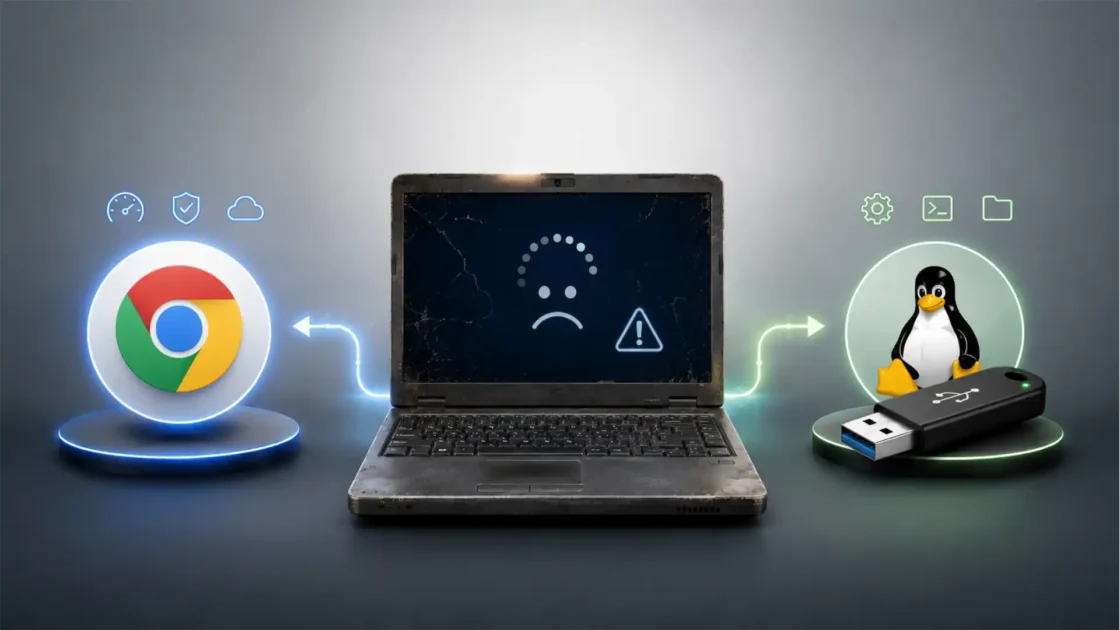

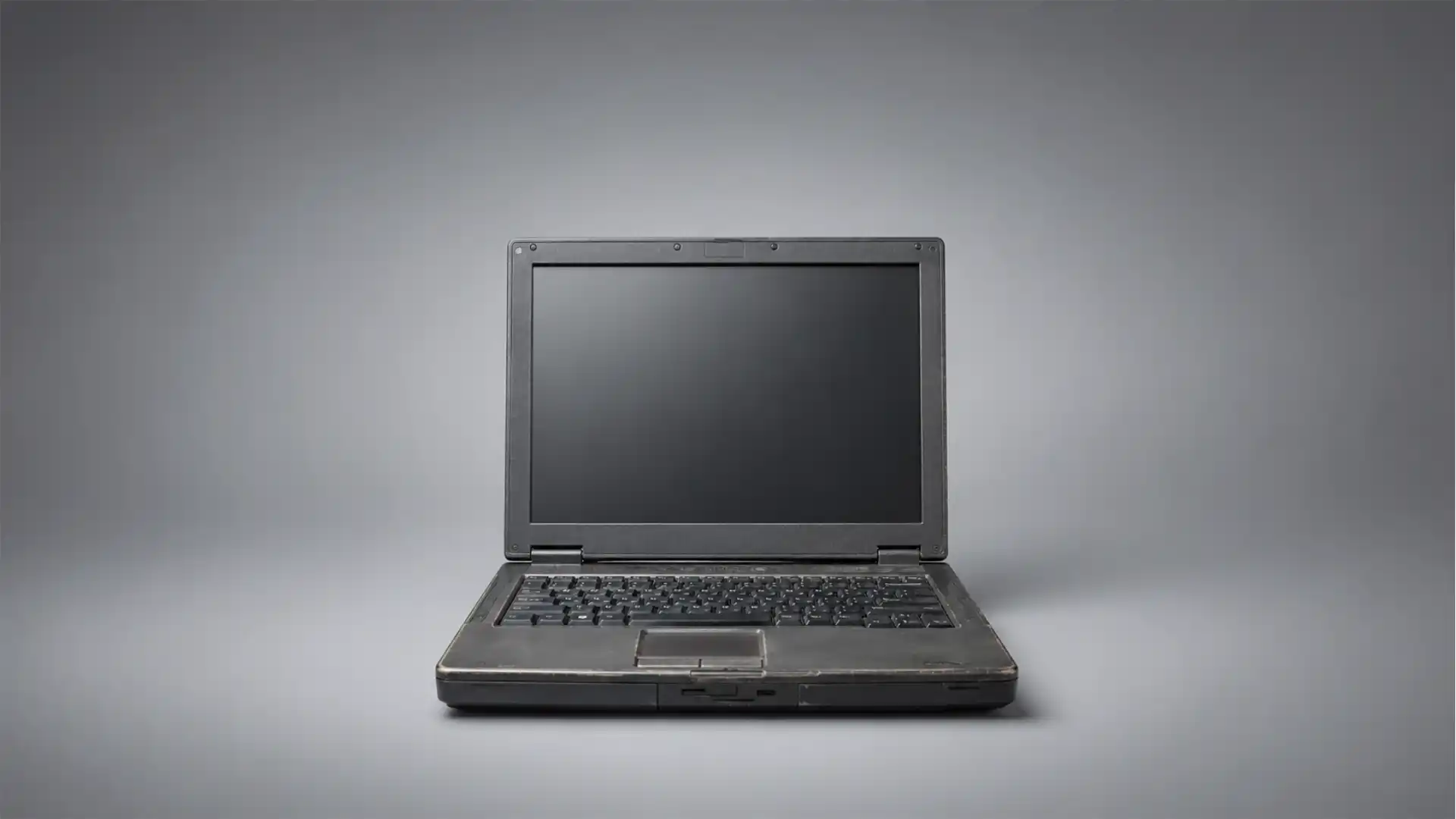
A laptop that feels too slow for Windows can still be fast, quiet, complete, and surprisingly capable as a Linux server. The idea is not sentimental recycling. It is a technical argument. A ten-year-old business notebook often has a 64-bit x86 CPU, replaceable storage, built-in battery backup, stable Ethernet or USB expansion, a keyboard and screen for emergency access, and enough RAM for services that overwhelm smaller single-board computers. A Raspberry Pi, Orange Pi, or Rockchip board still has a place. For many home servers, though, the discarded laptop is the stronger machine.
Table of Contents
The second life of the old laptop
The home server market has split into two cultures. One culture buys small single-board computers because they are quiet, low-power, cheap-looking, and easy to hide on a shelf. The other takes hardware that already exists in the house and gives it a new operating system. The second group is often working with old laptops: ThinkPads, Latitudes, EliteBooks, Acers, MacBooks that still boot, or consumer notebooks retired because a battery faded, a hinge cracked, or Windows became painfully slow.
The laptop-as-server idea has become stronger because Linux services have changed. A modern personal server is no longer just a shared folder. It may run Docker containers, Home Assistant, Pi-hole or AdGuard Home, Jellyfin, Syncthing, Nextcloud, Immich, Vaultwarden, a lightweight Git server, reverse proxy, local DNS, Tailscale, monitoring, backups, and a few databases. Those workloads care less about the shape of the board and more about CPU headroom, memory, storage reliability, I/O, and software support.
A small ARM board can run many of those services. The Raspberry Pi 5 now offers RAM variants up to 16 GB and adds PCI Express, which makes it a far stronger board than earlier Pi generations. Raspberry Pi’s official M.2 HAT+ brings NVMe support through the Pi 5’s PCIe 2.0 interface, with advertised transfers up to 500 MB/s. Those are real improvements, not hobbyist trivia.
The problem is that a complete SBC server is rarely just the board. It usually needs a case, power supply, cooler, storage, cables, microSD card or NVMe HAT, and sometimes a USB Ethernet adapter or powered hub. A laptop already has the case, power regulation, cooling, storage bay or M.2 slot, display, keyboard, Wi-Fi, battery, and often Ethernet. The most overlooked server feature in an old laptop is that it is already a finished computer.
That matters more than people expect. A server is not a benchmark score on a product page. It is a machine that must boot after a power cut, keep its disk healthy, stay reachable over the network, accept updates, survive boring daily writes, and give the owner a way to fix it at midnight without searching for an HDMI adapter. A laptop solves many of those problems by design.
The claim that an old laptop is “always ideal” goes too far. Some laptops are bad server candidates. A machine with a swollen battery, unstable charging, broken cooling, soldered 2 GB RAM, a dead SSD, no 64-bit CPU, or poor Linux support should not become a 24/7 server. High-end SBCs also exist, and some are excellent for embedded work. Orange Pi’s 5 Plus, for example, uses a Rockchip RK3588-class chip, supports up to 16 GB RAM in one listed model, and includes features such as 2.5 GbE and NVMe support depending on configuration. Radxa’s ROCK 5B family also targets the higher-performance SBC segment with RK3588, up to 32 GB RAM, and richer I/O than older Pi-class boards.
Still, the practical claim holds: a working used laptop often beats a typical SBC as a Linux server once the whole system is counted, not just the board. It gives more compute, more memory flexibility, better storage options, easier rescue access, and a lower true entry cost when the machine is already owned.
The single-board computer myth meets the real server bill
Single-board computers won affection because they felt like a clean answer to a messy problem. They were small, cheap, hackable, and more honest than old desktops burning power under a desk. The Raspberry Pi made Linux approachable for learners, tinkerers, classrooms, home automation, and small web services. For GPIO, sensors, embedded projects, and low-power control nodes, SBCs remain excellent.
The myth starts when the board is treated as a complete server. A bare SBC price is not the server price. A stable server needs a good power supply, boot storage, cooling when the SoC throttles, a case that does not cook the board, and backup storage if data matters. A Raspberry Pi 5 is much closer to a usable small computer than earlier models, but NVMe storage still means extra hardware, and reliable deployment means caring about power, cooling, and boot media. Raspberry Pi’s own documentation describes microSD as the common boot medium while noting that newer models can boot from USB mass storage, network boot, and NVMe through PCIe.
The laptop enters the conversation at the exact point where the SBC stops being a single purchase. A used laptop already contains a screen for setup, keyboard for local login, charger, battery, enclosure, cooling assembly, SATA or NVMe storage path, and usually a known x86 boot environment. It also has an ACPI power stack Linux has dealt with for decades. That does not make every laptop flawless, but it turns the server from an assembly project into an operating-system project.
The cost comparison is stark when the laptop is already in a closet. A retired business notebook with 8 GB RAM and a 256 GB SSD can become a Debian or Ubuntu server for the cost of electricity and maybe a new SSD. The SBC buyer often has to buy the board plus the pieces that make it behave like a durable machine. Even a budget SBC becomes less cheap when a reliable SSD, enclosure, power supply, cooler, and adapters are added. For self-hosting, the cheapest reliable server is often not the cheapest board. It is the complete computer you already own.
A second myth is size. A Pi-class board is tiny. A laptop is not. Yet a laptop is thin, self-contained, and easy to store vertically, under a router shelf, behind a monitor, or in a cabinet with airflow. It needs one power cable and one network connection. A small SBC server with external disks, hubs, and adapters can become a fragile octopus of cables. The “small” machine may occupy less board area but not always less real space.
The third myth is silence. Laptops have fans, and SBCs often do not. A quiet laptop running server tasks may spend most of its life near idle, with the fan stopped or barely moving. A passively cooled SBC is silent, but a Pi 5 or RK3588 board under sustained load may need active cooling to avoid thermal throttling. Noise depends on the actual workload, heatsink, enclosure, dust, and power profile. A clean business laptop with a low-power Intel U-series CPU may be quieter than a poorly cooled high-performance SBC inside a small case.
The final myth is simplicity. SBCs look simple because they expose fewer things. Servers become simple when they are easy to install, update, monitor, back up, and recover. On that score, x86 laptops hold a boring advantage. Debian, Ubuntu Server, Proxmox VE, TrueNAS SCALE, Docker, Jellyfin, and countless self-hosted applications treat amd64 as a first-class target. ARM64 support is much better than it used to be, but the homelab ecosystem still contains rough edges around images, drivers, hardware acceleration, and prebuilt containers. Docker supports multiple architectures on Debian, including amd64, arm64, armhf, and ppc64le, but multi-architecture support does not mean every upstream application behaves equally well on every board.
Old laptop hardware is stronger than its reputation
People underestimate old laptops because they judge them by desktop use. A laptop that struggles with a modern browser, a heavy Windows install, vendor background software, Teams, cloud sync, and antivirus may still be overqualified for server work. Servers spend much of their time waiting on network, disk, or small requests. A clean Linux install without a graphical desktop removes the very load that made the old laptop feel tired.
Take a common class of used business laptop from 2015 to 2018. Intel’s Core i5-6200U, a 6th-generation Skylake mobile chip, is a 64-bit dual-core, four-thread processor with a 15 W TDP class. The later Core i5-8250U moved to four cores and eight threads while staying in the same nominal 15 W mobile category, with a listed maximum turbo frequency of 3.40 GHz.
Those are not modern workstation chips. They are still serious server CPUs for household services. A dual-core i5 can handle DNS, reverse proxy, Home Assistant, small databases, file sharing, Syncthing, WireGuard-style VPN tasks, and a handful of containers. A quad-core U-series laptop from the 8th-generation Intel era can run a much denser homelab stack. The machine may feel obsolete for office work because the desktop workload is bursty, graphical, and memory-hungry. The server workload is often headless, steady, and easier to schedule.
Memory is the bigger difference. Many SBCs still ship with fixed RAM. A laptop may have 8 GB, 16 GB, or sometimes 32 GB after an inexpensive upgrade, depending on model. RAM changes everything when running containers. Each service may be modest alone, but databases, photo indexing, Java applications, browsers for automation, and monitoring tools add up. TrueNAS, for instance, recommends at least 8 GB RAM for basic operations with up to eight drives, and Proxmox VE requires a minimum 2 GB for the host plus memory for guests, with extra memory needed for ZFS or Ceph.
An old laptop’s storage path also tends to be better than its reputation. SATA SSDs are still fast enough for most home servers. NVMe-capable laptops give even more headroom. SBCs have improved sharply, especially Raspberry Pi 5 with M.2 HAT+ and RK3588 boards with native or exposed PCIe, but the laptop’s internal storage was designed for an operating system and constant daily use. For a server with logs, databases, thumbnails, Docker layers, and backups, storage quality matters more than raw CPU novelty.
The display and keyboard are not dead weight. They are rescue tools. Anyone who has recovered a headless server knows the pain of missing network access after a bad firewall rule, broken DHCP lease, failed update, or changed SSH key. With a laptop, local access is built in. You can open the lid, log in, inspect logs, fix networking, enter BIOS, change boot order, or reinstall. With many SBCs, you need a monitor, cable, keyboard, serial adapter, or spare microSD workflow.
This is where the laptop moves from “good enough” to strategically useful. It has features server owners need but rarely list: a lid, a keyboard, a BIOS screen, a battery, a charger, stable internal cabling, and commodity storage. The old laptop is not elegant because it is powerful. It is elegant because it bundles the unglamorous parts of reliability.
Linux changes the meaning of obsolete
A Windows laptop often becomes obsolete before its hardware does. The operating system grows, applications assume more RAM, security software runs constantly, vendor utilities age badly, and browser tabs eat whatever memory is available. Linux does not turn a weak CPU into a new one, but a headless server install changes the workload so dramatically that the machine is judged by a new scale.
Debian and Ubuntu Server remain natural choices because they support both x86 and ARM server hardware and offer long-lived package ecosystems. Debian 12 “bookworm” lists amd64 and AArch64 among its supported architectures, along with several others. Ubuntu Server’s current download page presents Ubuntu 26.04 LTS as the latest LTS server release and states that LTS means five years of free security and maintenance updates, extendable with Ubuntu Pro.
That matters because a Linux server is not a desktop replacement project. It is a maintenance project. The best server platform is not just the one that boots. It is the one that receives security updates, has clear documentation, supports the needed packages, and can be reinstalled without drama. Old x86 laptops benefit from the massive amount of Linux testing done on PC hardware, business notebooks, and Intel or AMD chipsets.
SBC Linux has matured, but it remains more board-specific. Raspberry Pi has an unusually strong ecosystem. Other boards can be excellent but may rely on vendor images, community kernels, older downstream patches, or less predictable update paths. High-performance ARM boards can look unbeatable on specifications and still require more care than an old ThinkPad or Dell Latitude running standard Debian amd64.
The difference shows up during routine work. Docker images may exist for both amd64 and arm64, but not every image is multi-arch. Hardware acceleration paths may differ. An application’s installation guide may assume x86. A database extension, backup tool, or monitoring agent may support ARM but receive less testing. Even when everything works, the old laptop’s boring platform often reduces the number of special cases.
Obsolescence is not a single date. A laptop can be obsolete as a modern desktop and still be current enough as a Linux server. The correct question is not “Would I use this as my daily computer?” It is “Can this hardware run a supported Linux release, boot from reliable storage, receive updates, and carry the services I need?” Many old laptops pass that test easily.
Linux also gives old laptop hardware new roles. The display can be disabled. The lid switch can be configured so closing the lid does not suspend the system. systemd’s logind configuration exposes lid-switch behavior, and vendor documentation such as Red Hat’s describes setting the lid action to ignore for cases where closing the lid should not suspend or power off the computer.
Power tools also help. PowerTOP diagnoses wakeups and power use on Linux systems, and TLP is a widely used laptop power-management utility. These tools are not magic, and careless tuning can break sleep or devices, but they show why laptops are not fixed power hogs. Linux can keep CPUs in low-power states, reduce device wakeups, and turn a retired notebook into a calm always-on server rather than a noisy mini furnace.
The server workload favors memory and storage over tiny form factors
A personal server is rarely CPU-bound all day. It is memory-bound, storage-bound, and reliability-bound. DNS filtering uses little CPU. A reverse proxy uses little CPU. Home Assistant is more sensitive to integration count, database size, and storage writes than to flashy processor specs. Syncthing and file serving care about disk and network paths. Photo apps care about indexing bursts, thumbnail generation, database behavior, and machine-learning tasks. Media servers care about transcoding and hardware acceleration.
This is why old laptops do so well. They are not built like microcontrollers. They are complete general-purpose computers with memory hierarchies, storage controllers, power management, PCIe, USB, display, audio, and network devices designed for an operating system that expects normal PC behavior. That “normal” behavior is a gift when running services.
SBCs can be very good when the workload is clear. A Pi-class board can run DNS, Home Assistant, MQTT, small web services, lightweight dashboards, and monitoring. Home Assistant’s own installation page lists Raspberry Pi 4 or 5 with a minimum 2 GB RAM, microSD card, power supply, and Ethernet connection for the Raspberry Pi route, and also documents a generic x86-64 installation path for PC-style hardware.
The workload changes when the server becomes a platform. A user starts with Pi-hole, then adds Home Assistant, then a VPN, then a password manager, then file sync, then Jellyfin, then Immich, then a dashboard, then monitoring, then a backup target. The services are not individually reckless. The stack grows because self-hosting is addictive once the server exists. The value of a laptop is headroom. It lets the server grow without a hardware rebuild after the third container.
Storage writes are especially underestimated. A server writes logs, databases, container metadata, package updates, thumbnails, temporary files, and cache data. A microSD card can run a system, but it is not the storage medium most people would choose for long-term write-heavy services. Raspberry Pi’s official SD card page describes performance features such as DDR50, SDR104, and command queueing support on official cards, yet Raspberry Pi’s NVMe boot documentation exists because newer Pi systems can now use stronger storage paths.
An old laptop with an SSD starts from the stronger side. SATA SSD throughput is more than enough for most household servers. Random I/O is far better than cheap flash cards. SMART monitoring tools are mature. The smartmontools project provides smartctl and smartd to control and monitor storage devices using S.M.A.R.T. data, which matters when a machine becomes responsible for backups, photos, or documents.
A laptop also has fewer exposed weak links. No tiny board hanging from a USB drive. No boot card hidden under a case. No questionable charger from a drawer. No powered hub deciding whether a disk disconnects under load. A laptop can still fail, but the original system was designed to run from internal storage and a matched power adapter. That matters in a server role where boring reliability beats visual neatness.
A laptop is a complete server kit, not just a CPU
The strongest argument for laptops is not the processor. It is the package. The buyer of an SBC is usually building a small server kit from parts. The owner of an old laptop already has the kit.
A laptop includes power input, charging circuit, battery, display, keyboard, pointing device, speaker for beeps or alerts, Wi-Fi, sometimes Ethernet, internal storage mounting, cooling, chassis, hinges, and firmware interface. Those parts sound irrelevant until something breaks. Then each becomes a recovery path.
The battery is the most obvious. It is not a replacement for a proper UPS, and old lithium-ion batteries deserve caution, but a healthy laptop battery can ride through short power dips. Small SBC servers usually lose power instantly unless connected to an external UPS or purpose-built battery HAT. That difference may protect a database from a dirty shutdown during a brief outage. It may also keep DNS, Home Assistant, or a VPN online long enough for power to return.
The screen is the second advantage. A headless SBC can be clean when everything works. When it does not, the owner needs a way back in. A laptop opens. Its screen works. The keyboard is there. The server can be fixed in a hallway, closet, or cabinet without dismantling the network shelf.
The charger is another quiet advantage. Many SBC reliability problems begin as power problems. USB-C power delivery, cable quality, brownouts, and disk spin-up current all matter. Raspberry Pi 5’s ecosystem has improved power handling, but stable power still requires the right supply and storage setup. A laptop charger was built for the laptop’s actual power needs and battery charge behavior. It is not automatically perfect after ten years, but it starts with a matched electrical design.
The enclosure matters as much as the electronics. SBC cases range from excellent to decorative. Some trap heat. Some require tiny fans. Some make storage awkward. A business laptop chassis was designed to dissipate heat from a mobile CPU under a keyboard deck. It may not enjoy a dusty shelf, but it was engineered as a product, not a stack of modules.
There is also the human factor. A laptop server feels less intimidating to maintain than a board with accessories. You can install Linux from a USB stick, use a normal BIOS boot menu, replace an SSD, upgrade RAM on supported models, wipe the system, and reuse familiar PC troubleshooting habits. A complete computer lowers maintenance risk because fewer assumptions live outside the box.
The downside is physical access. A laptop takes more footprint than a Pi. It may have a fan. The battery may be aged. Consumer models can have poor cooling or soldered RAM. Some BIOS setups are locked down. Some Wi-Fi chips need firmware packages. Some lids crack. These are real limits, not footnotes. But none of them weakens the core claim: when the laptop is healthy, it gives a more complete server foundation than most people assign to it.
The x86 advantage still matters in homelabs
ARM has earned its place in servers, phones, embedded devices, and developer boards. The issue is not whether ARM is serious. It is whether a home user benefits from the least surprising path. For homelab Linux servers, amd64 remains the path with the fewest surprises.
The reason is software gravity. Documentation, container images, binary packages, virtualization tools, rescue media, and old forum answers often assume x86-64 PC hardware. Debian and Ubuntu support ARM64, and Docker supports multiple Linux architectures, but a new self-hoster will still encounter guides where amd64 is the default. The old laptop follows those guides without translation.
Virtualization is the cleanest example. Proxmox VE’s hardware requirements specify Intel 64 or AMD64 with Intel VT or AMD-V CPU flags. That makes a used laptop with hardware virtualization a candidate for a small lab machine, even if it is not ideal for production VMs.
A Pi is excellent for containers, but Proxmox VE as most homelab users know it is an x86 platform. There are ARM community efforts and alternate virtualization paths, but they are not the same mainstream route. If a user wants to learn Linux administration, container networking, KVM, LXC, snapshots, and system recovery, an old x86 laptop offers a familiar lab surface.
Media workloads show the same effect. Jellyfin’s hardware acceleration documentation states that hardware-accelerated transcoding is supported on most Intel GPUs, with QSV preferred on mainstream Intel GPUs and VA-API required for older pre-Broadwell legacy GPUs. It also notes that Linux VA-API supports nearly all Intel GPUs, while Linux QSV support is limited to Broadwell and newer platforms.
That gives many old Intel laptops a useful media-server feature: integrated graphics with mature Linux acceleration paths. A Raspberry Pi or RK3588 board may have video blocks, but application support, driver support, and container access can be more board-specific. Jellyfin’s broader hardware acceleration documentation lists support across Intel, Nvidia, AMD, Rockchip RK3588/3588S, and other platforms, which is proof of both progress and complexity.
The same pattern now appears in photo management and machine-learning services. Immich documents hardware-accelerated machine learning options and mentions OpenVINO, CUDA, ROCm, ARM NN, and RKNN in its acceleration paths, while warning that OpenVINO can increase RAM use and that older integrated GPUs or low-RAM servers may have issues.
A laptop does not make those problems disappear. It gives the owner a platform that many developers test first. That is not glamour. It is maintenance value. The best server for a household is often the one whose bugs have already been found by millions of ordinary PC users.
Performance comparisons need full-system honesty
Raw comparisons between a laptop and an SBC often mislead because they isolate one part. A high-end RK3588 board can beat an old dual-core laptop in some benchmarks. A Raspberry Pi 5 can feel snappy for many server tasks. A 2012 ultrabook with thermal issues may be weaker than a modern board. The phrase “more powerful than any SBC” is technically false if taken literally.
The practical question is different: which machine delivers the stronger server after storage, memory, power, software, expansion, cooling, and recovery are counted? On that full-system score, many used laptops beat many SBC setups.
A laptop with an Intel Core i5-8250U has four cores and eight threads in a mobile CPU class listed by Intel at 15 W TDP. A Raspberry Pi 5 uses a quad-core Arm Cortex-A76 platform and now scales to 16 GB RAM in official product listings, but its base board does not include a case, power supply, or NVMe storage.
Those two machines are not equivalent categories. The Pi is a small development board. The laptop is a complete mobile PC. The Pi may win on idle draw, GPIO, size, and clean embedded deployment. The laptop may win on CPU throughput, memory upgrade, storage, software compatibility, emergency access, and total cost when already owned.
High-end SBCs complicate the story. Orange Pi 5 Plus and Radxa ROCK 5B-class boards use much stronger SoCs than old Pi generations. Orange Pi’s product listing describes an RK3588 board with four Cortex-A76 and four Cortex-A55 cores, up to 2.4 GHz, GPU and NPU features, and RAM variants including 16 GB in the listed product. Radxa markets ROCK 5B as a high-performance RK3588 SBC with up to 32 GB RAM.
Those boards are real competitors. They also cost more once built into a stable server, and the software path may be less uniform than amd64. A high-end SBC can be the better choice for ARM development, embedded AI experiments, 2.5 GbE routing projects, GPIO-heavy systems, or ultra-compact deployments. It is not a reason to dismiss old laptops. It proves that the category “SBC” is too broad for blanket claims.
The honest comparison is tiered. Against a low-end Pi-class board with microSD storage, a used laptop usually wins as a general Linux server. Against a Raspberry Pi 5 with NVMe and proper cooling, the answer depends on workload, power cost, and software needs. Against a high-end RK3588 board with NVMe and 16 GB or 32 GB RAM, the laptop may still win on x86 software and recovery, but not always on size or idle power. Against a modern mini PC, the old laptop’s case becomes weaker, though the built-in battery and screen remain useful.
The old laptop is not the fastest small server category. It is the highest-value server category when working hardware already exists. That distinction is the argument.
Practical comparison of common home-server choices
| Server option | Strongest advantage | Common weakness | Best fit |
|---|---|---|---|
| Old laptop with Linux | Complete system with screen, battery, storage, x86 software | Battery age, fan, size, possible worn SSD | General home server, containers, media, backups |
| Raspberry Pi 5 with NVMe | Small, low-power, strong community | Extra parts needed, ARM software edge cases | Learning, Home Assistant, DNS, lightweight services |
| High-end RK3588 SBC | Strong ARM performance, rich I/O on some boards | Board-specific software and cooling complexity | ARM development, compact edge projects, media experiments |
| Used mini PC | Strong x86 performance in a small box | No built-in UPS or screen | Dense homelab, Proxmox, always-on workloads |
| Old desktop tower | Expansion and storage bays | Power draw, size, noise | NAS, many disks, lab workloads |
This comparison does not declare one permanent winner. It shows why an old laptop deserves to be judged as a full server platform rather than as a slow discarded computer.
Power use is the strongest argument against laptops, but not a knockout
Power consumption is the serious objection. A Raspberry Pi or efficient ARM board can idle at very low wattage. A laptop may draw more at idle, especially if old, dusty, poorly configured, or attached to inefficient storage. Over a year, 24/7 power use matters. In Europe, where electricity can be expensive, a machine that idles 10 W higher than another one is not free.
But the power argument often gets oversimplified. A laptop with a mobile CPU was designed around battery life. It has low-power states, display sleep, CPU scaling, integrated voltage regulation, and a charger designed for partial load. If the screen is off, the battery is healthy, and Linux power management is configured, a laptop can be much more modest than an old desktop.
The real test is not the CPU’s TDP. TDP is not idle draw. Intel lists the Core i5-6200U and i5-8250U in a 15 W mobile class, but a laptop server near idle should not be pulling full TDP all day. The number that matters is measured wall power with the actual charger, actual SSD, actual network connection, and actual services.
The IEA’s 2025 energy-and-AI analysis puts data centre electricity demand in a much larger context, estimating data centre consumption at around 415 TWh in 2024, roughly 1.5% of global electricity consumption. A home server is tiny compared with that, but the same discipline applies: compute should be right-sized, not bought blindly.
ENERGY STAR guidance for computers stresses sleep settings and power management; screen savers do not save power and can even keep the CPU or monitor active. For a laptop server, that means the screen should be off, the lid behavior should be intentional, and the machine should be checked for devices that prevent deep idle.
PowerTOP is useful because it identifies wakeups and estimates power use by process and device. TLP can apply laptop-oriented power rules. Neither should be treated as a blind “install and forget” fix for every server, because servers need stable networking and storage. But the tools prove that laptop power draw is tunable.
The power comparison must also include embodied hardware. Buying a new board and accessories has a material footprint. Reusing a laptop delays e-waste. That does not erase electricity cost, but it changes the accounting. A very power-hungry laptop may be a bad choice. A modest U-series laptop already owned may be the lower-impact choice for years if it replaces a new purchase.
The right rule is measurement, not ideology. Plug the laptop into a wall meter for a week with the intended services. If the idle draw is acceptable, the laptop wins on value. If it is too high, an SBC or mini PC may be the cleaner server.
The battery is both a feature and a liability
The built-in battery is the laptop server’s most charming advantage and its most delicate risk. A healthy battery acts like a small internal UPS. It lets the server survive short outages, brownouts, and accidental unplugging. For services such as DNS, smart-home control, and VPN access, that can be the difference between continuity and a corrupt database.
No SBC has that by default. Battery HATs and UPS boards exist, but they add cost and complexity. A conventional external UPS works for any server, but that too costs money and occupies space. The laptop’s battery is already present, already integrated, and already known to the firmware and operating system.
The risk is chemistry and age. Old lithium-ion batteries can swell, lose capacity, report bad data, or become unsafe if damaged. A swollen laptop battery is not a server feature; it is a repair or recycling problem. A laptop used as a server should be inspected with the back cover off if the model allows it. Any swelling, smell, heat, deformation, charging instability, or trackpad bulge means the battery should be removed and handled through proper recycling channels.
A laptop can often run without its internal battery, depending on model. That removes the UPS advantage but may be safer for a machine that will live unattended. Some users set charge thresholds on supported ThinkPads, Dells, or other business machines to keep the battery between partial charge limits, reducing stress. Linux tooling for that varies by hardware.
The server should also be configured to shut down cleanly if the battery reaches a low threshold during a long outage. A laptop that runs until the battery dies has not solved the power problem; it has delayed it. The better setup is a small script or power-management service that shuts down at a safe percentage after a defined period without AC.
There is a hidden benefit here: the laptop can report power state. With the right monitoring, the server can alert the owner when AC is lost, when the battery is failing, or when runtime falls below a threshold. That makes the battery observable rather than mysterious. External SBC power failures are often binary: the board is either on or dead.
The battery also affects placement. A laptop server should not be buried under blankets, stacked tightly, or stored in a hot cabinet. Batteries dislike heat, and server workloads may keep the chassis warm. Good airflow is not optional. This is the point where reuse must be disciplined, not romantic.
The battery makes the old laptop unusually resilient for a cheap server, but only if it is healthy, monitored, and treated as a consumable part. A failing battery removes one of the laptop’s main advantages and can make the machine unsuitable for unattended use.
Storage reliability decides whether the project succeeds
Most failed home-server projects do not fail because the CPU was too slow. They fail because storage was weak, backups were absent, or the owner confused “running” with “safe.” A laptop server has an advantage here, but only if the storage is checked and planned.
An old hard drive should not be trusted blindly. Spinning laptop drives are slow, fragile, and often near the end of useful life by the time the computer is retired. A server should use an SSD unless there is a specific reason not to. A cheap SATA SSD can revive an old laptop and remove one of the largest performance bottlenecks. For a used laptop with an existing SSD, S.M.A.R.T. data should be checked before the machine receives important workloads.
smartmontools matters because it makes storage health visible. The project describes smartctl and smartd as tools for controlling and monitoring storage systems through Self-Monitoring, Analysis and Reporting Technology data. That gives the owner a way to inspect power-on hours, media wear indicators where available, reallocated sectors, temperature, error logs, and self-test status.
SBC storage has improved, but the old microSD habit is still a problem for many beginners. Running a write-heavy server stack on a cheap microSD card is asking a tiny removable medium to behave like a system disk. Raspberry Pi’s official card documentation describes performance-oriented features in its own microSD cards, and the Pi 5 NVMe route is now officially documented through the M.2 HAT+. That is a sign of maturation, but it also confirms that durable storage is not an afterthought.
A laptop’s internal SSD path is mechanically cleaner. The disk is inside the chassis. It does not hang from a USB port. It is powered by the system’s internal design. It is usually easy to replace. It can often be cloned. It can be monitored. That is exactly what a small server needs.
Backups remain separate. A laptop with one SSD is not a backup system. It is a server with one disk. If the server stores important files, the backup should live somewhere else: an external disk rotated offline, another NAS, cloud storage, or a second machine. If the laptop hosts services but not primary data, configuration backups may be enough. The distinction should be made before installation.
The choice of filesystem also matters. ext4 is simple and resilient for many small servers. Btrfs adds snapshots and checksumming but requires understanding. ZFS is powerful but memory-hungry and not always ideal on low-RAM laptops. TrueNAS recommends at least 8 GB RAM for basic operations, partly because RAM feeds storage services, apps, VMs, and caching.
The best storage plan for many laptop servers is modest: a healthy SSD, ext4 or Btrfs, SMART monitoring, periodic external backups, and no fantasy that a single consumer disk is archival. The laptop provides better storage foundations than a cheap SBC setup, but it does not remove the need for backup discipline.
Networking is usually good enough, but it needs checking
A server should be wired. Wi-Fi works until it does not, and a server that disappears because of roaming, interference, router updates, or power saving is a nuisance. Many business laptops include Gigabit Ethernet. Many thinner consumer laptops do not. That difference can decide whether an old laptop is a good server candidate.
Gigabit Ethernet is enough for most household services. DNS, home automation, reverse proxy, small file sync, backups, and media streaming do not require 2.5 GbE. For a NAS or heavy backup target, faster networking may matter. Some SBCs now include 2.5 GbE, including Orange Pi 5 Plus-class boards, while many older laptops are stuck at 1 GbE unless a USB 3 adapter is added.
USB Ethernet adapters can work well, but they introduce another device, driver, and cable. A laptop with built-in Ethernet is cleaner. If the laptop lacks Ethernet, a quality adapter using a well-supported chipset is better than a random no-name dongle. The adapter should be tested under load before the server becomes trusted.
Wi-Fi can still be acceptable for non-critical roles. A laptop running a test service, development box, local dashboard, or backup controller may not need wired reliability. For Home Assistant, DNS, and network services, wired is strongly preferred. If the server provides the name resolution needed by the household, it should not depend on a marginal wireless link.
Power saving can interfere with networking. Some laptops aggressively manage Wi-Fi or USB power. Linux can tune this, but the owner should test sustained transfers, idle reachability, Wake-on-LAN if needed, and recovery after router reboot. The server should have a DHCP reservation or static address plan. It should not wander around the network.
SBCs also have networking pitfalls. Some older boards shared Ethernet over USB internally. Some cheap boards expose only 100 Mb Ethernet. Some need dongles for Wi-Fi. Some high-end boards are excellent, with 2.5 GbE or dual Ethernet. The point is not that laptops always win. It is that a used laptop with built-in Gigabit Ethernet is already in the reliability class most home servers need.
Network quality is one of the easiest ways to separate a good laptop server candidate from a bad one. If the machine has stable wired Ethernet and can push long transfers without disconnecting, it is serious. If it relies on flaky Wi-Fi in a metal cabinet, it is a science project.
Virtualization turns an old laptop into a learning lab
Containers are enough for many people. Docker Compose on Debian or Ubuntu can run a clean self-hosting stack without the overhead of full virtual machines. But virtualization is where the old laptop becomes more than a household appliance. It becomes a lab.
A laptop with hardware virtualization support can run Proxmox VE, KVM, LXC containers, or plain libvirt. Proxmox VE’s official requirements call for Intel 64 or AMD64 with Intel VT or AMD-V CPU flags, at least 2 GB memory for the host and Proxmox services, plus guest memory.
A used laptop is not the ideal Proxmox host for every scenario. It may have one internal disk, limited RAM, consumer network hardware, and no ECC memory. But as a learning machine, it is excellent. The owner can create containers, test service isolation, build throwaway VMs, practice snapshots, learn firewall rules, and recover from mistakes without risking a main desktop.
This is a major advantage over many SBCs. ARM virtualization exists, but the homelab educational path around Proxmox, KVM, and x86 operating systems is far deeper. A laptop can run Debian in one VM, Alpine in another, a test firewall, a monitoring container, and a disposable Windows or Linux guest if resources allow. It teaches the same mental model used in many real infrastructure environments.
The built-in screen helps here too. If a network bridge is misconfigured and the host disappears, local console access is immediate. That is valuable when learning. Beginners make network mistakes. A platform that forgives those mistakes encourages experimentation.
Memory is the limiting factor. A 4 GB laptop is tight for virtualization. An 8 GB laptop can run small containers and light VMs. A 16 GB laptop feels much better. A 32 GB business laptop can become a genuinely useful lab box. CPU matters less than RAM once workloads multiply.
Storage layout matters too. A single SSD is fine for learning. Production-like ZFS experiments need care, and laptops rarely offer multiple internal bays. External USB disks can work for labs but are not ideal for serious storage pools. The machine should be treated as a learning server first, not a miniature enterprise cluster.
For someone trying to learn Linux infrastructure, an old laptop is one of the cheapest honest classrooms available. It runs the same architecture as most guides, fails safely, and includes its own crash cart.
Containers are where laptop headroom becomes visible
Docker changed the home server from a single-purpose box into a stack. Instead of installing one application directly on the host, people now run application bundles: app container, database container, cache container, proxy, updater, monitoring exporter, and backup sidecar. Even small services become multi-process systems.
Docker’s Debian documentation lists supported Debian releases and architectures including amd64, armhf, arm64, and ppc64le. That broad support is a strength of modern Linux packaging. The old laptop’s advantage is that amd64 is still the most universal target in the self-hosting world.
A Raspberry Pi 5 can run containers well. Many people run excellent Pi-based Docker stacks. The friction starts when memory tightens, images are missing for ARM, or hardware acceleration differs from the guide. A laptop with 8 GB or 16 GB RAM gives more room to be imperfect. It also gives the owner a wider choice of images without checking architecture tags each time.
Container stacks also punish weak storage. Docker images, logs, overlays, databases, and update churn produce many small writes. A laptop SSD handles that better than a cheap microSD card. An SBC with NVMe can handle it too, but now the SBC is no longer the simplest cheap board. It has become a small assembled PC.
The other laptop advantage is burst performance. Many self-hosted tasks are periodic. A photo app indexes a batch. A backup job compresses data. A media library scans metadata. A package update rebuilds something. A database vacuum runs. These jobs benefit from CPU headroom for minutes or hours, then the server returns to idle. A laptop CPU with turbo behavior and cooling may handle bursts gracefully.
The old laptop also lets the owner split services without fear. Home Assistant can run separately from DNS. Media can live apart from password management. Databases can be isolated. Reverse proxy config can be tested. This does not require enterprise complexity. It just needs enough CPU, RAM, and disk to avoid turning every added service into a crisis.
The hidden cost of underpowered servers is that the owner stops experimenting. A laptop with headroom keeps the self-hosting project alive longer because it does not punish each new idea immediately.
Media servers expose the gap between CPU specs and hardware acceleration
Media serving is the workload that turns casual comparisons into arguments. Direct play is easy: the server sends a file the client can decode. Transcoding is hard: the server converts video or audio on the fly. A weak CPU may handle direct play but fail at transcoding. Hardware acceleration changes the picture.
Many old Intel laptops have integrated GPUs with video engines. Jellyfin’s Intel acceleration documentation says hardware accelerated transcoding is supported on most Intel GPUs, with QSV preferred on mainstream GPUs and VA-API used for compatibility on pre-Broadwell legacy GPUs. It also notes that Linux VA-API supports nearly all Intel GPUs and that Linux QSV is limited to Broadwell and newer platforms.
That makes a 6th-, 7th-, or 8th-generation Intel laptop a surprisingly capable Jellyfin box for certain formats. It may transcode streams that would crush its CPU alone. It may not handle every codec, HDR tone mapping scenario, subtitle burn-in, or high-bitrate 4K case. But it can be far better than a paper CPU comparison suggests.
SBC media acceleration is more uneven. Raspberry Pi devices have a long media-center history, and RK3588 boards have strong video hardware on paper. Jellyfin’s broader hardware acceleration documentation includes Rockchip RK3588/3588S support among other acceleration platforms. The catch is always the path between hardware and application: kernel, drivers, FFmpeg build, container device mapping, and application support.
A laptop’s advantage is not that its media hardware is always better. It is that Intel VA-API and QSV paths are heavily documented and widely used. Many guides exist. Many bugs have been hit. Many distributions package the needed pieces. That lowers the skill barrier.
Media storage also favors laptops over microSD-based SBCs. A media server may not store the main library on the internal SSD, but it still writes metadata, cache, images, and database files. SSD reliability helps. If the library is on USB storage, the laptop’s USB ports and power behavior still need testing, but a business notebook often handles external storage better than a board powered near its limit.
There is one place where laptops are weaker: drive bays. A proper NAS or media archive wants multiple disks. An old laptop is not a multi-bay storage server. It can serve media from one internal SSD, one external disk, or network storage, but it is not a substitute for a case designed around drives. For media streaming with modest storage, it works. For a 40 TB library, choose a different machine.
A laptop media server is best when it uses Intel hardware acceleration, reliable SSD metadata storage, and direct-play clients. It is not best when asked to become a many-disk NAS in disguise.
Home automation rewards reliability more than raw speed
Home Assistant and similar systems reveal the difference between server glamour and household trust. Smart-home servers do not need huge CPU. They need to be online. They need good storage. They need clean updates. They need recovery paths when an integration breaks. They need stable networking. They need power resilience.
Home Assistant’s installation guidance supports Raspberry Pi setups and generic x86-64 hardware. The Raspberry Pi route lists Raspberry Pi 4 or 5 with power supply, minimum 2 GB RAM, microSD card, and Ethernet. The generic x86-64 route covers PC-style installs and BIOS configuration.
A Raspberry Pi is a common Home Assistant machine for a reason. It is small, documented, and enough for many homes. A laptop becomes compelling when the Home Assistant setup grows: lots of integrations, add-ons, recorder database growth, camera snapshots, MQTT, Zigbee2MQTT, Node-RED, voice experiments, and backups. RAM and storage become more valuable than tiny size.
The laptop battery also matters here. A smart home that fails during a one-minute power dip can be annoying. A laptop may stay up long enough for the router and access points to recover if they are also protected, or at least shut down cleanly during a longer outage. If the network gear lacks backup power, the server battery cannot solve the whole system, but it still protects the machine’s own state.
Emergency console access is another gift. If Home Assistant loses network connectivity after a misconfiguration, opening the laptop and fixing the host is easier than attaching peripherals to a board mounted in a case. The best server is the one that can be repaired by a tired person without turning the shelf into a cable nest.
Home automation also has a long lifetime. A server may run for years. That favors hardware with known Linux behavior and replaceable storage. A used business laptop with a new SSD and clean fan can run quietly for a long time. A poor laptop with thermal issues or a suspect battery is the wrong choice. The category is good, not every specimen.
For home automation, an old laptop’s strongest feature is not speed. It is fault tolerance through battery, local console, storage, and x86 software maturity. That is exactly the set of features a household automation controller needs.
Photo libraries and local AI make the SBC choice harder
Photo management has become one of the toughest home-server workloads. Immich and similar tools are attractive because they bring private photo backup, search, thumbnails, metadata, and machine-learning features into the home. They also stress CPU, RAM, disk, and sometimes GPU or accelerator support.
Immich documents hardware-accelerated machine learning options, including OpenVINO, and notes higher RAM use with OpenVINO compared with CPU processing. It also warns that older integrated GPUs and low-RAM servers may encounter issues.
This is where the laptop-versus-SBC debate becomes less obvious. A high-end RK3588 board has an NPU on paper, and some software paths can use RKNN. A newer Intel laptop may use OpenVINO. A machine with Nvidia hardware can use CUDA. A low-end Pi may simply run CPU paths slowly. The best answer depends on the application’s actual acceleration support, not the marketing label on the chip.
An old laptop still has advantages. It usually offers more RAM than budget boards, better SSD storage, and easier amd64 container support. Thumbnail generation and metadata extraction can run acceptably on old x86 CPUs if the library is not huge. For a family photo library, a quad-core laptop with 16 GB RAM and SSD can feel much better than expected.
The weakness is sustained heat. Photo indexing can load CPU for hours. A laptop with clogged fans or dried thermal paste may throttle, get noisy, or shut down. Before assigning it a big Immich import, clean the cooling path and monitor temperatures. A laptop server should not be judged only at idle.
SBCs with passive cooling may also throttle during sustained indexing. Small boards are not immune to heat. A proper heatsink and active cooling may be needed, which weakens the “silent tiny server” image. High-performance ARM boards can be impressive, but they are still thermal systems in small spaces.
Photo storage also raises stakes. If the server stores original photos, backups are mandatory. A laptop with one SSD is not enough. If the laptop only runs the application while originals are stored and backed up elsewhere, the risk is lower. Many self-hosters blur this line and regret it later.
Photo servers make the old laptop look less like e-waste and more like a sensible mid-tier compute node. It may not be a local AI powerhouse, but it often has the memory, storage, and software compatibility that photo apps demand before acceleration even matters.
The e-waste argument is practical, not moral decoration
Reusing an old laptop as a Linux server is a technical decision with environmental consequences. The world does not lack electronic waste. The Global E-waste Monitor 2024 reports that 62 million tonnes of e-waste were generated in 2022, with less than one quarter formally collected and recycled, and projected generation rising toward 82 million tonnes by 2030.
That context does not mean every old laptop should be kept alive forever. Keeping a power-hungry, unsafe, or unreliable machine running just to avoid disposal can be false economy. But many laptops are retired while still functional. They are retired because they no longer meet desktop expectations, not because they cannot compute.
A server role extends value without demanding cosmetic perfection. A cracked palm rest, weak keyboard, dim screen, or scratched lid may not matter. A laptop with a missing key can still host DNS. A machine with a dead webcam can still run Docker. A notebook with a battery at 50% capacity may still ride through short outages. The server role accepts hardware that the consumer resale market undervalues.
Repairability also matters. iFixit publishes laptop repairability scores and describes scoring devices from zero to ten based on how easy they are to repair. Its broader repairability material argues for keeping devices serviceable and lasting longer rather than replacing them prematurely.
A repairable business laptop is especially well suited to server reuse. Replace the SSD. Add RAM if possible. Clean the fan. Replace the thermal paste if comfortable. Remove or replace a failing battery. The result is not a new machine; it is a stable one. That is enough.
The environmental claim should stay honest. A Raspberry Pi or small ARM board may use less electricity. A newer mini PC may deliver far more performance per watt. If a laptop idles high and runs 24/7 for years, the energy cost may outweigh the reuse benefit compared with a low-power alternative. The only way to know is to measure the system and compare it with the cost and impact of buying something new.
The strongest sustainability case is for a laptop already owned, with modest idle power, healthy components, and a clear workload. In that case, Linux server reuse delays disposal, avoids a purchase, and creates real utility from a machine that might otherwise sit dead in a drawer.
Security is not optional just because the server is at home
A home server is still a server. It may hold photos, passwords, backups, smart-home control, documents, media libraries, and private network access. Reusing an old laptop does not reduce the need for patching and access control. In some ways it raises the need, because old laptops may have forgotten BIOS passwords, outdated firmware, unknown disks, or previous owner data.
The first security step is a clean install. Do not build a server on top of an old desktop installation full of unknown packages. Wipe the disk or replace it. Install a supported Linux release. Enable automatic security updates where appropriate. Use SSH keys rather than passwords for remote login. Disable password SSH login if possible. Use a firewall. Expose as little as possible to the public internet.
Debian and Ubuntu Server both give stable bases for this. The exact distribution matters less than the maintenance habit. A lightweight Debian server with unattended upgrades may be safer than a flashy stack that nobody patches. Ubuntu’s LTS support model gives a known security-maintenance window, while Debian’s stable branch is widely used for conservative servers.
The second step is service isolation. Containers are not a perfect security boundary, but they help organize applications and updates. A reverse proxy should be configured carefully. Admin panels should not be exposed casually. VPN access is usually safer than opening many ports. DNS filtering and Home Assistant do not need to be visible to the world.
The third step is secrets management. A laptop server is portable. If stolen, the internal disk may expose data unless encrypted. Full-disk encryption is tricky for unattended boot because someone must enter a passphrase after restart. Some users choose encrypted data volumes mounted manually or with key material stored separately. Others keep the server physically protected and accept unencrypted boot for availability. The decision should be deliberate.
Firmware is another concern. Old laptops may have outdated BIOS or UEFI firmware. Updating firmware can improve stability and security, but vendor support may be gone. Linux Vendor Firmware Service support varies by model. A machine that cannot receive firmware updates is not automatically unsafe, but it should not be placed at the edge of the internet with sensitive services exposed.
Backups are part of security. Ransomware, accidental deletion, bad updates, and disk failure are all security-adjacent risks. A server that cannot be restored is not trustworthy. Configuration files, Docker Compose files, database dumps, and data volumes should have a documented recovery path.
A reused laptop is safe enough for serious home services only when treated like real infrastructure. The cheapness of the hardware should not cheapen the maintenance standard.
The setup path is simpler than many SBC builds
A clean laptop server setup can be straightforward. The owner needs to choose a role, install Linux, configure networking, set power behavior, install services, and set backups. The process is less exotic than many SBC builds because the laptop behaves like a normal PC.
Start with hardware inspection. Check the charger, battery, fan, ports, SSD health, RAM, and BIOS settings. Clean dust. Replace a failing drive. If the battery is swollen, remove or replace it. If the machine runs hot at idle, fix that before installing services.
Install a server distribution. Debian stable and Ubuntu Server are common choices. A beginner who wants containers can install Docker after the base OS. Docker’s Debian documentation gives package steps for supported Debian releases and architectures.
Set a static DHCP reservation on the router rather than hardcoding random network settings unless there is a reason. Install OpenSSH. Use key-based login. Create a non-root administrative user. Update packages. Enable automatic security updates if suitable. Install smartmontools for disk checks and a monitoring stack if desired.
Configure lid behavior. The machine should not suspend when closed if it is meant to run as a server. systemd logind settings can control lid-switch behavior, and Red Hat’s documentation shows replacing the default suspend action with ignore for no action on lid close. Test it before trusting the system.
Turn off the display when idle. Do not run a full desktop unless needed. A headless server install uses less memory and fewer background services. If a laptop needs a graphical environment for occasional setup, choose a light one or keep it disabled by default.
Measure power. Use a wall meter if possible. Test idle draw, typical load, and sustained load. Run the intended services for several days. Check temperatures. Watch for network drops. Test reboot behavior. Pull the network cable and restore it. Restart the router. Simulate the boring failures.
Then deploy services. A clean Compose directory under /opt or a dedicated user path is enough for many homes. Keep Compose files in Git or at least back them up. Keep data volumes organized. Document the restore steps in a file stored outside the server.
The best setup is boring by design. The laptop should boot unattended, stay wired, avoid suspend, report disk health, update safely, and have a backup plan before it becomes responsible for anything important.
The old business laptop is the ideal candidate
Not every old laptop is equally good. The best candidates are business notebooks from Dell Latitude, Lenovo ThinkPad, HP EliteBook or ProBook, Fujitsu Lifebook, and similar lines. They were built for serviceability, docking, wired networks, BIOS control, and long support cycles. Many have replaceable SSDs, accessible RAM, decent cooling, and better Linux behavior than bargain consumer machines.
A good server candidate has a 64-bit CPU, at least 8 GB RAM, an SSD, wired Ethernet, stable charging, healthy cooling, and a BIOS that allows normal boot configuration. Hardware virtualization is desirable. A replaceable battery is useful. A screen that still works is valuable even if dim. A cracked hinge is acceptable only if the machine can sit safely and airflow is not blocked.
A bad candidate has 2 GB RAM soldered, a failing eMMC drive, a swollen battery, broken power jack, unstable USB ports, locked firmware, fan failure, overheating, or no reliable way to connect Ethernet. It may still be fun for experiments, but not for a trusted home server.
MacBooks are mixed. Older Intel MacBooks can run Linux, but Wi-Fi, suspend, fan control, and firmware behavior vary by generation. Some are excellent after tuning. Others consume too much time. A Mac mini may be a cleaner server than a MacBook if already available, but the laptop battery and screen are still useful if Linux support is solid.
Chromebooks are also mixed. Some can become Linux servers after firmware work, but the path is model-specific. Low storage, soldered RAM, and firmware locks can make them less attractive than old PC laptops. They may be fine for advanced users but are not the simplest recommendation.
Gaming laptops are usually poor always-on servers. They offer powerful CPUs and GPUs but often idle higher, run hotter, make more noise, and carry large power adapters. They may be good for occasional AI, transcoding, or lab work, but a thin business laptop with a U-series CPU is usually better for 24/7 household services.
The sweet spot is a 2015–2020 business laptop with 8 GB to 16 GB RAM, SSD storage, Gigabit Ethernet, and an Intel or AMD mobile CPU that Linux supports cleanly. That class is common on the used market and often already retired from offices.
An old laptop is not a NAS, even when it serves files
File sharing is one of the first things people try with a home server. A laptop can serve files through Samba, NFS, Syncthing, Nextcloud, or SFTP. For light use, it works well. The internal SSD provides fast metadata and a simple dataset. External USB storage can hold media or backups. But a laptop should not be confused with a proper NAS.
A NAS is about storage architecture. Drive bays, cooling, redundancy, filesystem choice, backup, replaceability, and monitoring all matter. Laptops usually have one internal drive and limited external expansion. USB disks can disconnect. External power bricks can fail. A laptop chassis is not designed to cool several spinning drives.
TrueNAS SCALE can run on generic hardware, but its hardware guide makes clear that memory matters, recommending at least 8 GB RAM for basic TrueNAS operations with up to eight drives. A laptop with one drive may not be the best fit for TrueNAS unless the goal is learning rather than building a durable storage appliance.
For a household file server, a laptop is good at three roles. First, it can host small shared folders and documents. Second, it can act as a sync server, pulling data from desktops and phones. Third, it can coordinate backups to external or network storage. It is less ideal as the only home for irreplaceable data.
A better pattern is to separate service hosting from archival storage. Let the laptop run applications, databases, DNS, automation, reverse proxy, and media metadata. Store large datasets on a dedicated NAS, external backup disk, or cloud backup. If the laptop stores data, make the backup boring and regular.
External drives can still be useful. A single USB SSD is fine for media, temporary backup, or non-critical shares. A powered external HDD can hold a media library. But anything important should exist in at least two places, and one copy should not be permanently mounted where a bad command can delete both.
A laptop can serve files, but it should not be trusted as a full storage strategy by default. Its strength is compute, software compatibility, and self-contained operation, not multi-disk durability.
SBCs still win in the places they were built for
The laptop argument should not become reverse snobbery. Single-board computers are not obsolete. They are excellent when the job fits the board.
SBCs win when size is strict. A laptop cannot fit inside a control cabinet, robot, wall box, kiosk, sensor enclosure, or tiny network shelf. SBCs win when GPIO is central. A laptop can talk to microcontrollers over USB, but it is not a board-level electronics platform. SBCs win when low idle power matters more than headroom. They win when silent passive cooling is required and the workload is light enough. They win when the project needs many identical nodes. Buying ten old laptops is not elegant.
Raspberry Pi’s ecosystem remains unusually strong. Official boards, accessories, documentation, education material, and community guides reduce risk. The Raspberry Pi 5’s PCIe and 16 GB RAM option make it a far more credible small server than older boards.
High-end ARM boards win in specialized edge workloads. Orange Pi 5 Plus and Radxa ROCK 5B-class boards bring stronger CPU clusters, NVMe, 2.5 GbE on some models, and NPU features. For ARM software development, computer vision experiments, compact routers, or embedded AI demos, they may be better than an old laptop.
SBCs also have predictable fresh hardware. An old laptop is unknown until tested. Its battery may be bad. Its fan may be dusty. Its SSD may be worn. Its BIOS may be strange. A new board starts with fewer age-related surprises, even if it needs accessories.
The difference is the server persona. SBCs are boards that can become servers. Laptops are computers that can become servers. That distinction matters to beginners. The board path teaches hardware assembly and embedded thinking. The laptop path teaches Linux administration and service operation.
A household may use both. A Raspberry Pi can run a Zigbee coordinator, sensor bridge, or lightweight DNS secondary. The laptop can run heavier containers, databases, media, and backups. A high-end SBC can sit near cameras or network equipment. The laptop can be the central management node.
The fair claim is not that laptops replace SBCs. It is that people overbuy SBCs for jobs where a retired laptop is already the better general server.
The economics change when accessories are counted
The advertised price of an SBC is psychologically powerful. A board at $60 or $80 looks cheaper than any laptop. But the server price includes the parts that make the board stable. Case. Cooling. Power supply. Storage. Cables. HAT. Maybe an RTC module. Maybe a powered hub. Maybe an Ethernet adapter. Maybe a second storage device for backups.
Raspberry Pi 5’s official product page positions it as a full computing board, and the M.2 HAT+ page lists the accessory from $12 while enabling NVMe devices through PCIe. That is good value, but it still means the server is built from components.
A used laptop already has many of those components. If it needs only a new SSD, the upgrade may cost less than the accessory stack for an SBC. If it already has a good SSD, the setup cost is nearly zero. The economic comparison is not “old laptop resale value versus board MSRP.” It is “cost to create a stable server I will trust.”
Electricity can reverse the result. If the laptop idles at 20 W and the SBC idles at 5 W, the yearly difference can matter. If the laptop idles at 7–10 W and replaces a board-plus-accessory purchase, the laptop may remain cheaper for years. The exact answer depends on local electricity rates and measured draw.
Used mini PCs sit between the two. They often beat old laptops on performance per watt, footprint, and cleaner always-on operation. They may offer newer Intel N-series or mobile Ryzen chips, dual Ethernet, and NVMe. They lack the laptop’s built-in screen and battery. If buying hardware specifically for a home server, a used mini PC may be the strongest general option. If the laptop is already owned, it remains hard to beat.
Repair cost matters too. A laptop SSD or RAM upgrade is easy on many business models. A failed SBC board may be replaced wholesale. A failed laptop screen does not matter much for a server if external access or occasional console still works, but a failed charging port may kill the project. The owner should not sink money into a bad laptop unless the repair makes sense.
The laptop wins the budget argument when it is already owned, healthy, and needs little more than Linux and perhaps an SSD. The SBC wins when the old laptop is unreliable, power-hungry, or missing required hardware.
Noise, heat, and placement decide daily happiness
A server you hate living with is a bad server. Noise and heat are not side issues. They determine whether the machine stays plugged in after the novelty fades.
Old laptops vary widely. A business ultrabook with a clean fan may be nearly silent at idle. A gaming laptop may pulse its fans constantly. A consumer notebook with a clogged heatsink may sound sick under light load. Before choosing a laptop server, run a stress test, run the actual services, and listen.
Heat harms batteries, SSDs, and reliability. A laptop should sit on a hard surface with vents clear. It should not be closed inside a padded drawer. If the lid must be closed, test temperatures with the lid closed. Some laptops exhaust through the hinge area or use the keyboard deck as part of airflow. Closing the lid may change cooling behavior.
The display should sleep, but the machine should not suspend. This distinction is vital. A laptop server with the screen on wastes power and ages the display. A laptop server that suspends on lid close disappears. Configure both intentionally and test after reboot.
SBCs can be easier to place because they are tiny, but they also suffer from small-case heat. A passively cooled board inside a plastic case near a router can run hotter than expected. A Pi 5 under load may need active cooling. RK3588 boards can produce real heat. Small does not mean thermally trivial.
Dust is a laptop weakness. Fans pull dust into heatsinks over years. A server runs long hours, so cleaning matters. Many old laptops regain stability after fan cleaning and new thermal paste. A laptop that cannot be cleaned easily is less attractive for 24/7 use.
Noise also changes with workload choice. A laptop that is silent running DNS and Home Assistant may become loud during video transcoding or photo indexing. Schedule heavy jobs when noise is acceptable. Limit CPU power if needed. Accept slower background processing in exchange for quiet operation.
The ideal laptop server is one you can forget because it is cool, quiet, and reachable. If the machine is hot, noisy, or awkwardly placed, the best specifications will not save it.
The repairability divide separates keepers from landfill
A laptop server is only as good as its maintenance path. The right laptop can be repaired, cleaned, upgraded, and kept in service. The wrong laptop is a sealed appliance with a keyboard attached.
iFixit’s laptop repairability scoring exists because laptops differ sharply in access to batteries, RAM, SSDs, ports, keyboards, and manuals. A high repairability score is not just a consumer-shopping feature; it predicts server reuse value.
Business laptops often use screws, service panels, replaceable SSDs, and documented parts. Thin consumer laptops may use glue, soldered RAM, fragile clips, and proprietary parts. A repairable laptop can become a server because its weak parts can be corrected. A sealed laptop with a failing battery may be a dead end.
The same applies to firmware controls. A useful server laptop should let the owner choose boot devices, disable Secure Boot if needed, set power behavior, recover after AC loss where supported, and run without complaints. Some business BIOS menus are much better than consumer firmware for this.
Replaceable storage is the minimum. A laptop with soldered eMMC is not automatically useless, but it is a weaker server candidate. Replaceable RAM is a major benefit, though many newer laptops solder it. If the machine already has 16 GB soldered, that may be fine. If it has 4 GB soldered and no slot, the ceiling is low.
Battery access matters for safety. A laptop used unattended should not require destructive disassembly to inspect a swollen battery. If the model is known for battery swelling or hard battery removal, be cautious. A server should not become a hidden fire worry.
The right-to-repair movement has pushed manufacturers to consider longevity and repair access more seriously. Reuters reported in 2024 that the European Parliament approved rules requiring companies to repair certain worn-out products, reflecting policy pressure to extend product life and reduce waste.
Repairable laptops are better servers because servers are long-running machines, not disposable demos. A laptop that can be opened, cleaned, and fitted with a new SSD is a better candidate than a prettier sealed model.
Old laptops can support small businesses and agencies too
The old-laptop server idea is not only for hobbyists. Small businesses, freelancers, agencies, classrooms, and workshops often need internal services that do not justify a cloud bill or a rack server. A retired laptop can host a staging site, local Git mirror, documentation wiki, internal dashboard, backup coordinator, monitoring node, or VPN endpoint for a small team.
This must be done carefully. A business server needs backups, patching, access control, and physical security. It should not hold critical production data without a recovery plan. It should not be exposed to the internet casually. But for internal development and low-risk services, a laptop can be a useful bridge.
Agencies and developers can use an old laptop to test Docker Compose stacks, run local WordPress or headless CMS environments, mirror client assets, test reverse proxy rules, or keep a private package cache. The value is not raw performance; it is ownership and quick iteration. The machine can sit on the office network and provide services without monthly subscription creep.
Schools and clubs can use old laptops for Linux learning labs. Each machine is self-contained, so setup is simpler than boards requiring monitors and keyboards. Students can install Debian, configure SSH, run containers, break networking, and recover locally. A damaged keyboard or old battery matters less in a lab setting than in daily desktop use.
Small offices should still compare against used mini PCs. A mini PC may be cleaner, newer, and more power-conscious. But a laptop’s built-in UPS and screen have real office value, especially in spaces without spare monitors. During troubleshooting, opening the lid is faster than finding peripherals.
For low-risk internal services, a retired laptop can be an economical infrastructure node. The line is crossed when the business starts depending on it without backups, documentation, or a replacement plan.
Cloud subscriptions make local servers attractive again
The rise of subscription software has made small local servers appealing. People want private photo backups, password vaults, document sync, media access, smart-home control, local AI experiments, and network services without handing every workflow to a cloud account. A laptop Linux server gives them a low-cost way to test that independence.
This does not mean cloud is bad. Cloud services are often safer for users who will not patch, back up, or monitor their own machines. A home server shifts responsibility to the owner. The appeal is control, learning, privacy, and sometimes cost. The risk is neglect.
The old laptop is a sensible entry point because it reduces hardware commitment. Instead of buying a NAS, a mini PC, or a board kit, the owner can test self-hosting with existing hardware. If the project becomes useful, they can later migrate to a mini PC, NAS, or cloud hybrid. If it fails, the cost is low.
Self-hosted services also reveal true needs. A person may think they need a powerful server, then discover that DNS filtering and a password manager barely touch the CPU. Another may start with Home Assistant and end up needing serious storage for cameras and photos. The laptop lets the workload prove itself before money is spent.
Local servers are also useful when internet service fails. A cloud-only smart home or media setup may degrade sharply during outages. A local Home Assistant instance, local DNS cache, local media server, or local file share keeps parts of the household working. The laptop battery may help during short power events if network gear also has backup.
The old laptop is the trial version of self-hosted infrastructure. It lets people learn whether they want the responsibility before they buy specialized hardware.
The hidden administration benefit is local failure recovery
Servers fail in boring ways. A kernel update changes a driver. A firewall rule blocks SSH. A DHCP lease changes. A container fills the disk. A USB disk remounts under a different name. A reverse proxy certificate renewal fails. A database grows until the SSD is full. None of these failures cares whether the server is cute.
A laptop gives local recovery. This is hard to overstate. The screen and keyboard mean the owner can repair network failures without another machine. BIOS access is built in. Booting a rescue USB is easy. Reading boot messages is immediate. If SSH is dead, the server is not dead.
SBCs can be recovered too, but often through extra gear. A Pi may need HDMI and USB keyboard access. Some boards need micro-HDMI cables. Others are easiest through serial console. Boot media may need to be removed and edited on another computer. That is fine for experienced users. It is discouraging for beginners at the exact moment they are already frustrated.
Local recovery affects software choices. On a laptop, experimenting with firewalls, bridges, VLANs, and virtualization is less scary. The owner can break things and fix them. On a headless board, a mistake may mean physical disassembly. That friction leads users to avoid learning deeper networking.
The same applies to encryption, bootloaders, and kernel testing. A laptop can show prompts. A board may sit silently. Diagnostic feedback changes the learning curve.
There is a second recovery layer: the laptop can be used temporarily as its own admin station. If the network is down, the local keyboard and shell still work. If another PC is unavailable, the server is not unreachable. That is not elegant, but it is practical.
Local console access is the feature beginners do not know they need until their server disappears. Old laptops include it for free.
The real limits of old laptop servers
The argument for old laptops is strong, but limits must be named clearly.
First, laptops are not built for many drives. They are poor substitutes for a serious NAS. One internal SSD and external USB storage may be enough for light use, but a storage server should have drive bays, cooling, redundancy planning, and proper backups.
Second, laptop batteries age. A swollen or unstable battery disqualifies a machine until fixed. A healthy battery is useful, but an unattended old battery deserves respect.
Third, idle power may be too high. Some laptops idle well. Others do not. A wall meter should decide. A new low-power mini PC or SBC may cost less over time if the laptop wastes electricity.
Fourth, cooling can be weak under sustained loads. Photo indexing, transcoding, backups, compression, and virtual machines can reveal thermal problems that web browsing did not. Clean the cooling system and monitor temperatures.
Fifth, some laptops have poor Linux support. Wi-Fi, touchpads, suspend states, fan control, fingerprint readers, or vendor hotkeys may misbehave. For a server, Wi-Fi and touchpad issues may not matter. Fan and power issues do.
Sixth, firmware may be locked down. Corporate machines can have BIOS passwords, Computrace-style settings, or restricted boot options. Avoid machines that cannot be fully controlled.
Seventh, laptops lack ECC memory. Most home servers also lack ECC, including many mini PCs and SBCs, but the risk should be acknowledged for storage-heavy systems. Critical data deserves backups more than wishful thinking.
Eighth, laptops are awkward for rack mounting and cable management. A mini PC or NAS is physically cleaner. A laptop is a pragmatic reuse object, not a perfect appliance.
Ninth, old hardware can fail unpredictably. Fans, hinges, charging ports, keyboards, and internal cables age. The server should have a replacement path if it becomes useful.
A laptop is not ideal because it has no compromises. It is ideal for many people because its compromises are understandable, cheap, and manageable.
A sensible decision framework
The best way to choose between an old laptop and an SBC is to stop asking which category is better and start asking what the server must do.
Choose the old laptop when you already own it, it has at least 8 GB RAM, it has or can accept an SSD, it supports 64-bit Linux cleanly, it has stable wired networking, power draw is acceptable, and the workload includes containers, databases, media metadata, Home Assistant growth, photo indexing, or learning virtualization.
Choose a Raspberry Pi or similar SBC when the workload is light, space is tight, GPIO matters, power use must be extremely low, the project benefits from the Pi community, or you need a small always-on node rather than a general server.
Choose a high-end RK3588 SBC when ARM performance, compact I/O, 2.5 GbE, NVMe, media blocks, or NPU experiments matter more than standard x86 software paths. Be ready for board-specific software work.
Choose a used mini PC when buying hardware specifically for an always-on general server. It may offer better performance per watt and cleaner placement than a laptop, though without the built-in UPS and console.
Choose a proper NAS or desktop/server chassis when storage is the main job. Drive bays, cooling, redundancy, and filesystem planning beat laptop convenience.
Decision checklist for turning a laptop into a Linux server
| Check | Good sign | Warning sign |
|---|---|---|
| Battery | Healthy, no swelling, reports status | Swollen, hot, unstable, unknown condition |
| Storage | SSD with healthy SMART data | Old HDD, worn SSD, soldered weak eMMC |
| Memory | 8 GB minimum, 16 GB preferred | 2–4 GB soldered with no upgrade path |
| Network | Built-in Gigabit Ethernet | Wi-Fi-only or flaky USB adapter |
| Cooling | Quiet at idle, stable under load | Fan noise, throttling, shutdowns |
| Linux support | Boots current Debian or Ubuntu cleanly | Missing firmware, locked BIOS, broken power behavior |
| Power draw | Acceptable measured wall use | High idle draw over 24/7 operation |
| Workload fit | Containers, automation, light media, lab work | Many-drive NAS, heavy AI, production-critical storage |
The checklist keeps the decision grounded. A laptop that passes these tests is a serious server candidate. A laptop that fails several is not rescued by enthusiasm.
The best first services for a laptop Linux server
A first server should start with services that teach good habits without risking too much. DNS filtering is a classic start. Pi-hole or AdGuard Home gives immediate value and low resource use. It also teaches static addressing, DHCP planning, and service monitoring.
Home Assistant is another strong candidate if the owner has smart-home devices. It benefits from local control and can grow over time. The laptop gives headroom for add-ons and databases. Home Assistant’s support for both Raspberry Pi and generic x86-64 installs makes it a good example of a service that spans both worlds.
Syncthing is a practical file-sync service. It can keep folders synchronized across machines without central cloud dependence. It also teaches storage planning and conflict handling. Run it with backups, not instead of backups.
Vaultwarden is popular for self-hosted password management, but it raises security stakes. It should be deployed only when the owner understands HTTPS, backups, updates, and access control. For many users, a managed password manager remains safer.
Jellyfin is rewarding but should be sized carefully. Direct play is easy. Transcoding may require Intel VA-API or QSV configuration on old laptops. Jellyfin’s Intel documentation is a useful guide for compatible GPUs.
Immich is powerful but heavier. It is better as a second-stage project after the owner has backups and monitoring. Photo libraries are emotionally important data. Do not test backup discipline on irreplaceable memories.
A reverse proxy such as Caddy, Nginx, or Traefik teaches routing, certificates, and service exposure. It should not become a habit of exposing every home service publicly. Pair it with VPN access when possible.
Monitoring should arrive early. SMART checks, disk-space alerts, service status, and update logs prevent silent failure. A laptop server that runs unseen needs a way to complain before it breaks.
The best first stack is small, useful, and recoverable: DNS filtering, Home Assistant or a small dashboard, Syncthing, monitoring, and one carefully managed external service if needed.
Practical power tuning without breaking the server
Power tuning should be conservative. A server must remain reachable and keep disks safe. Aggressive laptop power settings that save a watt but drop Ethernet or USB storage are not worth it.
Start with the obvious. Disable the graphical desktop if not needed. Turn off the screen. Configure lid-close behavior to ignore suspend. Remove unnecessary startup services. Use Ethernet rather than Wi-Fi for critical services. Keep the BIOS updated if safe and supported. Clean the fan so the machine does not waste power fighting heat.
Use PowerTOP to identify wakeups, not as a blind ritual. Red Hat’s documentation describes PowerTOP as a tool that diagnoses power-consumption issues and estimates usage by processes, devices, and kernel handlers. That diagnostic role is the safest use.
TLP can help laptops apply sensible power-management rules. The project describes itself as a Linux utility for laptop battery power management. On a server, review settings that affect networking, USB autosuspend, SATA link power, and CPU behavior. Test after changes.
Screen power is easy. The display should turn off quickly. Keyboard backlight should be off. Bluetooth can be disabled if unused. Wi-Fi can be disabled if Ethernet is used. Audio devices and webcams do not matter much, but unnecessary wakeups should be minimized.
CPU governors should be chosen for stability and latency needs. A quiet home server can often use powersave or balanced behavior. Heavy background jobs can be scheduled at night or limited with systemd resource controls, Docker limits, or nice levels.
USB autosuspend is risky if external disks are connected. Test thoroughly. A storage disconnect can corrupt data or crash services. Saving tiny amounts of power is not worth unreliable storage.
Wake-on-LAN may be useful for a server that does not need 24/7 operation. But many home services do need constant availability. If the server provides DNS or Home Assistant, sleeping defeats the purpose. For backup-only machines, scheduled wake and sleep can be sensible.
Power tuning should make the laptop calmer, not fragile. The server that saves two watts but vanishes once a week is worse than the one that runs five watts higher and never surprises anyone.
Reliability comes from habits, not hardware category
A good old laptop beats a poorly built SBC server. A well-built SBC beats a neglected laptop. Hardware gives a starting point; habits decide reliability.
The first habit is monitoring disk health and free space. Full disks break containers, databases, logs, and updates. SMART data is not perfect, but it is better than ignorance. smartmontools gives Linux owners a standard way to inspect and monitor drives.
The second habit is updating. Security updates should not be months behind. For servers exposed to the internet, patching becomes urgent. For internal servers, patching still matters. Automatic security updates can be appropriate, but the owner should know how to roll back or repair if a service changes.
The third habit is backup testing. A backup that has never been restored is a hope, not a backup. Test restoring a small service. Keep Compose files, environment templates, database dumps, and volume backups organized. Store recovery notes outside the server.
The fourth habit is documenting changes. A simple text file or Git repository with install notes, service ports, DNS entries, backup paths, and restore steps is enough. The future owner of the server is often the same person six months later with no memory of what they did.
The fifth habit is reducing public exposure. Use VPNs. Expose only what must be public. Keep admin panels private. Use HTTPS. Rotate secrets when needed. Remove unused services.
The sixth habit is testing reboots. A home server should survive a restart without manual commands. Containers should have restart policies. Mounts should be stable. Services should start in the right order. If the laptop loses power and comes back, the server should recover predictably.
The seventh habit is replacing weak parts early. A $30 SSD or a clean fan can save days of frustration. Reuse does not mean refusing all spending. It means spending where it extends useful life.
Reliable self-hosting is a maintenance culture. The laptop gives you tools; it does not do the work for you.
The old laptop versus the new mini PC
The strongest competitor to the old laptop is not the Raspberry Pi. It is the used or budget mini PC. Intel NUC-style machines, Dell OptiPlex Micros, Lenovo ThinkCentre Tinys, HP EliteDesk Minis, and newer N-series boxes are excellent home-server platforms. They are small, quiet, x86-compatible, and often more power-conscious than older laptops.
A mini PC usually wins if the buyer is starting from zero and wants a tidy always-on server. It has no aging battery. It may support more RAM, newer NVMe, better idle behavior, and easier placement. Some models offer dual Ethernet or 2.5 GbE. For Proxmox, Docker, and general Linux hosting, a mini PC is hard to criticize.
The laptop wins when it is already owned. It also wins on built-in UPS and local console. A mini PC needs a monitor and keyboard for local recovery, or a separate management path. It needs an external UPS for short outages. It is cleaner physically but less self-contained.
A used business laptop and a used mini PC may even share CPU generations. The decision then comes down to power draw, condition, RAM, storage, network ports, physical placement, and whether the battery/screen features matter. The mini PC is the more appliance-like server. The laptop is the more self-contained recovery-friendly server.
For many users, the right path is staged. Start with the old laptop. Learn the workloads. Measure power. Build habits. If the server becomes essential and the laptop’s limits become clear, migrate to a mini PC or NAS. The laptop can then become a backup target, test server, or emergency replacement.
The old laptop is often the best first server. The mini PC is often the best second server once the workload is proven.
The laptop server as a quiet rebellion against disposable computing
Consumer computing trains people to retire machines when the desktop experience declines. Linux server reuse rejects that timeline. It says the computer is not finished just because it is no longer pleasant for bloated desktop work.
This is not nostalgia. It is a better match between hardware and task. A machine built to run a full desktop OS, browser, office suite, video calls, and background services can easily run a headless Linux stack if the hardware is healthy. The old laptop becomes useful again because the workload becomes sane.
The cultural shift matters. People who build local servers learn networking, storage, updates, logs, backups, and security. They become less dependent on opaque cloud services. They understand their routers. They learn what data they own and where it lives. Even if they later migrate to better hardware, the old laptop taught them enough to make better choices.
SBCs created a similar educational shift, and they deserve credit. The laptop path is simply a different lesson. It teaches that existing hardware is not dead until its components fail or its power cost stops making sense. It treats repair and reuse as engineering, not charity.
The e-waste data makes this more than a personal preference. With global e-waste generation measured in tens of millions of tonnes and formal recycling still lagging, extending useful device life is one of the few actions individuals can take without waiting for perfect policy.
But the final standard remains usefulness. A reused laptop should serve real needs. It should not become a shrine to old hardware. If it runs hot, wastes power, risks data, or never gets maintained, retire it properly. If it runs cool, stable, and useful, it has earned its second life.
The most powerful feature of an old laptop Linux server is not that it is old. It is that it turns waste into working infrastructure.
The strongest verdict
A used laptop is not always the ideal Linux server, and it is not more powerful than every SBC. That version of the claim is too broad. High-end SBCs exist, low-power boards are unbeatable for some jobs, and a bad laptop should not be trusted.
The stronger verdict is more useful: for many home users, a healthy old laptop is a better first Linux server than buying a single-board computer. It is complete, repairable, familiar, x86-compatible, storage-ready, and easy to recover when something breaks. It can run the self-hosted services people actually want, with enough headroom to grow.
A Raspberry Pi 5 with NVMe is a capable small server. An RK3588 board can be powerful. A used mini PC may be the better purchased server. A proper NAS is better for storage. But the old laptop sitting unused in a drawer has a rare advantage: it already exists.
The smart path is practical. Inspect the laptop. Replace weak storage. Install a supported Linux server distribution. Configure lid and screen behavior. Measure power. Use wired networking. Monitor disk health. Back up data. Start with a modest service stack. Let the workload decide whether the laptop remains the server or becomes the training ground for the next one.
That is the real case for the old laptop. It is not a perfect server. It is a ready server. And for Linux, ready often beats shiny.
Practical questions about old laptops as Linux servers
A healthy old laptop is often better for a general-purpose Linux server because it usually has more CPU headroom, better storage options, more RAM flexibility, x86 software compatibility, a built-in screen, keyboard, and battery. A Raspberry Pi is better when size, GPIO, very low power use, and the Pi ecosystem matter most.
No. High-end SBCs such as RK3588-based boards can be very powerful and may beat older laptops in some tasks. The stronger claim is that many old laptops beat typical SBC setups as complete home servers once storage, power, cooling, software, and recovery access are counted.
A used business laptop with a 64-bit Intel or AMD CPU, 8 GB to 16 GB RAM, SSD storage, Gigabit Ethernet, healthy cooling, and clean Linux support is the best candidate. ThinkPad, Latitude, EliteBook, and similar business lines are often good choices.
4 GB can run light services, but 8 GB is a better minimum for Docker, Home Assistant, DNS, and small databases. 16 GB gives much more room for media, photo apps, monitoring, and multiple containers. Virtual machines benefit from even more.
Both are good choices. Debian is conservative and widely used for stable servers. Ubuntu Server offers LTS releases with a clear maintenance window and broad documentation. The better choice is the one you will update and maintain consistently.
Yes, but only after configuring Linux not to suspend on lid close. You also need to test temperatures with the lid closed, because some laptops cool differently when shut.
A healthy battery can act as a small UPS, but old batteries must be inspected. Do not use a laptop with a swollen, hot, damaged, or unstable battery. Remove or replace unsafe batteries and recycle them properly.
Some do, some do not. Measure wall power with the real workload. A laptop with a low-power mobile CPU and SSD may be acceptable. A hot gaming laptop or old desktop-replacement machine may cost too much to run continuously.
Yes. Old x86 laptops are often excellent Docker hosts, especially with 8 GB or more RAM and SSD storage. amd64 software support is one of the laptop’s biggest advantages over many ARM board setups.
Many old laptops with Intel VT or AMD-V can run Proxmox VE for learning and light lab use. Limited RAM, one internal disk, and laptop networking can restrict serious use, but it is a strong low-cost virtualization lab.
Yes, if it is stable and has reliable storage and networking. Home Assistant runs well on Raspberry Pi and x86 hardware. A laptop gives more headroom for add-ons, databases, and other services.
It can be very good, especially if it has an Intel GPU supported by VA-API or Quick Sync. Direct play is easy. Transcoding depends on codec support, GPU generation, client devices, and server configuration.
It can run Immich, but photo libraries require storage planning, backups, and enough RAM. Large imports and machine-learning jobs can stress CPU and cooling. Start carefully and monitor the machine.
A laptop can serve files, but it is not a true NAS. It usually lacks drive bays, storage redundancy, and proper multi-disk cooling. It is better as a light file server, sync server, application host, or backup coordinator.
Yes, in most cases. An SSD makes the server faster, quieter, cooler, and more reliable than an old laptop hard drive. Check SSD health with SMART tools and keep backups.
Wired Ethernet is strongly preferred. Wi-Fi can work for non-critical services, but servers that provide DNS, Home Assistant, backups, or VPN access should use a stable wired connection whenever possible.
Inspect the battery, clean the fan, check storage health, install a supported Linux release, configure lid behavior, measure power use, test reboots, set backups, and monitor disk space and temperatures.
A used mini PC is often better if you are buying hardware specifically for a server. It is smaller, cleaner, and may use less power. An old laptop is often better when it is already owned because it includes a screen, keyboard, charger, and battery.
Start with DNS filtering, Home Assistant, Syncthing, a small dashboard, or a test Docker stack. Avoid making it the only home for irreplaceable photos or documents until backups and monitoring are working.
Author:
Jan Bielik
CEO & Founder of Webiano Digital & Marketing Agency
This article is an original analysis supported by the sources cited below
Raspberry Pi 5
Official Raspberry Pi product page used for current Raspberry Pi 5 RAM, PCIe, and platform context.
Raspberry Pi M.2 HAT+
Official accessory page used for Raspberry Pi 5 NVMe expansion and PCIe transfer claims.
Raspberry Pi M.2 HAT+ documentation
Official Raspberry Pi documentation used for NVMe boot behavior and setup context.
Raspberry Pi SD cards documentation
Official Raspberry Pi documentation used for microSD card performance and boot-media context.
Raspberry Pi getting started documentation
Official Raspberry Pi documentation used for boot-media options including microSD, USB, network boot, and NVMe.
Orange Pi 5 Plus 16GB
Official Orange Pi product page used for RK3588, RAM, GPU, NPU, and board capability comparisons.
Radxa ROCK 5B
Official Radxa product page used for high-performance RK3588 SBC context and RAM capability.
Intel Core i5-8250U processor specifications
Official Intel specifications used for 8th-generation mobile CPU core, thread, frequency, and TDP-class context.
Intel Core i5-6200U processor specifications
Official Intel specifications used for 6th-generation mobile CPU context.
Debian bookworm release information
Official Debian release page used for supported architecture context including amd64 and AArch64.
Ubuntu Server download
Official Ubuntu Server page used for current LTS and maintenance-window context.
Docker Engine on Debian
Official Docker documentation used for Debian release and architecture support details.
Proxmox VE hardware requirements
Official Proxmox page used for x86 virtualization and memory requirement context.
TrueNAS SCALE hardware guide
Official TrueNAS documentation used for memory requirement and NAS-role discussion.
Home Assistant installation
Official Home Assistant installation page used for Raspberry Pi hardware requirements and platform comparison.
Home Assistant generic x86-64 installation
Official Home Assistant documentation used for x86-64 installation and BIOS setup context.
Jellyfin Intel hardware acceleration documentation
Official Jellyfin documentation used for Intel QSV and VA-API media-server analysis.
Jellyfin hardware acceleration documentation
Official Jellyfin documentation used for cross-platform hardware acceleration context including Intel, AMD, Nvidia, and Rockchip.
Immich hardware-accelerated machine learning
Official Immich documentation used for OpenVINO, RAM, and local machine-learning workload context.
The Global E-waste Monitor 2024
Institutional e-waste report page used for global e-waste generation, recycling, and projection figures.
IEA energy demand from AI and data centres
International Energy Agency analysis used for global data-centre electricity context.
ENERGY STAR computers
ENERGY STAR guidance used for computer power-management and sleep-setting context.
iFixit laptop repairability scores
iFixit repairability page used for laptop serviceability and repair-score context.
iFixit repairability
iFixit repairability material used for device longevity and repair-versus-replacement context.
Managing power consumption with PowerTOP
Red Hat documentation used for Linux PowerTOP diagnostics and power-management discussion.
TLP Linux power management
Official TLP documentation used for laptop power-management context.
smartmontools
Official smartmontools project page used for disk health monitoring and SMART discussion.
Red Hat lid switch configuration
Red Hat documentation used for configuring laptop lid behavior on Linux.
EU Parliament approves rules requiring companies to repair worn-out products
Reuters report used for right-to-repair policy context in Europe.
| Citing this article? Brief excerpts are welcome. Please credit Webiano.digital, name the author where stated, and include a link to https://webiano.digital and to this original article. Full or substantial republication requires prior written permission. Read our Copyright and Content Use Policy. |
This article was prepared with the assistance of artificial intelligence tools. The content underwent expert human review, and Webiano Digital & Marketing Agency assumes editorial responsibility for its final version and publication.