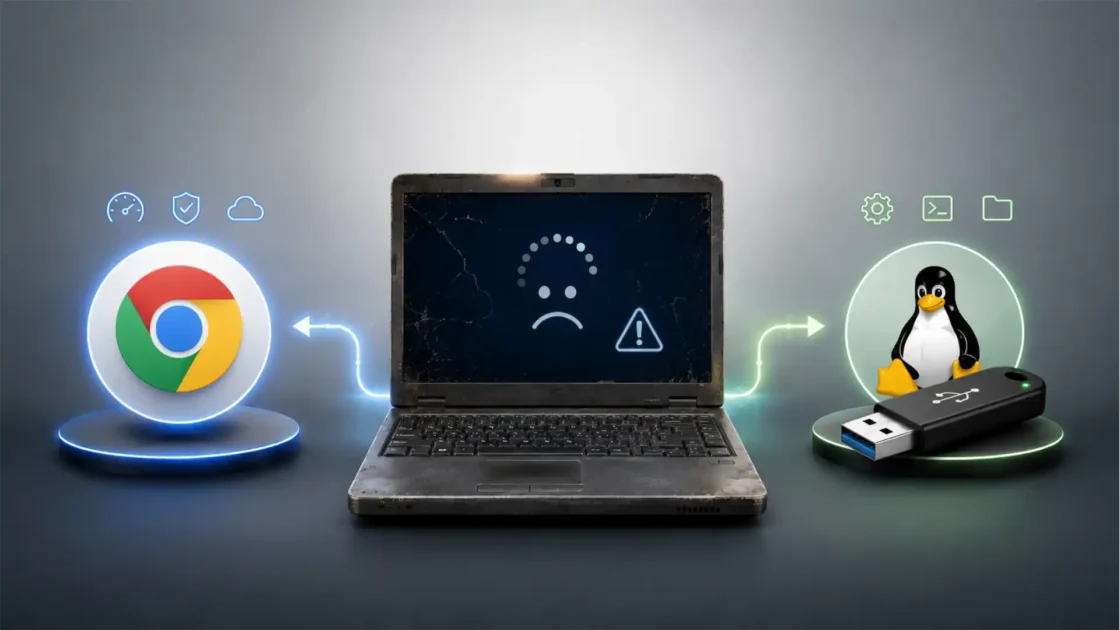

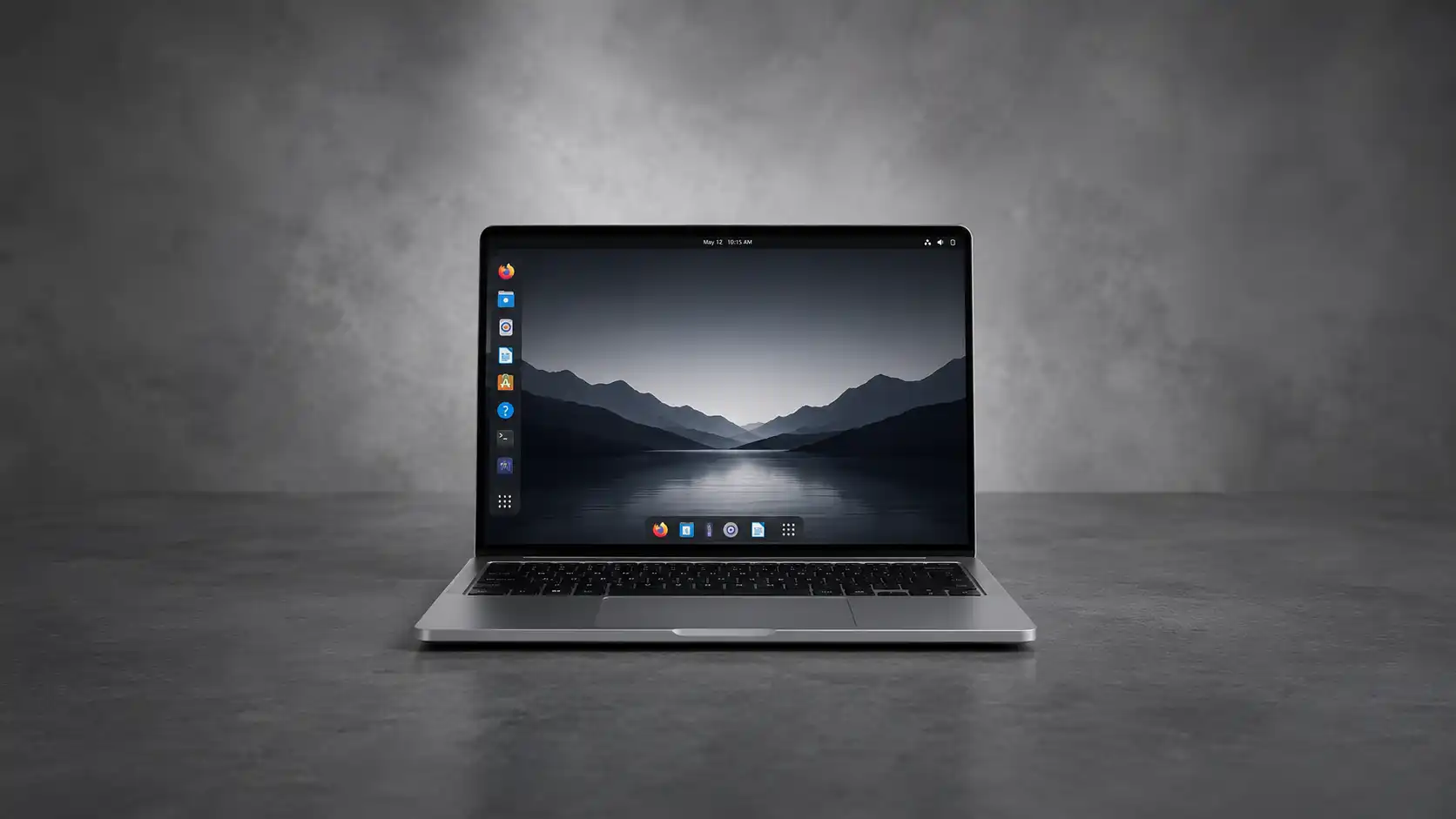
Most people do not need Windows for the thing they do most on a PC. They need a browser, a password manager, a printer that works, video calls, streaming, banking, email, documents, and security updates. That list used to hide many traps for Linux. Today, it hides fewer. The result is not that Linux has become the best desktop operating system for everyone. It is that the ordinary web-first Windows user now has a stronger case for Linux than at any point in the consumer PC era.
Table of Contents
The browser changed the operating system argument
The old Windows-versus-Linux argument was built around software. Could Linux run Microsoft Office? Could it run Photoshop? Could it run the printer utility from a hardware vendor? Could a user install a video editor without learning package names? Could a child open school documents? Could a worker join the office meeting? Could a casual gamer play anything without reading forums?
Those questions still matter. But for a large group of Windows users, they are no longer the questions that decide the whole purchase or upgrade path. The daily PC has become a container for the browser. Gmail, Outlook, Google Docs, Microsoft 365 for the web, WhatsApp Web, Slack, Discord, YouTube, Netflix, banking sites, government portals, school platforms, WordPress, Shopify, Canva, Figma, Notion, Trello, GitHub, ChatGPT, Perplexity, Gemini, Copilot, cloud storage dashboards, tax portals, and booking systems are not Windows applications in the traditional sense. They are web applications. They care more about Chrome, Firefox, Edge, JavaScript, cookies, WebRTC, hardware acceleration, codec support, and account sync than they care about the operating system underneath.
That is the quiet shift behind the Linux argument. Linux does not need to beat Windows at being Windows. For many users, it only needs to run a modern browser well, stay updated, avoid needless friction, and keep older hardware useful. Chrome officially supports mainstream Linux distributions such as Ubuntu, Debian, openSUSE, and Fedora, and Microsoft’s own Edge browser is supported on Linux. Firefox is deeply at home on Linux and is included by default on many distributions. The browser layer has become the compatibility layer that matters for light users.
That does not erase all differences. Windows still has unmatched coverage for commercial desktop software, PC games with aggressive anti-cheat systems, device vendor utilities, accounting packages, CAD tools, and niche professional workflows. It also remains the default operating system on most new PCs. StatCounter’s May 2026 desktop data still shows Windows far ahead globally, with Linux a small minority of desktop usage.
The point is narrower and more interesting. The PC market has a large population of users who do not use most of Windows’ native software advantage. They use Windows because it came with the machine, because it was familiar, and because switching used to feel risky. For that group, the risk calculation has changed.
Windows 10’s end made the choice less abstract
The shift became more urgent when Windows 10 support ended on October 14, 2025. Microsoft’s own support page says Windows 10 PCs still function after that date, but the company no longer provides technical support, software updates, security updates, or security fixes through normal support channels. Microsoft’s lifecycle page identifies Windows 10 version 22H2 as the final version for Home and Pro editions.
That matters because Windows 10 was not a failed operating system waiting to disappear. It was the stable default for a decade. It ran on huge numbers of office laptops, home desktops, refurbished machines, school PCs, hand-me-down family computers, and low-cost systems sold long before Windows 11’s hardware rules became the dividing line. When Microsoft ended free standard support, many users faced a concrete choice: move to Windows 11, pay or enroll for extended updates where available, keep using an unsupported system, buy a new PC, or install another operating system.
Windows 11 is not just a normal upgrade from the user’s point of view. It has hardware gates. Microsoft lists requirements including a compatible 64-bit processor, 4GB of RAM, 64GB of storage, UEFI Secure Boot capability, and TPM 2.0. Microsoft also says TPM 2.0 is required to run Windows 11 and is used by features including Windows Hello and BitLocker. Those requirements are defensible from a security architecture perspective, but they leave many otherwise functional machines outside the supported upgrade path.
The practical result is blunt. A web-first user with a five-, seven-, or ten-year-old Windows 10 PC may not be choosing between Windows and Linux in theory. They may be choosing between a working Linux machine with current updates, an unsupported Windows 10 machine, a Windows 11 upgrade their hardware rejects, or a new computer they do not otherwise need.
Microsoft offers Extended Security Updates for Windows 10 as a transition option, with critical and important security updates for Windows 10 version 22H2 after end of support. That buys time; it does not make Windows 10 a long-term consumer desktop strategy. Microsoft presents ESU as a bridge while customers transition to Windows 11.
For users who mostly browse, that bridge raises a fair question: transition to what? If the answer is “new hardware for the same browser tabs,” Linux becomes less like a hobby and more like a refusal to discard a useful device.
The Windows 11 hardware line created a Linux opening
Windows 11’s hardware requirements changed the way nontechnical users hear the Linux pitch. For years, “install Linux” sounded like a request to take on complexity. Now, for some Windows 10 holdouts, the competing Windows path has its own complexity: compatibility checks, firmware settings, TPM support, Microsoft account prompts, ESU enrollment, cloud backup incentives, and the possibility that the simplest official answer is a new PC.
Linux distributions have requirements too. Modern full desktops such as Ubuntu with GNOME are not magic cures for all old hardware. But the Linux ecosystem still gives users more tiers. A machine that feels heavy under Windows 11 may run acceptably under Linux Mint Cinnamon, KDE Plasma, Xfce, or another lighter desktop. Linux Mint 22.1, for example, is a long-term support release supported until April 2029, and the Mint project lists modest requirements compared with many new Windows 11 PCs.
Ubuntu 24.04 LTS also changes the support conversation. Canonical’s release notes for Ubuntu 24.04 LTS describe five years of free security maintenance for the main repository, Ubuntu Pro coverage extending security maintenance to 10 years across main and universe repositories, and a further Legacy Support add-on that can bring the total commitment to 12 years for enterprise customers. For ordinary users, the important part is simpler: a mainstream Linux distribution can offer a long, clearly dated maintenance path without forcing a new PC purchase on hardware grounds alone.
That does not mean every old laptop should be revived. Batteries swell. Storage wears out. Screens dim. Wi-Fi cards fail. A 2011 machine with a spinning hard drive and 4GB of RAM may still be unpleasant unless it gets an SSD and a lighter desktop. Some old CPUs lack instruction sets required by modern browsers. Google’s current Chrome requirements for Linux include a 64-bit supported distribution and an Intel Pentium 4 or later processor that is SSE3-capable.
The line has moved, though. The common Windows 10-era office laptop with an Intel Core i5, 8GB of RAM, and an SSD is not obsolete for email, documents, banking, streaming, and video calls. It may be blocked from Windows 11 by support policy or firmware limits, but it is not blocked from being useful. Linux gives those machines a second decision point before recycling.
The web-first user is now a real category
“Just browse the web” can sound dismissive, as though the user only performs trivial tasks. That is wrong. The browser is where many serious daily tasks now live. A browser-based workflow may include legal documents, invoices, medical portals, school assignments, video meetings, two-factor authentication, online banking, cloud storage, photo libraries, e-commerce inventory, community management, customer support, travel planning, pension accounts, and tax submissions.
The modern browser is not a toy. It is a software platform with sandboxing, hardware acceleration, file access controls, permission prompts, password managers, sync, extension APIs, WebAssembly, WebGL, WebGPU in supported contexts, WebRTC, passkeys, payment APIs, notification systems, media DRM, and installable web apps. Operating systems still matter, but they sit one layer lower for many home and office tasks.
That is why Linux’s desktop weakness hurts less for web-first users. The absence of a native Microsoft Office Linux suite is a serious issue for power users of Excel macros, Access databases, complex Word templates, and enterprise plug-ins. For someone who writes letters in Word for the web, edits simple spreadsheets in Google Sheets, signs PDFs in a browser, and stores files in OneDrive or Google Drive, the missing native suite is less damaging. Microsoft says Microsoft 365 for the web lets users edit and share Word, Excel, PowerPoint, and OneNote files on devices using a web browser. Google Workspace supports current and previous versions of major browsers including Firefox, Safari, and Microsoft Edge, with cookies and JavaScript enabled.
That does not produce full equality. Web Office is not desktop Office. Browser Photoshop is not a full workstation setup. Web-based tools sometimes behave differently under Linux, and vendor support scripts may assume Windows or macOS. Some websites still test narrowly, especially in government, education, healthcare, and banking. But the number of ordinary tasks that require native Windows has shrunk.
The stronger claim is this: for users whose work survives inside Chrome, Firefox, or Edge, Linux compatibility has become browser compatibility. That is a cleaner test than it used to be. A user can boot a live Linux USB, open their browser, sign in to core services, test video calls, test printing, test banking, test streaming, test password manager extensions, and know within an hour whether the machine can carry their daily life.
Linux no longer asks every beginner to become a system administrator
The classic Linux stereotype involved a terminal, missing drivers, cryptic package commands, and forum threads ending with “compile it yourself.” That stereotype still has a factual root in some corners of the ecosystem. Linux remains powerful partly because it exposes the system rather than hiding it. A user can still fall into command-line troubleshooting, driver workarounds, graphics stack debates, and distribution-specific fixes.
But a mainstream Linux install in 2026 is not the same experience as a mainstream Linux install in 2006. Ubuntu, Linux Mint, Fedora Workstation, Zorin OS, elementary OS, Pop!_OS, openSUSE, and other desktop distributions have graphical installers, software centers, automatic update prompts, disk encryption options, driver tools, Wi-Fi support for common hardware, and polished desktop environments. GNOME and KDE Plasma are mature desktops, not shells for hobbyist experimentation. Fedora Workstation 42 shipped GNOME 48 with accessibility and performance improvements, while KDE Plasma 6.2 added accessibility work and Wayland improvements such as full sticky keys support on Wayland and colorblindness filters.
Linux Mint is especially relevant to Windows migrants because it treats familiarity as a feature rather than a sin. Its Cinnamon desktop uses a bottom panel, a menu, tray icons, window buttons, and a layout that does not ask a Windows user to relearn basic spatial habits. It avoids some of the visual rupture that can make GNOME feel alien to users who want a taskbar-like environment. Mint’s 22.1 release notes describe it as an LTS release supported until April 2029, built around refinements and updated software rather than a dramatic conceptual shift.
The rise of graphical app stores matters too. Flathub presents itself as a place to find and install hundreds of Linux apps and games, and its 2025 year-in-review reported 438.2 million downloads, 3,249 total apps, and 727.4 million app updates. Not every Flatpak is official. Users still need to check whether an app is verified and who maintains it. But the existence of a broad, distribution-neutral app channel reduces one of Linux’s old frictions: “which package do I download for my distro?”
For web-first users, the bar is even lower. They may need Firefox or Chrome, a PDF reader, a printer, a scanner, a password manager extension, Zoom or Google Meet in a browser, and perhaps a media player. That is no longer an exotic setup. The fewer native apps a user depends on, the more Linux feels like a normal desktop rather than a project.
The software gap narrowed because the web absorbed the center
The most important software development for Linux beginners was not a Linux feature. It was the web absorbing mainstream computing. When email moved from Outlook Express and ISP mail clients into Gmail and Outlook.com, one barrier fell. When documents moved into Google Docs, Microsoft 365 for the web, Dropbox Paper, Notion, and browser-based editors, another barrier fell. When messaging moved into WhatsApp Web, Telegram Web, Signal Desktop, Discord, Slack, Teams web access, and browser notifications, another barrier fell.
The same happened with entertainment. YouTube is a browser. Netflix is a browser. Disney+, Prime Video, Twitch, Spotify, Apple Music on the web, podcast players, news sites, and streaming radio are browser tasks, subject to DRM and codec support but not Windows-only by design. A user who watches, reads, shops, banks, books travel, manages photos, and talks to family through web services is less tied to the operating system than a user who relies on local commercial software.
Progressive Web Apps deepen that shift. Google’s Chrome help pages describe installing websites as apps from the browser menu, and web.dev notes that desktop PWA installation is supported by Chrome and Edge on Linux, Windows, macOS, and Chromebooks. PWAs are not perfect replacements for native apps. Their permission models and platform integration still deserve scrutiny, and academic work has documented security and permission inconsistencies in PWA ecosystems. Still, they make web-first computing feel less like “living in tabs” and more like a conventional desktop with launchers, windows, notifications, and app-like behavior.
This change weakens one of Microsoft’s old advantages. Windows won because software vendors targeted it first, and users followed the software. Today, many vendors target the browser first because the browser reaches Windows, macOS, ChromeOS, Linux, Android, and iOS with one service model. That does not make Linux dominant, but it removes many moments where a user is forced back to Windows.
The web also changes support. A family member helping a parent move to Linux no longer has to explain OpenOffice file compatibility as the whole answer. They can ask what the user actually opens each week. If the answer is “Chrome, Gmail, YouTube, Facebook, online banking, Google Docs, WhatsApp, photos, and the printer,” the operating system becomes less sacred. The user’s real platform is their account graph, not the Windows desktop.
Windows still wins where native software rules
A serious Linux article has to say plainly where Windows remains better. Windows is still the safer default for people who rely on native Microsoft Office at full fidelity, Adobe Creative Cloud desktop applications, AutoCAD, SolidWorks, many accounting packages, proprietary VPN clients, endpoint security agents chosen by an employer, exam-lockdown software, specialized hardware utilities, embroidery software, medical imaging viewers, certain printer management tools, and games that depend on unsupported kernel-level anti-cheat systems.
The web-first case for Linux should not be stretched into a universal desktop claim. A user who says “I only browse” may still have one decisive Windows-only dependency. That dependency might appear once a month: a tax program, a school proctoring app, a government ID tool, a bank’s legacy smart-card component, a printer firmware updater, a camera utility, or an employer’s remote desktop client. One rare dependency can decide the OS.
Windows also has the advantage of being the support assumption. Many consumer help pages are written for Windows. Many device vendors test Windows first. Many local repair shops, school IT desks, and office support teams understand Windows workflows. If a user’s tolerance for troubleshooting is near zero, that ecosystem matters.
Linux’s advantage grows when the user has control over the machine. It shrinks when the machine belongs to an employer, school, hospital, or regulated organization. A browser-based job can still require device compliance, endpoint management, Teams policies, VPN certificates, BitLocker, Microsoft Intune, or a corporate image. In that context, personal Linux preference may be irrelevant.
The useful framing is not “Linux has caught Windows.” It has not. The useful framing is Windows is still the broadest compatibility platform, but the web-first user may not need that breadth enough to accept Windows’ hardware, account, interface, advertising, and privacy trade-offs.
The upgrade pressure became a trust issue
Windows 11’s push did not happen in a vacuum. It arrived alongside Microsoft’s deeper AI integration, Copilot branding, account-driven setup flows, Start menu recommendations, cloud backup nudges, and the controversial Recall feature for Copilot+ PCs. Some of these features are useful. Some are optional. Some have security arguments behind them. But together they changed how many users perceive Windows: less as a neutral local operating system and more as a managed Microsoft service.
Recall is the clearest example because it raised privacy fears beyond ordinary telemetry complaints. Microsoft says Recall lets users retrace their steps by searching past activity snapshots on supported Copilot+ PCs. Microsoft’s support documentation says Recall requires identity confirmation before launch and before snapshot access, and Microsoft’s Windows blog said the feature would be opt-in, with encrypted sensitive data and the ability to remove Recall through optional features settings.
Those changes were responses to a backlash. The revised design is materially different from the feature as originally feared by critics. Yet the episode still matters because it sharpened a question ordinary users rarely asked before: who is the operating system serving by default? A user who only wants a browser may not want a system that repeatedly invites them into AI features, account integration, cloud backup, app recommendations, widgets, and promoted services.
Windows 11 Start menu recommendations became part of that same perception. Microsoft framed recommended Store apps as discovery, while coverage of the 2024 update described ads or app recommendations appearing in the Start menu after KB5036980. Users can change settings, but the deeper signal is that the operating system surface is contested space.
Linux is not automatically private in every configuration. A user can install a data-hungry browser, sign into Google, sync passwords, install risky extensions, grant broad permissions to PWAs, and leak plenty of information. But Linux distributions generally do not depend on a single advertising-and-cloud account owner controlling the desktop experience. For users tired of being guided, nudged, and monetized inside the operating system shell, Linux’s plainness becomes a feature.
The security argument is not that Linux is immune
Linux advocates sometimes overstate security. Linux is not immune to malware. Linux servers are constant targets. Browser exploits affect Linux users. Malicious extensions are cross-platform. Phishing does not care about the kernel. Supply-chain attacks can hit open-source ecosystems. A poorly maintained Linux install is risky. A user running random commands copied from a forum can damage the system faster than a cautious Windows user would.
The better security argument is narrower. A supported Linux distribution gives an old PC a route to current operating system patches after Windows 10 support ends. For a web-first user, that matters more than brand loyalty. Unsupported Windows 10 is not safe simply because the user “only browses.” Browsers, graphics drivers, font parsers, archive tools, image libraries, Wi-Fi stacks, and kernel components all sit in the attack surface.
Microsoft’s end-of-support page is direct: after October 14, 2025, Windows 10 PCs still function, but Microsoft no longer provides normal software updates, security updates, or fixes. ESU reduces that risk temporarily for enrolled Windows 10 22H2 devices, but it is explicitly a transition program.
Linux distributions also centralize updates in a way many Windows users underestimate. A Mint or Ubuntu update may patch the kernel, browser packages, system libraries, PDF tools, media libraries, and many applications from one place. Flatpak apps add another update path but can still be handled through graphical software tools. That is not perfect; users must understand repository trust and avoid unverified packages. But for a simple browser machine, the update model can be clean.
Security also includes user behavior. If switching to Linux causes confusion, delayed updates, bad workarounds, or unsupported software downloads, the security benefit shrinks. If it lets a user keep a supported OS, updated browser, working password manager, and fewer unwanted background services, the benefit is real. Linux is not safer because of mythology. It is safer for this use case when it keeps a still-useful PC inside a maintained software path.
The environmental case has moved from slogan to practical decision
The Windows 10 deadline became an e-waste story because hardware and software lifetimes diverged. A computer can be fast enough for browser work while still blocked from the next Windows release or left outside normal support. That mismatch creates avoidable disposal pressure.
PIRG argued after Windows 10 support ended that up to 400 million computers could be pushed toward the e-waste stream. The Restart Project made a similar case before the deadline, saying around 400 million PCs running Windows 10 would not be allowed to upgrade to Windows 11 and could face premature obsolescence. End of 10, a campaign aimed at moving Windows 10 users to Linux, estimated 200 to 400 million laptops and computers could become security risks and e-waste without another path. Those are advocacy estimates, not hardware census facts, but they capture a real structural issue: software policy can shorten hardware life.
This matters for households, charities, schools, libraries, repair groups, and small businesses. A refurbished Windows 10 laptop that cannot run Windows 11 officially may still be useful for homework, web access, telehealth, job applications, video calls, and online public services. If Linux can keep that machine patched and usable, the benefit is not ideological. It is economic and environmental.
The Restart Project’s toolkit for community repair groups frames the end of Windows 10 as a repair issue: support people facing the deadline, keep computers running, reduce e-waste, and save money. That language fits what many local repair cafés already see. The barrier is rarely raw CPU performance. It is operating system support, storage wear, RAM limits, and user confidence.
A new PC is still the right answer sometimes. Modern hardware is more power-efficient, has better screens, better webcams, better Wi-Fi, longer battery life, hardware security features, and vendor support. But buying a new machine to open the same six browser tabs is not automatically rational. Linux turns “this PC is unsupported by Windows” into a question rather than a verdict.
Windows-first web users now face a different trade-off
| Choice for a Windows 10-era browsing PC | Security path | Cost pressure | Main risk |
|---|---|---|---|
| Stay on unsupported Windows 10 | Weak after normal support ends | Low now, higher later | Unpatched vulnerabilities |
| Enroll in Windows 10 ESU | Temporary | Low to moderate | Still a bridge, not a future |
| Buy a Windows 11 PC | Strong | Highest | Replacing useful hardware |
| Install Linux | Strong if maintained | Low | App, driver, and support gaps |
This table is not a universal recommendation. It shows the decision shape for a web-first user whose current machine still performs basic tasks but no longer has a clean Windows future. The Linux option is strongest when the user’s work is browser-based and the hardware works well in a live test.
The best Linux candidate is not the power user
The person most likely to benefit from Linux is not always the person most excited about it. Power users often have complicated needs: games, creative tools, virtualization, specific peripherals, professional software, development environments, multiple monitors, HDR, color management, GPU tuning, scripting, backups, and unusual hardware. Linux can be excellent for many of those users, but it can also demand expertise.
The cleanest candidate is simpler: a person who opens a browser, checks email, manages photos through a cloud service, watches streaming video, uses web documents, prints occasionally, joins video calls, and does not install much software. That person may be a retiree, student, small business owner, nonprofit volunteer, family administrator, writer, receptionist, hobbyist, or owner of a second laptop used in the kitchen.
That user’s pain points are not the same as a gamer’s. They care about boot speed, update prompts, battery life, Wi-Fi, Bluetooth, webcam, microphone, speakers, screen brightness keys, printer setup, browser sync, bookmarks, passwords, PDF downloads, and not losing files. Linux distributions can now meet those needs on a large share of ordinary Intel and AMD laptops. The right test is practical, not tribal.
A good migration starts with inventory. Which browser? Which password manager? Which cloud drive? Which printer? Which scanner? Which bank? Which tax portal? Which meeting platform? Which extensions? Which local files? Which external drive? Which family support person? Which backup method? The answer often reveals that Linux is either easy or unwise before installation.
For web-first Windows users, the live USB trial is the killer feature. Boot Linux without installing it, connect Wi-Fi, open the browser, join a test video call, play YouTube, test speakers and microphone, check sleep and wake, try the printer, and inspect display scaling. No Windows reinstall can offer that level of reversible experimentation. Linux wins trust when it proves itself on the exact machine, not when advocates promise it will work.
Distribution choice matters less than support habits
Linux beginners often get trapped in distribution choice. Ubuntu or Mint? Fedora or Zorin? KDE or GNOME? Debian or openSUSE? Rolling release or LTS? The question matters, but not as much as beginners think. For a web-first user, the best distribution is the one that is maintained, popular enough to search for help, compatible with the hardware, and comfortable enough that the user will update it.
Linux Mint is a strong fit for Windows migrants because its desktop is familiar and its Ubuntu base gives it a large support ecosystem. Ubuntu is a strong fit because of documentation, hardware enablement, vendor familiarity, and predictable LTS releases. Fedora Workstation is a strong fit for users who want newer Linux desktop technology and a polished GNOME experience, but its faster release cycle may feel less calm to someone who dislikes change. Zorin OS markets itself directly to Windows switchers and may reduce first-day shock. KDE-based distributions fit users who want customization and a Windows-like panel. Xfce-based distributions fit older hardware.
The support horizon should be visible. Mint 22.1 is supported until April 2029. Ubuntu 24.04 LTS has a long support story. Fedora’s faster cycle requires more frequent upgrades. Those facts should shape advice. A user who hates upgrades may prefer an LTS base. A user with new hardware may prefer a newer kernel and desktop stack.
The desktop environment matters for comfort. GNOME is clean and opinionated. KDE Plasma is flexible and familiar to many Windows users. Cinnamon is conservative and approachable. Xfce is lighter and less flashy. The right choice is not the “best” desktop; it is the desktop the user can understand when something interrupts them on a Tuesday morning.
The strongest practical rule is this: choose the Linux distribution that your support person understands. If the family member, repair café, or local technician knows Mint, choose Mint. If they know Ubuntu, choose Ubuntu. If they know Fedora, choose Fedora. Community support beats theoretical elegance.
Browser support is the new application compatibility layer
A Linux desktop for web-first users stands or falls on browser support. That is where the news has become favorable. Chrome supports mainstream 64-bit Linux distributions. Edge is available for Linux. Firefox remains a first-class Linux browser. Chromium variants are widely packaged, though users should understand the difference between official Google Chrome, distribution-built Chromium, and third-party browser packages.
This gives a Windows migrant an unusual kind of continuity. If they use Chrome on Windows, they can sign into Chrome on Linux and recover bookmarks, passwords, history, extensions, and payment settings, subject to their sync choices. If they use Edge, they can use Edge on Linux and keep Microsoft account sync. If they use Firefox, the move may be especially natural because Firefox is often preinstalled. The operating system changes; the main application may not.
Browser parity also reduces training cost. A user who knows where Gmail is, how to download PDFs, where bookmarks sit, and how to join a Meet call does not need to relearn those tasks because the panel moved from Windows to Cinnamon or KDE. The browser window becomes the familiar room inside a new house.
There are still edge cases. Some streaming services apply different DRM paths. Hardware video acceleration may need configuration depending on browser, GPU, driver, and codec. Some browser extensions behave differently across stores. Some websites claim support only for Windows or macOS even when they work in Linux browsers. Enterprise single sign-on can be picky. But compared with the old days of missing native clients, browser continuity is a major reduction in switching cost.
The most persuasive Linux demo for a Windows user is not a terminal command. It is their own browser profile opening normally on the old laptop they thought had expired.
Microsoft 365 and Google Workspace weaken Windows lock-in
Office compatibility used to be the hardest mainstream argument against Linux. It still matters. Native Microsoft Office is not available as a supported Linux desktop suite. LibreOffice is strong, but document fidelity can break in complex files. Excel macros, Power Query, Access databases, corporate templates, and tracked-change workflows can trap users inside Windows or macOS.
But Microsoft has moved much of ordinary Office work into the browser. Microsoft 365 for the web provides browser-based Word, Excel, PowerPoint, OneNote, OneDrive, and Outlook access. The web versions are less complete than desktop apps, yet good enough for many home users, students, clubs, small nonprofits, and light office tasks.
Google Workspace goes further because its culture is browser-native. Google Docs, Sheets, Slides, Gmail, Drive, Meet, Calendar, Forms, and Classroom were never tied to Windows desktop software. Google’s supported browser policy focuses on current browsers rather than Linux desktop packaging, which means a Linux user with a current Chrome, Firefox, or Edge build is often inside the supported path for core Workspace use.
This makes Linux stronger in households and small organizations that already live in the cloud. A user whose files are in OneDrive may use Microsoft 365 web apps and download copies. A user whose life is in Google Drive may barely notice the OS underneath. A user whose documents are mostly PDFs and simple spreadsheets may be fine with LibreOffice plus web apps.
The danger is hidden complexity. “I use Word” can mean “I type letters.” It can also mean “I exchange heavily formatted legal documents with track changes and custom templates.” “I use Excel” can mean “I manage a budget.” It can also mean “I maintain a macro-heavy workbook that drives a business process.” The Linux recommendation changes depending on that detail.
For web-first users, the right sentence is precise: Linux is a credible Windows alternative when Office means ordinary browser-based documents; it is not a drop-in replacement when Office means complex desktop Office workflows.
Video calls are a better Linux test than screenshots
A Linux desktop can look perfect and still fail the user if the webcam, microphone, screen sharing, Bluetooth headset, or browser permissions behave badly. Video calls are now one of the core PC tasks. They matter for remote work, school, telehealth, family contact, interviews, webinars, and support calls.
The good news is that browser-based video calls work far better on Linux than they once did. Google Meet, Zoom’s web client, Microsoft Teams web access, Jitsi, Whereby, Discord, and other services can run in modern browsers. WebRTC is cross-platform by design. Linux desktops expose camera and microphone permissions through browsers in familiar ways. PipeWire has improved modern Linux audio and screen-capture plumbing, especially under Wayland.
The caution is that video calling still surfaces rough edges faster than email does. Some platforms offer a better experience in Chrome or Edge than Firefox. Some screen-sharing features work differently under Wayland and X11. Some virtual background features depend on native clients or hardware acceleration. Some corporate Teams environments may restrict browser access or require policies best supported on Windows. Bluetooth headset profiles can still frustrate users, especially with older adapters.
That is why the live test matters. A user should not install Linux based on a screenshot of Mint Cinnamon. They should boot the distribution and join an actual test call. Can the other person hear them? Does the camera work? Can they share a window? Does the call survive sleep and wake? Does the headset reconnect? Does the browser ask for permissions clearly? Does the user know where to change input devices?
For a web-first PC, the video-call test is as important as the browser test. If email, banking, streaming, printing, and video calls work, much of the ordinary Windows dependency has already disappeared.
Printing and scanning remain the stubborn household test
Printing is the place where operating system theory meets kitchen-table reality. A household can use the web for nearly everything and still need to print a boarding pass, return label, school form, tax document, shipping label, medical instruction, or government letter. If printing fails, the operating system gets blamed, not the printer vendor.
Linux printing is far better than its reputation, especially for network printers that support driverless standards. Many HP devices work well through open tools. Many modern printers support IPP Everywhere, AirPrint-like discovery, or standard network protocols. For simple printing, Linux may find the printer automatically.
Scanning can be more uneven. Multifunction devices sometimes need vendor packages. Some scan buttons on the device do not map cleanly to Linux workflows. Old printers may work, then fail after a router change. Cheap consumer printers sometimes rely on Windows utilities for ink levels, maintenance, or firmware updates. Linux may print perfectly but lack the vendor’s full management suite.
The practical answer is testing, not faith. Before replacing Windows, print a PDF. Scan a page. Check duplex printing. Check color output. Check the paper size used by labels or envelopes. Confirm whether the user needs ink-level warnings or only basic print output. If the printer is critical and Linux support is bad, the cheapest answer may be a different printer, but that still changes the migration cost.
This is where Windows’ default position still helps. Printer vendors may write Windows instructions first. A support line may not help a Linux user. A repair café can bridge the gap, but not every household has one.
For a web-first user, Linux is only as good as the boring peripherals they actually use. The boring tests should happen before installation, not after enthusiasm has already committed the machine.
File management is the hidden emotional barrier
Operating systems are habits. A user may not care about kernels, desktops, package formats, or init systems, but they care deeply about where files go. Downloads, Desktop, Documents, Pictures, USB drives, screenshots, scanned PDFs, browser downloads, email attachments, and cloud folders are the emotional map of a PC.
Windows users moving to Linux need reassurance that files are not trapped. Linux file managers such as Files, Nemo, Dolphin, and Thunar are capable and familiar enough for ordinary use. They show folders, drives, network shares, thumbnails, search, copy, paste, rename, and external devices. But path names differ. Drive letters disappear. Executables behave differently. OneDrive integration is not as native. iCloud Drive is not a first-class Linux desktop citizen. Google Drive integration varies by desktop and tool.
The migration should protect files first. Copy user data to an external drive. Verify the copy from another machine. Export browser bookmarks if sync is not trusted. Confirm password manager access. Record Wi-Fi passwords. Save recovery codes for two-factor authentication. Check whether BitLocker is enabled on Windows before resizing or replacing partitions. A Linux install can be simple, but data loss turns a good operating system into a bad memory.
Cloud storage deserves special care. OneDrive can be accessed through the browser, and third-party sync tools exist, but a user expecting Windows-like Explorer integration may be disappointed. Google Drive has browser access and some desktop integration paths, but not the same official Linux sync client experience as Windows and macOS. Dropbox has Linux support, though packaging and desktop integration can vary by distribution. The web may be enough, but users must know what “enough” means.
The web-first Linux switch succeeds when the user’s files feel safe before the first partition is touched.
App stores reduced friction, but trust still matters
Linux beginners used to face a confusing software question: download a .deb, a .rpm, a tarball, an AppImage, a Snap, a Flatpak, a distribution package, or build from source? That confusion has not vanished, but graphical software centers and universal package formats have reduced it.
Flathub is central to that change. It provides a large catalog of apps across distributions, and the service’s growth numbers show that Flatpak has become a major part of the Linux desktop software story. Its verified apps collection also gives users a signal about whether an app is associated with its developer.
For web-first users, this matters less than for creative users, but it still matters. They may need Bitwarden, VLC, Spotify, Zoom, Signal, Telegram, Discord, GIMP, LibreOffice, a scanner tool, a PDF editor, or a backup app. A software center reduces the temptation to search the web and download random installers, which is a bad habit carried over from Windows.
Trust remains difficult. A Flatpak can be official, community maintained, verified, unverified, sandboxed, permissive, outdated, or wrapped around proprietary software. A Snap can be convenient but controversial in the Linux community. A distribution repository can be stable but behind upstream versions. An AppImage can be portable but may not update automatically. Beginners do not need a philosophy lecture, but they need a rule: install from the distribution’s software center or official vendor instructions, and be cautious with random commands.
The Windows comparison is not perfect. Windows users also face fake download buttons, bundled installers, shady driver tools, malicious browser extensions, and scam support utilities. Linux’s package model can be safer, but only when users stay inside trusted channels.
Linux app installation has become easier; Linux app trust still requires plain-language guidance. That is a support opportunity for distributions, repair groups, and anyone recommending Linux to ordinary users.
Performance gains are real, but not magical
Linux often feels faster on older PCs, especially after replacing Windows on machines burdened by vendor utilities, background services, old antivirus suites, telemetry tasks, cloud sync conflicts, and years of accumulated startup items. A clean Linux install with an SSD can make an old laptop feel newly useful.
But performance claims should be measured carefully. A modern browser is heavy on every OS. Ten Chrome tabs, a video call, a PDF viewer, a cloud document, and a streaming site can strain 4GB of RAM whether the machine runs Windows or Linux. Electron apps are not light because they run on Linux. Websites keep growing. Hardware video acceleration may or may not be configured. A full GNOME desktop is not a rescue environment for a very weak machine.
Linux gives users more desktop weight classes. Xfce, LXQt, MATE, and lightweight window managers can reduce overhead. Cinnamon and KDE can feel comfortable without being too heavy. GNOME is polished but may prefer newer hardware. The right desktop can extend usefulness, but the browser remains the largest everyday load.
The biggest upgrade for old hardware is often not Linux by itself. It is Linux plus an SSD, a clean install, and enough RAM. A 2015 laptop with a hard drive may feel slow under any OS. A cheap SATA SSD can change the machine more than a distribution choice. A battery replacement may matter more than kernel version. Dust cleaning can matter more than desktop theming.
Linux can turn a sluggish Windows 10 browser machine into a pleasant web PC, but it cannot make modern websites light or failing hardware healthy. That honest boundary makes the recommendation stronger, not weaker.
Privacy is a practical reason, not just an ideology
Linux’s privacy appeal often comes from distrust of large platform companies. That distrust can be vague, but the practical concern is concrete: users increasingly feel their operating system is filled with accounts, cloud sync prompts, telemetry controls, personalized recommendations, widgets, AI assistants, and commercial surfaces they did not ask for.
Windows has privacy settings, enterprise controls, and security architecture that Linux distributions do not replicate in the same way. Microsoft also has legitimate reasons to integrate accounts, cloud backup, identity, device recovery, and anti-theft features. A Microsoft account can make setup easier, recover settings, sync Edge data, and protect a user from losing everything when hardware dies.
The issue is consent and fit. A user who wants that ecosystem should use it. A user who only wants local computing and a browser may feel pushed. The Recall episode intensified that feeling because it involved a feature built around snapshots of past activity, even though Microsoft’s revised design stresses opt-in controls, encryption, identity confirmation, and removal options.
Linux desktops, by contrast, tend to start quieter. A Mint or Fedora install does not ask the user to join a single operating-system vendor account to unlock the basic desktop. Distributions may offer online account integration, crash reporting, update checks, and optional services, but the economic model is different. The desktop is less likely to become a promotional surface for one company’s subscription stack.
This does not make Linux private by default in the full sense. The moment a user signs into Chrome, Google services, Facebook, Microsoft 365, TikTok, Amazon, or a data-hungry extension, much of their activity is still inside commercial ecosystems. But privacy is not binary. Linux can reduce operating-system-level pressure even when the user still participates in web platforms. For some users, that is enough.
Gaming no longer disqualifies Linux, but it still complicates the advice
The topic here is web-first Windows users, but many “just browsing” PCs also run Steam occasionally. Linux’s gaming position has changed dramatically because of Valve’s Steam Deck, SteamOS, and Proton. Valve’s Proton project says it allows games exclusive to Windows to run on Linux through the Steam client. Steam Deck developer documentation treats Proton compatibility as a standard part of testing.
Steam’s own hardware survey shows Linux as a small but visible share of Steam usage, and Linux-focused analysis of the April 2026 survey put Linux at 4.52 percent after a March high above 5 percent. Windows still dominates Steam, but Linux gaming is no longer a fringe footnote in the same way it was before Proton and the Steam Deck.
For web-first users who play indie games, older titles, many single-player games, emulators, and Steam Deck-verified or Proton-friendly games, Linux may be fine. For competitive games with kernel-level anti-cheat, Windows can still be required. Major titles such as Fortnite and VALORANT have historically been difficult or impossible on standard Linux desktops because of anti-cheat policies. That is not a Linux performance issue; it is an ecosystem and security-model issue.
Gaming also changes hardware requirements. GPU drivers, Vulkan support, controller support, high refresh displays, HDR, variable refresh rate, and game launchers all introduce complexity. A user who says “I only browse and play one game” should check that one game before switching. ProtonDB and Steam Deck compatibility labels can guide expectations, but they are not guarantees for every PC configuration.
The fair line is clear: casual Steam use no longer automatically rules out Linux; competitive anti-cheat gaming often still does. For the browser-first user, gaming is a secondary test, not the main reason to stay or leave.
The Microsoft account question became part of the desktop debate
A web-first user may already have accounts everywhere: Google, Microsoft, Apple, Facebook, Amazon, bank, school, employer, streaming services, password manager, and phone ecosystem. The issue is not whether accounts exist. It is whether the operating system itself feels usable without one dominant vendor account.
Windows 11 setup has pushed many users toward Microsoft account sign-in, especially on consumer editions. Microsoft has reasons: backup, OneDrive integration, device recovery, Store access, Edge sync, parental controls, and security features. But for a local PC used mainly as a browser terminal, the account pressure can feel disproportionate.
Linux distributions generally let users create a local account as the normal path. Online accounts can be added later if the user wants calendar, contacts, mail, or cloud integration. That is a different power relationship. The machine starts as the user’s machine, then connects outward. Windows increasingly starts as part of a Microsoft service graph.
This distinction matters for refurbished PCs and family machines. A community repair group setting up laptops for donation may not want to tie setup to personal Microsoft accounts. A parent preparing a spare laptop for a child may want a local account and browser restrictions. A small organization may want a simple kiosk-like machine without consumer cloud prompts.
There are ways to run Windows with local accounts in some contexts, and business editions give more control. But the defaults shape perception. Linux feels less intrusive partly because it treats local ownership as normal rather than exceptional.
AI features changed what “simple PC” means
Microsoft is not alone in pushing AI into the operating system. Apple, Google, Samsung, Adobe, Notion, Zoom, Slack, and many others are building AI features into products. The issue for Windows users is that Windows 11 became the place where AI entered the desktop shell itself: Copilot branding, Copilot+ PCs, Recall, Click to Do, AI search, and on-device AI features tied to newer hardware.
Some users want those features. Natural-language file search, local transcription, background effects, image generation, summarization, and accessibility improvements can be useful. For users with disabilities, language barriers, or large local file collections, AI may become part of daily computing.
But the web-first user who only wants a fast, quiet browser machine may experience AI as bloat, risk, or pressure to buy new hardware. Copilot+ features are not the reason they own a laptop. They want the device to open websites and stay safe. If Windows’ future is increasingly built around AI PCs, the low-demand browser user becomes a poorer fit for Microsoft’s product direction.
Linux is not anti-AI. Developers run AI tools on Linux constantly. Linux powers many AI servers and development environments. Local AI tools can run on Linux desktops. The difference is that a mainstream Linux desktop does not make consumer AI integration the center of the operating-system upgrade story. The user chooses tools rather than receiving an OS-level campaign.
That creates a strange reversal. Linux used to be perceived as the complicated choice. For web-first users who dislike AI prompts and account-driven experiences, Linux may now feel like the simpler computer because it does less by default.
Market share understates the lived momentum
Linux desktop market share remains small. StatCounter’s May 2026 desktop data shows Linux at just over 3 percent worldwide, compared with Windows above 60 percent, with a large “Unknown” share and macOS/OS X categories also present.
A market-share chart can make the Linux conversation look exaggerated. If Linux is so good, why is it still small? The answer is distribution, habit, support, preinstallation, software defaults, institutional inertia, and risk. Most people do not choose an operating system. They buy a machine, and the OS is there. Windows’ power is not just preference; it is channel control. Consumers walk into a shop or browse a retailer and see Windows laptops. Businesses buy Windows fleets. Schools support Windows or ChromeOS. Repair shops know Windows. Software vendors test Windows. That loop is hard to break.
But small share does not mean weak fit for a specific segment. Linux does not need to become the majority desktop to become the better answer for old Windows 10 browsing PCs, privacy-sensitive users, repair groups, and web-native households. A minority platform can be the rational choice for a well-defined job.
Steam’s Linux rise is relevant here not because gamers are the same as web-first users, but because it shows a wider comfort shift. Valve made Linux invisible on the Steam Deck. Millions of users interacted with a Linux-based device as a product, not a project. That changes cultural familiarity. Users who would never install Arch Linux may own a Linux-powered handheld without thinking about it.
The same can happen on revived laptops. A Mint desktop on an old ThinkPad does not need to sell “Linux” as identity. It needs to open the browser, update cleanly, and not get in the way. Linux momentum is strongest when the word Linux becomes less important than the working computer in front of the user.
The local support gap is the real adoption barrier
For ordinary users, the hardest part of Linux is rarely the install. It is support after the person who installed it leaves. What happens when Wi-Fi drops? When the printer changes IP address? When the browser asks about permissions? When an update wants a reboot? When a website downloads a .exe installer? When the user plugs in an iPhone? When a PDF opens in the wrong app? When a Bluetooth headset pairs but does not play audio?
Windows has a large informal support network. Family members know it. Local shops know it. Employers know it. Search results are abundant. Microsoft’s own documentation is broad. That safety net is part of the product, even when users complain about Windows itself.
Linux support is uneven. Communities are helpful but can be intimidating. Advice may assume terminal comfort. Different distributions have different package systems, desktop settings, and release cycles. A solution for Arch may not apply to Mint. A GNOME setting may not apply to KDE. A forum thread from 2018 may be obsolete. The user may not know which question to ask.
This is why the growing community repair angle matters. The Restart Project’s Windows 10 toolkit, End of 10 events, Linux install fests, libraries, hackerspaces, and local computer clubs can convert Linux from a solo leap into a supported transition.
For families, the rule should be candid: do not move a relative to Linux unless someone can support them. That support can be light if the use case is simple, but it must exist. A good Linux migration is not just an operating system install. It is a support plan.
The business case is stronger for small, simple fleets
Small businesses often keep old Windows PCs around for reception desks, web dashboards, shipping labels, inventory portals, email, calendars, booking systems, point-of-sale back offices, and document access. If those machines are Windows 10-era devices blocked from Windows 11, Linux may look attractive. The cost argument is obvious: avoid new hardware for machines whose workload is mostly browser-based.
But business use adds constraints. Does the company use Microsoft 365 with conditional access? Does it require Intune? Does the bank support Linux browsers for payment approvals? Does the label printer have Linux drivers? Does the accounting system require a Windows desktop client? Does the cyber insurer require endpoint protection products that support Linux? Does the business need remote management, disk encryption recovery, audit logs, and patch reporting? Does the owner have someone who can support Linux?
For very small businesses, the Linux case can be strong when the PC is not domain-managed and the workflow is web-native. A café back-office machine used for Gmail, supplier portals, spreadsheets, invoices, and a browser-based payroll system may run well on Linux. A clinic, law office, or manufacturing shop with specialized Windows software is different.
The risk is compliance by accident. Consumer Linux desktops do not automatically meet business security requirements. Disk encryption, backups, user permissions, automatic updates, browser policies, and remote support need configuration. Windows Pro, Microsoft 365 Business Premium, and managed endpoint tools may be the better path for organizations that need formal control.
Linux is a cost saver for simple web fleets, not a shortcut around business IT responsibility. Small organizations should treat it as an intentional platform choice, not a casual rescue.
Schools and nonprofits have a practical opportunity
Schools and nonprofits often feel the Windows 10 transition harder than households. They may have donated laptops, limited budgets, mixed hardware, volunteer support, and users who mainly need browser access. Linux can extend the life of devices used for homework, digital literacy, job applications, community training, and public access.
ChromeOS Flex is another option in this space, and for some organizations it may be simpler than Linux because it is browser-first by design. But Linux offers more local control, more desktop flexibility, and broader hardware paths in some cases. It can run Firefox, Chrome, Edge, LibreOffice, accessibility tools, local media apps, coding environments, and educational software without tying the whole device to Google’s model.
The challenge is consistency. A lab full of mixed Linux distributions is a support burden. A school or nonprofit needs a standard image, clear update policy, locked-down browser settings where appropriate, content filtering if required, and a reset process. Linux can do this, but it requires planning. Volunteer enthusiasm is not a management system.
The upside is large. A stack of unsupported Windows 10 laptops can become a homework lab rather than scrap. A library can offer secure browsing terminals. A community group can teach digital skills without buying new hardware. A repair café can give people a real alternative to disposal.
The social value of Linux grows because the browser has become the access point for services. Job applications, benefits, healthcare, school portals, banking, and communication all require working web access. Keeping an old laptop secure and browser-capable is not nostalgia; it is digital inclusion.
The user interface gap has narrowed, not disappeared
Linux desktops have matured visually and functionally. KDE Plasma can look and behave much like a traditional Windows desktop. Cinnamon feels familiar to Windows 7 and Windows 10 users. GNOME offers a cleaner, more opinionated workflow that many users like once learned. Modern themes, fractional scaling improvements, touchpad gestures, dark modes, accessibility controls, and app stores have made the first impression much less alien.
But user interface gaps still appear in the small things. Keyboard shortcuts differ. Window snapping behaves differently. System settings are organized differently. Default file associations may surprise users. External monitor scaling can vary by desktop, graphics driver, and Wayland/X11 session. Sleep and wake behavior depends on hardware. Touchscreens and fingerprint readers may not work on every laptop. High-DPI setups can be excellent on one distribution and awkward on another.
KDE Plasma’s rapid Wayland progress and GNOME’s ongoing refinement show that the Linux desktop is actively improving. Fedora’s adoption of newer desktop technology often brings these improvements to users early, while LTS distributions favor slower change. That split is both a strength and a source of confusion.
For Windows migrants, the best interface is usually not the most elegant; it is the least surprising. A bottom panel, visible menu, predictable window controls, simple update prompts, and a clear software center can matter more than desktop theory. Linux Mint’s popularity among switchers is not mysterious. It respects muscle memory.
The desktop that wins the migration is the one the user stops noticing. Linux is closer to that point for web-first users than it used to be.
The command line should be optional for this audience
Linux experts love the terminal because it is powerful, scriptable, exact, and often faster than clicking. But for ordinary Windows users who only browse the web, requiring terminal comfort is a failure of product fit. The user should not need to know apt, dnf, flatpak, systemctl, journalctl, or lsusb to read email and join calls.
A good Linux recommendation for this audience should avoid terminal-first advice. Installation should be graphical. Updates should be graphical. Browser installation should be through the software center or official package. Printers should be added through settings. Backups should use graphical tools. If troubleshooting requires terminal commands, the support person can handle them, but the user should not be expected to memorize them.
This is not anti-Linux. It is pro-user. Windows users do not judge Windows by PowerShell. macOS users do not judge macOS by zsh. Linux should not ask a browsing-first user to judge Linux by Bash. The terminal can remain available without becoming the front door.
Distributions have improved here, but community culture sometimes lags. Search results still lead beginners into commands without context. Some commands are harmless; others add repositories, bypass trust checks, remove packages, or change system services. A cautious migration guide should explain what commands do or avoid them.
For this group, Linux succeeds when it behaves like an appliance with an escape hatch, not a workshop that demands apprenticeship.
The backup story needs more attention
A web-first user may assume everything is in the cloud. That is often false. Downloads, scanned documents, exported PDFs, tax forms, photos copied from phones, browser bookmarks, local password vaults, email attachments, and desktop files may live only on the PC. A Linux switch can expose sloppy backup habits that Windows had hidden.
Before installing Linux, users should make at least one full external copy of personal files and verify it. Better, make two. Cloud backup is helpful but not enough if the user does not know what is synced. OneDrive may have protected Desktop, Documents, and Pictures on Windows, but that does not mean the same folders will sync automatically on Linux. Google Drive may store many documents online, but downloads and scans may be local. Browser sync may restore bookmarks but not every extension setting.
After migration, Linux users need a simple backup plan. Timeshift is common in Mint for system snapshots, but it is not a substitute for personal file backup. Deja Dup, Backups, rsync-based tools, external drives, NAS devices, and cloud storage can all play a role. The user does not need backup jargon; they need a visible routine.
The Windows 10 deadline created urgency, but rushed operating system changes are risky. A secure Linux install is a poor victory if the user loses family photos or business records. Data protection should be the first migration step, not a footnote.
The safest Linux switch is boring: copy files, verify files, test live USB, install, update, restore only what is needed, then set backups before calling the job done.
The best switch path is staged, not dramatic
A Windows user does not have to jump straight into a full Linux replacement. The smarter path is staged. First, move daily work into cross-platform tools while still on Windows. Use Firefox, Chrome, or Edge with sync. Move passwords into a reputable password manager with Linux support. Test Microsoft 365 web or Google Docs for ordinary documents. Use web versions of services rather than Windows-only clients where possible. Export bookmarks. Clean up files.
Second, test the target Linux distribution from a live USB. Check Wi-Fi, display, audio, webcam, microphone, printer, scanner, sleep, Bluetooth, video calls, streaming, and the exact websites used each week. Record failures. Search for the hardware model plus the distribution name. If problems appear during the live session, decide whether they are acceptable before touching the disk.
Third, choose the installation model. Some users may dual-boot, keeping Windows for rare tasks. Dual-booting adds complexity around disk partitioning, BitLocker, bootloaders, and updates, but it can reduce fear. Others may replace Windows entirely after backup. Some may install Linux on a spare SSD and keep the original Windows drive untouched.
Fourth, keep expectations honest for the first month. The user will need to learn where settings live, how updates appear, how files mount, and how software is installed. That is normal. The goal is not zero difference; it is less friction than buying or maintaining a Windows path the user does not want.
The worst Linux switch is ideological and rushed. The best one is practical and reversible until the machine proves itself.
Best Linux fit by web-first profile
| User profile | Best-fit Linux direction | Reason | Watch first |
|---|---|---|---|
| Former Windows 10 home user | Linux Mint or Zorin OS | Familiar desktop habits | Printer and cloud storage |
| Google Workspace user | Ubuntu, Mint, Fedora, or ChromeOS Flex | Browser-native work | Offline file access |
| Older low-spec laptop owner | Xfce or LXQt-based distro | Lower desktop overhead | RAM, SSD, browser load |
| Casual Steam user | Bazzite, Ubuntu, Mint, Fedora KDE | Proton and driver access | Anti-cheat game support |
The table favors practical matching over ideology. A beginner distribution with boring defaults is usually better than a technically elegant distribution that leaves the user alone with unfamiliar maintenance.
Hardware compatibility is better, but the wrong laptop can still punish users
Linux hardware support is broad because the kernel supports an enormous range of devices. Intel and AMD PCs often work well, especially common business laptops. Many ThinkPads, Latitudes, EliteBooks, and older desktops are good Linux candidates. Wi-Fi, audio, touchpads, webcams, and graphics are far more likely to work out of the box than they once were.
Yet hardware remains the quickest way for a Linux migration to fail. Nvidia graphics can work well but may require proprietary drivers and more care, especially for hybrid laptops. Some fingerprint readers lack support. Some Realtek Wi-Fi chips are troublesome. Some webcams use unusual components. Some tablets and 2-in-1 devices have rotation, pen, or touch quirks. Some laptops have poor sleep support under Linux. Some vendor hotkeys and power profiles do not map cleanly.
This is another reason to favor business-class refurbished hardware. Corporate laptops often use standardized components, have better firmware updates, and appear more often in community reports. A cheap consumer laptop with obscure Wi-Fi and vendor-specific power management may be a worse Linux target than an older premium business model.
Firmware updates are a subtle issue. Linux has LVFS and fwupd for many vendors, which is a strong modern advantage when supported. But not every device participates. Some firmware tools remain Windows-only. A user replacing Windows should check whether BIOS/UEFI updates, dock firmware, or device updates matter for their hardware.
Linux compatibility is no longer a guessing game, but it is still hardware-specific. The live USB test is not optional for ordinary users. It is the evidence.
The economics are not only about the price of Windows
Linux is free to download, but the economics of switching include time, support, risk, and peripheral replacement. A user may avoid buying a new PC, yet spend hours learning, testing, and fixing. A family member may become unpaid IT. A small business may save hardware money but lose staff time if a scanner or website breaks. A nonprofit may revive devices but need volunteer training.
Still, the economic case can be powerful. A working laptop with an SSD, decent screen, and 8GB of RAM may need only a free OS install to serve for years. Even if the user buys an external backup drive or a Linux-friendly printer, the cost may be far below replacing a PC. Refurbishers can install Linux on donated machines and create usable devices for people who cannot afford new hardware.
The economics also include subscriptions and cloud pressure. Windows itself may be bundled with the PC, but the surrounding ecosystem nudges users toward OneDrive storage, Microsoft 365, AI features, and new hardware categories. Those services may be worth paying for. But a user whose needs are light may prefer a system that does not keep pointing toward a larger purchase path.
Linux does not remove all commercial dependency. Most web-first users still rely on Google, Microsoft, Apple, Meta, Amazon, or banks. But it reduces dependence on Windows as the gatekeeper to the device. That can be economically meaningful even if the browser remains commercial.
The financial value of Linux is not that it costs nothing. It is that it can preserve choice when Windows policy turns a functioning PC into an upgrade problem.
Browser-only does not mean low-risk
A web-first PC often handles the most sensitive parts of a person’s life. Banking, email, identity documents, password resets, medical portals, legal forms, school accounts, business dashboards, and cloud photos all sit in the browser. That makes the operating system’s maintenance status important, not optional.
Email is the master key for many accounts. If a machine is compromised, attackers can reset passwords, intercept two-factor flows, steal session cookies, install malicious extensions, or trick users into fake support pages. Browser-only users are not safe because they avoid native apps. They are exposed through the browser and identity systems.
That is why staying on unsupported Windows 10 is a poor long-term answer for people who browse. The browser may keep receiving updates for a while, but the OS underneath still matters. Browser sandboxes depend on kernel protections. Graphics and media bugs can matter. Local privilege escalation can turn a browser foothold into system control. Security updates are not decorative.
Linux is not a guarantee. Users need automatic updates, current browsers, disk encryption where appropriate, strong passwords, password managers, two-factor authentication, and cautious extension habits. They also need to avoid copy-pasting commands from unknown sites. The same practical security culture applies.
For web-first users, the security question is not Windows versus Linux as brands. It is supported versus unsupported, updated versus neglected, verified software versus random downloads, and cautious identity habits versus careless ones.
Linux’s fragmentation is less damaging for simple users
Fragmentation is the classic criticism of Linux: many distributions, package formats, desktops, release cycles, display servers, audio systems, documentation paths, and community norms. The criticism is valid. Fragmentation complicates app development, support, training, and troubleshooting. An app vendor may support Ubuntu but not Fedora. A help article may mention apt while the user has dnf. A setting may exist in KDE but not GNOME.
For web-first users, fragmentation hurts less because their main application is the browser. Chrome on Ubuntu and Chrome on Fedora are closer than two different native Linux app stacks. Gmail does not care whether the panel is Cinnamon or Plasma. Microsoft 365 web does not care whether the system uses .deb or .rpm. Google Meet cares about browser permissions and media support, not distribution identity.
Fragmentation still matters for installation, drivers, updates, and support. It also matters when users install native apps. But the browser narrows the surface area. That is another reason Linux is becoming more practical for this audience before it becomes mainstream for everyone.
Universal packaging also reduces fragmentation at the app layer. Flatpak is not a complete answer, but it gives app developers and users a distribution-neutral path. Web apps go further by bypassing native packaging entirely.
The web does not solve Linux fragmentation. It routes around enough of it to make simple desktop use more realistic.
Windows has become heavier partly because it serves more roles
Criticizing Windows is easy, but some of its weight comes from being asked to serve nearly everyone. It must support consumer gaming, enterprise management, legacy software, accessibility, cloud identity, hardware security, developer tooling, touch devices, tablets, hybrid laptops, printers, corporate VPNs, endpoint security, device recovery, backward compatibility, Store apps, Win32 apps, WSL, Hyper-V, DirectX, AI features, and OEM customization. That breadth is enormous.
Linux distributions can feel lighter partly because they do not carry the same commercial compatibility burden. A Mint desktop does not need to preserve every Windows enterprise edge case. Fedora can move faster because it is not required to support decades of Win32 assumptions. Ubuntu can target server, cloud, desktop, and IoT in its own way without carrying Microsoft’s consumer OEM channel.
For a web-first user, Windows’ breadth may look like clutter. Widgets, Xbox services, Teams integrations, Copilot, OneDrive, Store recommendations, OEM utilities, trialware, and background processes may not matter to them. But those layers exist because Windows is many products at once.
Linux’s advantage is focus by omission. A clean Linux desktop can be configured as a browser machine without much else. It can do more, but it does not arrive as a portal into one vendor’s entire consumer strategy. That simplicity is attractive to users who feel modern Windows is doing too much.
The irony is that Windows remains more capable for the broad PC market, while Linux may feel better for users who need less.
The repair movement gave Linux a new audience
Linux advocacy used to come mostly from technologists, privacy advocates, developers, and free-software communities. The Windows 10 deadline added repair groups, environmental campaigners, libraries, community organizers, and right-to-repair advocates. That changes the tone. The argument becomes less “switch because open source is morally superior” and more “do not throw away a working computer because software support ended.”
PIRG, The Restart Project, Right to Repair Europe, and End of 10 placed Windows 10’s end inside a hardware-longevity debate. Whether one accepts every estimate or not, the policy question is legitimate: how long should software vendors support operating systems when hardware remains capable of basic secure use? And what alternatives should communities offer when support ends?
Linux is the obvious repair tool because it is legally installable, free to distribute, actively maintained, and suitable for many older PCs. ChromeOS Flex is another repair path, but Linux offers more local software freedom and distribution choice. For repair groups, the challenge is not just technical installation; it is user education, expectations, and post-install support.
This repair framing also softens Linux’s image. A person may not care about open-source licensing, but they understand keeping a laptop out of the waste stream. They may not want to “become a Linux user,” but they want email and banking on a computer that no longer gets Windows updates. Repair language meets them where they are.
Linux’s next desktop growth may come less from evangelism than from practical salvage.
The strongest migration pitch is boring
The most effective Linux pitch for web-first Windows users should avoid drama. Do not promise freedom from all problems. Do not claim Windows is spyware. Do not claim Linux never crashes. Do not tell people they are foolish for using Windows. Do not lead with kernel politics or distro wars.
A better pitch is simple: your PC still works; Windows 10 support ended; Windows 11 may not support this hardware; you mostly use a browser; we can test Linux without erasing anything; if your websites, printer, video calls, and files work, you may not need a new PC.
That pitch respects the user’s time. It treats Linux as a tool, not a conversion experience. It allows Windows to remain the answer when needed. It avoids turning a practical question into identity politics. It also fits the evidence. Microsoft ended Windows 10 support. Windows 11 has published hardware requirements. Modern browsers support Linux. Web apps cover many daily tasks. Mainstream Linux distributions have long support paths. Community repair groups are organizing around the transition.
The boring pitch also avoids overpromising on support. It says: test first, back up first, keep Windows if you need one Windows-only app, and choose a distribution someone can support. That is how real users avoid regret.
Linux does not need to become exciting to become useful. For this audience, boring is the product feature.
The answer depends on the exact browser life
A user’s “browser life” should be mapped before any recommendation. The checklist is concrete. Which browser is primary? Is sync turned on? Which password manager is used? Are passkeys stored in the browser, phone, or hardware key? Are bookmarks synced or local? Which extensions are required? Which web apps need desktop notifications? Which sites require screen sharing? Which sites require DRM streaming? Which sites download Windows installers? Which portals require smart-card readers or native helper apps?
If the browser life is portable, Linux is promising. If it contains hidden Windows dependencies, Linux may still work but needs more planning. A government portal that requires a Windows-only signing component can block migration. An employer portal that requires a managed Windows device can block migration. A school exam system can block migration. A bank security tool can block migration.
This is not a Linux failure. It is a reminder that “web” is not always pure web. Some services bolt native components onto browser workflows. Some vendors test only Windows and macOS. Some support teams refuse Linux even when the site works. Users need to know this before switching.
The easiest way to test is to use Linux live and try the real tasks, not substitutes. Log into the bank. Open the school portal. Join the meeting. Print the return label. Edit the document. Watch the streaming service. Open the password manager. Use the scanner. Send a file. If it works, confidence rises. If it fails, the decision becomes specific rather than emotional.
Linux is ready for many web-first users because many web-first lives are now portable. The only safe way to know is to test the real life, not the category.
The browser itself may be the next lock-in layer
Moving from Windows to Linux does not remove platform lock-in; it often moves it upward. A user may escape Windows only to deepen dependence on Google Chrome sync, Microsoft Edge sync, iCloud web access, OneDrive, Google Drive, browser-stored passkeys, proprietary extensions, and cloud documents. That may be acceptable, but it should be visible.
Browser choice matters. Chrome gives excellent compatibility and Google service integration. Edge gives Microsoft account continuity and may be attractive to users already in Microsoft 365. Firefox gives a strong open-web identity and is native to many Linux distributions. Brave, Vivaldi, Chromium, and other browsers have their own trade-offs.
A Linux switch is a good moment to improve browser hygiene. Use a password manager rather than browser-only passwords if cross-browser portability matters. Export recovery codes. Review extensions and remove those no longer needed. Use two-factor authentication. Understand passkey storage. Decide whether sync is desired. Separate work and personal profiles. Avoid installing duplicate browsers without a reason.
The open-source operating system does not automatically create an open computing life. The browser is powerful enough to become the new operating system for many users, with its own permissions, identity, data collection, and lock-in. Linux advocates should be honest about that.
For web-first users, the operating system switch is only half the sovereignty question. The browser account is the other half.
Windows will remain the default, but default is not the same as best fit
Windows is not about to disappear from consumer PCs. It remains the default OS for most mainstream laptops and desktops, the standard for PC gaming, the target for many software vendors, and the environment most people know. Windows 11 adoption rose sharply after Windows 10 support ended, and Windows remains the overwhelming desktop leader in global usage data.
That dominance matters. It keeps Windows safer for many buyers because the ecosystem expects it. A new printer is more likely to have Windows instructions. A local technician is more likely to know Windows. A business app is more likely to support Windows. A relative is more likely to troubleshoot Windows by memory.
But default status can hide poor fit. A user who owns an unsupported Windows 10 PC, dislikes Windows 11’s direction, wants fewer account prompts, cares about privacy, mostly uses web apps, and has Linux-compatible hardware may be better served by Linux despite Windows’ market dominance. That is the real change.
The old desktop question was “Can Linux replace Windows?” The better 2026 question is “Does this user still need Windows enough to accept Windows’ current costs?” For many users, the answer remains yes. For a growing set of web-first users, the answer is no.
Linux is becoming the better choice where Windows is overqualified
The best case for Linux is not that it has become a perfect Windows clone. It is that Windows has become overqualified for a huge number of browsing PCs, while also becoming more demanding, more account-centered, more commercially surfaced, and more tied to new hardware.
A web-first PC needs a current browser, a maintained OS, working hardware, clear updates, reliable sleep, enough performance, safe software sources, and a support path. Linux can now provide that on many machines. It can do so without requiring Windows 11 hardware compliance, without normal Windows 10 support ending the conversation, and without pushing the user deeper into a single vendor’s desktop services.
The case is strongest for personal PCs, secondary laptops, refurbished machines, community devices, privacy-minded households, students who use browser-based school tools, Google Workspace users, Microsoft 365 web users with light Office needs, and small organizations with simple web workflows. It is weakest for users with specialized Windows software, strict employer management, complex Office files, unsupported peripherals, competitive anti-cheat games, or no support person.
That boundary is the story. Linux is not suddenly the better desktop for every Windows user. It is becoming the better choice for a group that used to be too broad to notice: people whose real computer is the browser and whose Windows machine is mainly the shell around it.
For those users, Linux no longer asks the largest sacrifice. Buying new hardware, accepting unsupported Windows, or adapting to a heavier Windows 11 experience may now be the bigger compromise.
Web-first Windows users are the new Linux mainstream test
Linux desktop adoption has been predicted badly for decades. The “year of the Linux desktop” became a joke because it assumed a mass conversion that never arrived. The more plausible future is smaller and more useful. Linux grows where the job is clear, the hardware is ready, the software dependency is web-based, and the alternative is wasteful or annoying.
That makes web-first Windows users the real test. They do not care about ideological purity. They do not want to tune kernels. They do not want to choose between 20 distributions. They do not want lectures about package formats. They want the laptop to open, update, browse, print, call, stream, and store files. If Linux can do that reliably, it wins on merit.
The Windows 10 deadline gave Linux a rare opening because it turned an abstract alternative into a practical answer to a dated support event. Browser maturity gave Linux the compatibility layer it needed. Distribution polish gave beginners a softer landing. Repair groups gave the movement a community channel. Windows 11’s hardware and product direction gave hesitant users a reason to look around.
The result is quiet, not explosive. Most users will still buy Windows PCs. Many Windows 10 users have already moved to Windows 11. Some old machines should be retired. Some users will try Linux and return to Windows. But the center of gravity has shifted enough to matter.
Linux has become a serious default candidate for the least technical PC use case of all: the person who just wants the web, safely, on hardware they already own.
The decision rule for ordinary users
A simple decision rule captures the argument.
Choose Linux for a Windows 10-era PC if the machine still performs well, Windows 11 is unsupported or unwanted, the user’s daily work is browser-based, the printer and video calls work in a live test, files are backed up, and someone can provide light support.
Stay with Windows or buy a Windows 11 PC if the user depends on native Windows software, employer management, complex Office workflows, unsupported peripherals, specific games, or a support environment that cannot handle Linux.
Use ESU if the user needs more time, not as a substitute for a long-term plan. Microsoft’s ESU program reduces risk for eligible Windows 10 22H2 devices after the support deadline, but Microsoft frames it as a transition route.
Consider ChromeOS Flex if the user truly wants a browser appliance and the hardware is compatible. Consider macOS only if buying Apple hardware makes sense. Consider a new Windows PC when the current machine is physically worn, too slow for modern websites, or needed for Windows-specific tasks.
The decision should not be emotional. It should be tested. A one-hour live Linux trial can answer more than a week of online arguments. If the user’s real web life works, Linux is no longer a risky experiment. It is a practical operating system choice.
The quiet shift is already here
The meaningful Linux story is not a sudden mass migration. It is a slow reassignment of what operating systems are for. Windows remains the broad desktop compatibility platform. macOS remains the polished Apple hardware experience. ChromeOS remains the managed browser appliance. Linux is increasingly the open, repair-friendly, privacy-respecting, long-life desktop for users whose work has moved into the browser.
That position used to be too narrow to matter. Windows 10’s end made it large. Browser-based work made it credible. Aging hardware made it urgent. Microsoft’s Windows 11 direction made it emotionally easier for some users to leave. Desktop Linux polish made it less scary when they arrived.
For users who need Windows, Windows is still the answer. For users who only assume they need Windows because they always have, Linux deserves a real test. The test should be practical: browser, files, printer, calls, streaming, updates, and support.
The better operating system is not the one with the loudest advocates. It is the one that keeps the user’s real life working with the fewest forced compromises. For a growing number of Windows users who live in the browser, that operating system is now Linux.
Questions Windows users ask before replacing a browsing PC with Linux
Linux can be better when the user has a Windows 10-era PC that still works, mostly uses browser-based services, and wants current security updates without buying new hardware. It is not automatically better if the user depends on Windows-only apps, unsupported printers, employer management tools, or specific games.
Yes. Windows 10 PCs still function after October 14, 2025, but Microsoft no longer provides normal technical support, software updates, security updates, or security fixes. That makes long-term internet use riskier unless the device is enrolled in an update program or moved to another supported OS.
Yes. Google Chrome officially supports several 64-bit Linux distributions, including Ubuntu, Debian, openSUSE, and Fedora, with supported hardware requirements. Chromium and other browsers are also available through distribution repositories and app stores.
Yes. Microsoft Edge is supported on Linux. This matters for users who rely on Edge sync, Microsoft account integration, or Microsoft 365 web workflows.
Linux does not have a supported native Microsoft Office desktop suite. Many users can use Microsoft 365 for the web in a browser, but complex desktop Office workflows involving macros, Access, advanced Excel features, or strict formatting may still require Windows or macOS.
Yes, in a current supported browser. Google Workspace is browser-centered, so Linux users with Chrome, Firefox, or Edge can usually use Gmail, Docs, Drive, Meet, Calendar, and related services without needing native Windows apps.
Many modern network printers work well, especially if they support driverless printing standards. Scanning and vendor utilities can be less predictable. The safest answer is to boot a live Linux USB and test printing and scanning before installing.
A supported Linux distribution with current updates is safer than an unsupported Windows 10 install for regular internet use. Linux is not immune to malware or phishing, but it keeps the operating system and browser environment inside a maintained update path.
Often, yes. Linux can run well on older laptops, especially with an SSD and enough RAM. Very old hardware may still struggle with modern websites, video calls, or current browsers, so users should test performance before switching.
Linux Mint is often a strong first choice because it feels familiar to Windows users and has long-term support. Ubuntu, Zorin OS, Fedora, and KDE-based distributions can also work well. The best choice is usually the one that supports the hardware and has someone available to help.
Yes. Many Linux distributions can run from a live USB session. This lets users test Wi-Fi, browser performance, printer support, video calls, audio, and basic hardware before installing anything.
Dual-booting can be useful when a user wants Linux for daily browsing but still needs Windows for occasional software. It adds complexity around partitions, boot menus, BitLocker, and updates, so backups are essential.
Google Meet works through the browser. Zoom and Teams can often be used through web clients, with native or packaged options depending on the service and distribution. Screen sharing, background effects, and corporate policy restrictions should be tested before switching.
Most mainstream streaming services work in modern Linux browsers, though DRM, codecs, browser choice, and hardware acceleration can affect quality and battery life. Users should test the exact services they use.
Online banking usually works in current browsers, but some banks may have narrow support policies or require native security tools. Users should test their own bank during a live Linux session and keep two-factor authentication working.
Both can be accessed through a browser. Native sync is less straightforward than on Windows, especially for OneDrive. Third-party tools exist, but users who depend heavily on file sync should test their workflow carefully.
It can, especially on older machines weighed down by Windows background services or slow storage. Linux will not make modern websites light, and a machine with too little RAM or a failing hard drive may still feel slow.
Linux can work for simple business PCs used mostly for web dashboards, email, documents, and browser-based tools. It is a poor fit if the business depends on Windows-only software, Microsoft endpoint management, specialized hardware, or compliance tools that require Windows.
ChromeOS Flex can be simpler for a pure browser appliance if the hardware is supported and the user is comfortable with Google’s ecosystem. Linux offers more local control, more software flexibility, and broader desktop options.
Back up files first, verify the backup, test Linux from a live USB, check browser accounts, printer, scanner, video calls, streaming, and banking, then install only after the real daily workflow works. Keep a Windows recovery option if any Windows-only task remains.
Author:
Jan Bielik
CEO & Founder of Webiano Digital & Marketing Agency
This article is an original analysis supported by the sources cited below
Linux is quietly becoming the better choice for Windows users who just use a web browser
The XDA Developers article that framed the current consumer argument around Linux as a practical choice for Windows users whose PC life is centered on the browser.
Windows 10 support has ended on October 14, 2025
Microsoft’s official support page explaining what changed after Windows 10 reached end of support and what users can still do.
Windows 10 Home and Pro lifecycle
Microsoft’s lifecycle entry confirming Windows 10 version 22H2 as the final version and listing the end-of-support timing.
Windows 11 specifications and system requirements
Microsoft’s official Windows 11 hardware requirement page, including processor, RAM, storage, firmware, TPM, graphics, and display requirements.
Windows 11 system requirements
Microsoft support guidance that explains minimum Windows 11 requirements for users checking upgrade eligibility.
Enable TPM 2.0 on your PC
Microsoft’s support page explaining TPM 2.0’s role in Windows 11 and related security features.
Windows 10 consumer Extended Security Updates
Microsoft’s consumer ESU page describing the security update bridge for eligible Windows 10 devices after the support deadline.
Extended Security Updates program for Windows 10
Microsoft Learn documentation outlining the ESU program and its purpose for Windows 10 devices after end of support.
Desktop operating system market share worldwide
StatCounter Global Stats data used to place Linux’s desktop position against Windows, macOS, and other desktop operating systems.
Chrome browser system requirements
Google’s official Chrome requirements page showing supported Linux distributions and hardware requirements.
Microsoft Edge supported operating systems
Microsoft documentation confirming Edge support across platforms, including Linux.
Install Firefox on Linux
Mozilla support guidance for installing Firefox on Linux and understanding official browser availability.
Free Microsoft 365 online
Microsoft’s page describing browser-based Word, Excel, PowerPoint, OneNote, OneDrive, and Outlook access.
Supported browsers for Google Workspace
Google Workspace support guidance on browser compatibility and required browser settings.
Use web apps in Chrome
Google Chrome Help documentation explaining installation of websites as desktop-style web apps.
Progressive web app installation
web.dev guidance explaining desktop PWA installation support across browsers and operating systems, including Linux.
Ubuntu release cycle
Canonical’s Ubuntu support lifecycle page used to evaluate long-term maintenance paths for Ubuntu releases.
Canonical releases Ubuntu 24.04 LTS Noble Numbat
Canonical’s release announcement for Ubuntu 24.04 LTS, including security maintenance and Ubuntu Pro support commitments.
Linux Mint 22.1 release notes
Linux Mint’s official release notes for Mint 22.1, including its long-term support status and release positioning.
Linux Mint 22.1 announcement
The Linux Mint project’s announcement with system requirements and release details relevant to older Windows 10-era PCs.
Announcing Fedora 42
Red Hat’s Fedora 42 announcement used for context on current Fedora Workstation improvements and GNOME desktop updates.
KDE Plasma 6.2 announcement
KDE’s official Plasma 6.2 release notes, including accessibility and Wayland-related desktop improvements.
Flathub
Flathub’s app catalog used to explain modern Linux app discovery and distribution for ordinary users.
Flathub 2025 year in review
Flathub’s annual usage report used for app catalog growth, downloads, and update activity.
Flathub verified apps
Flathub’s verified app collection used to discuss app trust signals in Linux software installation.
Valve Proton
Valve’s Proton project page explaining how Windows games can run on Linux through the Steam client.
Steam Deck and Proton
Valve’s Steamworks documentation on Proton testing and Steam Deck compatibility for game developers.
Steam Hardware and Software Survey
Valve’s survey page used to contextualize Linux’s presence in PC gaming against Windows and macOS.
R.I.P. Windows 10 and hundreds of millions of PCs that depended on it
PIRG’s right-to-repair analysis framing Windows 10 end of support as an e-waste and device-longevity issue.
The end of Windows 10 toolkit for community repair groups
The Restart Project’s practical guide for repair groups helping users respond to the Windows 10 support deadline.
Millions of PCs are destined to become e-waste
The Restart Project’s campaign page connecting Windows 10 end of support, Windows 11 upgrade limits, and e-waste risk.
End of 10
The End of 10 campaign site used for context on community Linux migration efforts after the Windows 10 support deadline.
The end of Windows 10 is nigh
End of 10’s launch announcement describing its estimate of affected PCs and its campaign to bring Linux to Windows 10 users.
Retrace your steps with Recall
Microsoft support documentation describing Recall, identity confirmation, and snapshot access controls on supported Copilot+ PCs.
Update on Recall security and privacy architecture
Microsoft’s Windows blog post outlining Recall’s revised opt-in design, encryption, and removal controls.
Windows 11 Start menu ads are now rolling out to everyone
The Verge report used to contextualize user concerns around promoted recommendations inside Windows 11’s Start menu.
| Citing this article? Brief excerpts are welcome. Please credit Webiano.digital, name the author where stated, and include a link to https://webiano.digital and to this original article. Full or substantial republication requires prior written permission. Read our Copyright and Content Use Policy. |
This article was prepared with the assistance of artificial intelligence tools. The content underwent expert human review, and Webiano Digital & Marketing Agency assumes editorial responsibility for its final version and publication.